
Ro-ràdh
This user guide provides essential information for the HP OfficeJet Pro 8125e printer. It covers initial setup, connecting to networks, performing print, scan, and copy functions, routine maintenance, and troubleshooting common issues. Follow these instructions to ensure optimal performance and longevity of your device.
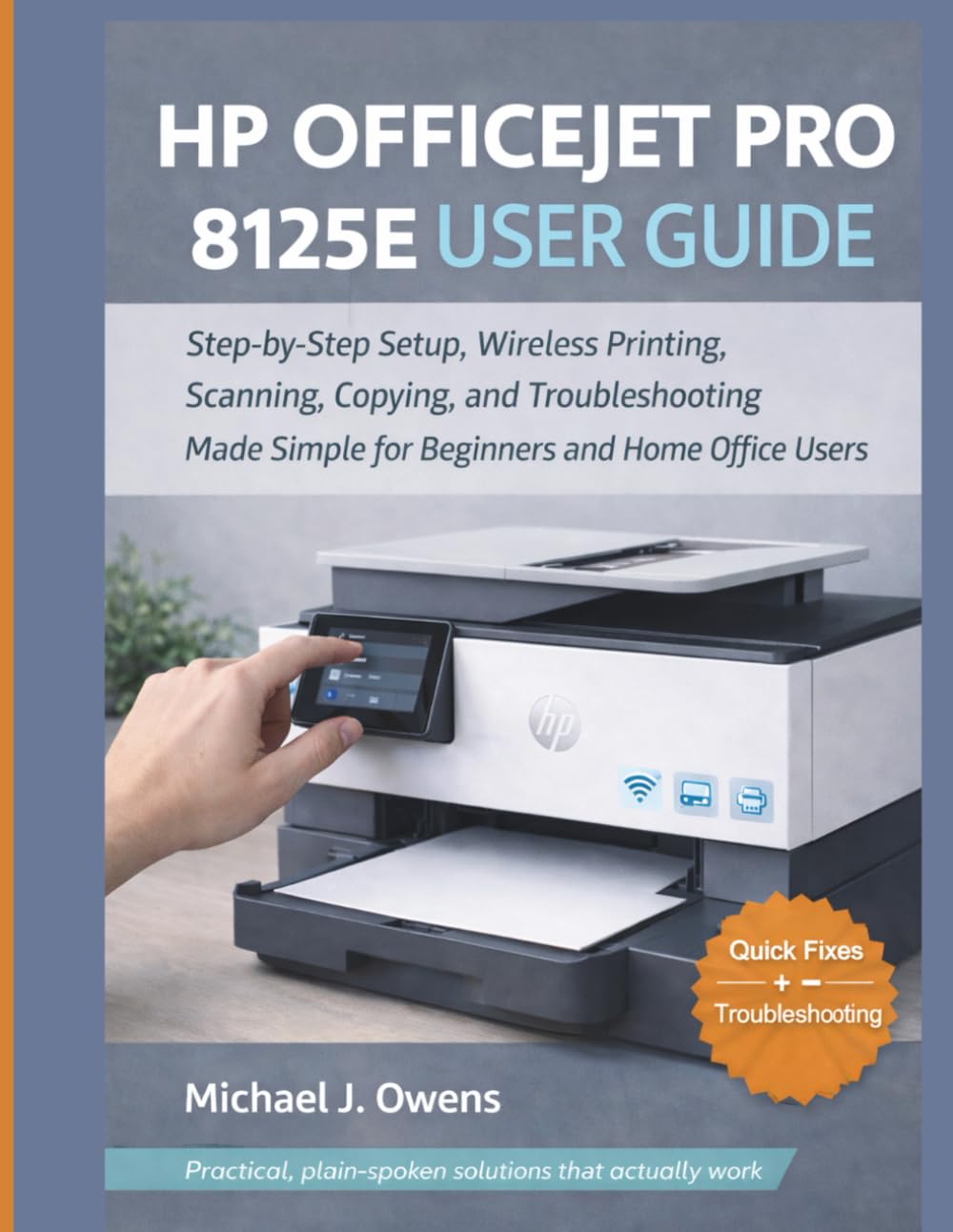
Image: Front cover of the HP OfficeJet Pro 8125e User Guide. This image represents the manual itself, designed to assist users with their printer.
1. Suidhich
1.1 Fosgladh a' bhogsa agus a' chiad chumhachd air
- Thoir air falbh gu faiceallach an clò-bhualadair bhon phacaid aige.
- Thoir air falbh na teipichean dìona agus na stuthan pacaidh uile bhon taobh a-muigh agus bhon taobh a-staigh den chlò-bhualadair.
- Ceangail an càball cumhachd ris a’ chlò-bhualadair agus an uair sin ri socaid balla.
- Brùth am putan cumhachd gus an clò-bhualadair a thionndadh air.
- Follow the on-screen prompts on the printer's control panel to select your language and region.
1.2 A’ stàladh chairtean inc
- Fosgail an doras inntrigidh cartridge inc.
- Fuirich gus an gluais carbad a’ chlò-bhualaidh chun an ionaid.
- Unpack the new ink cartridges.
- Cuir gach cartus a-steach don t-sliotan co-fhreagarrach aige, a’ dèanamh cinnteach gu bheil e a’ briogadh na àite.
- Dùin an doras inntrigidh cartridge inc.
1.3 Pàipear luchdachadh
- Tarraing a-mach an treidhe cuir a-steach.
- Atharraich na stiùiridhean pàipeir chun mheud pàipeir cheart.
- Load a stack of plain white paper into the tray, print side down.
- Brùth an treidhe cuir-a-steach air ais a-steach don chlò-bhualadair.
- Confirm paper type and size on the printer's control panel if prompted.
1.4 A’ ceangal ri Wi-Fi
- Air pannal smachd a’ chlò-bhualadair, seòl chun Draoidh Suidheachaidh Gun Uèir.
- Tagh an lìonra Wi-Fi agad bhon liosta de lìonraidhean a tha rim faighinn.
- Enter the Wi-Fi password (WPA key) when prompted.
- Confirm the connection. The wireless light on the printer should turn solid blue.
1.5 stàlaich draibhear
For Windows and Mac computers, download the latest drivers and HP Smart software from the official HP support weblàrach. Lean an stiùireadh air an sgrion rè an stàlaidh.
2. A’ cleachdadh a’ chlò-bhualadair
2.1 Clò-bhualadh Sgrìobhainnean
- Bho choimpiutair: Open the document, select "Print," choose your HP OfficeJet Pro 8125e, and adjust settings as needed before printing.
- From Mobile Devices (HP Smart App): Install the HP Smart app, add your printer, and use the app to print photos or documents directly from your smartphone or tablet.
- Email Print: If enabled, send documents to your printer's unique email address.
2.2 Sganadh Sgrìobhainnean
- Cuir an sgrìobhainn aghaidh sìos air glainne an sganair no aghaidh suas anns an t-siostam beathachaidh sgrìobhainnean fèin-ghluasadach (ADF).
- On the printer's control panel or via the HP Smart app/software on your computer, select "Scan."
- Choose scan settings (e.g., color, resolution, destination).
- Tòisich an sganadh.
2.3 A’ dèanamh lethbhreac de sgrìobhainnean
- Cuir an sgrìobhainn thùsail air glainne an sganair no san ADF.
- On the printer's control panel, select "Copy."
- Adjust settings such as number of copies, color/black & white, and size.
- Brùth air a’ phutan “Tòisich lethbhreac”.
3. Cumail suas
3.1 Cleaning the Print Heads
If print quality degrades (streaks, faded colors), perform a print head cleaning from the printer's control panel or the HP Smart software. This process uses ink, so only perform it when necessary.
3.2 A’ cur nan cartridsean inc an àite
When an ink cartridge is low or empty, the printer will notify you. Follow the steps in Section 1.2 to replace cartridges. Use genuine HP ink cartridges for best results.
3.3 Glanadh Coitcheann
Sguab taobh a-muigh a’ chlò-bhualadair le clò bog,amp, lint-free cloth. Clean the scanner glass regularly with a glass cleaner applied to a cloth (not directly to the glass) to prevent smudges from affecting scan quality.
4. A ’dèanamh trioblaid
| Trioblaid | Fuasgladh |
|---|---|
| Printer Offline Message |
|
| Jams pàipeir |
|
| Càileachd clò dona |
|
| HP Smart App Issues |
|
5. Sònrachaidhean
Note: The following specifications are typical for the HP OfficeJet Pro 8125e printer. For precise details, refer to the official HP product page or documentation.
- Gnìomhan: Print, Copy, Scan, Fax (optional, depending on region/model)
- Teicneòlas clò-bhualaidh: Inkjet teirmeach HP
- Astar Clò-bhualaidh (Dubh): Up to 22 ppm (ISO)
- Astar Clò-bhualaidh (Dath): Up to 18 ppm (ISO)
- Print Resolution (Best): Up to 4800 x 1200 optimized dpi color
- Scan Resolution (Optical): Suas gu 1200 dpi
- Ceangal: Wi-Fi 802.11a/b/g/n, Ethernet, USB 2.0
- Làimhseachadh pàipear: 250-sheet input tray, 60-sheet output tray, 35-sheet ADF
- Clò-bhualadh Duplex: Fèin-ghluasadach (àbhaisteach)
- Taisbeanadh: Sgrion touch dath
6. Barantas agus Taic
For warranty information, please refer to the documentation included with your printer or visit the official HP support website. HP provides various support resources, including online FAQs, driver downloads, and contact options for technical assistance.
Image: Back cover of the HP OfficeJet Pro 8125e User Guide. This image provides additional information and ISBN details for the manual.