
1. Ro-ràdh
This manual provides comprehensive instructions for the safe and efficient use of your HGFRTEE 27-inch 4K UHD 60Hz Monitor. Please read this manual thoroughly before operating the device and retain it for future reference.
The HGFRTEE 27-inch 4K UHD monitor features a 3840 x 2160 resolution IPS panel, 60Hz refresh rate, HDR10 support, 100% sRGB color gamut, and AMD FreeSync technology. It is designed for a wide range of applications, from professional work to casual entertainment.
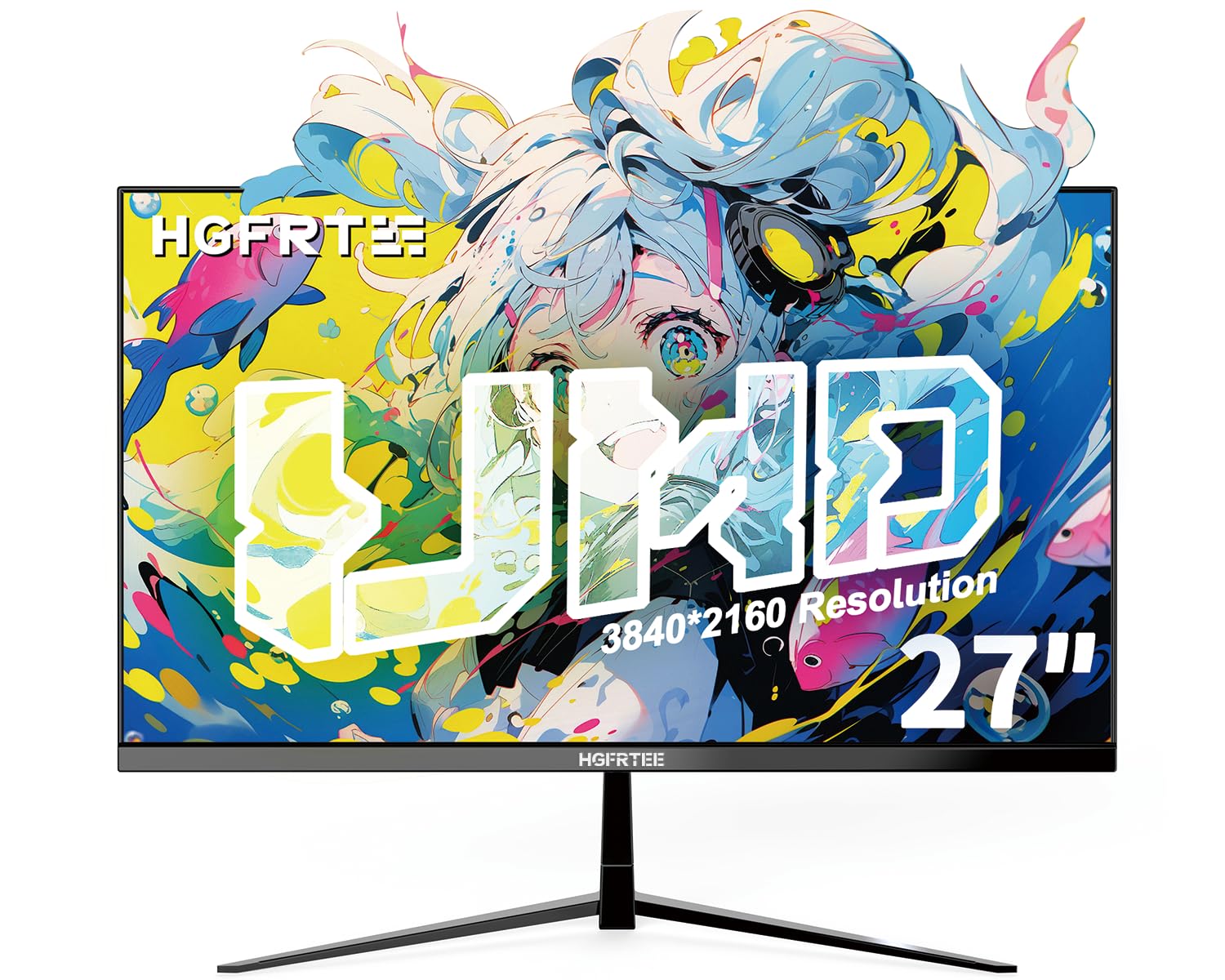
Dealbh 1.1: Aghaidh view of the HGFRTEE 27-inch 4K UHD Monitor.
2. Fiosrachadh Sàbhailteachd
Lean na ceumannan sàbhailteachd bunaiteach seo an-còmhnaidh gus cunnart teine, clisgeadh dealain agus leòn a lughdachadh:
- Na cuir an monitor fosgailte do uisge no taiseachd.
- Na fosgail am monitor casing. Thoir aire do luchd-obrach teisteanasach airson a h-uile seirbheis.
- Dèan cinnteach gu bheil fionnarachadh ceart timcheall air an monitor.
- Cleachd an inneal-atharrachaidh cumhachd a tha air a thoirt seachad leis a’ mhonatair a-mhàin.
- Seachain a bhith a’ cur an monitor air uachdar neo-sheasmhach.
- Clean the monitor with a soft, dry cloth. Do not use liquid cleaners or aerosol cleaners.
3. Pasgan-susbaint
Dèan cinnteach gu bheil a h-uile rud anns a’ phacaid agad:
- HGFRTEE 27-inch 4K UHD Monitor
- Seasamh Monitor (Bonn agus Amhaich)
- Adapter cumhachd
- Càball HDMI
- Càball DisplayPort
- Leabhar-làimhe cleachdaiche
4. Suidhich
4.1 Cruinneachadh an t-Seasaimh
- Carefully remove the monitor from its packaging, keeping it protected on a soft surface.
- Attach the stand neck to the monitor's rear mounting point.
- Daingnich bonn an t-seasamh ri amhach an t-seasamh a’ cleachdadh nan sgriothan a tha air an toirt seachad.
- Cuir am monitor cruinnichte air uachdar seasmhach, còmhnard.

Image 4.1: Illustrated steps for monitor stand assembly.
4.2 Stàladh VESA
The monitor supports VESA 100x100mm mounting. To mount the monitor on a wall or an alternative stand:
- Remove the original stand if it is already attached.
- Attach your VESA-compatible mount to the four screw holes on the back of the monitor using M4 screws (not included with the monitor, typically supplied with the VESA mount).
- Ensure the mount is securely fastened before releasing an sgrìn.
4.3 A’ ceangal ri inneal
The monitor features multiple input ports for connectivity:
- HDMI2.0: Connect to devices such as PCs, laptops, and gaming consoles.
- Taisbeanadh Port 1.4: Connect to PCs and graphics cards for high-resolution and refresh rate output.
- USB (Power): Airson cumhachd a thoirt do dh’ innealan taobh a-muigh.
- Fuaim a-mach: Connect external speakers or headphones (monitor does not have built-in speakers).
Gus ceangal a dhèanamh:
- Connect one end of the HDMI or DisplayPort cable to the corresponding port on your computer or device.
- Ceangail ceann eile a’ chàball ris an cuir a-steach HDMI no DisplayPort air an monitor.
- Connect the power adapter to the monitor's DC input and then plug it into a power outlet.

Dealbh 4.2: Cùl view den monitor a’ taisbeanadh puirt cuir-a-steach a tha rim faighinn.
5. Ag obrachadh an Monitor
5.1 Cumhachd air / dheth
Press the power button located on the back of the monitor to turn it on or off.
5.2 Seòladh Clàr-taice OSD
The monitor features a joystick control for navigating the On-Screen Display (OSD) menu. The controls are typically located on the back or bottom of the monitor.

Image 5.1: Diagram illustrating the monitor's control buttons and their functions.
- Putan Cumhachd: Tionndaidh an monitor air no dheth.
- 'E' Button: HDMI Port/DP Port Selection, Back/Exit Key.
- Saighead shuas: Increase value, Up Key.
- Saighead Down: Decrease value, Down Key.
- Putan 'M': Confirmation Key, Enter Submenu Key.
5.3 Roghainnean taisbeanaidh
Access the OSD menu to adjust various display settings:
- Gile / coimeas: Atharraich soilleireachd agus iomsgaradh iomlan an taisbeanaidh.
- Roghainnean dath: Fine-tune color temperature, gamma, and color space (e.g., sRGB).
- Tobar a-steach: Manually select between HDMI and DisplayPort inputs.
- Modh Dealbh: Select from preset modes (e.g., Standard, Game, Movie, Text).
- FreeSync: Enable or disable AMD FreeSync for adaptive synchronization with compatible graphics cards.
- HDR: Enable or disable HDR10 support for enhanced dynamic range.
- Cùram sùla: Activate features like flicker-free technology and blue light filter to reduce eye strain.
5.4 Feartan adhartach
- Motion Clarity (MEMC): This feature enhances motion smoothness by inserting black frames and optimizing motion processing, which can improve clarity in fast-moving scenes.
- Gaming Crosshairs: For gaming, the monitor offers six types of on-screen crosshairs to assist with aiming.

Image 5.2: Demonstration of Motion Clarity feature.

Ìomhaigh 5.3: Eisimpleiramples of gaming crosshairs.
6. Cumail suas
6.1 Glanadh an monitor
Gus scrion an monitor a ghlanadh agus casing:
- Cuir dheth an monitor agus thoir air falbh an sreang cumhachd.
- Cleachd clò bog, gun lint gus an sgrion a sguabadh gu socair. Airson comharran stòlda, cuir beagan sguab às.ampen the cloth with water or a specialized screen cleaner (ensure it is alcohol-free and ammonia-free).
- Sguab às an casing le clò bog, tioram.
- Do not spray cleaners directly onto the screen or into any openings.
6.2 Stòradh
If storing the monitor for an extended period, ensure it is powered off, unplugged, and stored in a cool, dry place away from direct sunlight and extreme temperatures. Use original packaging if available for best protection.
7. A ’dèanamh trioblaid
Thoir sùil air a’ chlàr a leanas airson cùisean cumanta agus na fuasglaidhean aca:
| Trioblaid | Adhbhar a dh’fhaodadh a bhith ann | Fuasgladh |
|---|---|---|
| Gun ìomhaigh air an sgrion | Chan eil an monitor air a chumhachdachadh; Cuir-a-steach ceàrr air a thaghadh; Càball bhidio sgaoilte. | Ensure power is connected and monitor is on; Select correct input source via OSD; Check video cable connections. |
| Image flickering or tearing | FreeSync not enabled or incompatible; Graphics driver issues; Cable quality. | Enable FreeSync in OSD and graphics card settings; Update graphics drivers; Try a different high-quality video cable. |
| Tha coltas ceàrr air na dathan | Color settings misconfigured; Faulty cable. | Reset color settings in OSD; Adjust color temperature; Try a different video cable. |
| Gun fhuaim bho chluas-cinn/luchd-labhairt | Càball claisneachd gun cheangal; Fuaim ro ìosal; Toradh claisneachd ceàrr air a thaghadh air a’ PC. | Ensure audio cable is securely connected to the monitor's audio out port; Adjust volume on connected device; Select monitor as audio output on your computer. |
Ma mhaireas an duilgheadas às dèidh dhut na fuasglaidhean seo fheuchainn, cuir fios gu taic luchd-cleachdaidh.
8. Sònrachaidhean
Below are the technical specifications for the HGFRTEE 27-inch 4K UHD Monitor (Model B270BZU06):
| Feart | Sònrachadh |
|---|---|
| Brand | HGFRTEE |
| Modail Àireamh | B270BZU06 |
| Meud sgrion | 27 òirlich |
| Fuasgladh | 4K UHD (3840 x 2160) |
| Ìre Ath-nuadhachaidh | 60 Hz |
| Àm Freagairt | 1 Millisecond (MPRT) |
| Seòrsa Taisbeanaidh | IPS LCD |
| Co-mheas taobh | 16:9 |
| Gamut dath | 100% sRGB |
| Taic HDR | HDR 10 |
| Adaptive Sync | AMD saor an asgaidh. |
| Viewann an Ceàrn | 178° (Còmhnard/Ingearach) |
| Ceangalachd | HDMI 2.0 (x2), DisplayPort 1.4 (x1), USB (Power), Audio Out (3.5mm) |
| Co-fhreagarrachd VESA | 100 x 100 mm |
| Ergonomics | Tilt Adjustment (-10° to 10°) |
| Meudan (W x H x D) | Approx. 612mm x 452mm x 210mm (with stand) |
| Cuideam | Mu thuairmeas. 4kg / 8.81 lbs |

Image 8.1: Monitor dimensions and key physical features.
9. Fiosrachadh Barantais
This HGFRTEE monitor is covered by a Barantas an Neach-dèanamh 2-bliadhna bho cheann-latha a’ cheannaich. Tha am barantas seo a’ còmhdach lochdan ann an stuthan agus obair-ciùird fo chleachdadh àbhaisteach. Chan eil e a’ còmhdach milleadh air adhbhrachadh le droch chleachdadh, tubaistean, atharrachaidhean gun chead, no adhbharan bhon taobh a-muigh.
Feuch an glèidh thu an dearbhadh ceannach agad airson tagraidhean barantais.
10. Taic teachdaiche
For technical assistance, warranty claims, or any questions regarding your HGFRTEE monitor, please contact our customer support team.
You can find more information and contact details on the official HGFRTEE store page: HGFRTEE Store on Amazon