
1. Ro-ràdh
Thank you for choosing the AULA G7 Pro Wireless Gaming Headset. This manual provides detailed instructions for setting up, operating, and maintaining your headset to ensure optimal performance and an immersive audio experience. Please read this manual thoroughly before using the product.
2. Toradh thallview
2.1 Susbaint a’ phacaid
The AULA G7 Pro package includes the following items:
- AULA G7 Pro Wireless Gaming Headset
- Micreofon Boom so-ruigsinneach
- Càball USB-C gu USB-A
- Càball claisneachd 3.5mm
- 2.4G Wireless USB-A Receiver
- Adaptor USB-C gu USB-A
- Leabhar-làimhe cleachdaiche
2.2 Headset Components and Controls
Familiarize yourself with the various parts and controls of your AULA G7 Pro headset.
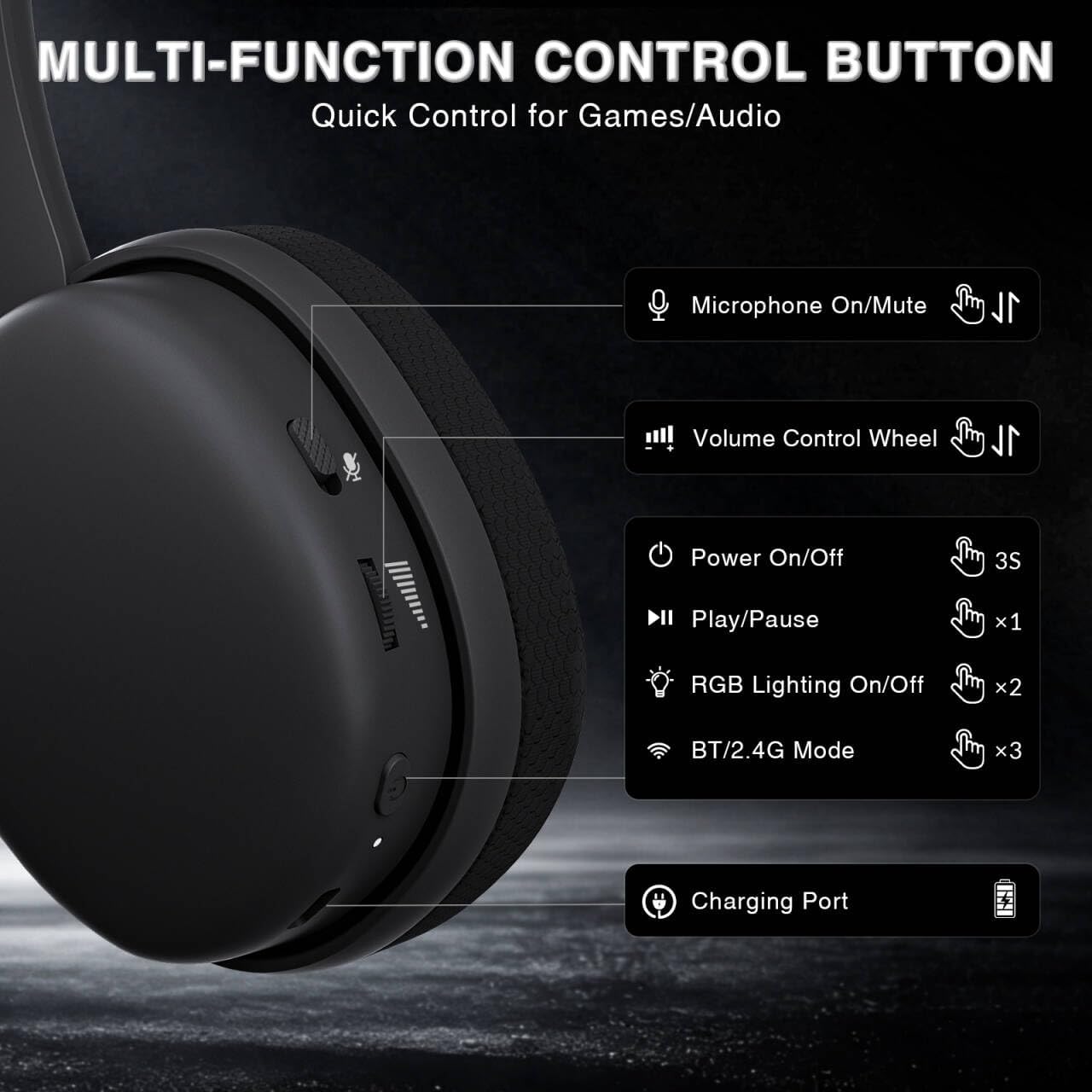
Image: Multi-function control buttons on the AULA G7 Pro headset, showing the microphone on/off toggle, volume control wheel, power switch, play/pause button, RGB lighting on/off button, BT/2.4G mode switch, and charging port.
- Microphone On/Off Toggle: Sleamhnachadh gus am micreofon a chuir dheth no a thoirt air falbh.
- Cuibhle smachd tomhas-lìonaidh: Atharraichidh seo meud an toraidh claisneachd.
- Switch cumhachd: Brùth agus cum airson 3 diogan gus cumhachd a thoirt air / dheth.
- Putan Cluich/Pause: Brùth aon uair gus claisneachd a chluich no stad.
- Solais RGB air / dheth: Press twice to toggle RGB lighting.
- BT/2.4G Mode Switch: Press three times to switch between Bluetooth and 2.4G wireless modes.
- Port cosgais: USB-C port for charging the headset.
- Jack claisneachd 3.5mm: Airson ceangal uèirleasach.
- Port microfòn: For attaching the detachable boom microphone.
Bhidio: Thar-shealladhview of the AULA G7 Pro Wireless Gaming Headset, showcasing its design, features, and different color options (black and pink).
3. Setup agus Ceangalachd
3.1 2.4G Wireless Connection (PC, PS5, PS4, Switch)
For low-latency gaming, use the 2.4G wireless connection.
- Insert the 2.4G USB-A receiver into an available USB port on your PC, PS5, PS4, or Nintendo Switch dock. If your device only has USB-C ports, use the provided USB-C to USB-A adapter.
- Power on the AULA G7 Pro headset by pressing and holding the power button for 3 seconds.
- The headset will automatically attempt to connect to the receiver. The indicator light on the headset will show a stable color once connected.
- On your device, ensure the audio output is set to the AULA G7 Pro headset.

Image: The AULA G7 Pro headset demonstrating its tri-mode connectivity options: 3.5mm wired, Bluetooth 5.3, and 2.4G wireless with USB-C and USB-A receivers, compatible with various devices including PC, PS5, PS4, Switch, and smartphones.
3.2 Bluetooth 5.3 Connection (PC, Smartphones, Tablets)
Connect your headset via Bluetooth for general use with compatible devices.
- Power on the AULA G7 Pro headset.
- Press the BT/2.4G mode switch three times to enter Bluetooth pairing mode. The indicator light will flash.
- On your device (PC, smartphone, tablet), go to Bluetooth settings and search for available devices.
- Select "AULA G7 Pro" from the list to pair. The indicator light on the headset will become stable once connected.
3.3 3.5mm Wired Connection (Xbox, PC, PS5, PS4, Switch, Smartphones)
Use the 3.5mm audio cable for a universal wired connection, especially for Xbox consoles.
- Ceangail aon cheann den chàball claisneachd 3.5mm ris an t-seacaid claisneachd 3.5mm air a’ chluas-cinn.
- Connect the other end of the 3.5mm audio cable to the audio output port of your device (e.g., Xbox controller, PC audio jack).
- The headset will operate in wired mode. Note that some advanced features like virtual 7.1 surround sound may not be available in wired mode, depending on the device.
4. Stiùireadh Obrachaidh
4.1 Cleachdadh a’ Mhaicreafòin
The AULA G7 Pro features a detachable noise-canceling microphone.
- A 'ceangal a' mhicreofon: Align the 3.5mm plug of the boom microphone with the microphone port on the headset and insert it firmly.
- A’ cur às do mhùchadh/a’ cur às do mhùchadh: Use the microphone on/off toggle switch on the headset to quickly mute or unmute your microphone.
- Sguir dheth fuaim: The 360° omnidirectional microphone filters out approximately 80% of background noise. For enhanced noise cancellation and voice clarity, install the driver software (Windows 2.4G mode only).
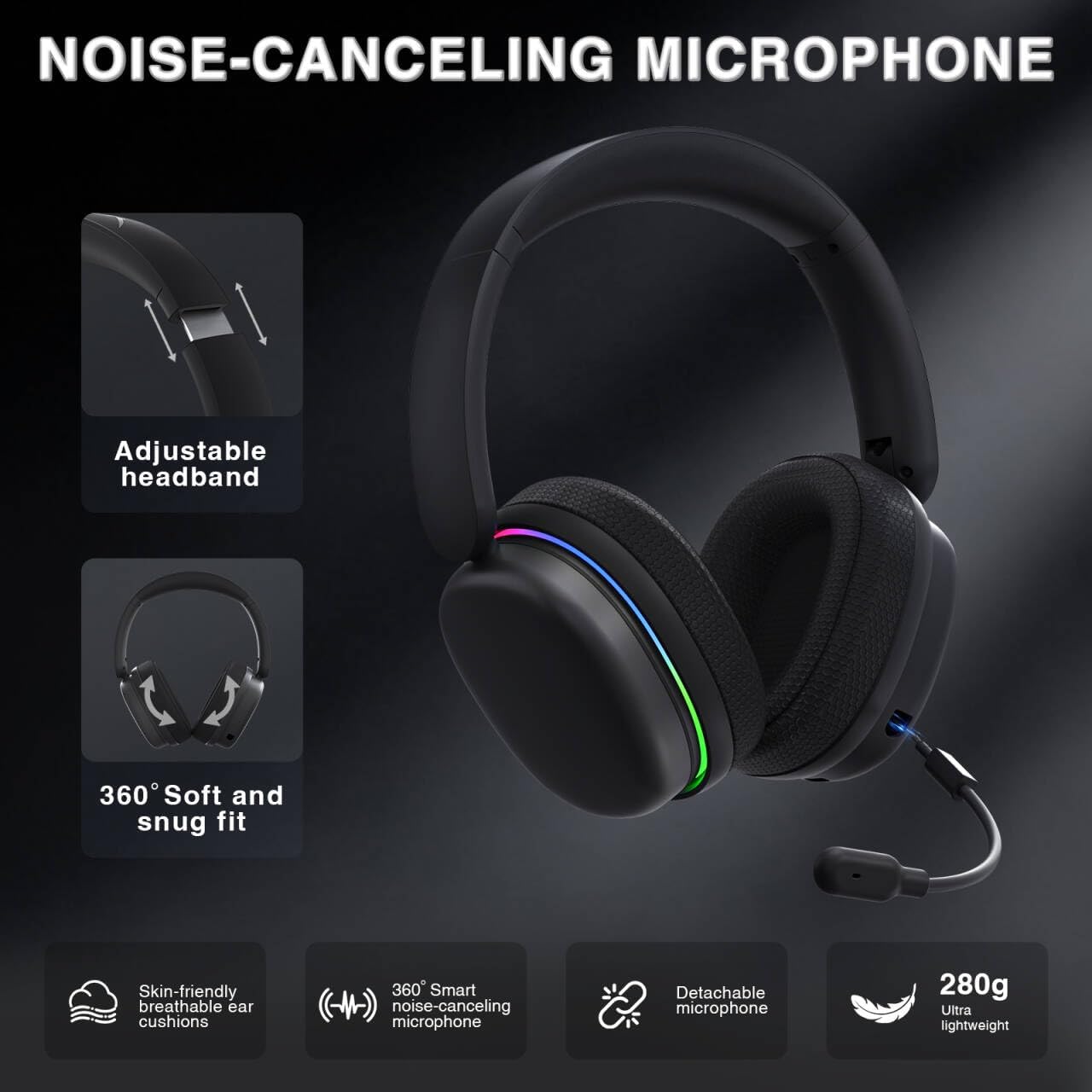
Image: The AULA G7 Pro headset highlighting its adjustable headband, soft and snug fit, skin-friendly breathable ear cushions, 360° smart noise-canceling microphone, detachable microphone, and ultra-lightweight 280g design.
4.2 Virtual 7.1 Surround Sound and EQ Software
Experience immersive audio with virtual 7.1 surround sound and customize your sound profile.
- Fuaim Timcheallach Brìgheil 7.1: Available in Windows 2.4G mode, this feature provides precise audio positioning for gaming.
- EQ Software: Luchdaich a-nuas is a stàladh an draibhear bho soaidriver.com (Windows 2.4G mode only). The software allows for customizable EQ settings, dynamic bass boost, vocal enhancement, and voice morphing.
- Nota Stàladh: First, insert the 2.4G receiver into your computer, then install the driver. After entering the driver interface, right-click the icon on the left side of the screen to access the audio settings menu.
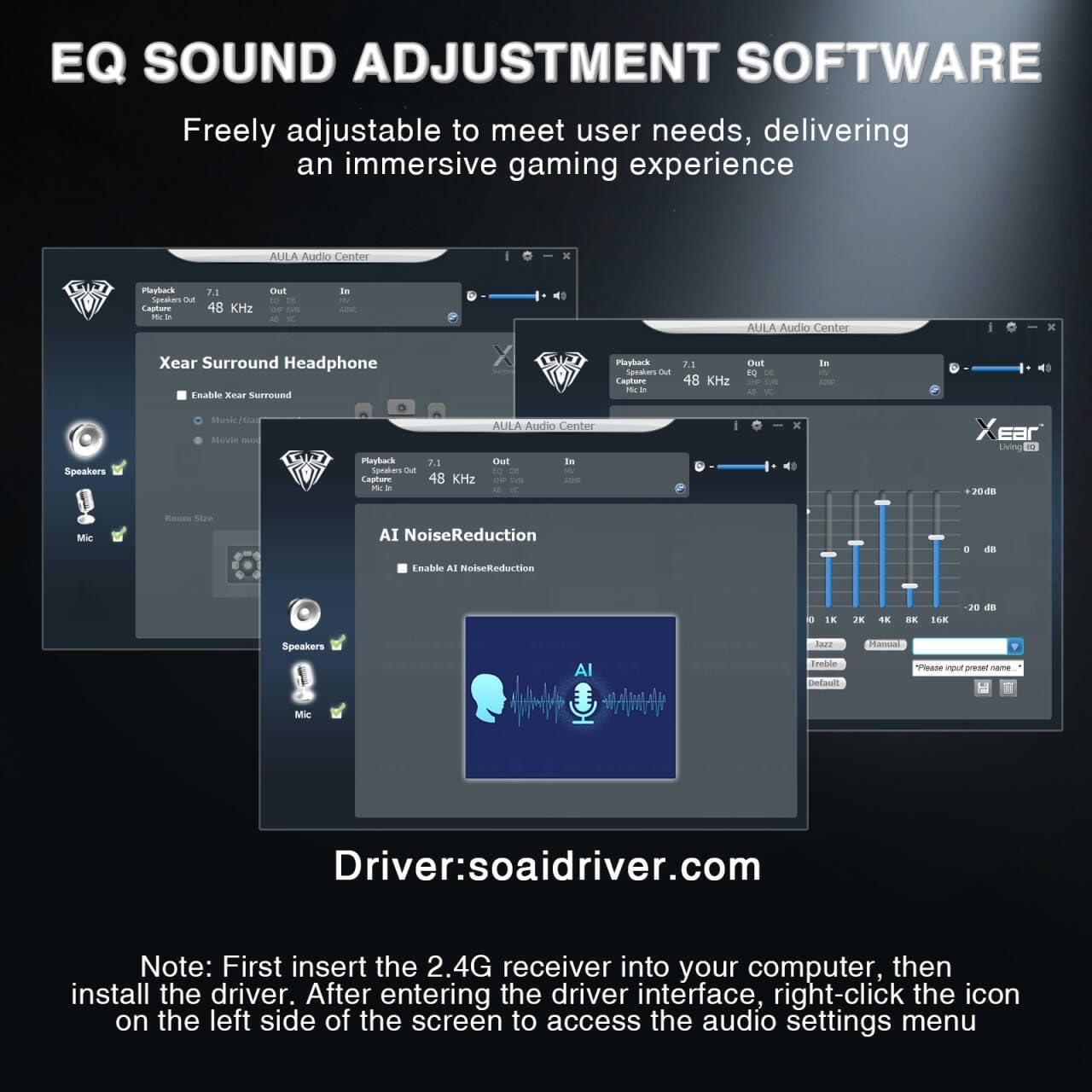
Image: Screenshots of the AULA Audio Center software interface, showing options for Xear Surround Headphone, AI Noise Reduction, and Equalizer settings for sound customization.
Solais RGB 4.3
The headset features 16 million-color RGB lighting.
- Toggle RGB: Press the RGB Lighting On/Off button twice to activate or deactivate the lighting.
- Sioncronachadh: RGB lighting can synchronize with gaming peripherals for an immersive atmosphere.
5. Cosgais agus Beatha Bataraidh
The AULA G7 Pro is equipped with a 1000mAh rechargeable battery.
- A' cur cosgais: Connect the USB-C charging cable to the headset's charging port and the other end to a USB power source (e.g., computer, wall adapter). The indicator light will show charging status.
- Beatha bataraidh: Up to 65 hours of playback with RGB lighting off, and approximately 20 hours with RGB lighting activated.
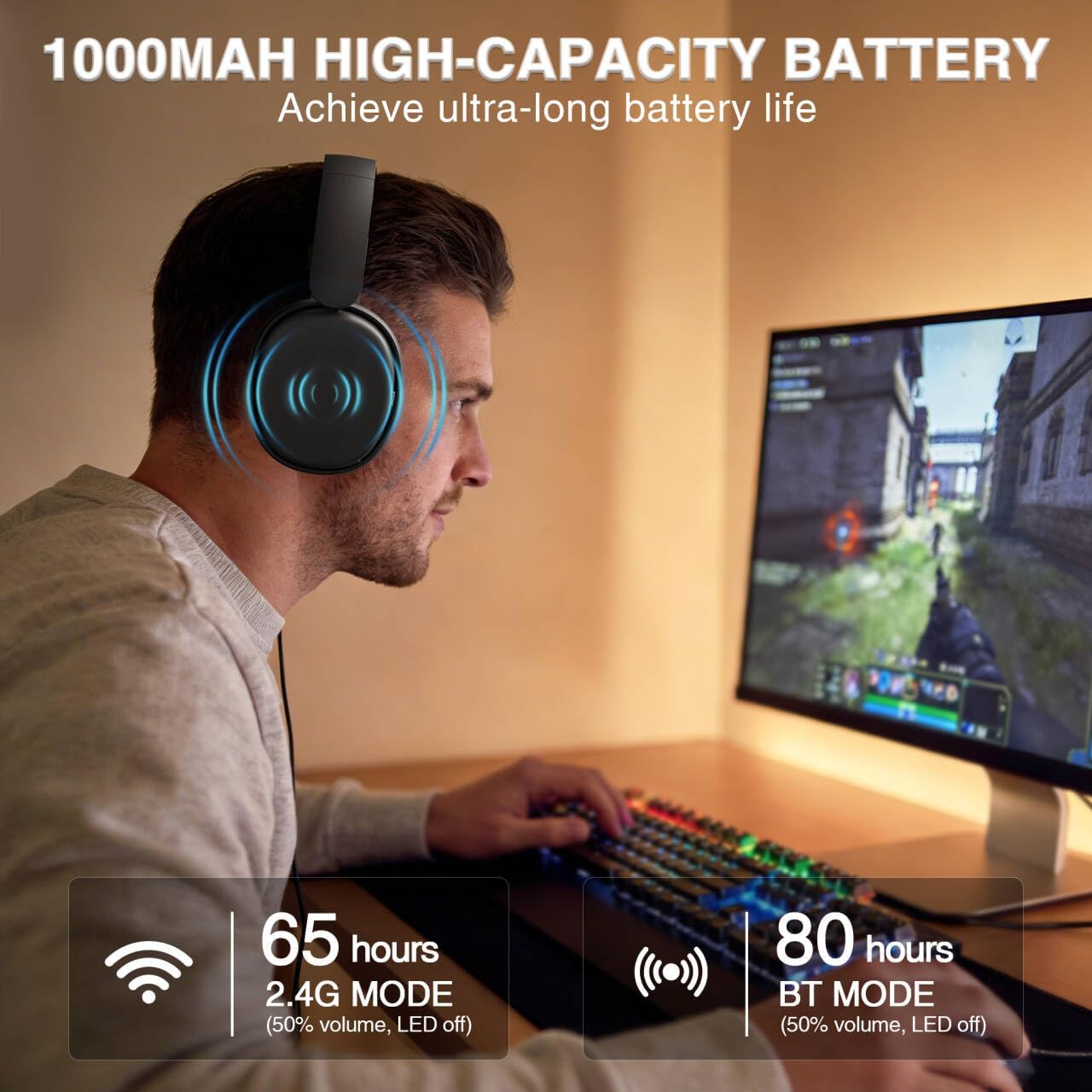
Image: A user wearing the AULA G7 Pro headset while gaming, illustrating the 65 hours of battery life in 2.4G mode (50% volume, LED off) and 80 hours in BT mode (50% volume, LED off).
6. Comhfhurtachd agus Dealbhadh
The headset is designed for extended wear comfort.
- Cuideam aotrom: Weighing 280g, the headset is designed to minimize pressure during long gaming sessions.
- Suidheachadh ergonomic: Features an ergonomic headband with protein leather padding and breathable mesh ear cushions.
- Co-fhreagarrach: An 8-position adjustable steel frame and 360° acoustic chamber conform to facial contours, with micro-adjustable horizontal angles for a personalized fit.
7. Sònrachaidhean
| Feart | Mion-fhiosrachadh |
|---|---|
| Brand | AULA |
| Ainm Modail | G7Pro |
| Teicneòlas ceangail | 2.4G Wireless, BT5.3, Wired (3.5mm Jack) |
| Tionndadh Bluetooth | 5.3 |
| Meud driver fuaim | 40 millimeters |
| bacadh | 32 Ach |
| Smachd fuaim | Cur às do fhuaim gnìomhach (micreafòn) |
| Comas Bataraidh | 1000 mAh |
| Beatha Bataraidh (RGB dheth) | Up to 65 Hours (2.4G Mode), Up to 80 Hours (BT Mode) |
| Cuideam | 280g |
| Innealan co-fhreagarrach | PC, PS5, PS4, Switch, Smartphones, Xbox (wired mode only) |
8. A ’dèanamh trioblaid
If you encounter issues with your AULA G7 Pro headset, refer to the following common solutions:
- Gun fhuaim:
- Dèan cinnteach gu bheil an headset air a chumhachdachadh agus air a luchdachadh.
- Check that the correct audio output device is selected in your system settings.
- Verify the volume control wheel on the headset is not at minimum.
- For 2.4G/BT modes, ensure the headset is properly paired/connected. Try re-pairing if necessary.
- For wired mode, ensure the 3.5mm cable is fully inserted into both the headset and the device.
- Micreofon gun a bhith ag obair:
- Dèan cinnteach gu bheil am micreofon a ghabhas toirt air falbh ceangailte gu tèarainte.
- Check the microphone on/off toggle switch on the headset is in the 'on' position.
- Dearbhaich gu bheil an inneal cuir-a-steach micreofoin ceart air a thaghadh ann an roghainnean an t-siostaim agad.
- Ensure the microphone is not muted in your operating system or communication software.
- Connectivity Issues (2.4G/Bluetooth):
- Ensure the headset is within range of the receiver/device.
- Seachain bacadh làidir electromagnetic bho innealan gun uèir eile.
- Feuch ri an headset agus an inneal ceangailte ath-thòiseachadh.
- For 2.4G, try plugging the receiver into a different USB port.
- 7.1 Surround Sound Not Working:
- Ensure you are in 2.4G wireless mode on a Windows PC.
- Verify that the AULA driver software is installed and configured correctly.
9. Cumail suas
Gus dèanamh cinnteach gum mair do chluas-cinn fad-beatha agus gum bi iad ag obair gu h-iomchaidh, lean na stiùiridhean cumail suas seo:
- Glanadh: Cleachd clò bog, tioram airson na headset a ghlanadh. Na cleachd innealan-glanaidh sgrìobach no fuasglaidhean.
- Stòradh: Stòraich na headset ann an àite fionnar, tioram air falbh bho sholas dìreach na grèine agus teòthachd anabarrach.
- Cùram càball: Seachain lùban biorach no cus tarraing air na càbaill gus casg a chur air milleadh.
- Cùram Bataraidh: For optimal battery life, avoid fully discharging the battery frequently. Charge the headset regularly, even if not in use for extended periods.
10. Barantas agus Taic
10.1 Fiosrachadh Barantais
The AULA G7 Pro Wireless Gaming Headset comes with a Barantas 1-bliadhna bho cheann-latha a’ cheannaich. Tha am barantas seo a’ còmhdach lochdan saothrachaidh agus obair-ciùird fo chleachdadh àbhaisteach. Chan eil e a’ còmhdach milleadh air adhbhrachadh le droch chleachdadh, tubaistean, atharrachaidhean gun chead, no caitheamh is deòir àbhaisteach.
10.2 Taic teachdaiche
For technical assistance, warranty claims, or any questions regarding your AULA G7 Pro headset, please contact AULA customer support through the retailer where you purchased the product or visit the official AULA weblàrach-lìn airson fiosrachadh conaltraidh.
Please have your purchase receipt and product model number (G7 Pro) ready when contacting support.