
1. Ro-ràdh
The Strong 4G LTE N300 WiFi Router provides high-speed internet access using a 4G SIM card, offering reliable Cat4 LTE speeds up to 150 Mbps and stable N300 Mbps Wi-Fi coverage. This device is designed for easy setup and use, supporting up to 32 devices simultaneously, making it suitable for both home and small office environments where wired broadband may not be available.
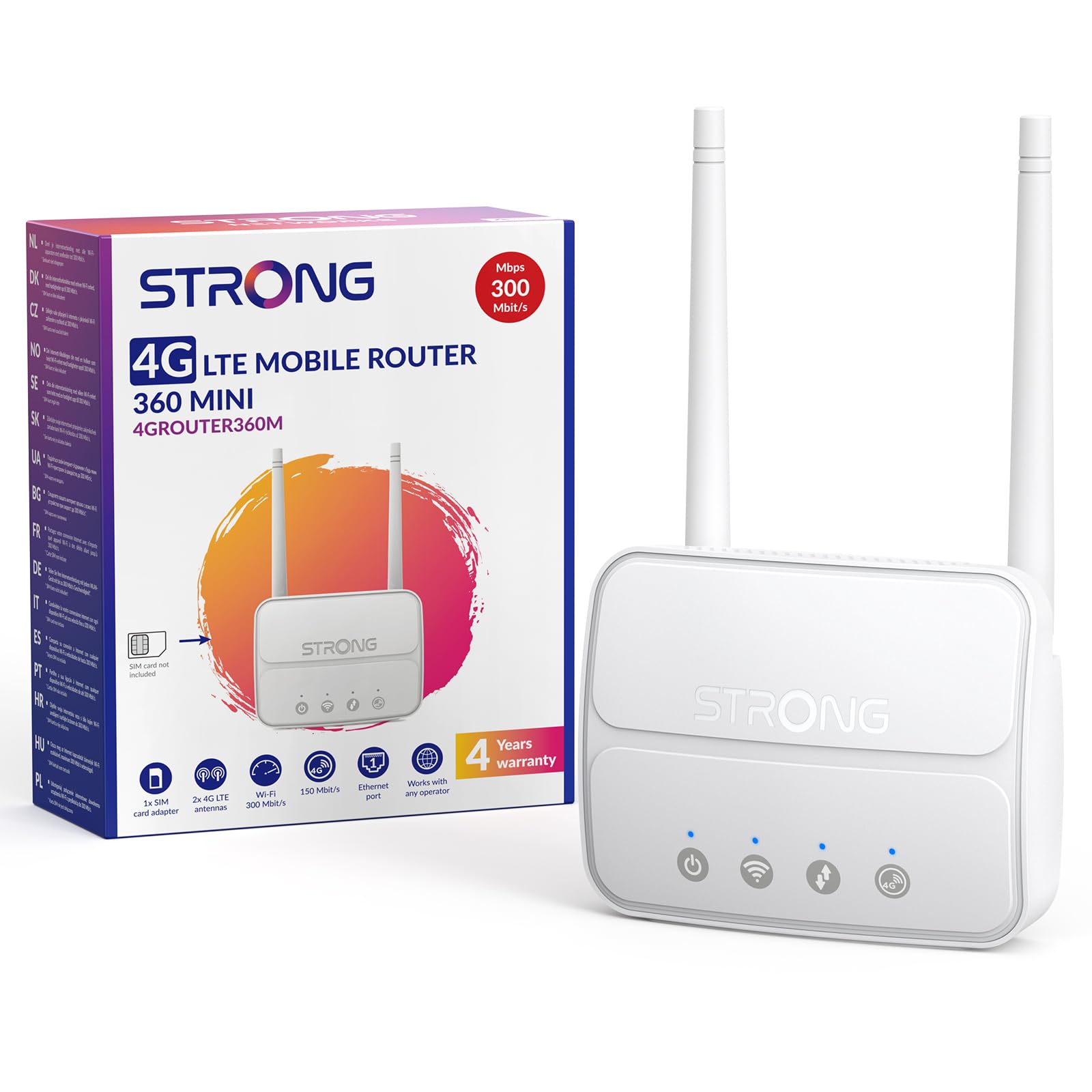
Image 1: The Strong 4G LTE N300 WiFi Router, a compact device with two external antennas for enhanced signal reception.
2. Dè tha sa bhogsa
Thoir sùil gheur air susbaint a’ phacaid. Ma tha rud sam bith a dhìth no air a mhilleadh, cuir fios gu taic luchd-cleachdaidh.
- Strong 4G LTE N300 WiFi Router
- External Antennas (2 units)
- Càball Ethernet RJ45
- Solarachadh cumhachd taobh a-muigh
- Nano to Micro SIM Card Adapter
- Stiùireadh stàlaidh luath
- Cairt Sàbhailteachd is Barantais
3. Stiùirich rèiteachaidh
Follow these steps for a quick and easy setup of your Strong 4G LTE N300 WiFi Router.
3.1. Prepare Your SIM Card
Before inserting your SIM card, ensure that any PIN protection is disabled. You can do this by inserting the SIM card into a smartphone and disabling the PIN request through the phone's settings.
3.2. Insert the SIM Card
- Locate the SIM card slot on the router.
- If you have a Nano SIM, use the provided Nano to Micro SIM adapter to fit it into the standard SIM slot.
- Gently insert the prepared SIM card into the slot until it clicks into place.
3.3. Attach External Antennas
Screw the two external 4G antennas onto the designated connectors at the back of the router. Adjust their orientation for optimal signal reception.
3.4. Power On the Router
Connect the external power supply to the router's DC-in port and then plug it into a power outlet. The router will automatically power on and begin the startup sequence.
3.5. Connect to the Network (Plug & Play)
The router is designed for Plug & Play operation. Once powered on and with a valid SIM card, it will automatically connect to the 4G LTE network. You can then connect your devices via Wi-Fi or Ethernet.

Image 2: Visual guide for SIM card insertion and powering on the router for instant connection. The image also shows the SIM card slot supporting standard, micro, and nano SIMs with an adapter.
3.6. A 'faighinn cothrom air an Web Eadar-aghaidh
For advanced settings and network management, access the router's web eadar-aghaidh le bhith a’ taipeadh 192.168.188.1 a-steach do web browser's address bar. Refer to the Quick Installation Guide for default login credentials.
4. Stiùireadh Obrachaidh
This section details how to use your Strong 4G LTE N300 WiFi Router for optimal performance.
4.1. Innealan ceangail
The router supports connections for up to 32 devices simultaneously.
- Ceangal Wi-Fi: Locate the Wi-Fi network name (SSID) and password printed on the label at the bottom of the router. Select this network on your device and enter the password to connect.
- Ceangal Ethernet: Use an RJ45 Ethernet cable to connect devices such as PCs, game consoles, or Smart TVs to the router's 100 Mbps LAN port for a stable wired connection.
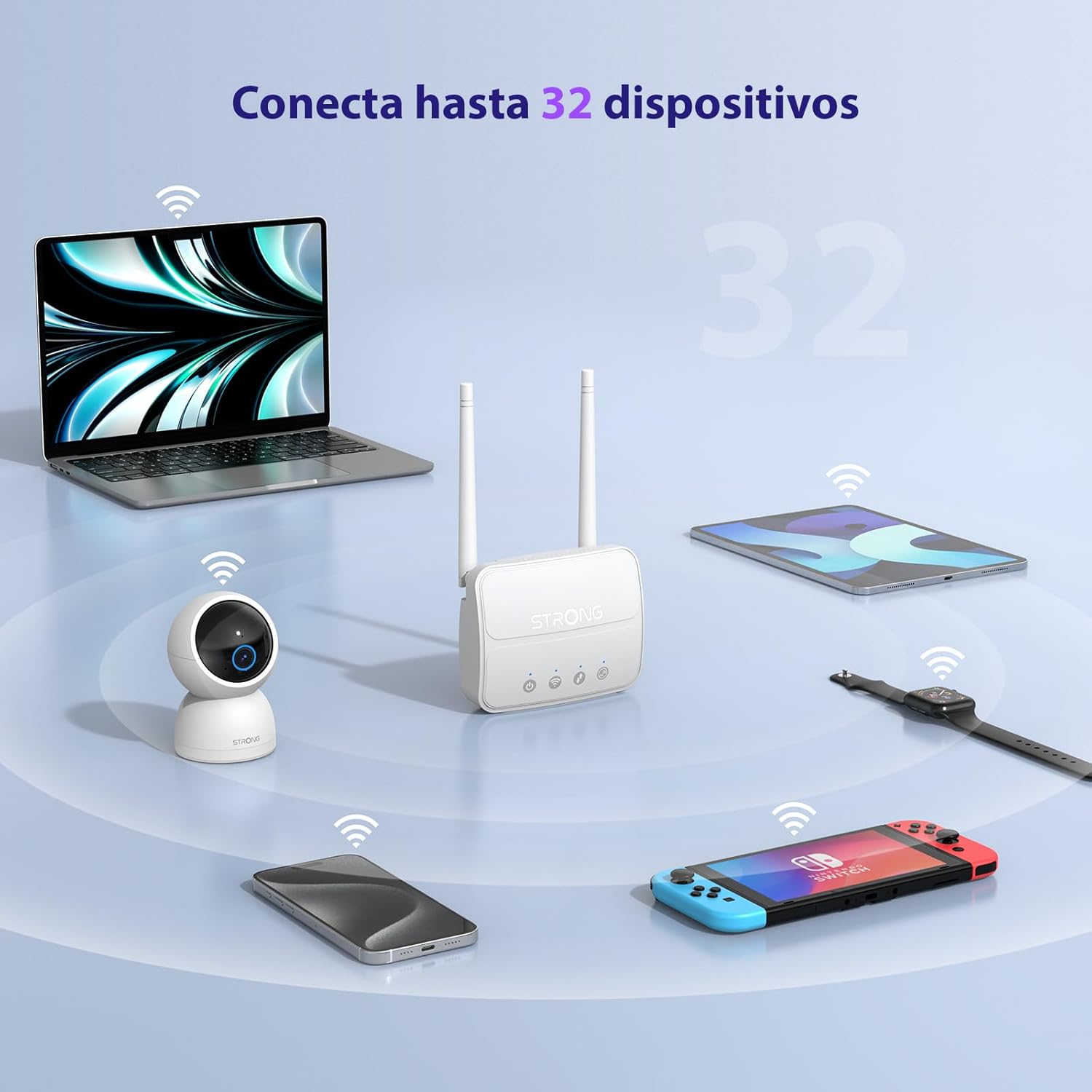
Image 3: The router connecting various devices including laptops, tablets, smartphones, and gaming consoles, demonstrating its capacity for up to 32 simultaneous connections.
4.2. Network Management and Security
The router offers robust security features to protect your network:
- Crioptachadh WPA / WPA2: Ensures secure wireless communication.
- PIN Control: Manage SIM card PIN settings.
- Criathradh MAC: Control which devices can connect to your network based on their MAC addresses.
- Advanced Firewall Settings: Customize firewall rules for enhanced protection.
All these settings can be managed through the easy-to-use web eadar-aghaidh (192.168.188.1).

Image 4: A user managing network settings on a laptop, illustrating the router's WPA/WPA2 encryption and PIN control features for secure network management.
5. Cumail suas
Nì cumail suas ceart cinnteach gum mair an router agad fad-beatha agus gum bi e ag obair gu math.
- Glanadh: Cleachd clò bog, tioram gus taobh a-muigh an router a ghlanadh. Na cleachd innealan-glanaidh leaghaidh no aerosols.
- Suidheachadh: Cuir an router ann an àite le deagh fhionnarachadh, air falbh bho sholas dìreach na grèine, stòran teas, agus raointean electromagnetic làidir.
- Ùrachaidhean firmware: The router features a USB port specifically for firmware updates. Regularly check the Strong official website for the latest firmware versions to ensure improved performance and security. Follow the instructions provided with the firmware update package carefully.
6. A ’dèanamh trioblaid
If you encounter issues with your router, refer to the following common troubleshooting steps:
- Gun cheangal eadar-lìn:
- Ensure the SIM card is correctly inserted and has an active data plan.
- Verify that the SIM card's PIN protection is disabled.
- Check the signal strength indicators on the router. If the signal is weak, try adjusting the external antennas or relocating the router.
- Ath-thòisich an router le bhith a’ dì-phlugadh agus ag ath-phlugadh an inneal-atharrachaidh cumhachd.
- Wi-Fi gun fhaicinn no a’ ceangal:
- Ensure the Wi-Fi function is enabled (check the router's LED indicators).
- Verify you are entering the correct Wi-Fi password (SSID and password are on the router's label).
- Try connecting a device via Ethernet to confirm the router has internet access.
- Luas mall:
- Check the 4G signal strength. Weak signal can lead to slower speeds.
- Dèan cinnteach nach eil aplacaidean no innealan eile a’ cleachdadh cus leud-bann.
- Consider the number of connected devices; the router supports up to 32, but performance may vary with heavy usage.
- Chan urrainnear faighinn thuige Web Eadar-aghaidh:
- Dèan cinnteach gu bheil an inneal agad ceangailte ri lìonra an router (Wi-Fi no Ethernet).
- Confirm you are typing the correct IP address: 192.168.188.1.
- Feuch fear eile web bhrabhsair.
If these steps do not resolve the issue, please contact Strong customer support.
7. Sònrachaidhean
Detailed technical specifications for the Strong 4G LTE N300 WiFi Router (Model 4GROUTER360M).
| Feart | Sònrachadh |
|---|---|
| Brand | Làidir |
| Ainm Modail | 4 GROUTER360M |
| Teicneòlas ceangail | 4G, Ethernet, LTE, Wi-Fi |
| Inbhe gun uèir | 802.11n (N300 Mbps) |
| Astar 4G LTE | Up to 150 Mbps (Cat4) |
| puirt Ethernet | 1 x 100 Mbps LAN Port |
| Slot Cairt SIM | Standard (2FF), includes Nano to Micro adapter |
| Seòrsa Antenna | 2 x External, Detachable 4G Antennas; 2 x Internal Wi-Fi Antennas |
| Innealan Ceangailte Max | Suas gu 32 |
| Feartan tèarainteachd | WPA/WPA2 Encryption, PIN Control, MAC Filtering, Firewall |
| Siostam-obrachaidh | StrongOS |
| Meudan (Pasgan) | 18.1 x 15.6 x 7.3 cm |
| Cuideam toraidh | 204 g |
| Solar cumhachd | Adaptor Cumhachd Taobh a-muigh |
| Feartan sònraichte | Secure Network Management, Plug & Play, Connect up to 32 devices, USB port for firmware updates |
8. Barantas agus Taic
Strong is committed to providing reliable products and excellent customer service.
8.1. Fiosrachadh Barantais
Your Strong 4G LTE N300 WiFi Router comes with a 4-year protection plan, ensuring long-term peace of mind. Please refer to the included Safety and Warranty Card for detailed terms and conditions.
8.2. Taic teachdaiche
For any technical assistance, troubleshooting, or warranty inquiries, please contact our expert support team:
- Post-d: taic_at@strong-eu.com
Our support team offers solid service and extended coverage to assist you.

Image 5: Visual representation of Strong's reliable support, highlighting the 4-year protection and contact email for assistance.