
1. Ro-ràdh
Thank you for choosing the ELECROW 5-inch IPS Touch Screen Monitor. This compact display offers a high-definition visual experience with responsive touch functionality, designed for a wide range of applications including single-board computers and mini PCs. This manual provides essential information for the proper installation, operation, and care of your device.

The ELECROW 5-inch IPS Touch Screen Monitor, a versatile display solution.
Am measg nam prìomh fheartan tha:
- HD Display Experience: 5-inch IPS capacitive touchscreen with a 1024 x 600 resolution, 178° viewing angle, and support for up to 1080P signal input.
- Responsive Touch: Supports 5-point multi-touch on Windows and single-touch on Raspberry Pi/Jetson Nano.
- Plug-and-Play furasta: No additional drivers required for most compatible systems.
- Gnìomhan proifeiseanta: Features a headphone jack for audio output and a built-in OSD menu for display adjustments.
2. Dè tha sa bhogsa
Dèan cinnteach gu bheil na nithean gu lèir a tha air an liostadh gu h-ìosal air an toirt a-steach don phacaid agad:
- 1x Sgrion-suathaidh 5-òirleach
- 1x HD Cable (1m)
- 1x USB-A to USB-C Cable (1m)
- 1x Micro-HD Adapter (for Raspberry Pi 4B & 5)
- 4x Hexagonal Copper Standoff Kit (M2.5)
- 2x Pro Stand
- 1x screwdriver
- 1x User Manual (Quick Start Guide)
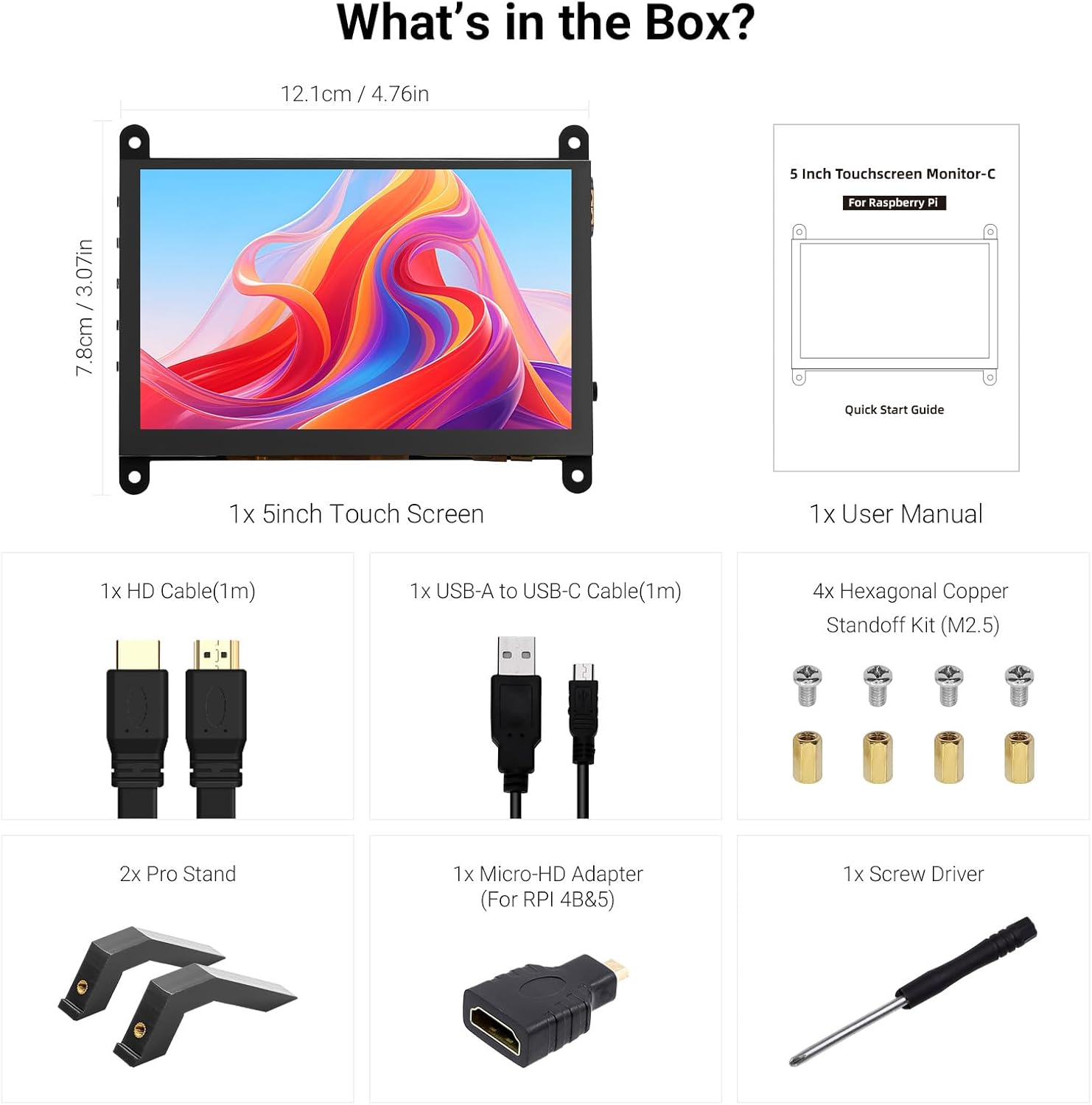
A h-uile pàirt a tha air a ghabhail a-steach sa phacaid toraidh.
3. Toradh thallview
Familiarize yourself with the ports and buttons on your ELECROW 5-inch Touch Screen Monitor:

Gu mionaideach view of the monitor's ports and control buttons.
- HD Input Port: Airson cuir a-steach comharra bhidio.
- Port USB-C: For power supply and touch signal transmission.
- Jack Headphone 3.5mm: Airson toradh claisneachd.
- Putan Clàr-taice: A’ faighinn cothrom air a’ chlàr-taice Taisbeanadh Air-sgrion (OSD).
- Left/Up Button: Navigates left or up in the OSD menu.
- Right/Down Button: Navigates right or down in the OSD menu.
- Putan Tilleadh: Exits a menu or returns to the previous option.
- Putan Cumhachd: Tionndaidh an taisbeanadh air no dheth.
- 20P-FPC-0.5mm Display Port: For flexible cable expansion in embedded systems.
4. Stiùireadh Stèidheachaidh
Follow these steps to connect your ELECROW 5-inch Touch Screen Monitor to a compatible device:
4.1 Connecting to Raspberry Pi
- Connect HD Cable: Use the provided HD cable to connect the monitor's HD Input Port to the HDMI port on your Raspberry Pi. If using Raspberry Pi 4B or 5, use the included Micro-HD adapter.
- Ceangail USB càball: Connect the USB-C port on the monitor to a USB-A port on your Raspberry Pi using the provided USB-A to USB-C cable. This supplies power to the monitor and enables touch functionality.
- Cumhachd air: Power up your Raspberry Pi. The display should automatically detect the signal and power on.
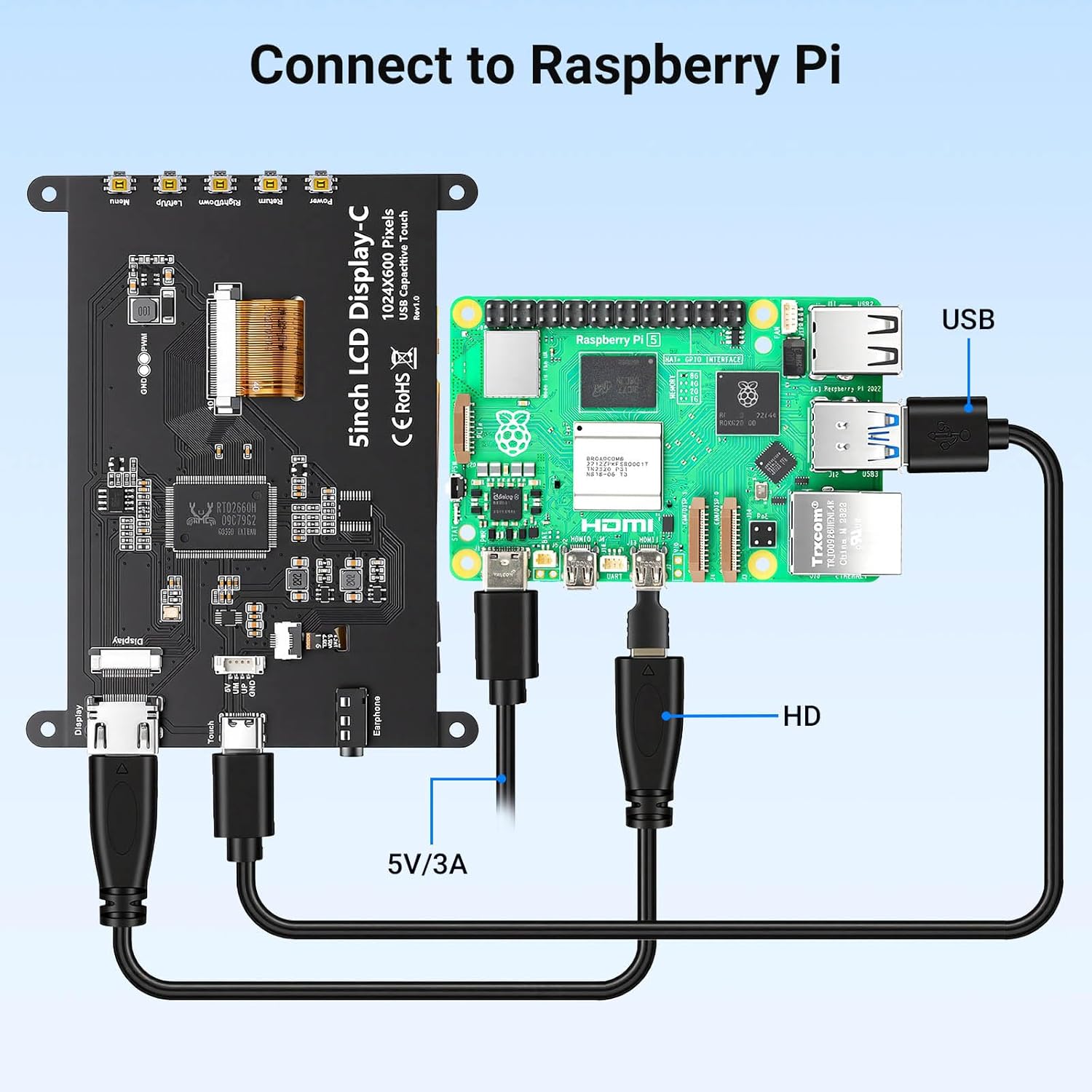
Connection diagram for Raspberry Pi.
4.2 Connecting to Windows PC/Laptop
- Connect HD Cable: Use the provided HD cable to connect the monitor's HD Input Port to the HDMI port on your PC/laptop.
- Ceangail USB càball: Connect the USB-C port on the monitor to a USB-A port on your PC/laptop using the provided USB-A to USB-C cable. This provides power and enables touch functionality.
- Cumhachd air: Power on your PC/laptop. The display should be recognized automatically. No additional drivers are typically required for Windows 7/8/10/11.
5. Stiùireadh Obrachaidh
5.1 Gnìomh Bunaiteach
- Cumhachd air / dheth: Press the Power Button (8) to turn the display on or off.
- Gnìomh suathaidh: The monitor features a capacitive touchscreen. On Windows systems, it supports 5-point multi-touch. On Raspberry Pi (Raspbian, Ubuntu, Kali, Retropie) and Jetson Nano, it supports single-touch operation.

Responsive touch experience for various devices.
5.2 Seòladh Clàr-taice OSD
The On-Screen Display (OSD) menu allows you to adjust various display settings:
- Brùth an Menu Button (4) gus an clàr OSD fhosgladh.
- Cleachd an Left/Up Button (5) agus Right/Down Button (6) to navigate through menu options.
- Brùth an Menu Button (4) a-rithist gus roghainn a thaghadh no suidheachadh a dhearbhadh.
- Brùth an Putan Tilleadh (7) to exit the current menu or return to the previous level.
Common adjustable settings include Brightness, Contrast, and other display parameters.
5.3 Toradh Fuaim
Connect headphones or external speakers to the 3.5mm Headphone Jack (3) for audio output from the connected device.
6. Co-fhreagarrachd
The ELECROW 5-inch Touch Screen Monitor offers broad compatibility with various operating systems and hardware platforms:
- Siostaman-obrachaidh: Raspbian, Ubuntu, Kali, Retropie, Windows 7/8/10/11, Windows 10 IoT.
- Innealan co-fhreagarrach: Raspberry Pi 5, Raspberry Pi 4, Raspberry Pi 3 B+, BB Black, Banana Pi, Jetson Nano, PS4, Xbox.

Broad compatibility with popular operating systems and devices.
7. Sònrachaidhean
| Feart | Mion-fhiosrachadh |
|---|---|
| Brand | ELECROW |
| Modail Àireamh | DLH04950B |
| Meud sgrion | 5 òirlich |
| Fuasgladh | 1024 x 600 piogsail |
| Seòrsa Taisbeanaidh | IPS |
| Viewann an Ceàrn | 178 ceum |
| Gile | 410 cd / m² |
| Ìre Ath-nuadhachaidh | 60 Hz |
| Àm Freagairt | 2 milliseconds |
| Ceangalachd | HDMI, USB Seòrsa C |
| Voltage | 5 Volt |
| Meudan (W x H) | 12.1 cm x 7.8 cm (4.76 ann x 3.07 a-steach) |
| Feartan a bharrachd | Portable, Touchscreen, Headphone Jack, OSD Menu |

Visual representation of key display specifications.
8. Cumail suas
Proper care and maintenance will ensure the longevity and optimal performance of your monitor:
- Glanadh an sgrion: Cleachd clò bog, gun lint beagan dampair a nighe le uisge no le fuasgladh glanaidh sgrion. Seachain ceimigean cruaidh, stuthan sgrìobach, no cus taiseachd.
- Glanadh coitcheann: Wipe the exterior of the monitor with a dry, soft cloth.
- Stòradh: Nuair nach eilear ga chleachdadh airson ùine mhòr, stòraich am monitor ann an àite fionnar, tioram air falbh bho sholas dìreach na grèine agus teòthachd anabarrach.
- Làimhseachadh: Avoid dropping the monitor or subjecting it to strong impacts. Do not apply excessive pressure to the screen.
- Fionnarachadh: Ensure the monitor has adequate ventilation to prevent overheating. Do not block any vents.
9. A ’dèanamh trioblaid
If you encounter issues with your ELECROW 5-inch Touch Screen Monitor, refer to the following common problems and solutions:
9.1 Gun Taisbeanadh / Sgrion Dubh
- Thoir sùil air ceanglaichean: Ensure the HD cable is securely connected to both the monitor and the source device.
- Solar cumhachd: Verify that the USB-C cable is properly connected and providing sufficient power (5V). Try a different USB port or power adapter if available.
- Inneal Stòr: Confirm that your source device (e.g., Raspberry Pi, PC) is powered on and outputting a video signal.
- Roghainnean fuasglaidh: Ensure the output resolution of your source device is compatible with the monitor (1024x600 or a resolution that can be scaled).
9.2 Touch Function Not Working
- Ceangal USB: The USB-C cable is essential for touch functionality. Ensure it is connected to both the monitor and the source device.
- Taic siostam-obrachaidh: Verify that your operating system supports touch input and that necessary drivers (if any, though usually plug-and-play) are installed. For Raspberry Pi, ensure the OS is configured for touch.
- Ath-chlàradh: Some operating systems may require touch screen calibration. Refer to your OS documentation for instructions.
9.3 Image Quality Issues (Flickering, Distorted Colors)
- Ionracas càball: Try a different HD cable to rule out a faulty cable.
- Source Signal: Test the monitor with a different source device to determine if the issue is with the monitor or the source.
- Roghainnean OSD: Adjust brightness, contrast, and other color settings via the OSD menu.
10. Barantas & Taic
10.1 Fiosrachadh Barantais
This ELECROW 5-inch Touch Screen Monitor comes with a Barantas Dèanadair 1 Bliadhna. This warranty covers defects in materials and workmanship under normal use. It does not cover damage caused by misuse, accident, modification, or unauthorized repair.
10.2 Taic Teicnigeach
For technical assistance, troubleshooting beyond this manual, or warranty claims, please contact ELECROW customer support through their official website or the platform where you purchased the product. Please have your model number (DLH04950B) and purchase details ready when contacting support.