
Ro-ràdh
Thank you for choosing the Salange 2026 Mini Projector. This portable smart projector is designed to deliver a high-quality visual experience with its 4K support, Android 14 operating system, and advanced connectivity features like WiFi 6 and Bluetooth 5.4. This manual provides essential information for safe and efficient use of your device. Please read it thoroughly before operation and retain it for future reference.
Fiosrachadh Sàbhailteachd
- Na seall gu dìreach a-steach do lionsa a’ phròiseictar nuair a bhios an lamp tha air adhart.
- Dèan cinnteach gu bheil fionnarachadh ceart timcheall an proiseactair gus casg a chuir air cus teasachadh.
- Cleachd an inneal-atharrachaidh cumhachd a tha air a thoirt seachad leis a’ phròiseictar a-mhàin.
- Keep the projector away from water, moisture, and flammable materials.
- Seachain a bhith a’ cur an proiseactair air uachdar neo-sheasmhach.
- Na feuch ri am proiseactair a thoirt às a chèile no a chàradh thu fhèin. Cuir fios gu luchd-obrach seirbheis teisteanasach.
Suidhich
1. Fosgladh a' bhogsa agus a' chiad chur a-steach
Carefully remove the projector and all accessories from the packaging. Place the projector on a stable, flat surface. For optimal viewing, position the projector perpendicular to the projection surface. The projector features a 270° rotatable design for flexible placement.
2. Ceangal Cumhachd
Connect the power cord to the projector's power input port and then plug it into a power outlet. The projector will typically power on automatically or can be turned on using the power button on the device or remote control.

Ìomhaigh: Cùl view of the Salange 2026 Mini Projector with power, HDMI, and USB ports.
3. Atharrachadh Fòcas agus Keystone
The Salange 2026 Mini Projector supports manual focus adjustment. Rotate the focus ring on the projector to achieve a sharp image. It also features automatic vertical keystone correction (±45°) to eliminate image distortion, ensuring a rectangular picture even when the projector is not perfectly aligned. For more precise adjustments, 4-point correction may be available in the settings.

Image: Automatic vertical keystone correction and manual focus adjustment.
4. Ceangal Lìonra (WiFi 6)
Navigate to the settings menu on the projector. Select 'Network' or 'Wi-Fi' and choose your desired network from the list. Enter the password if prompted. The projector supports dual-band (2.4 GHz + 5 GHz) Wi-Fi 6 for stable and fast connections.
5. Càraid Bluetooth
To connect Bluetooth audio devices, go to the settings menu and select 'Bluetooth'. Turn on Bluetooth and search for available devices. Select your device from the list to pair. This allows for wireless audio output to speakers or headphones.
Stiùireadh Obrachaidh
1. Cumhachd air / dheth
Press the power button on the projector or the remote control to turn the device on or off. A short press typically puts the projector into standby mode, while a long press performs a full shutdown.
2. A’ seòladh eadar-aghaidh Android 14
The projector runs on Android 14.0, providing access to a wide range of applications. Use the remote control to navigate through the home screen, app drawer, and settings. The interface is similar to a smart TV, allowing for intuitive use.
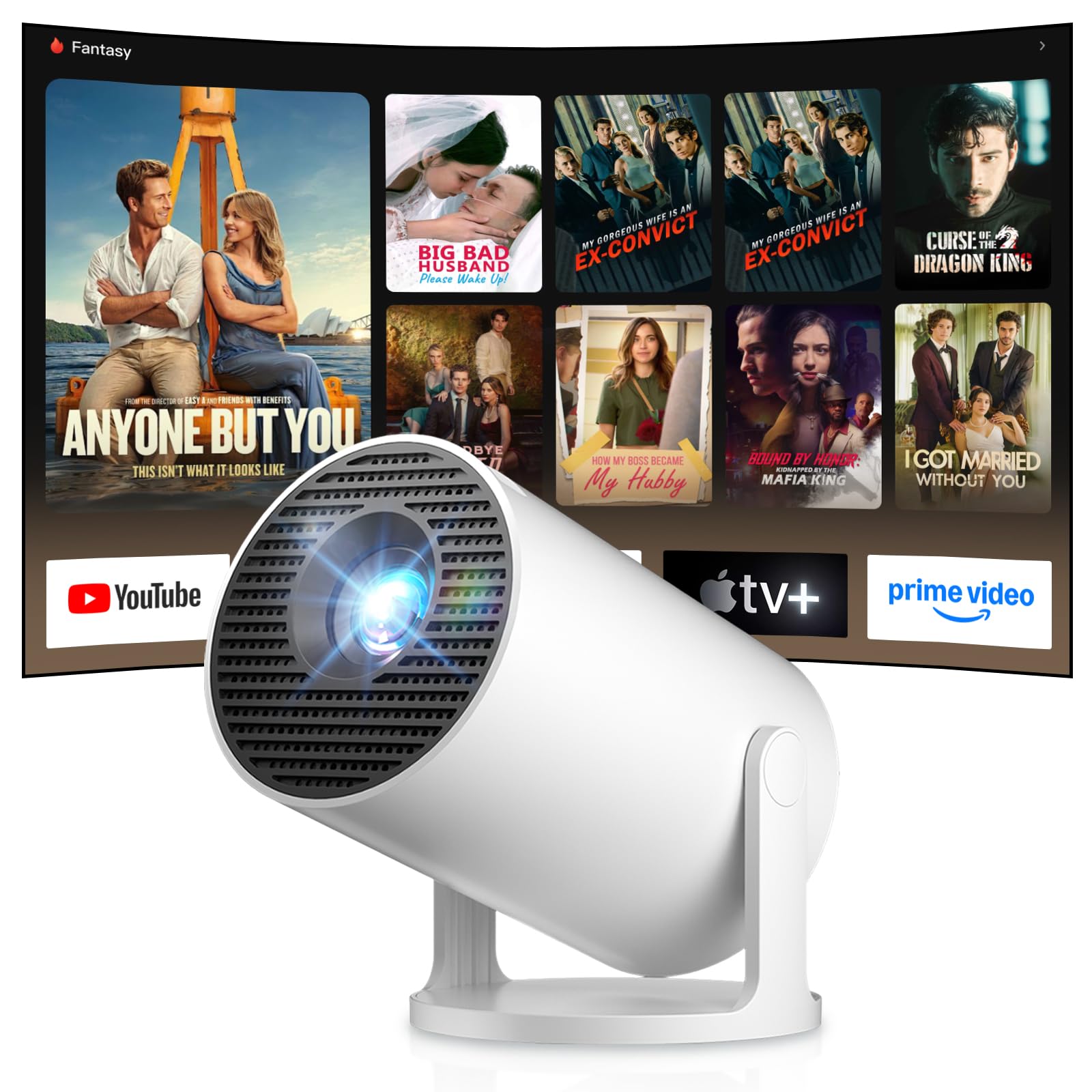
Image: Android TV 14.0 interface with streaming applications.
3. Stàladh App
With Android 14, you can install over 8,000 applications directly onto the projector. Access the app store (e.g., Google Play Store) from the home screen, search for desired apps (video players, games, office software), and install them.
4. Screen Mirroring (iOS/Android)
The projector supports screen mirroring for both iOS and Android devices. Ensure your mobile device and the projector are connected to the same Wi-Fi network. On your mobile device, activate the screen mirroring function (e.g., AirPlay for iOS, Cast for Android) and select the projector from the list of available devices.

Image: Wireless casting from mobile devices to the projector.
5. Connecting External Devices (HDMI, USB)
Use the HDMI port to connect devices such as laptops, game consoles (PS5, Switch), or TV sticks. Use the USB port to connect USB drives for media playback or other peripherals. Select the appropriate input source from the projector's input menu.
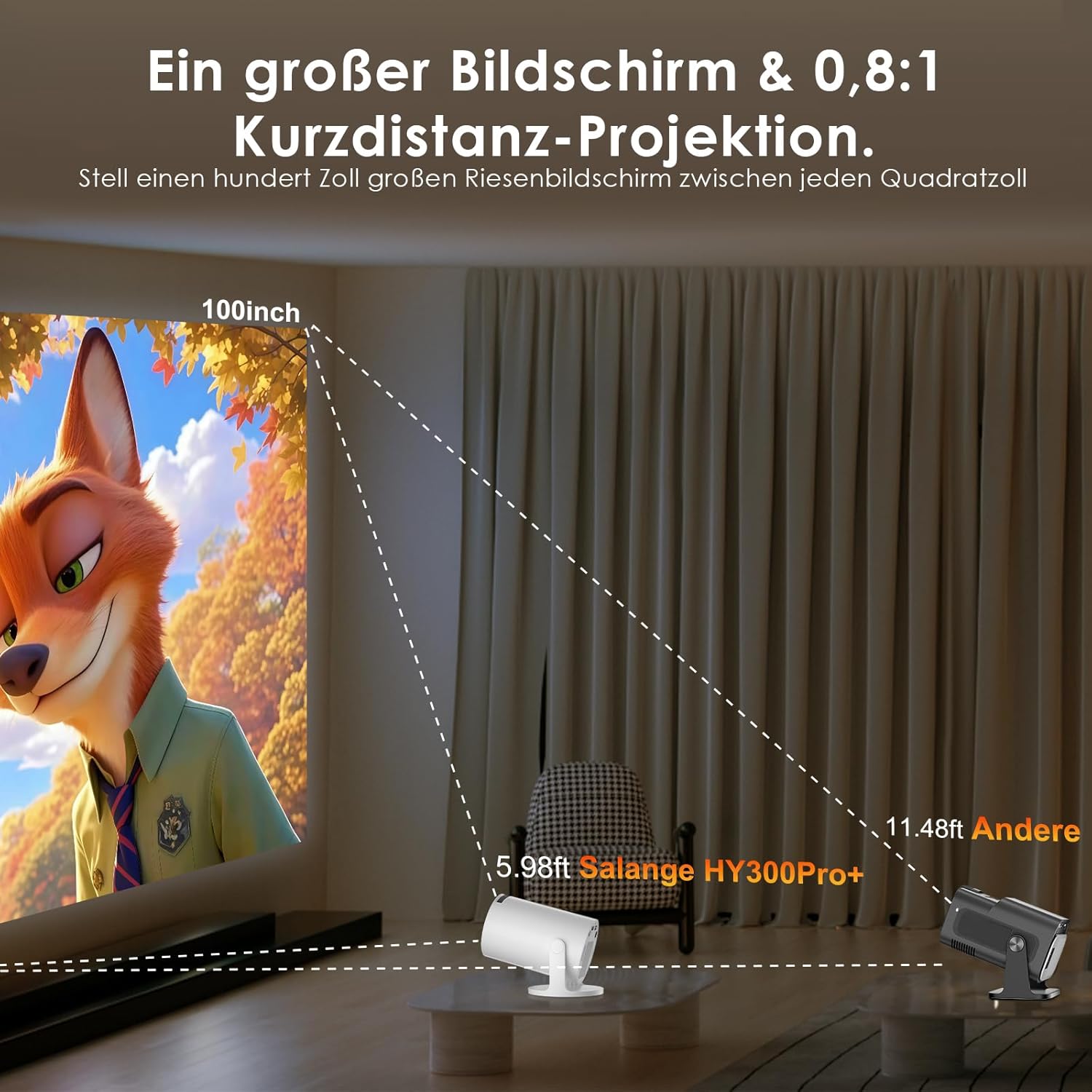
Image: Connectivity options for HDMI, Audio, and USB devices.
6. Toradh claisneachd
The projector has built-in speakers. For enhanced audio, connect external speakers or headphones via Bluetooth or the 3.5mm audio jack.
Cumail suas
1. Glanadh an Lionsa
Use a soft, lint-free cloth specifically designed for optical lenses to gently wipe the projector lens. Avoid using abrasive cleaners or excessive pressure, which can scratch the lens.
2. Glanadh an Taobh a-muigh
Sguab taobh a-muigh a’ phròiseictar le clò bog, tioram. Airson salachar stòlda, cleachd clò beagan tioram.amp Faodar clò tioram a chleachdadh, agus an uair sin clò tioram. Na cleachd ceimigean làidir no fuasglaidhean.
3. Stòradh
Nuair nach eilear ga chleachdadh airson ùine mhòr, stòraich am proiseactair ann an àrainneachd fhionnar, thioram, agus gun duslach. Cleachd am pacaigeadh tùsail no cùis dìon gus casg a chuir air milleadh.
Fuasgladh thrioblaidean
- Gun chumhachd: Ensure the power cord is securely connected to both the projector and the power outlet. Try a different outlet.
- Gun dealbh: Check if the projector is powered on. Verify the input source is correctly selected (e.g., HDMI 1, USB). Ensure the lens cap is removed.
- Ìomhaigh neo-shoilleir: Adjust the manual focus ring until the image is sharp. Check if the projector is too close or too far from the screen.
- Image Distortion (Trapezoid): The projector has automatic keystone correction. If manual adjustment is needed, check the display settings for keystone correction options.
- Gun fhuaim: Check the volume level on both the projector and the connected source device. Ensure external audio devices are correctly connected and selected as the output.
- Duilgheadasan Ceangail Wi-Fi/Bluetooth: Ensure the projector is within range of your router or Bluetooth device. Restart the projector and your network devices. Re-pair Bluetooth devices.
- Smachd Iomallach Gun a bhith a’ freagairt: Thoir sùil air na bataraidhean anns an smachd iomallach. Dèan cinnteach nach eil bacadh sam bith eadar an smachd iomallach agus glacadair IR a’ phròiseictar.
Sònrachaidhean Bathar
| Feart | Sònrachadh |
|---|---|
| Dèanadair | Salainn |
| ASIN | B0G43FF84L |
| Dùthaich Tùs | Sìona |
| Cleachdaidhean Molta | Gnìomhachas, Taigh-dhealbh Dachaigh, Geamannan, Foghlam |
| Feartan sònraichte | Wi-Fi Compatible, Digital Keystone Correction, Lightweight, Portable |
| Teicneòlas ceangail | Bluetooth, HDMI, USB, Wi-Fi |
| Fuasgladh Taisbeanaidh Dùthchasach | 1280x720 piogsail |
| Fuasgladh taisbeanaidh as àirde | 3840 x 2160 pixels (4K supported) |
| Seòrsa Taisbeanaidh | LCD |
| Meudan toraidh (L x W x H) | 10.1 x 10.1 x 17 cm |
| Factor foirm | So-ghiùlain |
| Seòrsa stàladh | Sliabh Clàr |
| Gile | 8000 Lumen |
| Dath | Geal |
| Innealan co-fhreagarrach | Game Console, Speaker, Laptop, Smartphone, Television |
| Co-mheas coimeas | 1500:1 |
| Meud ìomhaigh as àirde | 150 òirlich |
| Meud ìomhaigh as ìsle | 30 òirlich |
| Còdachadh bhidio | H.265 |
| Teicneòlas àrdachadh ìomhaigh | HDR |
| Susbaint a’ bhogsa | 1 Projector, 1 Power Cord, 1 Remote Control, 1 User Manual |
Fiosrachadh Barantais
The Salange 2026 Mini Projector comes with a standard manufacturer's warranty. Please refer to the warranty card included in your product packaging for specific terms, conditions, and duration. Keep your proof of purchase for warranty claims.
Taic Luchd-cleachdaidh
For technical assistance, troubleshooting, or any questions regarding your Salange 2026 Mini Projector, please contact Salange customer support. Contact details can typically be found on the official Salange website or in the warranty information provided with your product.