
1. Fiosrachadh Sàbhailteachd Cudromach
Please read all instructions carefully before using this monitor. Keep this manual for future reference.
- Na cuir am monitor fosgailte do uisge, taiseachd no teòthachd anabarrach.
- Dèan cinnteach gu bheil fionnarachadh ceart timcheall an monitor gus casg a chuir air cus teasachadh.
- Cleachd an inneal-atharrachaidh cumhachd a tha air a thoirt seachad leis a’ mhonatair a-mhàin.
- Seachain nithean troma a chur air a’ chorda cumhachd no air an monitor.
- Dì-cheangail am pluga cumhachd bhon t-socaid mura tèid am monitor a chleachdadh airson ùine mhòr.
- Na feuch ri seirbheis a thoirt don sgrìn thu fhèin. Thoir aire do luchd-obrach teisteanasach airson a h-uile seirbheis.
2. Pasgan-susbaint
Dèan cinnteach gu bheil a h-uile rud anns a’ phacaid agad:
- 27-inch QHD 210Hz Monitor (1 unit)
- Monitor Stand (1 unit)
- Quick Start Guide (QSG) (1 unit)
- DP Cable (1 unit)
- Power Adaptor (1 unit)
- Corda Cumhachd (1 aonad)
- Shielding Hood (2 units)

Video: KTC 27M1 27 Inch 210Hz Gaming Monitor. This video provides a visual overview of the monitor and its features.
3. Stiùireadh Stèidheachaidh
3.1 A’ cur an Seasamh Sgrùdaidh ri chèile
- Thoir air falbh pàirtean an monitor agus an t-seasamh gu faiceallach bhon phacaid.
- Attach the stand base to the stand arm using the provided screw.
- Align the stand arm with the mounting slot on the back of the monitor and push until it clicks into place.
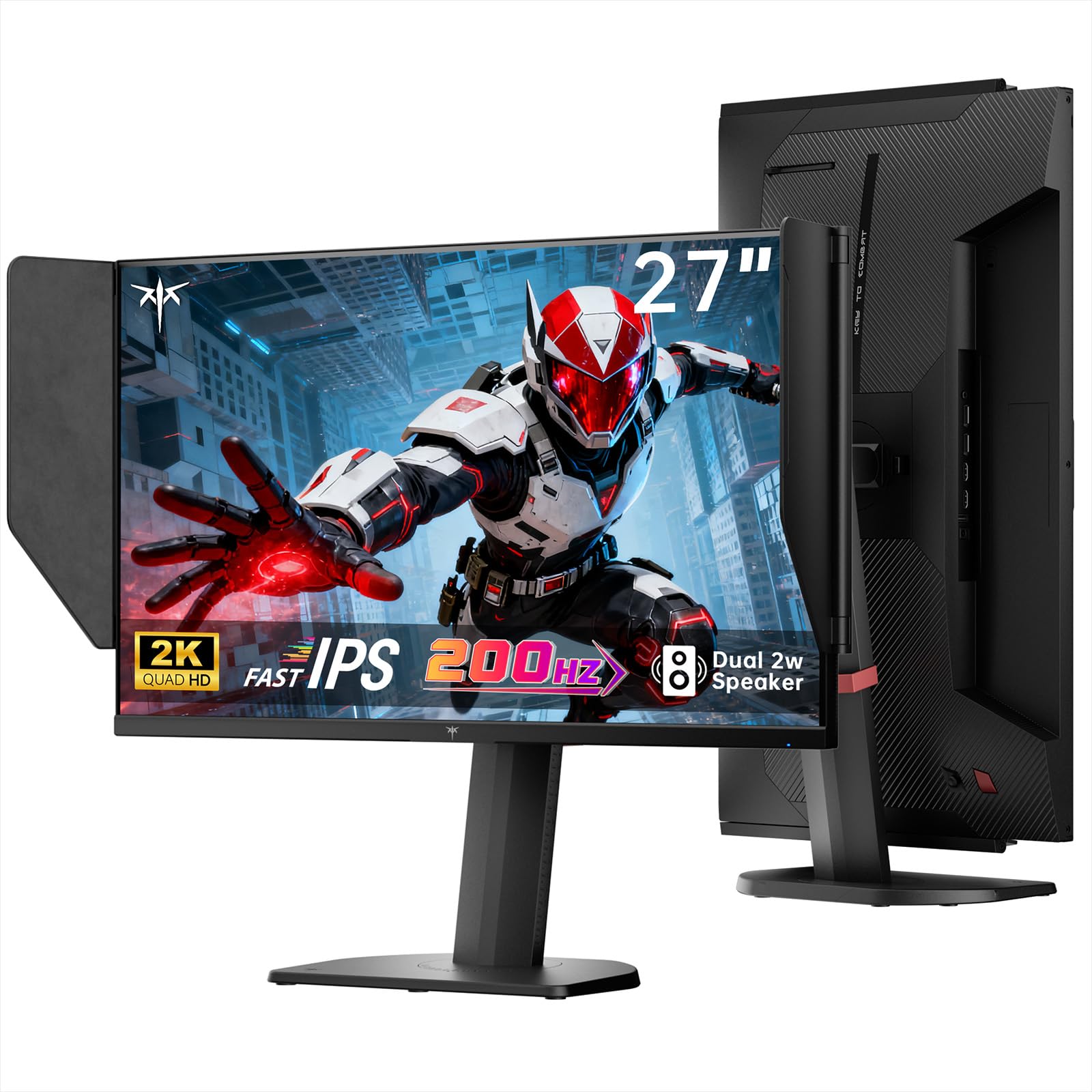
Image: The KTC 27M1 monitor with its stand fully assembled, ready for use.
3.2 Attaching the Shielding Hood
The shielding hood helps reduce glare and reflections for an optimal viewann an eòlas.
- Locate the two shielding hood pieces.
- Align each piece with the designated slots on the sides of the monitor and gently slide them into place until secure.

Image: The KTC 27M1 monitor shown with the shielding hood attached, designed to block reflected light.
3.3 càball ceangail
Ceangail an monitor ris a’ choimpiutair agad no innealan eile a’ cleachdadh na càbaill iomchaidh:
- DisplayPort (DP): For 200Hz (overclockable to 210Hz) refresh rates, connect the DP cable from your graphics card to the monitor's DP 1.4 port.
- HDMI: For 144Hz refresh rates, connect an HDMI 2.0 cable from your device to one of the monitor's HDMI ports.
- Cumhachd: Connect the power adapter to the DC input on the monitor, then plug the power cord into a wall outlet.
- Fuaim: Connect headphones or external speakers to the 3.5mm earphone jack if desired.

Ìomhaigh: Dlùth-shealladh view of the KTC 27M1 monitor's rear ports, including HDMI, DisplayPort, USB, and earphone jack.
4. Stiùireadh Obrachaidh
4.1 Cumhachd air / dheth
Press the 5-way navigation joystick located on the back of the monitor to power it on or off.
4.2 Seòladh Clàr-taice OSD
The 5-way navigation joystick is used to access and navigate the On-Screen Display (OSD) menu:
- Brùth air an joystick gus an clàr OSD fhosgladh.
- Move the joystick Up/Down/Left/Right to navigate through menu options.
- Brùth air a’ luing-stiùiridh a-rithist gus roghainn a thaghadh no suidheachadh a dhearbhadh.
- Move the joystick Left to go back to the previous menu or exit the OSD.
4.3 Atharrachadh Roghainnean Taisbeanaidh
Taobh a-staigh clàr-taice OSD, faodaidh tu diofar roghainnean taisbeanaidh atharrachadh:
- Gile / coimeas: Atharraich na h-ìrean soilleireachd agus eadar-dhealachaidh iomlan.
- Roghainnean dath: Modify color temperature (Warm, Cool, User), gamma, hue, and saturation. The monitor offers 130% sRGB color gamut and ΔE<2 for accurate color reproduction.
- Suidheachadh geama: Enable/disable Adaptive Sync (FreeSync/G-Sync Compatible), adjust Overdrive (Ultra Fast recommended for gaming), and activate Game Assist features.
- Roghainnean adhartach: Toggle HDR (Auto/Off) and OverClock (to achieve 210Hz refresh rate).
- Teachd a-steach: Manually select the input source (DP, HDMI1, HDMI2).
- Seata siostam: Change OSD language, LED indicator, audio volume, and other system preferences.
4.4 Atharrachaidhean Eirgonomiach
The monitor stand supports multiple ergonomic adjustments for comfortable viewing:
- Atharrachadh àirde: Adjust the monitor height by 150±5mm.
- Teilt: Tilt the screen from -5° to 35°.
- Sluasaid: Swivel the monitor ±60°.
- Pivot: Pivot the screen from -5° to 90° for vertical orientation.

Image: Visual representation of the KTC 27M1 monitor's tilt, swivel, elevate, and pivot adjustments.
5. Feartan
- Taisbeanadh: 27-inch QHD (2560x1440) Fast IPS panel.
- Ìre Ath-nuadhachaidh: 200Hz, overclockable to 210Hz.
- Ùine freagairt: 1ms (MPRT) for sharp visuals.
- Cruinneas dath: 130% sRGB color gamut, 99% DCI-P3 coverage, ΔE<2, 450 cd/m² brightness, 1.07 Billion Colors, 1000:1 Contrast Ratio.
- Sync Adaptive: FreeSync and G-Sync Compatible to eliminate screen tearing.
- Cùram sùla: Flicker-free and low blue light modes for extended comfortable viewing.
- Fuaim: Built-in dual 2W speakers.
- Ceangal: 2x HDMI 2.0 ports, 1x DisplayPort 1.4 port, 1x USB 2.0 port, 1x Earphone jack.
- Stàladh: 100x100mm VESA mount compatible.
- Dealbhadh: Includes a detachable shielding hood to block reflected light.

Image: The KTC 27M1 monitor displaying vibrant colors, highlighting its color accuracy and brightness features.
6. Sònrachaidhean
| Feart | Sònrachadh |
|---|---|
| Brand | CTC |
| Modail Àireamh | H27T8 (Marketed as 27M1) |
| Meud sgrion | 27 òirlich |
| Fuasgladh Dùthchasach | 2560x1440 (QHD) |
| Teicneòlas taisbeanadh | IPS luath |
| Ìre Ath-nuadhachaidh | 200 Hz (Overclockable to 210 Hz) |
| Àm Freagairt | 1 Millisecond (MPRT) |
| Gile | 450 Candela (cd/m²) |
| Co-mheas coimeas | 1000:1 |
| Gamut dath | 130% sRGB, 99% DCI-P3 |
| Viewann an Ceàrn | 178 ceum |
| Taic HDR | Tha |
| Adaptive Sync | FreeSync, G-Sync Compatible |
| Luchd-labhairt togte | 2x 2W Speakers |
| Ceangalachd | 2x HDMI 2.0, 1x DisplayPort 1.4, 1x USB 2.0, 1x Earphone |
| Mount VESA | 100x100mm |
| Ergonomics | Àirde, Claonadh, Cuairteachadh, Atharrachadh Pivot |
| Caitheamh cumhachd | 48 watt |
7. Cumail suas agus Cùram
- Glanadh an sgrion: Sguab an sgrion gu socair le clò bog, gun lint. Airson comharran stòlda, dampen the cloth with a mild, non-abrasive screen cleaner.
- A’ glanadh an Casing: Cleachd clò bog, tioram gus an monitor a ghlanadhasing. Seachain innealan-glanaidh làidir no innealan-glanaidh sgrìobach a chleachdadh.
- Fionnarachadh: Ensure the ventilation openings on the monitor are clear and unobstructed to prevent overheating.
- Stòradh: Ma tha thu a’ stòradh an monitor airson ùine mhòr, dì-cheangail e bhon chumhachd agus stòraich e ann an àite fionnar, tioram.
8. A ’dèanamh trioblaid
8.1 Gun chumhachd
- Thoir sùil a bheil an càball cumhachd ceangailte gu tèarainte ris a’ mhonatair agus ris an t-socaid cumhachd.
- Dearbhaich gu bheil an socaid cumhachd ag obair ceart le bhith a’ cur inneal eile a-steach.
- Dèan cinnteach gu bheil an adapter cumhachd ceangailte gu ceart.
8.2 No Signal/Blank Screen
- Confirm that the video cable (DP or HDMI) is securely connected to both the monitor and your computer/device.
- Press the OSD joystick to open the menu and manually select the correct input source.
- Dèan cinnteach gu bheil an coimpiutair/inneal agad air agus nach eil e ann am modh cadail.
- Try using a different video cable or port to rule out cable/port issues.
8.3 Flickering/Distorted Image
- Thoir sùil air a’ chàball bhidio airson milleadh sam bith no ceanglaichean sgaoilte.
- Adjust the refresh rate in your computer's display settings to match the monitor's native refresh rate (200Hz or 210Hz if overclocked).
- Enable Adaptive Sync (FreeSync/G-Sync Compatible) in the monitor's OSD menu and your graphics card settings.
- Dèan cinnteach gu bheil draibhearan do chairt grafaiceachd ùraichte.
8.4 No Sound from Built-in Speakers/Earphone Jack
- Check the volume settings in the monitor's OSD menu and your computer's operating system.
- Ensure the correct audio output device is selected in your computer's sound settings.
- Verify that the audio cable (if using external speakers) or headphones are properly connected.
9. Barantas agus Taic
KTC is committed to providing quality service and support for your monitor.
- Barantas: This product comes with a 3-year quality guarantee.
- Taic Teicnigeach: Lifetime technical support is available for all KTC products.
- Cuir fios thugainn: If you have any questions or encounter issues, please contact KTC customer support. Solutions will be provided within 24 hours.