
1. Ro-ràdh
Thank you for choosing the Pisichen 27-inch 4K UHD Touchscreen Monitor with Webcam. This manual provides essential information for the safe and efficient operation of your new monitor. Please read it thoroughly before use and retain it for future reference.
2. Fiosrachadh Sàbhailteachd
- Stòr cumhachd: Cleachd an inneal-atharrachaidh cumhachd a tha air a thoirt seachad leis a’ mhonatair a-mhàin. Dèan cinnteach gu bheil an socaid cumhachd a’ coinneachadh ris an tomhas-lìonaidh.tage riatanasan.
- Fionnarachadh: Na cuir bacadh air fosglaidhean fionnarachaidh. Fàg àite gu leòr timcheall air an sgrìn airson sruth-adhair ceart.
- Taisbeanadh Liquid: Keep the monitor away from liquids. Do not expose it to rain or moisture.
- Glanadh: Disconnect the power cable before cleaning. Use a soft, dry cloth. Avoid abrasive cleaners.
- Suidheachadh: Cuir am monitor air uachdar seasmhach, còmhnard gus casg a chur air tuiteam.
- Seirbheis: Na feuch ri seirbheis a thoirt don sgrìn thu fhèin. Thoir aire do luchd-obrach teisteanasach airson a h-uile seirbheis.
3. Pasgan-susbaint
Thoir sùil air susbaint a’ phacaid nuair a dh’fhosglas tu e. Ma tha rud sam bith a dhìth no air a mhilleadh, cuir fios chun neach-reic agad.
- Pisichen 27-inch 4K UHD Touchscreen Monitor
- Seasamh Monitor (Bonn agus Gàirdean)
- Adapter cumhachd
- Càball HDMI
- USB-B to USB-A Cable (for Touch Function)
- Leabhar-làimhe cleachdaiche
4. Toradh thallview
4.1 Prìomh fheartan
- Ultra HD 4K Touchscreen Display: 27-inch 4K Ultra HD screen with vibrant colors, sharp details, and wide viewing angles. Features a responsive 10-point touchscreen for intuitive control.
- Built-in High-Definition Webcam: Amalaichte webcam for video calls, online meetings, and streaming, reducing desk clutter.
- Ceangal ioma-ghnèitheach: Multiple ports including HDMI, DisplayPort, and USB-C for easy connections to various devices. Supports both touch and traditional input.
- Optimized for Productivity and Creativity: Large 4K touch display for precise control and streamlined workflows, ideal for graphic designers, content creators, and multitasking.
- Sleek and Functional Design: Modern design with an adjustable stand for optimal viewing angles and comfort during extended use.
4.2 Cumail sùil air puirt
The monitor features various ports for connecting to your devices. Refer to the image below for port identification.
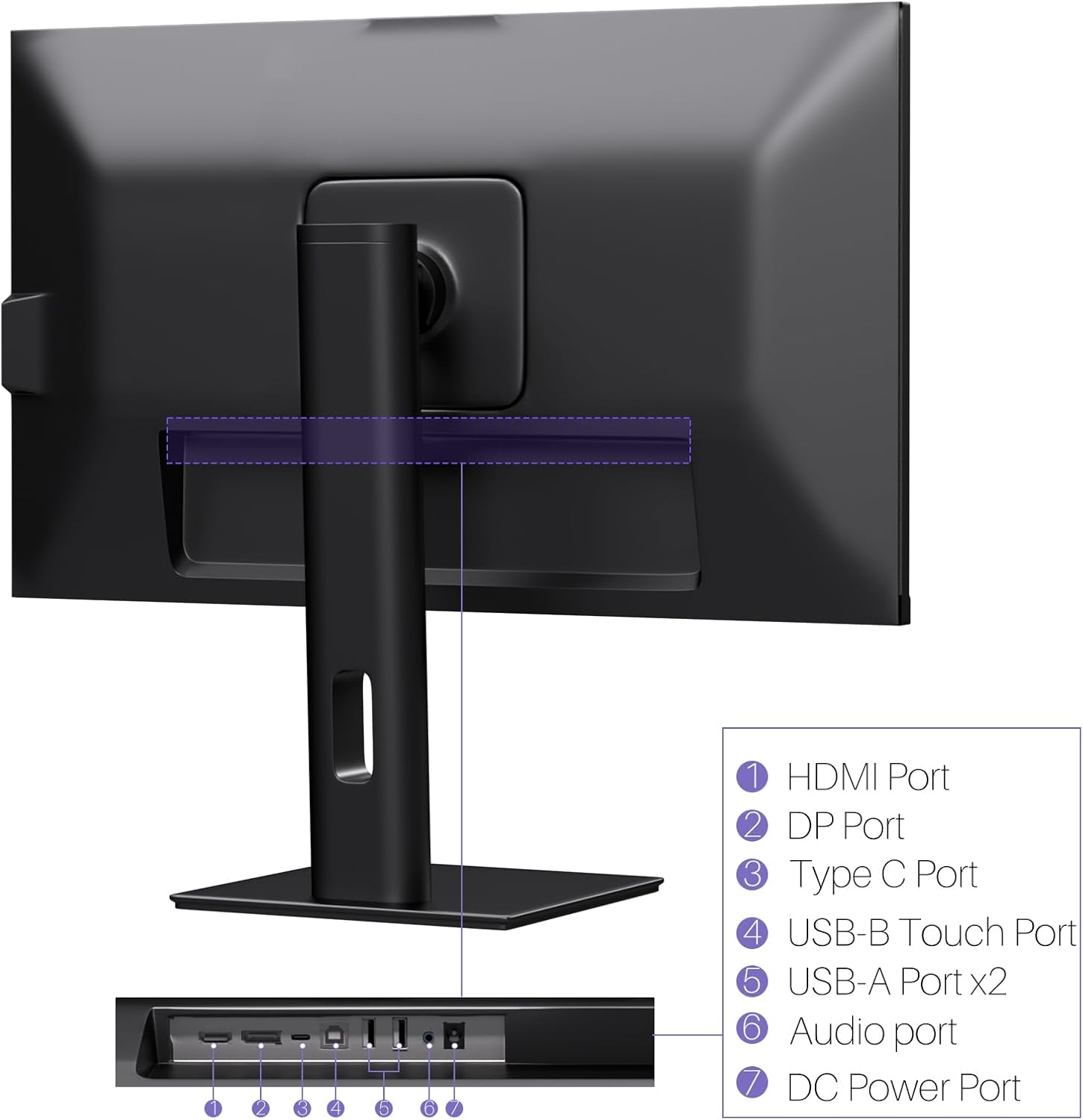
Ìomhaigh: Cùl view of the monitor displaying the HDMI, DP, Type-C, USB-B Touch, USB-A, Audio, and DC Power ports.
- Port HDMI: Connects to devices via HDMI cable for video and audio input.
- Port DP: Connects to devices via DisplayPort cable for video and audio input.
- Port Seòrsa C: Connects to devices via USB-C cable for video, audio, and power delivery. (Requires USB-C port on signal device to support DisplayPort Alternate Mode for touch functionality).
- USB-B Touch Port: Connects to your computer via USB-B to USB-A cable to enable touchscreen functionality.
- Port USB-A (x2): Airson innealan-iomaill USB a cheangal.
- Port claisneachd: Airson innealan claisneachd taobh a-muigh a cheangal.
- Port cumhachd DC: A 'ceangal ris an adapter cumhachd.
5. Stiùireadh Stèidheachaidh
5.1 A’ cur an t-Seasaimh ri chèile
- Thoir air falbh pàirtean an monitor agus an t-seasamh gu faiceallach bhon phacaid.
- Attach the stand arm to the monitor's VESA mounting points.
- Secure the stand base to the arm using the provided screws.
- Ensure all connections are tight and the monitor is stable.
5.2 A’ ceangal ri inneal
The monitor supports various connection types. Choose the appropriate cable for your device.

Image: Connection diagrams illustrating how to connect the monitor as a secondary display (HDMI/DP + DC), a touchscreen monitor (HDMI/DP + USB-B + DC), or via USB-C (USB-C + DC).
- For Video and Audio (Non-Touch): Ceangail càball HDMI no DisplayPort bhon choimpiutair agad ris a’ phort co-fhreagarrach air an sgrìn.
- For Video, Audio, and Touch (Windows PC): Connect an HDMI or DisplayPort cable for video/audio. Additionally, connect the USB-B to USB-A cable from the monitor's USB-B Touch Port to a USB-A port on your computer.
- For Video, Audio, and Touch (USB-C Compatible Device): Connect a USB-C cable from your device to the monitor's Type-C port. Ensure your device's USB-C port supports DisplayPort Alternate Mode for touch functionality.
5.3 Ceangal cumhachd
- Connect the power adapter to the monitor's DC Power Port.
- Plug an adapter cumhachd a-steach do bhalla a-muigh.
6. Stiùireadh Obrachaidh
6.1 Cumhachd air / dheth
Brùth am putan cumhachd a tha suidhichte air an monitor gus a thionndadh air no dheth.
6.2 Clàr-taice Taisbeanaidh Air-sgrion (OSD)
Use the control buttons (typically located on the back or bottom of the monitor) to navigate the OSD menu. This menu allows you to adjust settings such as brightness, contrast, color temperature, input source, and other display parameters.
6.3 Gnìomhachd an sgrion-suathaidh
The monitor features a 10-point multi-touch screen. Ensure the USB-B to USB-A cable (or USB-C cable for compatible devices) is connected to enable touch functionality.
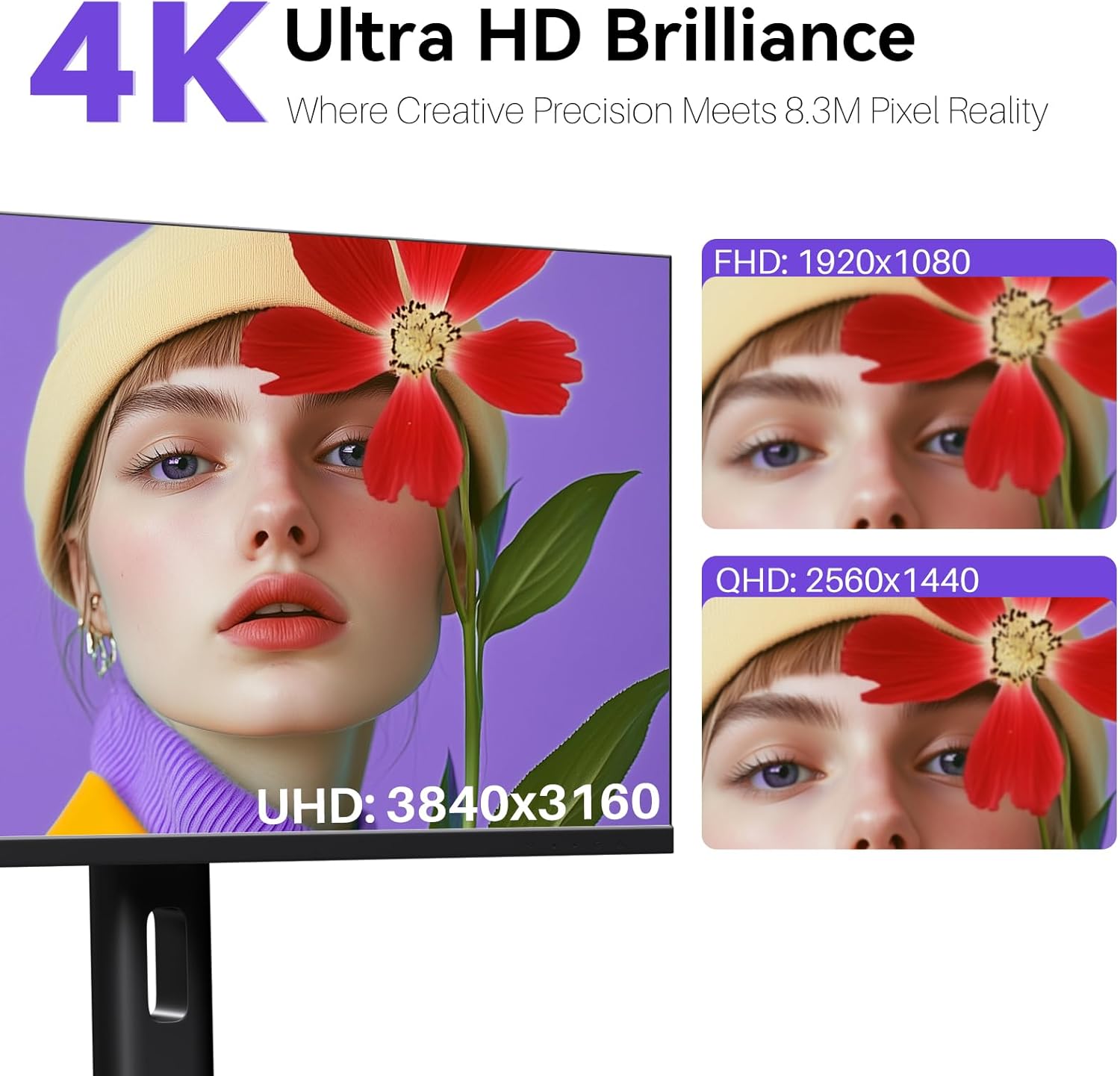
Image: A user's hand interacting with the monitor screen, highlighting the responsive 10-point touch experience.
- Basic Touch: Tap to click, swipe to scroll.
- Gluasadan ioma-suathaidh: Use two fingers to zoom in/out, rotate, or pan, depending on the application.
- Touch Calibration (Windows Only): If the cursor does not align with your touch, calibration may be required. Go to Control Panel > Hardware and Sound > Tablet PC Settings > Calibrate. Follow the on-screen prompts.
6.4 Using the Built-in Webcam
Amalaichte webcam is automatically detected by most operating systems and video conferencing applications. No additional drivers are typically required.

Image: The monitor displaying a video conference call, showcasing its integrated webcam for seamless communication.
- Fosgail am bathar-bog co-labhairtean bhidio as fheàrr leat (me, Zoom, Microsoft Teams, Skype).
- Select the integrated webcam as your video input device in the application's settings.
6.5 Adjusting Display Resolution
To set the resolution of the monitor (Windows):
- Right-click on your desktop and select "Display Settings."
- Find your monitor (if multiple displays are connected).
- Under "Display resolution," select the recommended resolution of 3840 x 2160.
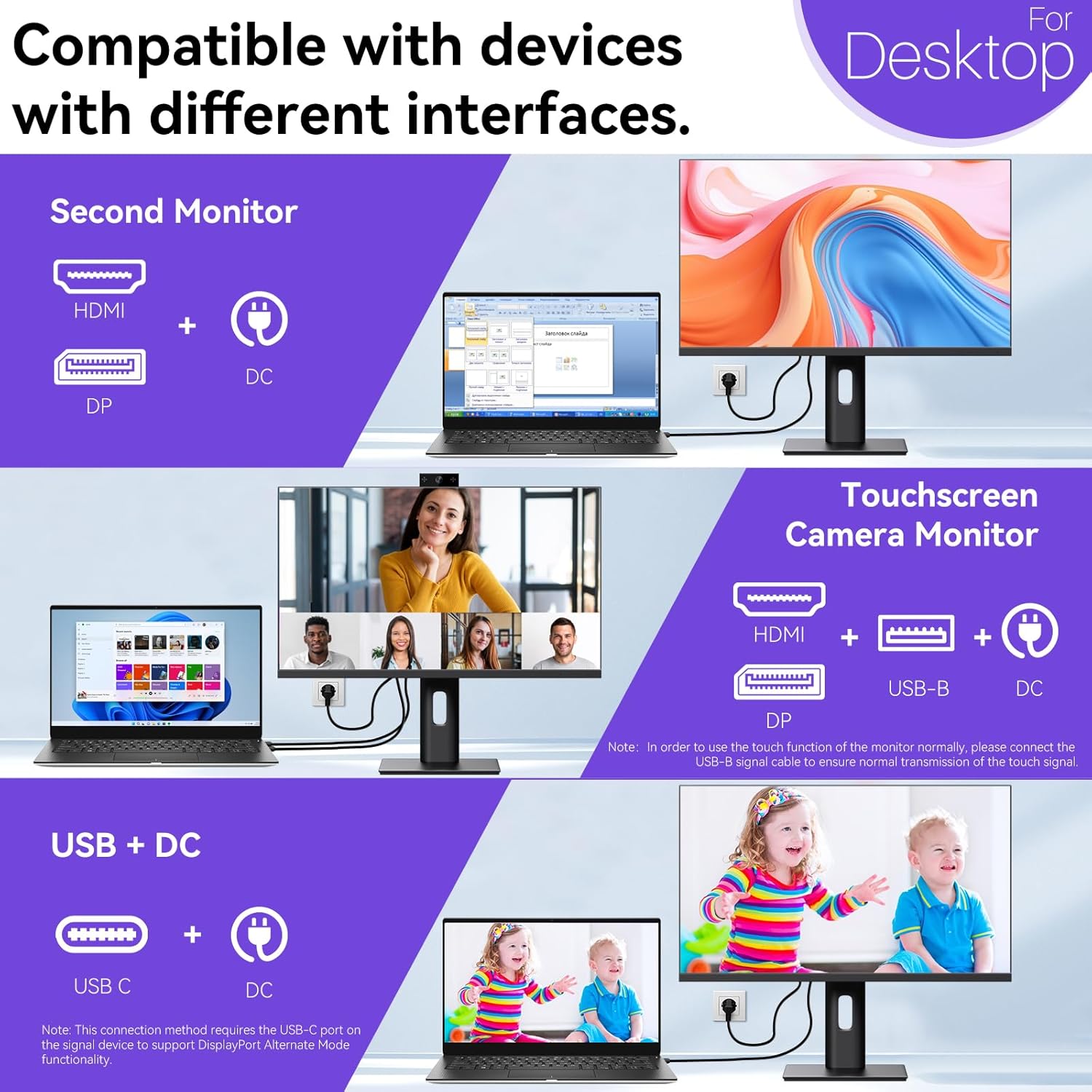
Image: A visual comparison demonstrating the superior clarity of 4K UHD (3840x2160) compared to FHD (1920x1080) and QHD (2560x1440) resolutions.
7. Cumail suas
- Glanadh an sgrion: Sguab an sgrion gu socair le clò bog, gun lint. Airson comharran stòlda, suath gu socairampnigh an clò le uisge no le fuasgladh glanaidh sònraichte airson sgrion. Na spraeadh leaghan gu dìreach air an sgrion.
- A’ glanadh an Casing: Cleachd clò bog, tioram gus an monitor a ghlanadhasing.
- Stòradh: Ma bhios tu a’ stòradh an sgrìn airson ùine mhòr, dì-cheangail e bhon chumhachd, pacaich e san phacaid thùsail aige, agus stòraich e ann an àite fionnar, tioram.
8. A ’dèanamh trioblaid
If you encounter issues with your monitor, refer to the following troubleshooting guide. For problems not listed, please contact customer support.
| Trioblaid | Adhbhar a dh’fhaodadh a bhith ann | Fuasgladh |
|---|---|---|
| Gun ìomhaigh air an sgrion | Càball cumhachd air a dhì-cheangal; Càball bhidio air a dhì-cheangal; Stòr cuir-a-steach ceàrr air a thaghadh. | Ensure power cable is securely connected. Check video cable (HDMI/DP/USB-C) connections. Select correct input source via OSD menu. |
| Touchscreen nach eil a 'freagairt | USB-B cable not connected; USB-C port not supporting DisplayPort Alternate Mode; Device incompatibility (e.g., iPhone). | Ensure the USB-B to USB-A cable is connected from the monitor to your computer. If using USB-C, verify your device's USB-C port supports DisplayPort Alternate Mode. Note: Touch function is not supported when connected to an iPhone due to iOS system restrictions. |
| Cursor moves incorrectly (Windows) | Touchscreen calibration required. | Perform touchscreen calibration: Go to Control Panel > Hardware and Sound > Tablet PC Settings > Calibrate. |
| Webcha deach camara a lorg | USB connection issue; Software settings. | Ensure all necessary USB cables are connected. Check your application's settings to select the correct webOrains. |
9. Sònrachaidhean
| Feart | Mion-fhiosrachadh |
|---|---|
| Brand | Pisichen |
| Modail Àireamh | 27INTSCMR-4K |
| Meud sgrion | 27 òirlich |
| Fuasgladh | 3840 x 2160 Pixels (4K UHD 2160p) |
| Co-mheas taobh | 16:9 |
| Gile Ìomhaigh | 400 Coinnle |
| Tuairisgeul air uachdar na sgrìn | Snasail |
| Meudan toraidh | 14.37 x 24.21 x 16.54 òirleach |
| Cuideam nì | 16.59 not |
| Dèanadair | Shenzhen Konowa Electronics Co., LTD |
| Ceangalachd | HDMI, DisplayPort, USB-C, USB-B (for touch), USB-A (x2), Audio Port |
10. Barantas agus Taic
This product comes with a manufacturer's warranty. Please refer to the warranty card included in your package for specific terms and conditions. For technical support or inquiries, please contact Pisichen customer service at taic_2308@163.com. When contacting support, please provide your model number and a detailed description of the issue, including any relevant pictures or videos.