
1. Ro-ràdh
Thank you for choosing the Dopesplay DR159 Portable Monitor. This manual provides essential information for setting up, operating, and maintaining your new monitor. Please read it thoroughly before use to ensure optimal performance and longevity of the device.
2. Dè tha sa bhogsa
Thoir sùil air susbaint a’ phacaid nuair a dh’fhosglas tu e:
- 1 x 15.6 Inch Portable monitor
- 1 x Adjustable magnetic monitor stand
- 1 x càball USB-C gu USB-C
- 1 x càball USB-A gu USB-C
- 1 x Càball HDMI gu Mini HDMI

Image: The Dopesplay Portable Monitor, adjustable magnetic stand, USB-C to USB-C cable, USB-A to USB-C cable, and HDMI to Mini HDMI cable are neatly arranged in their packaging.
3. Feartan toraidh
- Air àrdachadh Viewing: Dedicated desktop stand raises the monitor for ergonomic viewing, reducing neck and shoulder strain.
- Sùbailte Viewann an ceàrnan: Adjustable stand offers 360° rotation for seamless switching between portrait and landscape modes, with tilt and rotation for ideal positioning.
- Caol & So-ghiùlain: Ultra-thin and lightweight design, includes a premium protective sleeve for easy transport during business trips, remote work, or gaming.
- Stunning 1080P Full HD IPS Display: Features an IPS panel with Full HD resolution and 60Hz refresh rate, 16:9 aspect ratio, and 1000:1 contrast ratio for crisp visuals, vibrant colors, and wide viewing ceàrnan.
- Co-fhreagarrachd farsaing: Equipped with USB-C and Mini HDMI ports for plug-and-play connectivity with laptops, gaming consoles, smartphones, and more.
4. Setup & Connections
4.1 Stàladh Seas
The monitor comes with an adjustable magnetic stand and a built-in stand for versatile placement.
- Unfold the adjustable magnetic stand base and arm.
- Align the magnetic mount on the monitor's rear with the stand's magnetic ball joint. The monitor will securely attach.
- Alternatively, use the built-in kickstand on the monitor's back for a simple desktop setup.

Image: A Dopesplay Portable Monitor is shown mounted on a 360-degree rotating base stand next to a laptop, illustrating multi-dimensional adjustment options.
4.2 A 'ceangal ri innealan
The DR159 Portable Monitor supports various devices via USB-C and Mini HDMI.
Ceangal USB-C (Càball Singilte)
For devices with a full-featured USB-C port (supporting video, audio, and power delivery):
- Ceangail aon cheann den chàball USB-C gu USB-C ri port USB-C an uidheim agad.
- Connect the other end to the monitor's USB-C port.
- The monitor should automatically display content and receive power.
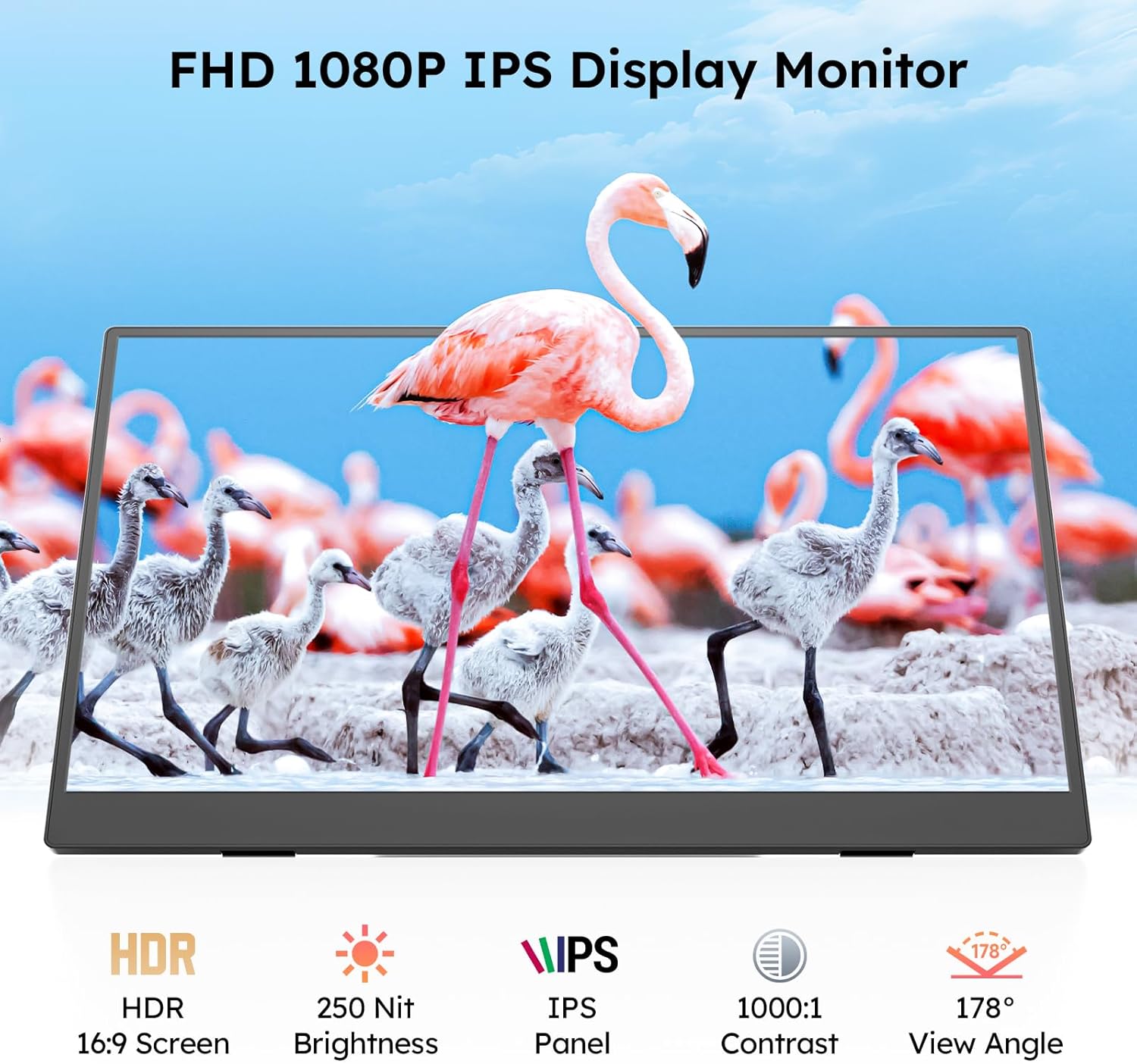
Image: A Dopesplay Portable Monitor is connected to a laptop via a single USB-C cable, demonstrating plug-and-play functionality for various devices.
HDMI & USB-A Connection (Dual Cable)
For devices without a full-featured USB-C port, or for additional power:
- Ceangail aon cheann den chàball Mini HDMI gu HDMI ri port HDMI an uidheim agad.
- Connect the other end to the monitor's Mini HDMI port.
- Connect one end of the USB-A to USB-C cable to your device's USB-A port (or a power adapter).
- Connect the other end to the monitor's USB-C port for power.
- The monitor should display content and receive power.

Image: A Dopesplay Portable Monitor is connected to a laptop using both an HDMI to Mini HDMI cable for video and a USB-A to USB-C cable for power, showing compatibility with various gaming consoles and PCs.
4.3 Video Guides
DR159 Portable Monitor Unboxing Video
Video: A detailed unboxing of the Dopesplay DR159 Portable Monitor, showcasing its contents and initial setup steps.
Portable Monitor Stand Installation Video
Video: Step-by-step instructions on how to install and set up the adjustable magnetic stand for the Dopesplay Portable Monitor.
5. Stiùireadh Obrachaidh
5.1 Modhan Taisbeanaidh
The monitor supports various display modes to enhance productivity and entertainment:
- Modh leudachaidh: Leudaichidh seo an deasg agad thairis air an dà scrion, a’ toirt seachad barrachd àite-obrach.
- Duplicate Mode (Mirror Mode): Bidh seo a’ dèanamh lethbhreac de shusbaint a’ phrìomh sgrìn agad air an sgrìn so-ghiùlain.
- Modh an Dàrna Sgrion: A’ cleachdadh an monitor so-ghiùlain a-mhàin mar an taisbeanadh.
- Modh Portrait: Rotates the display for vertical viewing, freagarrach airson còdadh no ath-sgrìobhadh sgrìobhainneanview.

Image: The Dopesplay Portable Monitor displays various operation modes including Extend Mode, Duplicate Mode, and Second Screen Mode, catering to diverse user requirements.
5.2 Clàr-taice Taisbeanaidh Air-sgrion (OSD)
Access the OSD menu using the control buttons on the side of the monitor to adjust settings:
- Gile: Adjust the screen's luminance.
- Ìre Dubh: Fine-tune black levels for deeper blacks.
- Coltas: Atharraich an diofar eadar raointean soilleir is dorcha.
- ECO: Select power-saving modes.
- DCR (Co-mheas Contrast Dynamic): Enable or disable dynamic contrast.

Image: The Dopesplay Portable Monitor showcases its FHD 1080P IPS display with HDR, 250 Nit Brightness, 1000:1 Contrast, and 178° View Angle, highlighting its visual capabilities.
6. Cumail suas
- Glanadh: Use a soft, lint-free cloth to clean the screen. Avoid harsh chemicals or abrasive materials.
- Làimhseachadh: Handle the monitor gently. Avoid applying pressure to the screen or dropping the device.
- Stòradh: When not in use, store the monitor in its protective sleeve to prevent scratches and damage.
7. A ’dèanamh trioblaid
Refer to the quick start guide included in the package for common troubleshooting steps, including:
- Display not working / Screen flickering
- No signal / Automatic shutdown
- Cùisean teòthachd dath
Ensure proper power supply and compatible connections for optimal performance. If issues persist, contact customer support.
8. Sònrachaidhean
- Meudan toraidh: 0.63 x 13.98 x 8.66 òirleach
- Cuideam nì: 1.47 not
- Meud sgrion: 15.6 òirlich
- Fuasgladh: FHD 1080p (1920 x 1080 piogsail)
- Co-mheas taobh: 16:9
- Gile ìomhaigh: 250 Coinnle
- Voltage: 5 Volt
- Puirt USB iomlan: 2
- Tuairisgeul air uachdar na sgrìn: Mata
9. Barantas & Taic
Dopesplay offers a 12-month product warranty and lifetime technical support. For any missing accessories, damaged items, or troubleshooting needs, our support team responds quickly with reliable solutions. Help is just a message away!
Neach-taice Fios: Please refer to the contact information provided in your product documentation or visit the Dopesplay US weblàrach-lìn airson cuideachadh.


