
1. Toradh thallview
The Magcubic Smart Projector HY350GT is a portable projector designed for versatile entertainment and presentation needs. It features 4K support, native 1080P resolution, and a built-in 4K TV stick for direct access to streaming applications. Key functionalities include automatic focus, keystone correction, obstacle avoidance, and screen alignment, ensuring a clear and properly framed image with minimal manual adjustment. Dual-band Wi-Fi and Bluetooth 5.1 provide robust connectivity options for various devices and audio accessories.
2. Dè tha sa bhogsa
- Magcubic Smart Projector HY350GT
- Adapter cumhachd
- Smachd Iomallach
- Leabhar-làimhe cleachdaiche (an sgrìobhainn seo)
3. Stiùireadh Stèidheachaidh
3.1 Suidheachadh Tùsail agus Ceangal Cumhachd
Place the projector on a stable, flat surface. The flexible rotating stand allows for projection onto walls or ceilings. Connect the power adapter to the projector's power input port and then to a power outlet.

Image: The Magcubic HY350GT projector demonstrating its flexible rotating stand for various projection angles, including walls and ceilings.
3.2 Automatic Image Correction
Upon powering on, the projector will automatically perform several corrections:
- Fòcas Auto: The image will automatically sharpen.
- Ceartachadh Auto Keystone: The image will adjust to be rectangular, even if the projector is at an angle.
- Seachain bacadh fèin-ghluasadach: The projector detects walls and barriers, adjusting the image to avoid interference.
- Co-thaobhadh Sgrion Fèin-ghluasadach: The image will align itself to the projection surface.
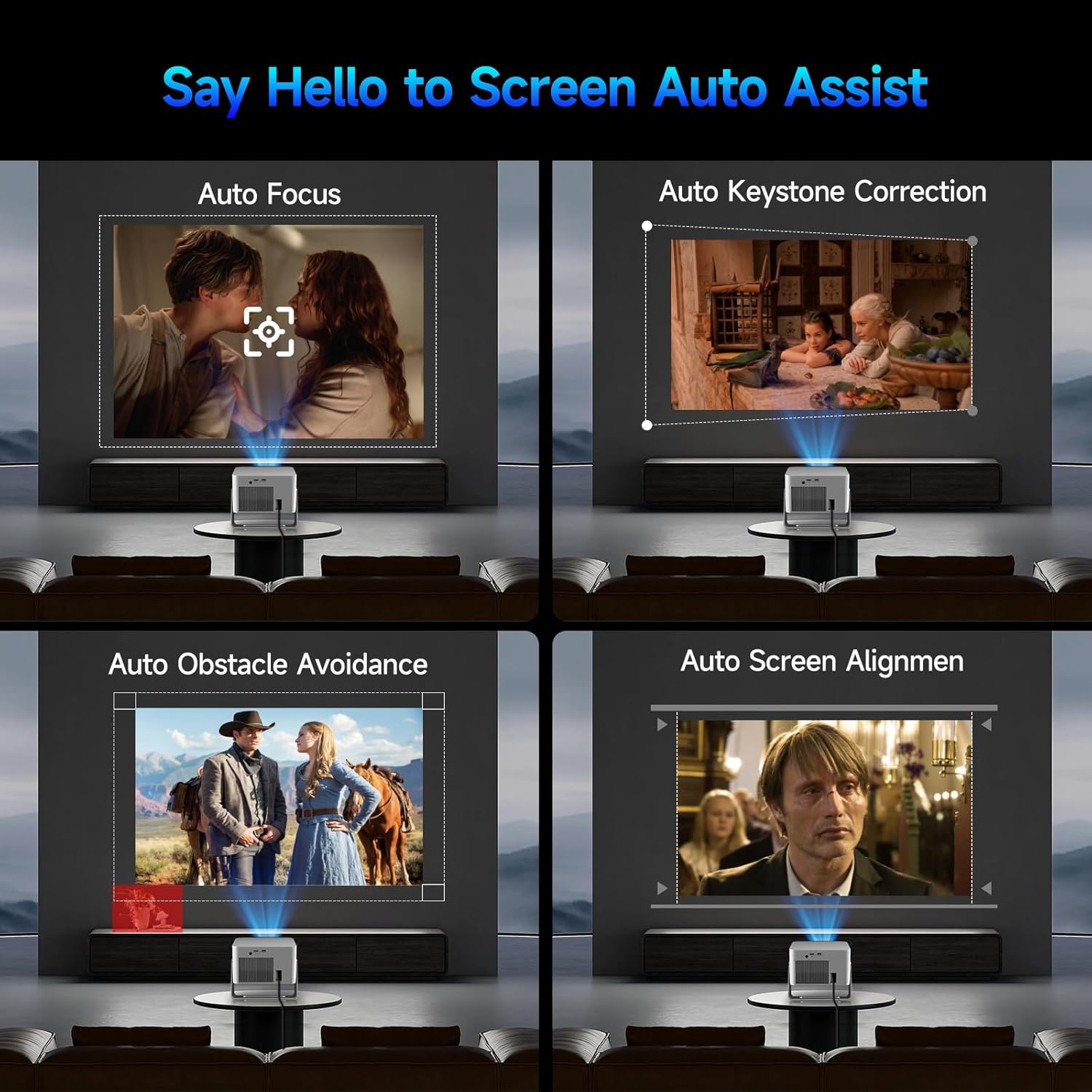
Image: Visual representation of the projector's automatic screen assist features, including auto focus, keystone correction, obstacle avoidance, and screen alignment.
3.3 Ceangal lìonra
Navigate to the 'Settings' menu using the remote control. Select 'Network settings' to connect to your Wi-Fi network (2.4G or 5G). This enables access to built-in streaming apps and online content.
4. Stiùireadh Obrachaidh
4.1 Remote Control and Voice Assistant
The included remote controls both the projector and the built-in streaming stick. Utilize the Voice Assistant feature by pressing the voice command button to quickly open apps, play movies, adjust volume, or check information.
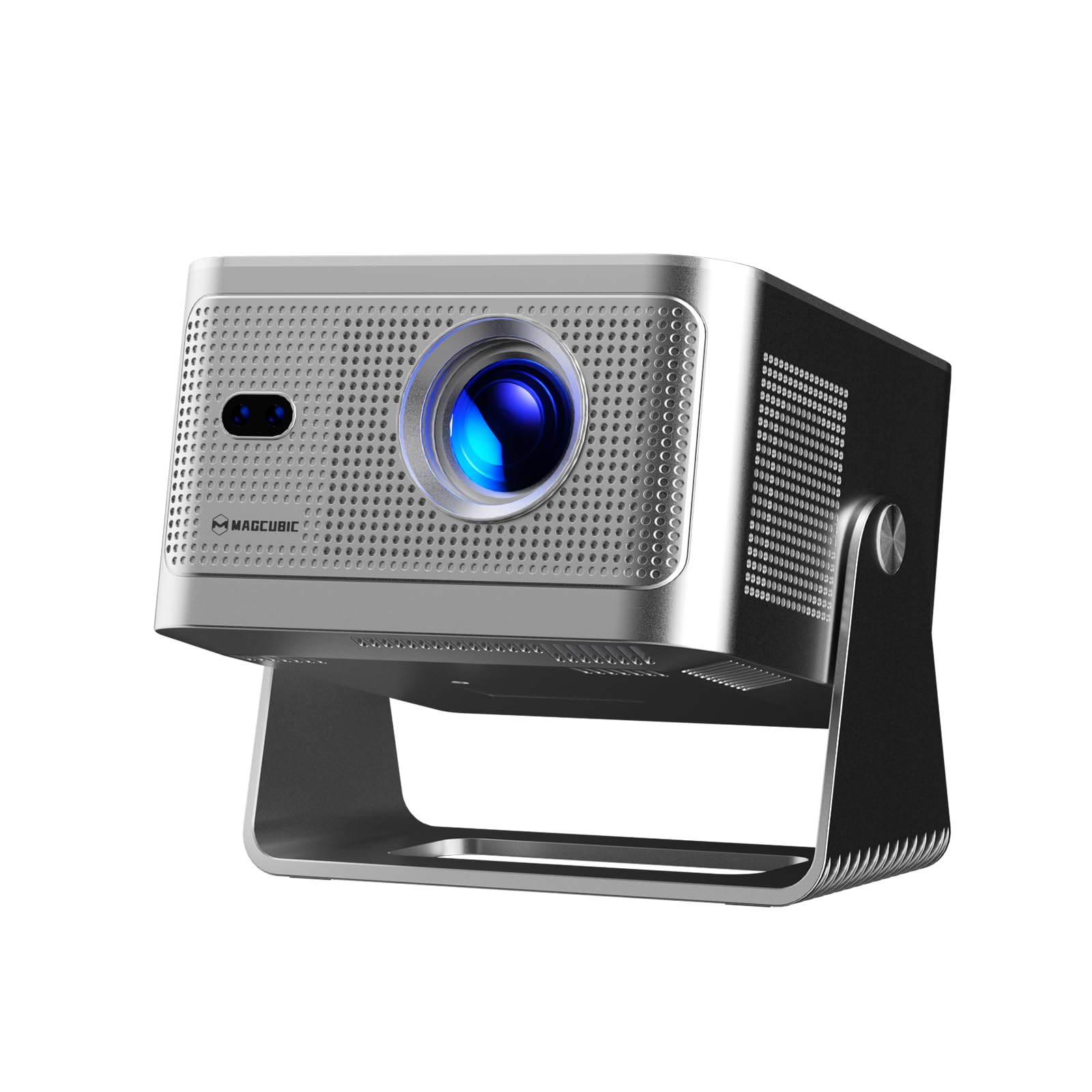
Image: The projector's main screen showing various streaming apps and the remote control, highlighting its voice assistant capabilities.
4.2 A' faighinn cothrom air Tagraidhean
The projector comes with a built-in 4K TV stick, providing access to a wide range of applications. Navigate to 'My Apps' or the 'Store' to browse and download additional streaming services and utilities.

Image: The projector's interface showing pre-installed and downloadable streaming applications.
4.3 Roghainnean Ro-mheasaidh
In the 'Settings' menu, select 'Projection settings' to fine-tune your display:
- Modh inneal: Switch between Standard and Energy Saving modes.
- Modh Stàlaidh: Adjust for front projection, rear projection, or ceiling mounting.
- Digital Scaling: Adjust image size from 80% to 100%.
- Fòcas Auto: Toggle automatic focus on/off.
- Auto Four Corner Correction: Enable automatic trapezoidal correction.
- Seachnadh cnapan-starra tuigseach: Enable automatic image adjustment around obstacles.
- Screen Recognition: Enable automatic screen detection and alignment.
4.4 Toradh Fuaim
The projector features a built-in 15W high-fidelity stereo speaker. For external audio, connect Bluetooth 5.1 compatible speakers or headphones via the 'Bluetooth' setting in the main menu.
4.5 Ceangal Taobh a-muigh
The rear panel of the projector includes:
- Port HDMI: Connect external devices such as laptops, gaming consoles (Switch, PS5), TV sticks, tablets, or smartphones.
- Port USB: Connect USB storage devices or a mouse for navigation.

Ìomhaigh: Mion-fhiosrachadh view of the projector's rear ports for HDMI, USB, and power connections.
4.6 Sgàthan sgrion
The projector supports screen mirroring from both Android and iOS devices. Access this feature through the main menu to cast content directly from your phone or tablet.

Image: A smartphone wirelessly casting its screen to the projector, demonstrating the screen mirroring capability.
5. Cumail suas
- Glanadh lionsa: Sguab lionsa a’ phròiseictar gu socair le clò bog, gun lint. Seachain stuthan sgrìobach no ceimigean cruaidh.
- Fionnarachadh: Ensure the projector's ventilation ports are clear of obstructions to prevent overheating. Do not block the air vents during operation.
- Stòradh: Nuair nach eilear ga chleachdadh, stòraich am proiseactair ann an àite fionnar, tioram, air falbh bho sholas dìreach na grèine agus teòthachd anabarrach.
6. A ’dèanamh trioblaid
- Gun dealbh: Ensure the projector is powered on and the correct input source (HDMI, USB, or internal apps) is selected. Check all cable connections.
- Ìomhaigh neo-shoilleir: Allow the auto-focus feature to complete. If needed, manually adjust focus via the projection settings. Ensure the projection surface is flat.
- Gun fhuaim: Check the volume level on both the projector and any connected external audio devices. Verify Bluetooth connection if using external speakers.
- Cùisean ceangail: For Wi-Fi, ensure the network password is correct and the projector is within range. For Bluetooth, ensure the external device is in pairing mode.
- Saobhadh ìomhaigh: Allow auto keystone correction to complete. If necessary, manually adjust keystone settings in the projection menu.
7. Sònrachaidhean
| Feart | Sònrachadh |
|---|---|
| Ainm Brand | Magcubic |
| Modail | HY350GT |
| Cuideam nì | 3.08 not |
| Meud pacaid | 9.61 x 8.27 x 5.39 òirleach |
| Fuasgladh Taisbeanaidh | 1920 x 1080 (Native 1080P, 4K Support) |
| Gile | 650 Lumens ANSI |
| Co-mheas coimeas | 10,000:1 |
| Gamut dath | 120% |
| Teicneòlas ceangail | Bluetooth 5.1, Dual-Band Wi-Fi (2.4G&5G) |
| Feartan sònraichte | 15W Speaker, Auto Focus, Auto Keystone Correction, Auto Obstacle Avoidance, Auto Screen Alignment |
| Cleachdaidhean Molta | Gnìomhachas, Foghlam, Geamannan, Taigh-dhealbh Dachaigh |
8. Barantas agus Taic
Magcubic offers a 30-day return guarantee for this product. Additionally, 24-hour live customer support and lifetime technical support are included to assist with any inquiries or issues.