
1. Ro-ràdh
This manual provides essential information for setting up, operating, maintaining, and troubleshooting your Auusda 16-inch FHD Laptop T161N. Please read this manual thoroughly before using your device to ensure proper function and longevity.
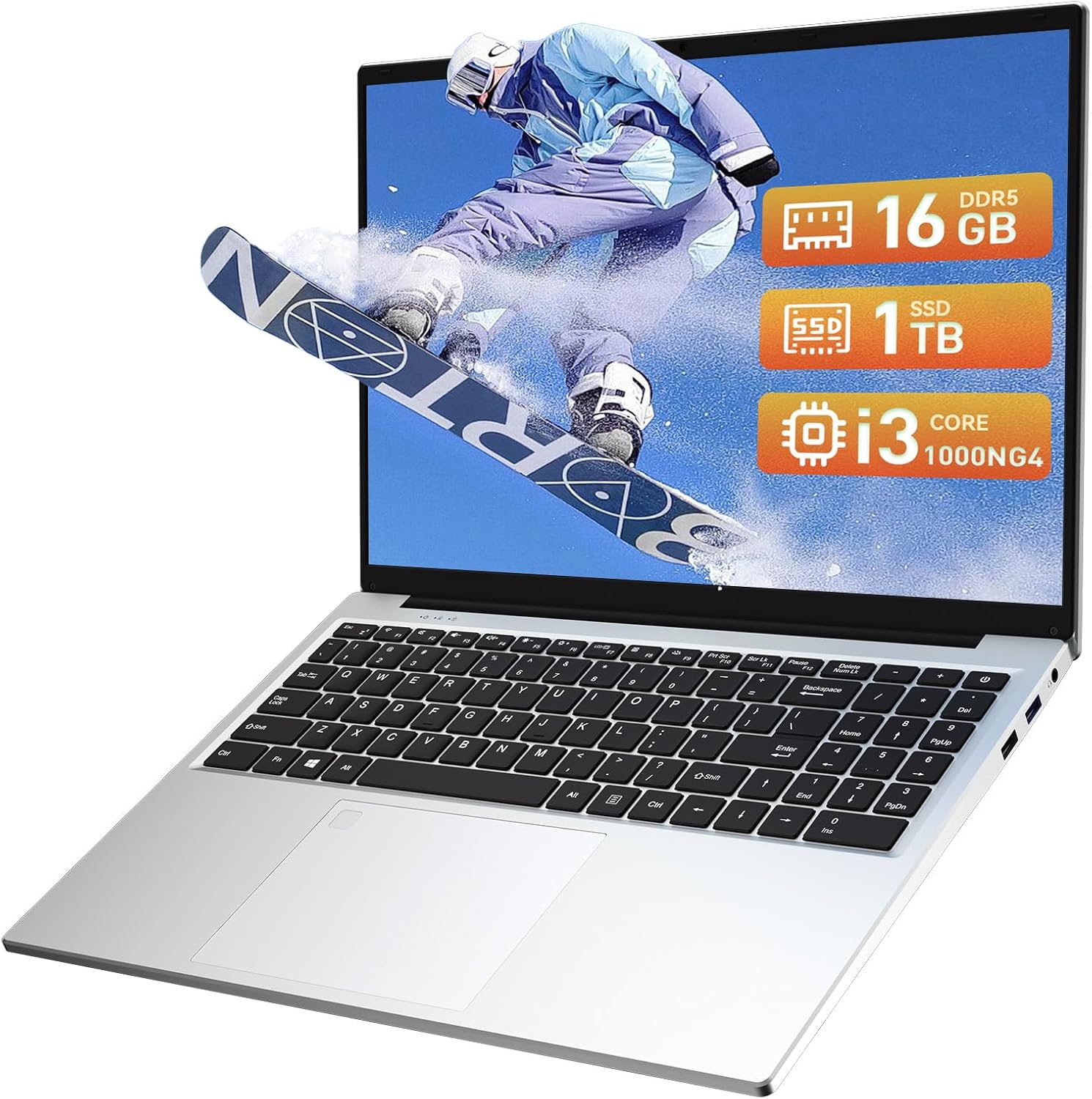
Image: The Auusda 16-inch FHD Laptop T161N, showcasing its sleek design and screen.
2. Dè tha sa bhogsa
Upon opening your Auusda T161N laptop package, verify that all the following items are included:
- Auusda 16-inch FHD Laptop T161N
- Adaptor cumhachd / charger
- Leabhar-stiùiridh (an sgrìobhainn seo)
- Còmhdach meur-chlàr

Image: A visual representation of the items included in the Auusda T161N laptop packaging.
3. Toradh thallview
3.1 Prìomh fheartan
- Taisbeanadh: 16-inch Full HD (1920x1080) IPS screen with 180° viewceàrn ing.
- Pròiseasar: Intel Core i3-1000NG4 (up to 3.2GHz).
- Cuimhne: 16GB de RAM DDR4.
- Stòradh: 1TB PCIe SSD.
- Ceangal: Wi-Fi 6, Bluetooth 5.3.
- Tèarainteachd: Fingerprint Reader.
- Teachd a-steach: Backlit Keyboard.
- Siostam-obrachaidh: Windows 11 Pro.
3.2 Puirt agus Ceangalaichean
The Auusda T161N laptop is equipped with various ports for versatile connectivity:
- Puirt USB 3.0 (x2)
- Full-Function Type-C Port (x1) - Supports data transfer, screen mirroring, and charging.
- Port USB 2.0 (x1)
- Mini HDMI Port (x1)
- 3.5mm Standard Headphone Jack (x1)
- Microphone Input (shared with headphone jack)
- Port luchdadh a-nuas

Image: A detailed diagram illustrating the location and type of ports on the Auusda T161N laptop.
3.3 Lèirsinneach Tharview
Bhidio: Thar-shealladhview of the Auusda 16-inch FHD Laptop T161N, demonstrating its design and key features.
4. Suidhich
4.1 Cìs tòiseachaidh
- Connect the power adapter to the charging port on the laptop.
- Plug an adapter cumhachd a-steach do bhalla a-muigh.
- Leig leis an laptop cosgais a chur air airson co-dhiù 30 mionaid mus cleachd thu e an toiseach, no gus an seall comharra a’ bhataraidh gu bheil e làn-chìseach.
4.2 Powering On and Initial Windows Setup
- Brùth am putan cumhachd a tha suidhichte air a’ mheur-chlàr gus an laptop a thionndadh air.
- Lean an stiùireadh air an sgrion gus pròiseas rèiteachaidh Windows 11 Pro a chrìochnachadh. Tha seo a’ gabhail a-steach taghadh do roinn, do chànan, ceangal ri lìonra Wi-Fi, agus cunntas cleachdaiche a chruthachadh.
- Ensure you have an active internet connection for Windows updates and driver installations during the setup.
5. Stiùireadh Obrachaidh
5.1 Keyboard Functions (Fn + Function Keys)
The laptop features a full-size keyboard with dedicated function keys that can be accessed by pressing the Fn iuchair còmhla ris an iuchair gnìomh co-fhreagarrach (F1-F12).
- Meur-chlàr backlit: Brùth Fn + f9 to cycle through 2 brightness levels. Pressing it a third time turns the backlight off.
- Àireamh Lock: Brùth Fn + Num Lk to toggle the numeric keypad on or off.
- Smachd tomhas-lìonaidh: Cleachd Fn + Speaker keys (F1-F3) to mute, decrease, or increase volume.
- Smachd soilleireachd: Cleachd Fn + Sun keys (F4-F5) to decrease or increase screen brightness.

Image: A visual guide to using the Fn (Function) keys on the Auusda T161N keyboard for various controls.
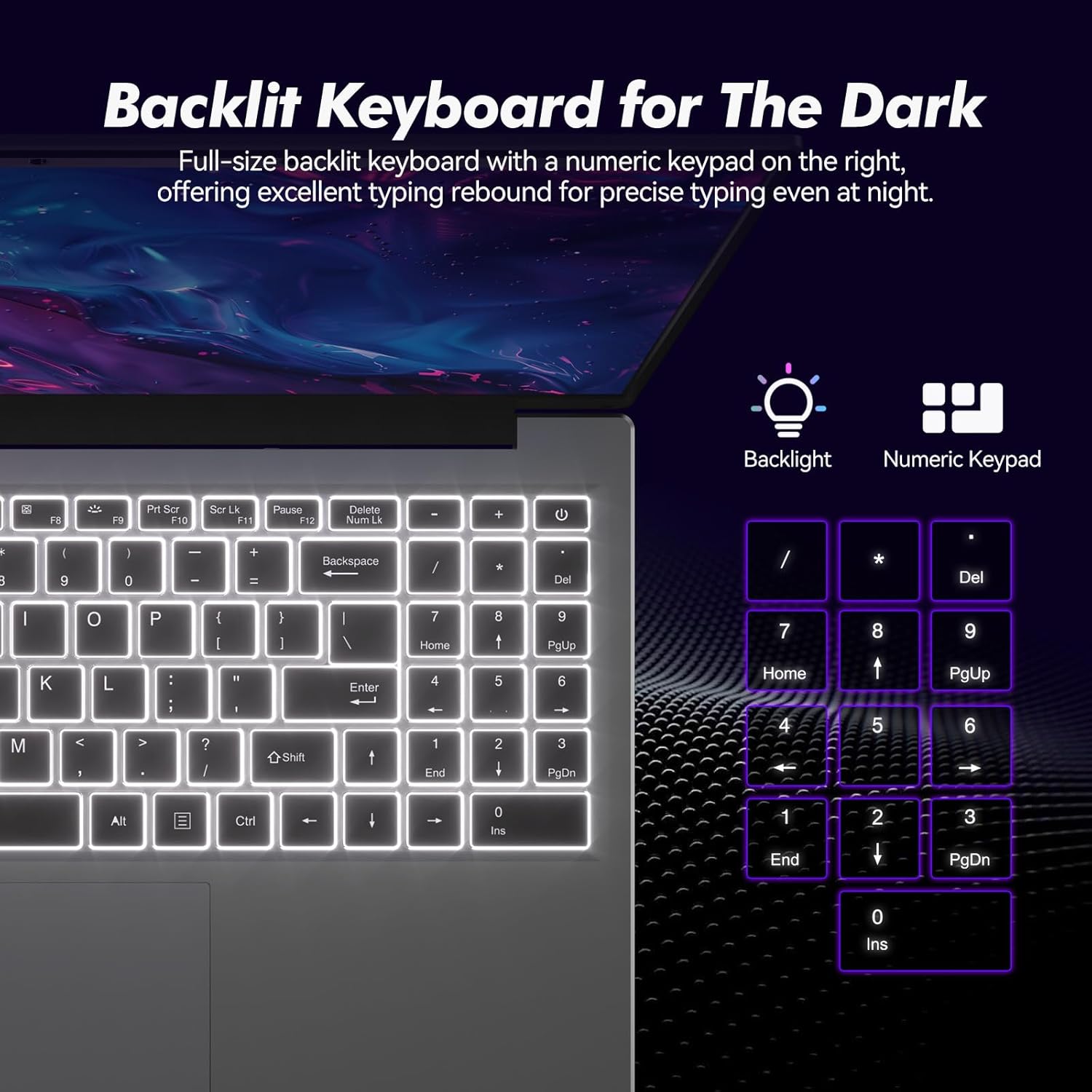
Ìomhaigh: Dlùth-shealladh view of the backlit keyboard and numeric keypad, highlighting their functionality.
5.2 Leughadair Meòir-lorg
The integrated fingerprint reader provides a secure and fast way to unlock your laptop. To set up fingerprint recognition:
- Seòl gu Roghainnean Windows > Cunntasan > Roghainnean clàraidh a-steach.
- Fo 'Windows Hello Fingerprint', briog air 'Suidhich'.
- Follow the on-screen prompts to register your fingerprint.
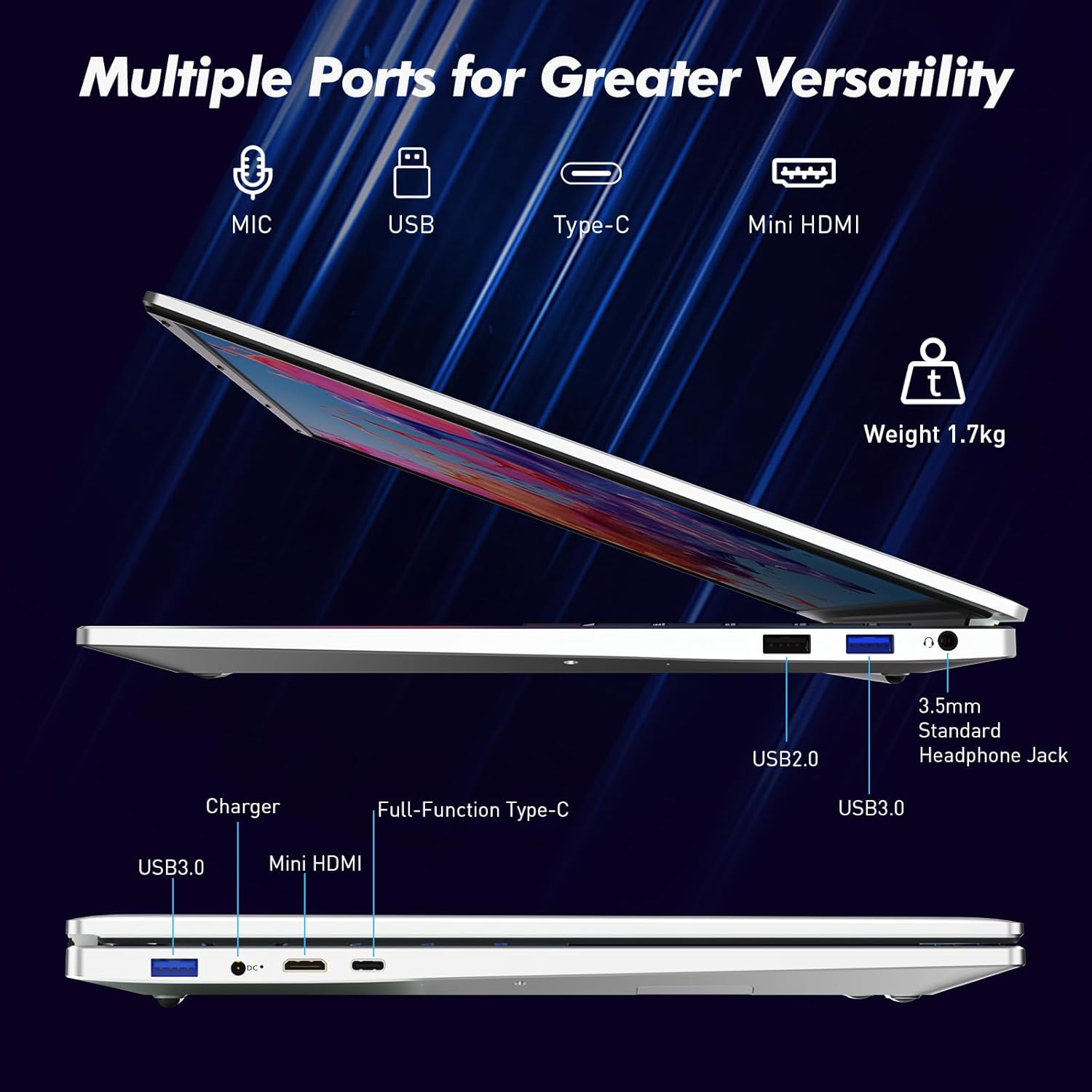
Image: A visual representation of the fingerprint reader location and its quick unlock capability.
5.3 Type-C Connectivity
The full-function Type-C port offers versatile connectivity options:
- Gluasad dàta: Connect compatible devices for high-speed data exchange.
- Sgàthan sgrion: Output video to an external display using a compatible Type-C to HDMI/DisplayPort adapter (sold separately).
- A' cur cosgais: Charge the laptop using a compatible Type-C power delivery charger.
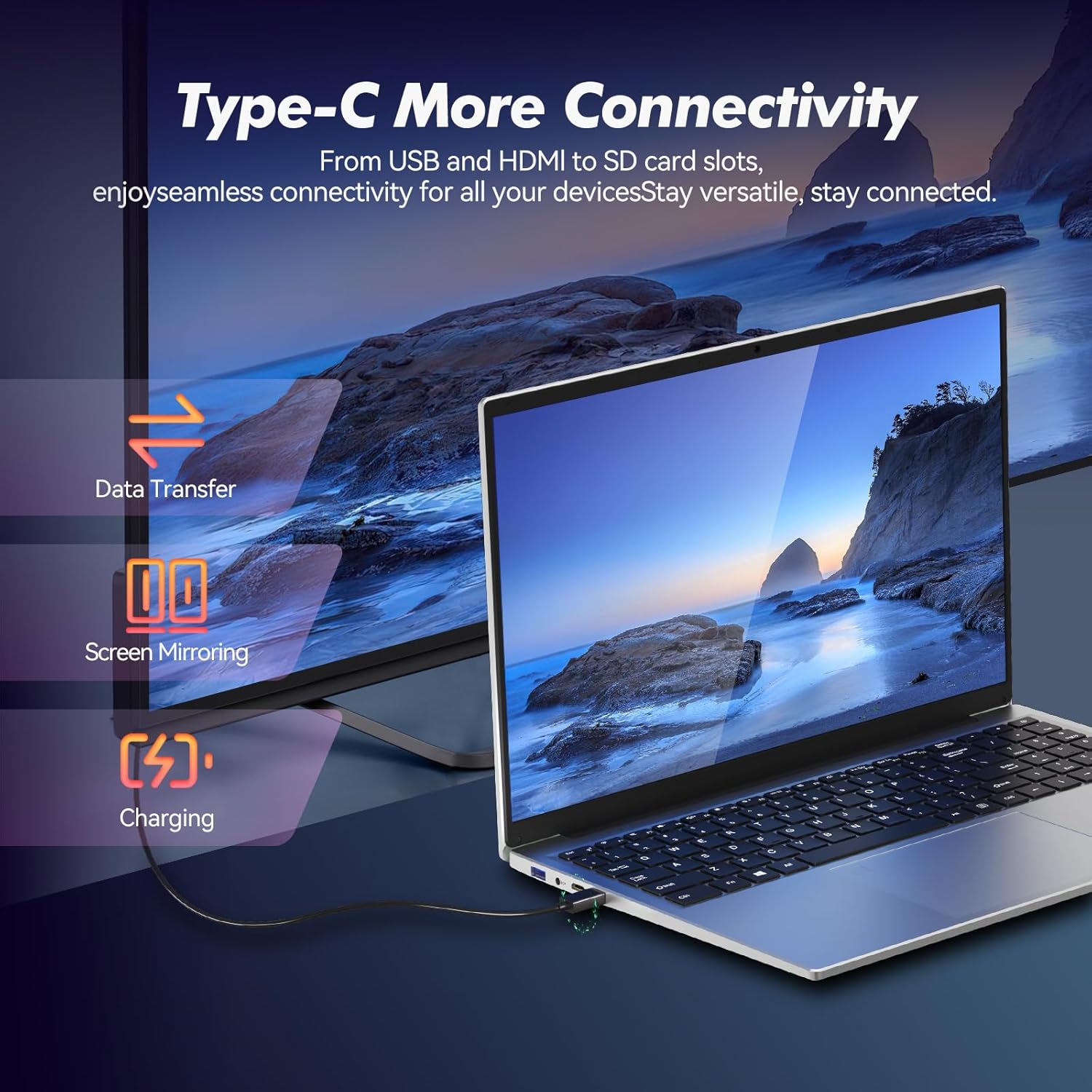
Image: Illustrates the multi-functional capabilities of the Type-C port, including data transfer, screen mirroring, and charging.
5.4 Wi-Fi 6 and Bluetooth 5.3
The laptop supports Wi-Fi 6 for faster and more stable wireless internet connections and Bluetooth 5.3 for connecting wireless peripherals.
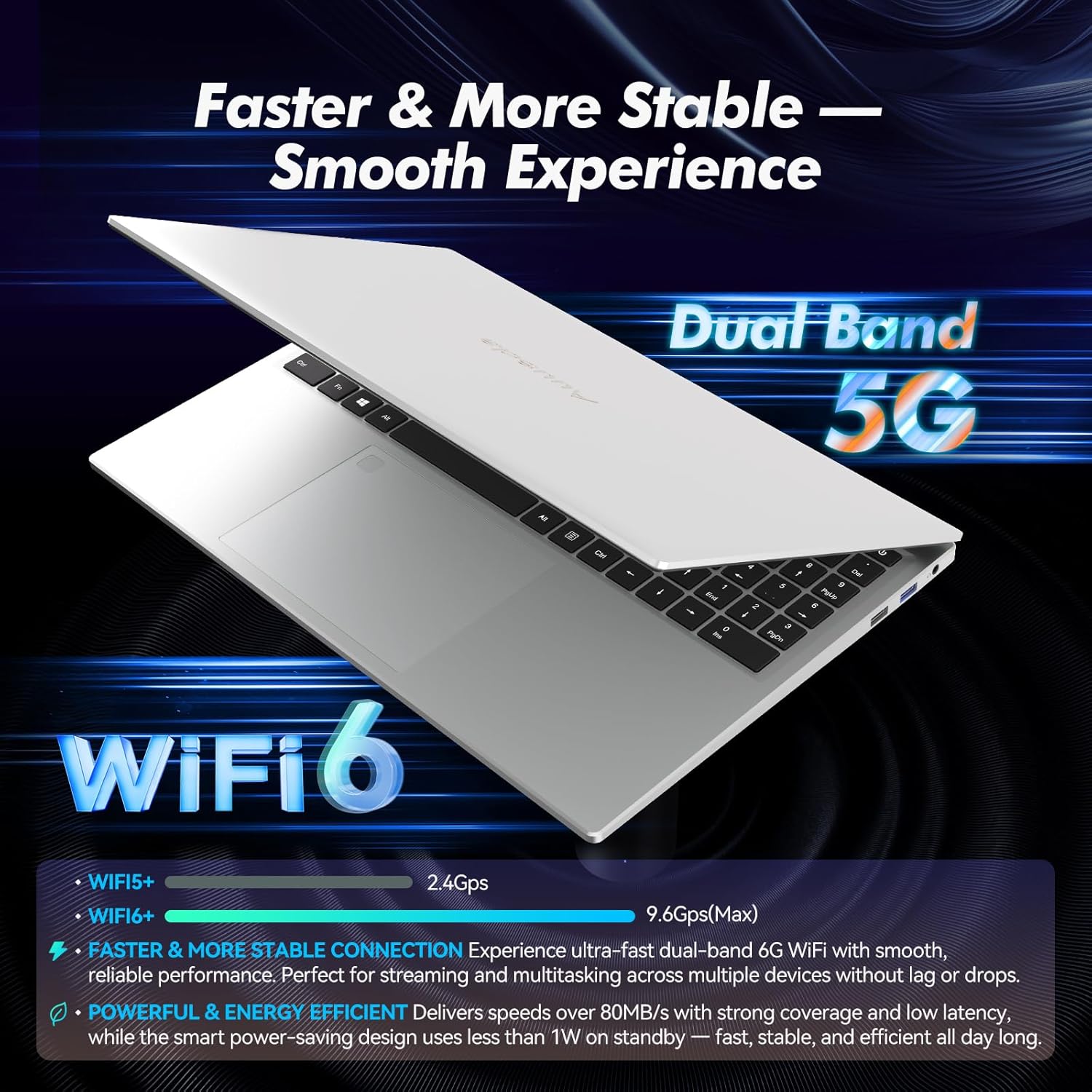
Image: Highlights the advanced wireless connectivity of the laptop, including Wi-Fi 6 and Dual Band 5G support.
6. Sònrachaidhean
Below are the detailed technical specifications for the Auusda 16-inch FHD Laptop T161N:
| Feart | Sònrachadh |
|---|---|
| Modail Àireamh | T161N |
| Meud sgrion | 16 òirlich |
| Fuasgladh sgrion | 1920 x 1080 piogsail (FHD) |
| Pròiseasar | Intel Core i3-1000NG4 (1.09 GHz, up to 3.2 GHz) |
| RAM | 16 GB DDR4 SDRAM |
| Dràibhear cruaidh | 1 TB SSD (PCIe) |
| Grafaigeachd coprocessor | Iris Plus Graphics G4 48EUs (Integrated) |
| Siostam-obrachaidh | Windows 11 pro |
| Seòrsa gun uèir | 802.11ax (Wi-Fi 6), Bluetooth 5.3 |
| Puirt USB 3.0 | 2 |
| Puirt USB 2.0 | 1 |
| Cuideam nì | 5.21 not |
| Meudan toraidh | 14.17 x 10.83 x 0.71 òirleach |
| Dath | Airgiod |
| Bataraidhean | 1 bataraidh 12V (air a ghabhail a-steach) |
7. Cumail suas
Regular maintenance helps ensure the optimal performance and longevity of your laptop.
7.1 Glanadh
- Cleachd clò bog, gun lint, gus an sgrion agus na h-uachdaran a-muigh a ghlanadh. Airson comharran stòlda, cuir beagan sguab às.ampnigh an clò le uisge no le inneal-glanaidh a tha sàbhailte airson sgrion.
- Seachain lionntan a spraeadh gu dìreach air an laptop.
- Cleachd èadhar teannaichte gus duslach a ghlanadh bho iuchraichean meur-chlàir agus bho ghriolaichean fionnarachaidh.
7.2 Ùrachaidhean bathar-bog
- Thoir sùil gu cunbhalach airson ùrachaidhean Windows agus stàlaich iad gus dèanamh cinnteach à seasmhachd agus tèarainteachd an t-siostaim. Rach gu Roghainnean > Ùrachadh Windows.
- Keep your drivers updated. Windows Update typically handles this, but you may occasionally need to check the Auusda support website for specific driver updates.
7.3 Cùram Bataraidh
- Seachain a bhith a’ leigeil às a’ bhataraidh gu tur gu tric.
- Stòraich an laptop ann an àite fionnar, tioram mura tèid a chleachdadh airson ùine mhòr.
8. A ’dèanamh trioblaid
Tha an earrann seo a’ dèiligeadh ri cùisean cumanta a dh’ fhaodadh tu a thighinn tarsainn air leis an laptop agad.
8.1 Chan eil an laptop a’ dol air
- Dèan cinnteach gu bheil an inneal-atharrachaidh cumhachd ceangailte gu tèarainte ris an laptop agus ri socaid cumhachd a tha ag obair.
- Dearbhaich gu bheil an socaid cumhachd ag obair le bhith a’ cur inneal eile a-steach.
- Ma tha am bataraidh air a dhrèanadh gu tur, leig leis cosgais a chur air airson co-dhiù 15-30 mionaid mus feuch thu ri a chumhachdachadh a-rithist.
8.2 Cùisean Ceangail Wi-Fi
- Check if Wi-Fi is enabled in Windows settings (Settings > Network & internet > Wi-Fi).
- Ath-thòisich an router agus am modem agad.
- Dèan cinnteach gu bheil thu taobh a-staigh ruigsinneachd an lìonra Wi-Fi agad.
- Update your Wi-Fi drivers if necessary.
8.3 Meur-chlàr no Touchpad gun fhreagairt
- Ath-thòisich an laptop.
- Check for any physical obstructions or debris under the keys or on the touchpad.
- Ensure the touchpad has not been accidentally disabled (some laptops have a function key or a setting to toggle the touchpad).
Airson tuilleadh cuideachaidh, thoir sùil air an earrann taic gu h-ìosal.
9. Barantas agus Taic
Auusda provides customer support and warranty services for its products.
9.1 Fiosrachadh Barantais
Auusda laptops typically come with a two-year after-sales service period. Please retain your proof of purchase for warranty claims.
9.2 Taic teachdaiche
If you encounter issues or require technical assistance, please contact Auusda customer support:
- Taic Post-d: Send your order number and a video demonstrating the problem to Auusda.ltd@gmail.com.
- Amazon Buyer Account: Log in to your Amazon buyer account, find your order, and click "Get Help" or "Ask questions" for direct support.