
1. Ro-ràdh agus Os a chionnview
This manual provides detailed instructions for setting up and using your Rapoo Blade-Series E9310M Wireless Keyboard and M300G Silent Mouse Combo. This combo offers multi-device connectivity and a compact design for enhanced productivity across various operating systems.
Prìomh fheartan:
- Compact Wireless Combo: Features a 99-key layout with number pad and arrow keys, paired with a silent mouse with side buttons. This design optimizes typing and browsing efficiency while occupying 20% less space.
- Multi-Device and Multi-OS Support: Connects to up to 4 devices across Windows, Mac OS, and Linux via Bluetooth 5.0/4.0 and a plug-and-play USB receiver.
- Fluid Typing Experience: Laptop-like profile with incurve rounded keys ensures a fast, fluid, precise, and quiet typing experience.
- 5-DPI Adjustable Silent Mouse: The M300G mouse offers good portability and ergonomics, with 5 preset DPI levels (800/1000/1200/1600/2400) for smooth tracking.
- Iuchraichean ioma-mheadhain: Supports Windows and Mac OS dual system shortcuts for 12 common functions like play/pause and volume control.
- Aesthetic and Durable Design: Constructed with an aluminum alloy frame and a matte antioxidant finish for a delicate texture and enhanced durability.
- Refined Details: Includes device and capitalization indicator lights for improved user awareness and an upgraded Bluetooth 5.0/4.0 for extended battery life.
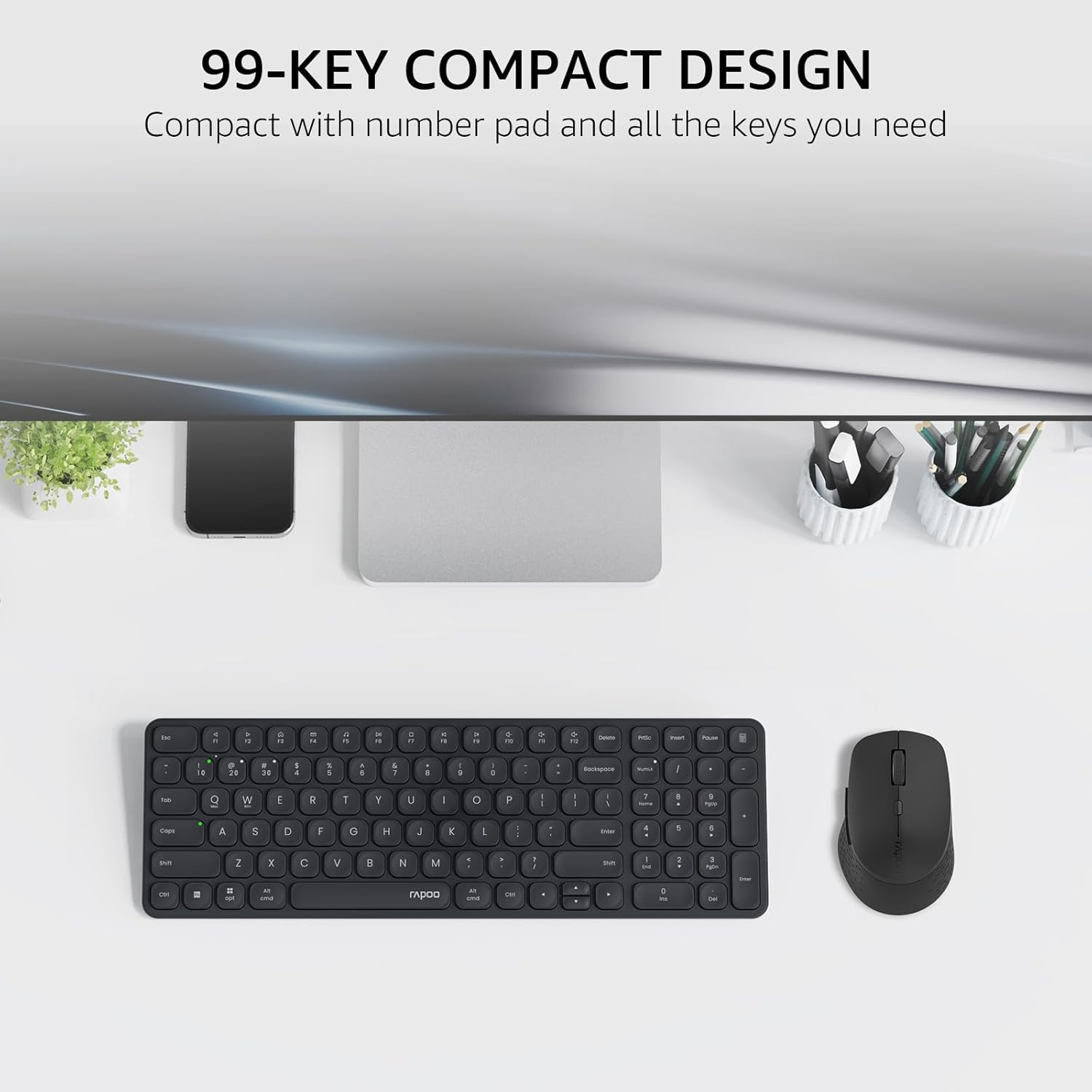
Image: The Rapoo E9310M keyboard and M300G mouse combo, showcasing its compact design on a desk.
2. Stiùireadh Stèidheachaidh
2.1 Stàladh bataraidh
The keyboard and mouse require AAA batteries. Two AAA batteries are included with the product.
- Lorg roinn a’ bhataraidh air bonn a’ mheur-chlàir agus na luchaige.
- Fosgail an còmhdach roinn bataraidh.
- Insert the AAA batteries, ensuring correct polarity (+/-).
- Dùin an còmhdach roinn bataraidh gu tèarainte.
2.2 A 'ceangal ri innealan
Your Rapoo combo supports connection via 2.4GHz USB receiver or Bluetooth 5.0/4.0, allowing connection to up to 4 devices (3 via Bluetooth, 1 via 2.4GHz).
2.2.1 2.4GHz USB Receiver Connection
- Locate the USB receiver, typically stored within the mouse's battery compartment.
- Plug an cuidhteas USB a-steach do phort USB a tha ri fhaighinn air do choimpiutair.
- Tionndaidh air a’ mheur-chlàr agus an luchag le bhith a’ cleachdadh na suidsichean cumhachd fa leth aca.
- The devices should automatically connect to your computer. If not, press the 2.4G pairing button on the keyboard/mouse (refer to device for exact button location).
2.2.2 Bluetooth Connection (for up to 3 devices)
- Tionndaidh air a 'mheur-chlàr agus an luchag.
- On the keyboard, press and hold one of the Bluetooth pairing keys (e.g., Fn + 1, Fn + 2, or Fn + 3) until the indicator light flashes, indicating pairing mode.
- On your device (PC, tablet, phone), go to Bluetooth settings and search for new devices.
- Select the Rapoo keyboard from the list and follow any on-screen prompts to complete pairing.
- Repeat steps 2-4 for the mouse, pressing its Bluetooth pairing button (usually on the underside) until its indicator flashes.
- To switch between paired Bluetooth devices, simply press the corresponding Bluetooth key (Fn + 1/2/3) on the keyboard or the Bluetooth switch on the mouse.
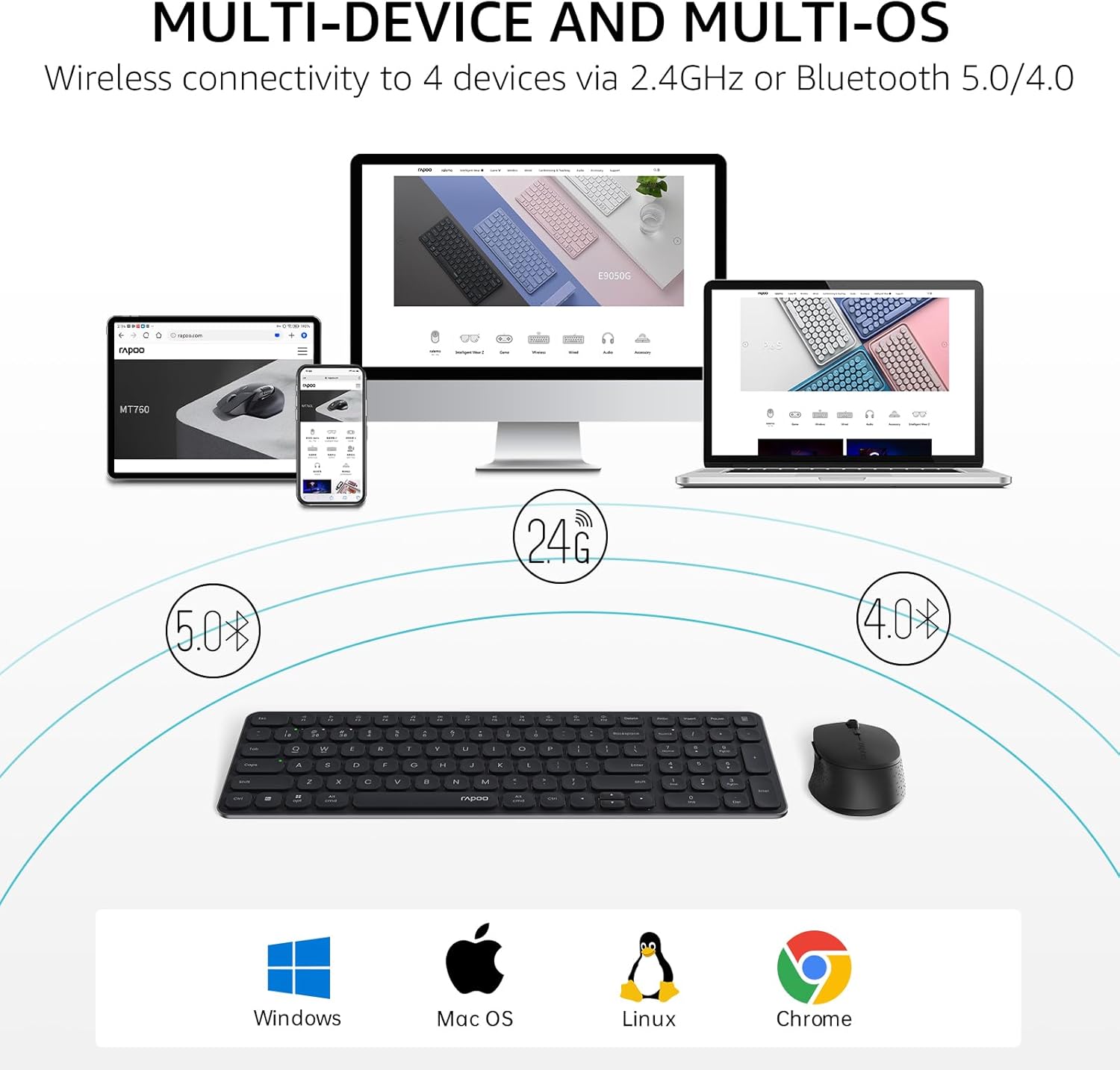
Image: The Rapoo keyboard and mouse combo connected to a desktop, laptop, tablet, and smartphone, illustrating its multi-device capability.
3. Stiùireadh Obrachaidh
3.1 Gnìomhan meur-chlàr
The E9310M keyboard features a 99-key layout, including a number pad and dedicated arrow keys, designed for efficient input.
3.1.1 Iuchraichean Ioma-mheadhain
Access 12 widely used function keys by pressing the Fn key in combination with the corresponding F-keys (F1-F12). These shortcuts are compatible with both Windows and Mac OS.
- Fn+F1: Cluich / Stad
- Fn+F2: Stad
- Fn+F3: Rian roimhe
- Fn+F4: An ath Rian
- Fn+F5: Mut
- Fn+F6: Meud Sìos
- Fn+F7: Tomhais Suas
- Fn+F8: Rannsachadh
- Fn+F9: Dhachaigh
- Fn+F10: Post
- Fn+F11: Mo choimpiutair
- Fn+F12: Favourites
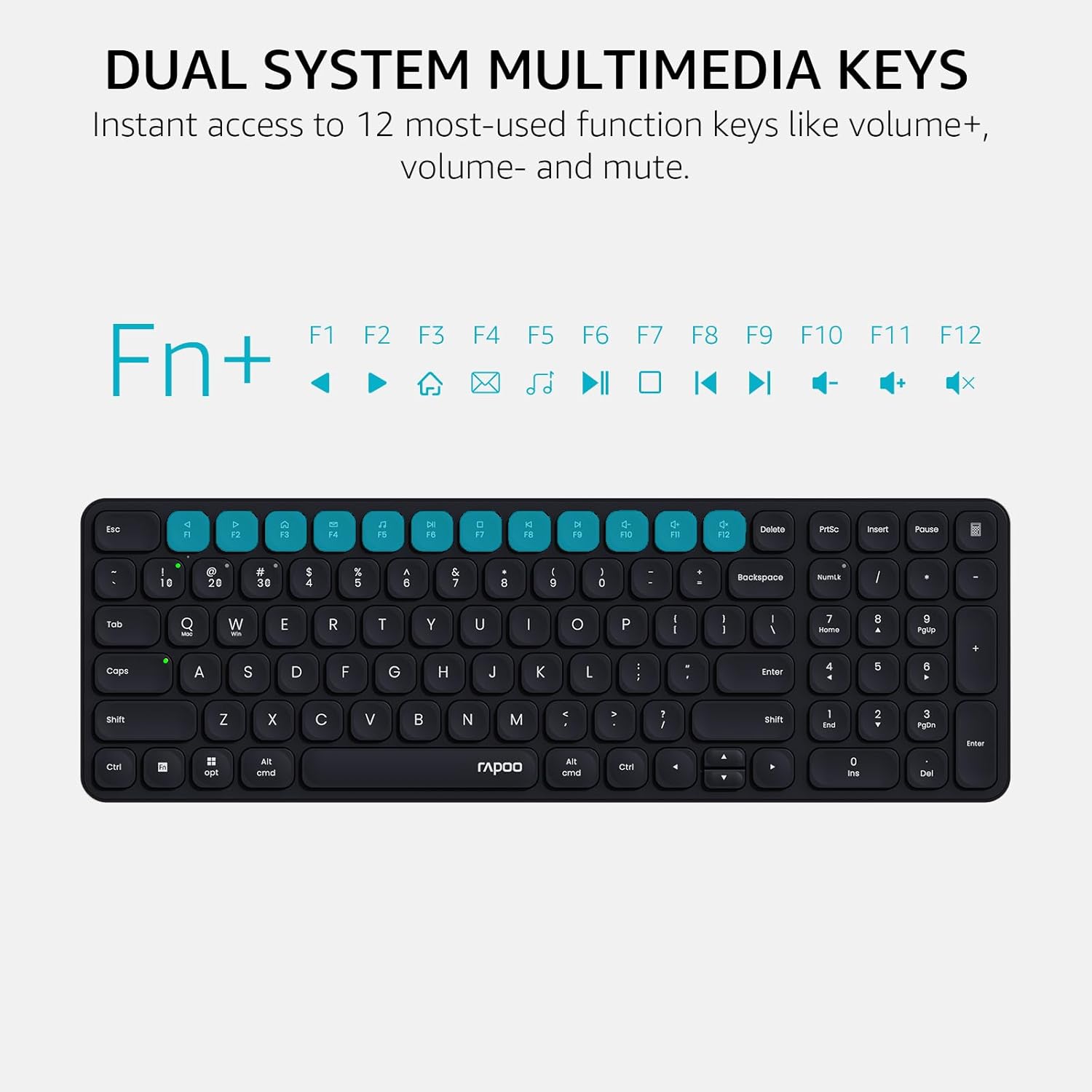
Image: Close-up of the Rapoo E9310M keyboard highlighting the multimedia function keys (F1-F12) and their corresponding icons.
3.1.2 Solais Comharran Innealan is Litreachaidh Chaipitil
The keyboard includes indicator lights to show which device is currently active and the status of the Caps Lock key.
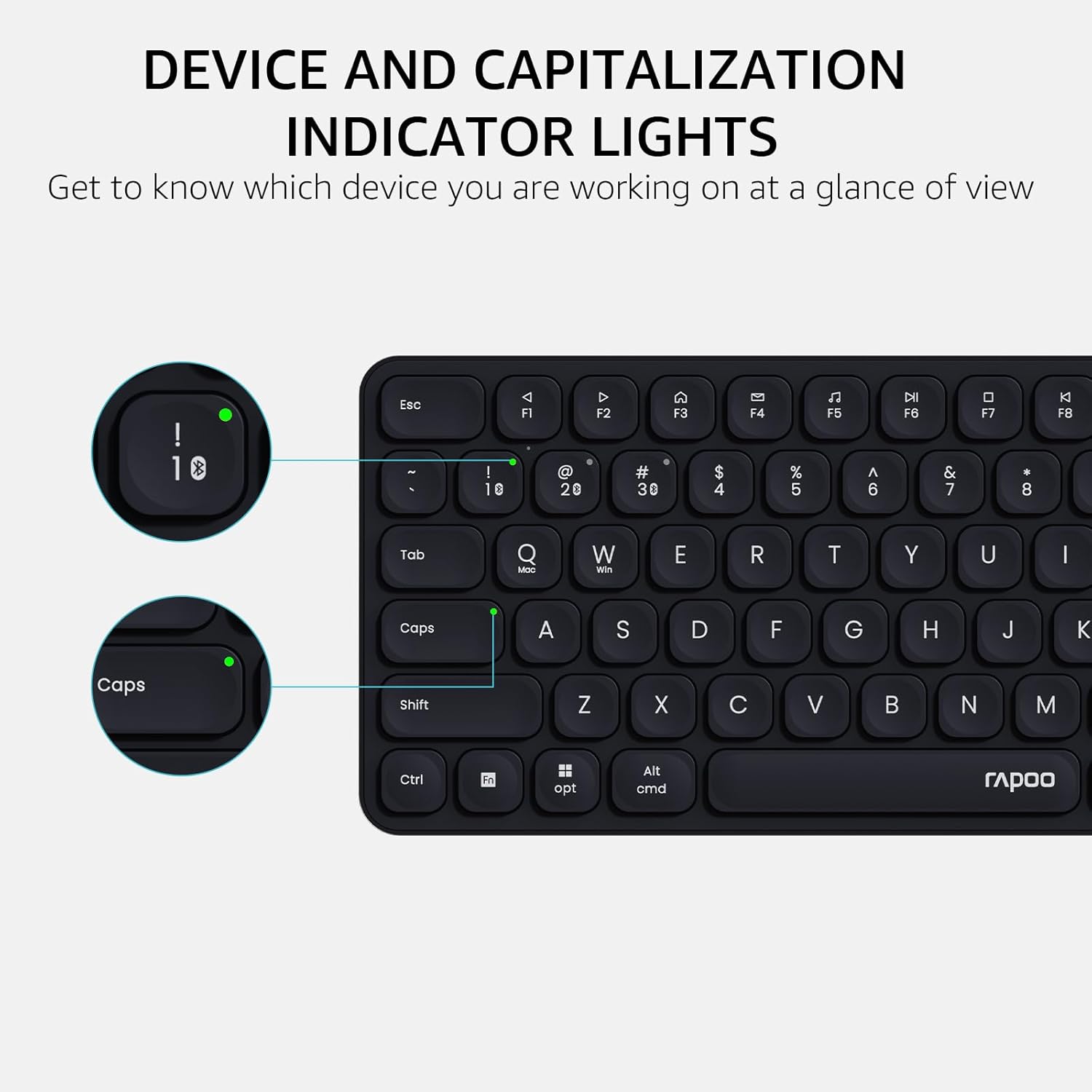
Ìomhaigh: Mion-fhiosrachadh view of the Rapoo E9310M keyboard, pointing out the indicator lights for device connection and Caps Lock status.
3.2 Gnìomhan na Luchaige
The M300G Silent Mouse provides precise control with adjustable DPI settings and a quiet click design.
3.2.1 Atharrachadh DPI
The mouse features 5 adjustable DPI levels (800/1000/1200/1600/2400) to suit different screen resolutions and user preferences. Press the DPI button (usually located near the scroll wheel) to cycle through the settings.
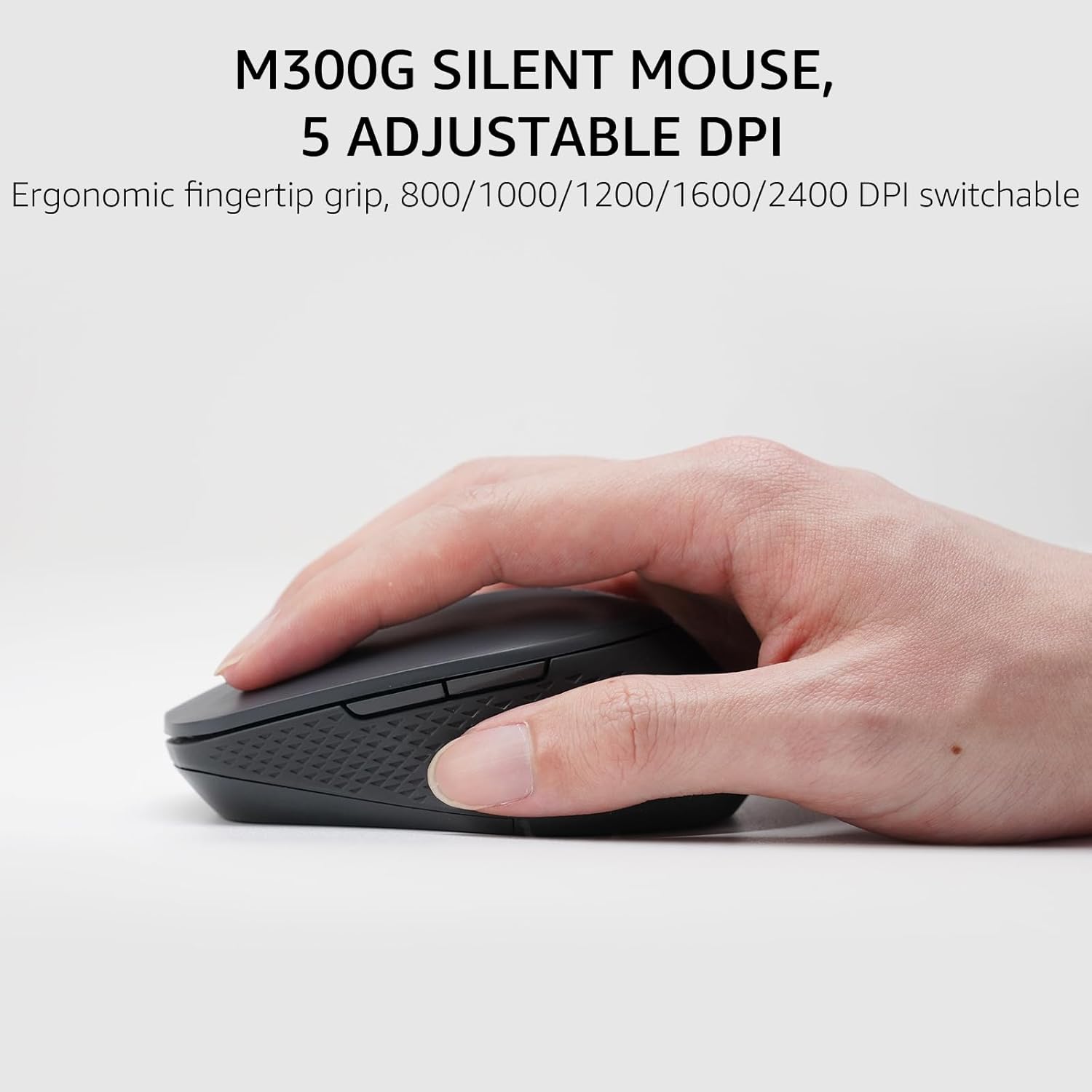
Image: The Rapoo M300G Silent Mouse, highlighting its ergonomic design and the DPI adjustment button.
4. Cumail suas
4.1 Glanadh
- Cleachd clò bog, tioram gus uachdar a’ mheur-chlàir agus na luchaige a ghlanadh.
- Airson salachar stòlda, beagan dampnigh an clò le uisge no le fuasgladh glanaidh tlàth. Seachain cus taiseachd.
- Na cleachd innealan-glanaidh sgrìobach, fuasglaidhean, no spraeirean aerosol.
4.2 Ath-nuadhachadh bataraidh
When the battery indicator light flashes or performance degrades, replace the batteries. The upgraded Bluetooth 5.0/4.0 technology extends battery life up to 12 months.
- Cuir dheth an inneal.
- Fosgail an roinn bataraidh.
- Thoir air falbh seann bhataraidhean agus cuir às dhaibh a rèir riaghailtean ionadail.
- Insert new AAA batteries, observing correct polarity.
- Dùin an roinn.
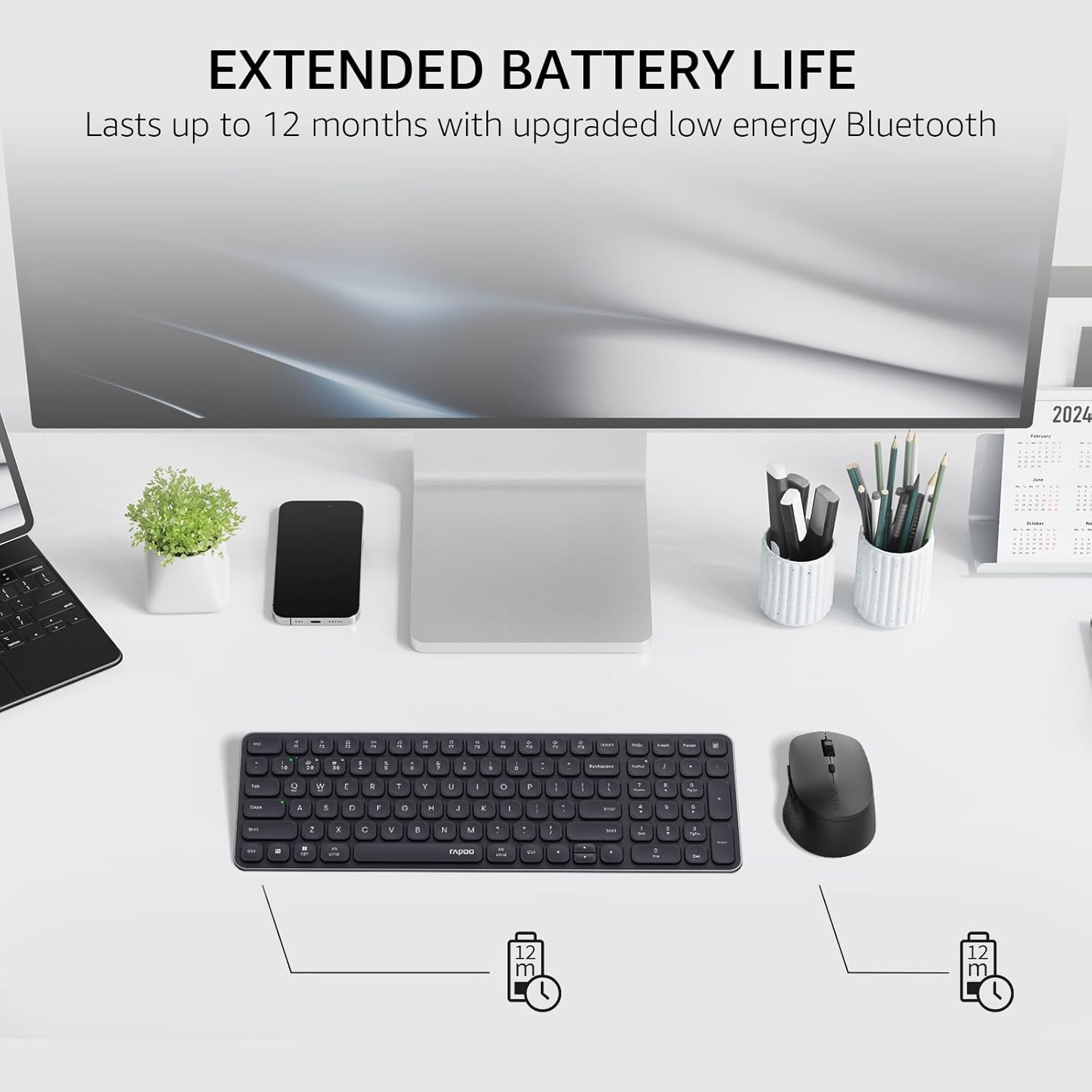
Image: The Rapoo keyboard and mouse on a desk, with an overlay indicating an extended battery life of up to 12 months.
5. A ’dèanamh trioblaid
5.1 Duilgheadasan Ceangail
- Inneal nach eil a’ ceangal: Ensure the keyboard/mouse is turned on and in pairing mode (indicator light flashing). Check your device's Bluetooth settings to ensure Bluetooth is enabled and the correct Rapoo device is selected.
- 2.4GHz connection unstable: Ensure the USB receiver is securely plugged into a working USB port. Try a different USB port. Ensure no other wireless devices are causing interference.
- Bluetooth connection dropping: Ensure the devices are within the effective range (typically 10 meters/33 feet). Check battery levels. Remove and re-pair the device if issues persist.
5.2 Meur-chlàr/Luchag gun Fhreagairt
- No input: Check battery levels and replace if necessary. Ensure the correct connection mode (2.4GHz or Bluetooth channel) is selected on the keyboard/mouse.
- Na h-iuchraichean nach eil ag obair: Glan timcheall air na h-iuchraichean air a bheil buaidh gus sprùilleach sam bith a thoirt air falbh.
- Cursair na luchaige neo-sheasmhach: Clean the mouse sensor. Ensure the mouse is used on a suitable surface. Adjust DPI settings if sensitivity is an issue.
6. Sònrachaidhean
| Feart | Mion-fhiosrachadh |
|---|---|
| Brand | Rapù |
| Model (Keyboard) | E9310m |
| Model (Mouse) | M300G |
| Dath | Dubh |
| Teicneòlas ceangail | Bluetooth (5.0/4.0), Radio Frequency (2.4GHz) |
| Innealan co-fhreagarrach | Laptop, Personal Computer (Windows, macOS, Linux, Chrome OS) |
| Cruth meur-chlàr | QWERTY, 99-Key with Number Pad |
| DPI na luchaige | 800/1000/1200/1600/2400 (Adjustable) |
| Stòr cumhachd | Cumhachd bataraidh (2 bataraidhean AAA air an toirt a-steach) |
| Cuideam nì | 393.2 gram |
| Dèanadair | Tha Shenzhen Rapoo Technology Co., Ltd. |
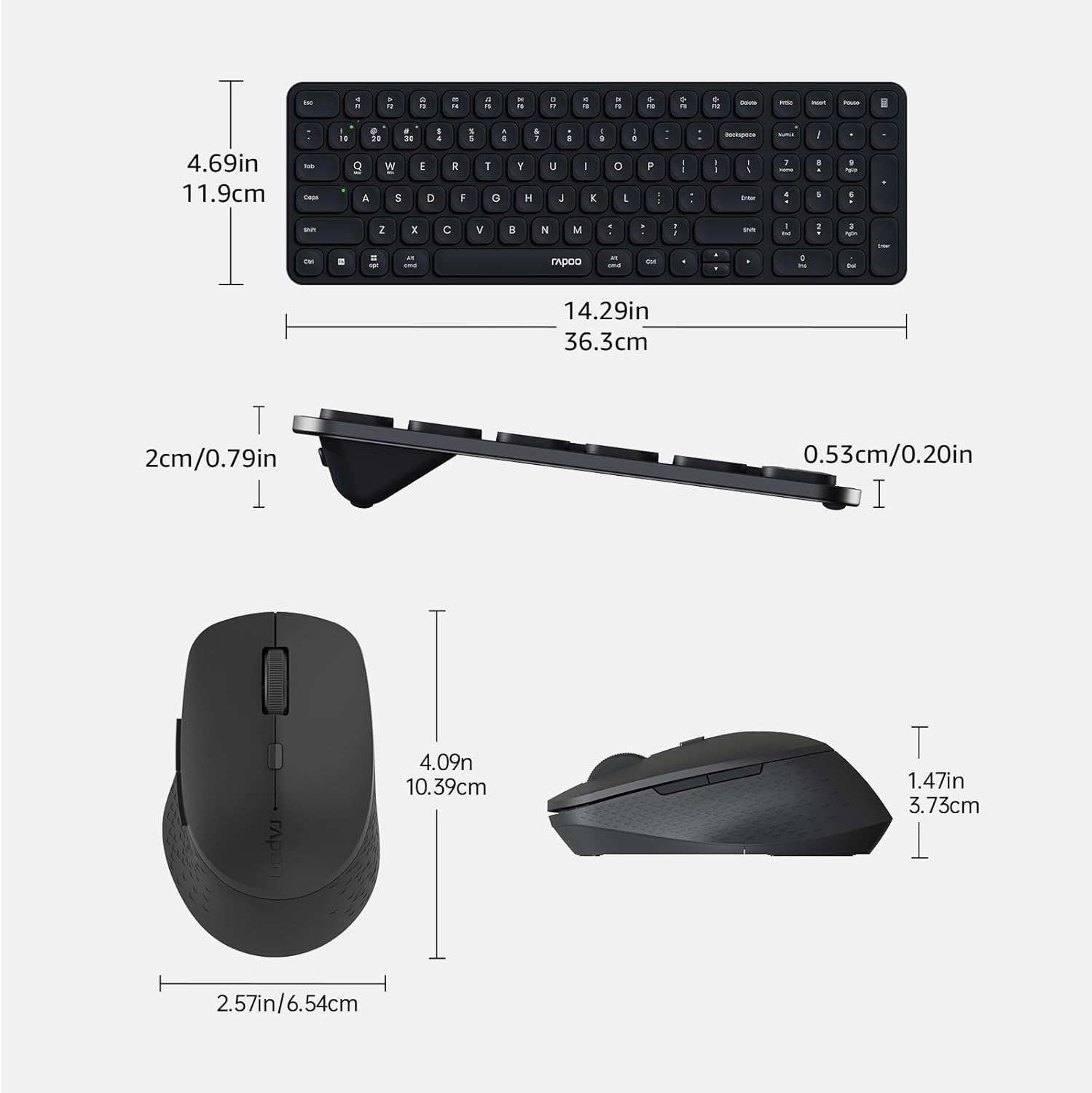
Image: Technical drawing showing the dimensions of the Rapoo E9310M keyboard and M300G mouse in inches and centimeters.
7. Barantas agus Taic
7.1 Fiosrachadh Barantais
Tha an toradh seo a’ tighinn le a Barantas 1-bliadhna bho cheann-latha a’ cheannaich. Cùm dearbhadh do cheannach airson tagraidhean barantais. Tha am barantas a’ còmhdach lochdan saothrachaidh agus mì-ghnìomhachd fo chumhachan cleachdaidh àbhaisteach.
7.2 Taic teachdaiche
For technical assistance, troubleshooting, or warranty inquiries, please contact Rapoo customer support. Refer to the official Rapoo weblàrach-lìn no pacaigeadh an toraidh airson an fhiosrachaidh conaltraidh as ùire.