
1. Ro-ràdh
This manual provides detailed instructions for the installation, operation, and maintenance of your darkFlash DS900 Air ATX Mid-Tower PC Gaming Case. Please read this manual thoroughly before beginning assembly to ensure proper setup and safe usage. The DS900 Air is designed to offer a clear view of your components with its 270° full-view tempered glass and provides excellent cooling capabilities for high-performance systems.

Figure 1.1: darkFlash DS900 Air ATX Mid-Tower PC Gaming Case with internal components and RGB lighting.
2. Fiosrachadh Sàbhailteachd
Cùm na ceumannan sàbhailteachd a leanas an-còmhnaidh rè stàladh is obrachadh:
- Dì-cheangail an solar cumhachd bhon t-socaid balla mus cuir thu a-steach no mus toir thu air falbh co-phàirtean sam bith.
- Cuir ort strap dùirn an-aghaidh statach gus casg a chur air milleadh sgaoilidh electrostatach (ESD) air co-phàirtean mothachail.
- Handle tempered glass panels with care. Avoid impacts or dropping them, as they can shatter.
- Cùm pàirtean beaga agus sgriothan air falbh bho chloinn.
- Dèan cinnteach gu bheil deagh fhionnarachadh timcheall a’ chùis gus casg a chur air cus teasachadh.
- Do not attempt to modify the case structure, as this may void the warranty and pose safety risks.
3. Sònrachaidhean
| Feart | Sònrachadh |
|---|---|
| Ainm Modail | DS900 Air |
| Seòrsa cùise | Tùr Meadhanach ATX |
| Clàr-taice motherboard | ATX, Micro ATX, Mini ITX |
| Fuadach Fad GPU | Suas gu 425mm |
| Fuadach Àirde Fuaradair CPU | Suas gu 170mm |
| Seòrsa PSU | ATX (Bottom-mounted) |
| Bàigh Drive | 2x 3.5" HDD or 2x 2.5" SSD, 2x 2.5" SSD |
| Slots leudachaidh | 7 sliotan PCIe |
| I/O puirt | 1x USB-C, 1x USB 3.0, Audio (HD Audio) |
| Taic Fan | Bottom: 3x 120mm; Top: 3x 120mm or 2x 140mm; Rear: 1x 120mm; Right Side: 2x 120mm |
| Taic Radiator | Top: Up to 360mm; Side: Up to 240mm |
| Stuthan | Stàilinn, Glainne Tempered |
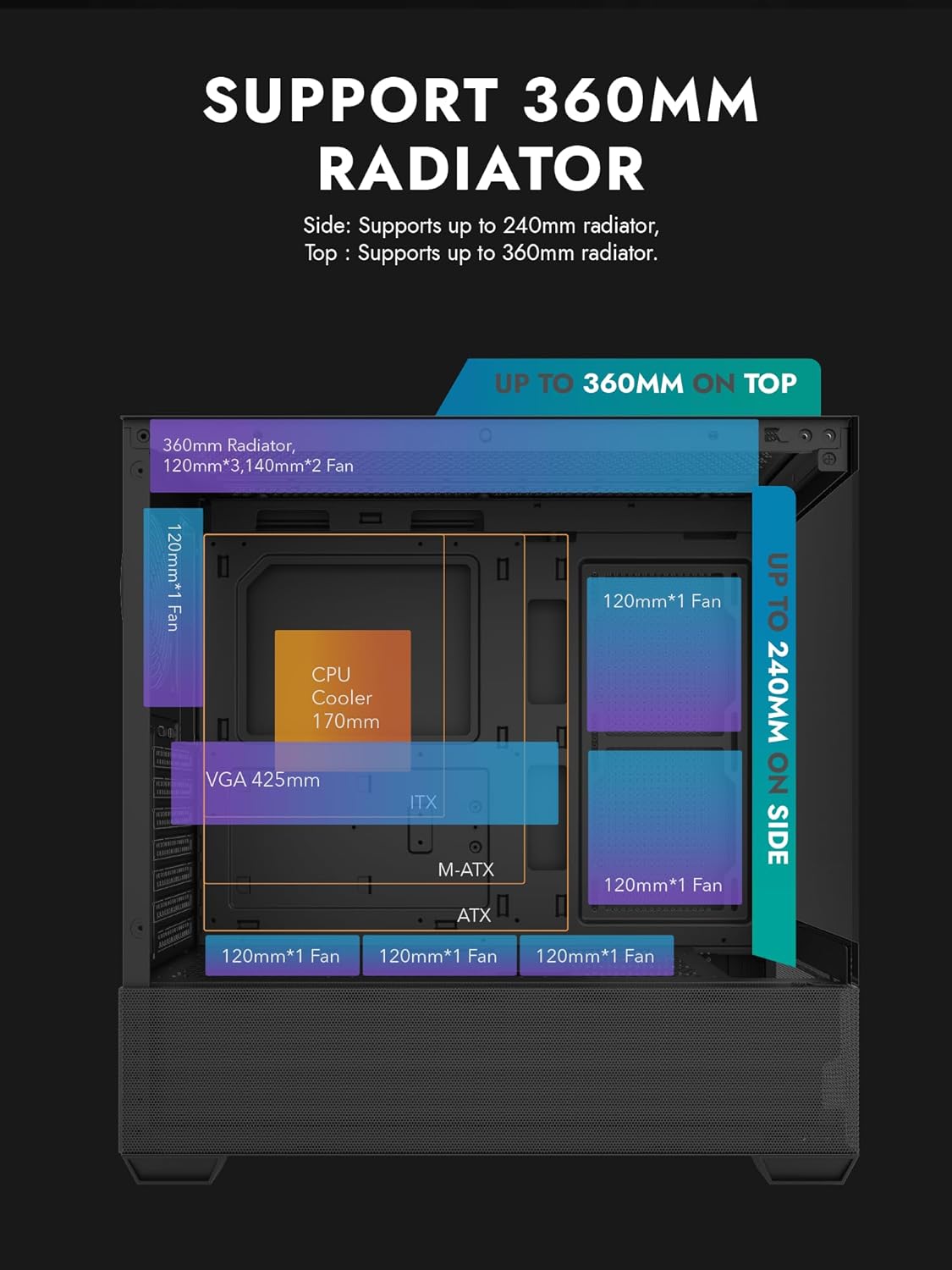
Figure 3.1: Radiator and fan support diagram for the DS900 Air case, illustrating maximum component dimensions.
4. Setup agus Stàladh
Follow these steps to assemble your PC components within the darkFlash DS900 Air case.
4.1. A’ cur a’ chùis air dòigh
- Thoir air falbh pannalan taobh: The DS900 Air features a tool-free clamshell side panel. Gently pull the top edge of the tempered glass side panel to unlatch it, then lift it off. Repeat for the other side panel if necessary.
- Bogsa accessory: Locate the accessory box inside the case, which contains screws, cable ties, and other mounting hardware.
4.2. Stàladh motherboard
- Stàlaich an sgiath I/O a-steach do fhosgladh cùil a’ chùis.
- Align your ATX, Micro-ATX, or Mini-ITX motherboard with the standoffs inside the case. Ensure the I/O ports align with the I/O shield.
- Daingnich am bòrd-màthar le bhith a’ cleachdadh nan sgriothan a tha air an toirt seachad.
4.3. Stàladh Aonad Solarachaidh Cumhachd (PSU)
- The DS900 Air has a dedicated bottom PSU chamber. Slide your ATX power supply into the chamber from the rear of the case.
- Daingnich an PSU le sgriothan bho chùl a’ chùis.
- Route necessary power cables through the cutouts into the main compartment.
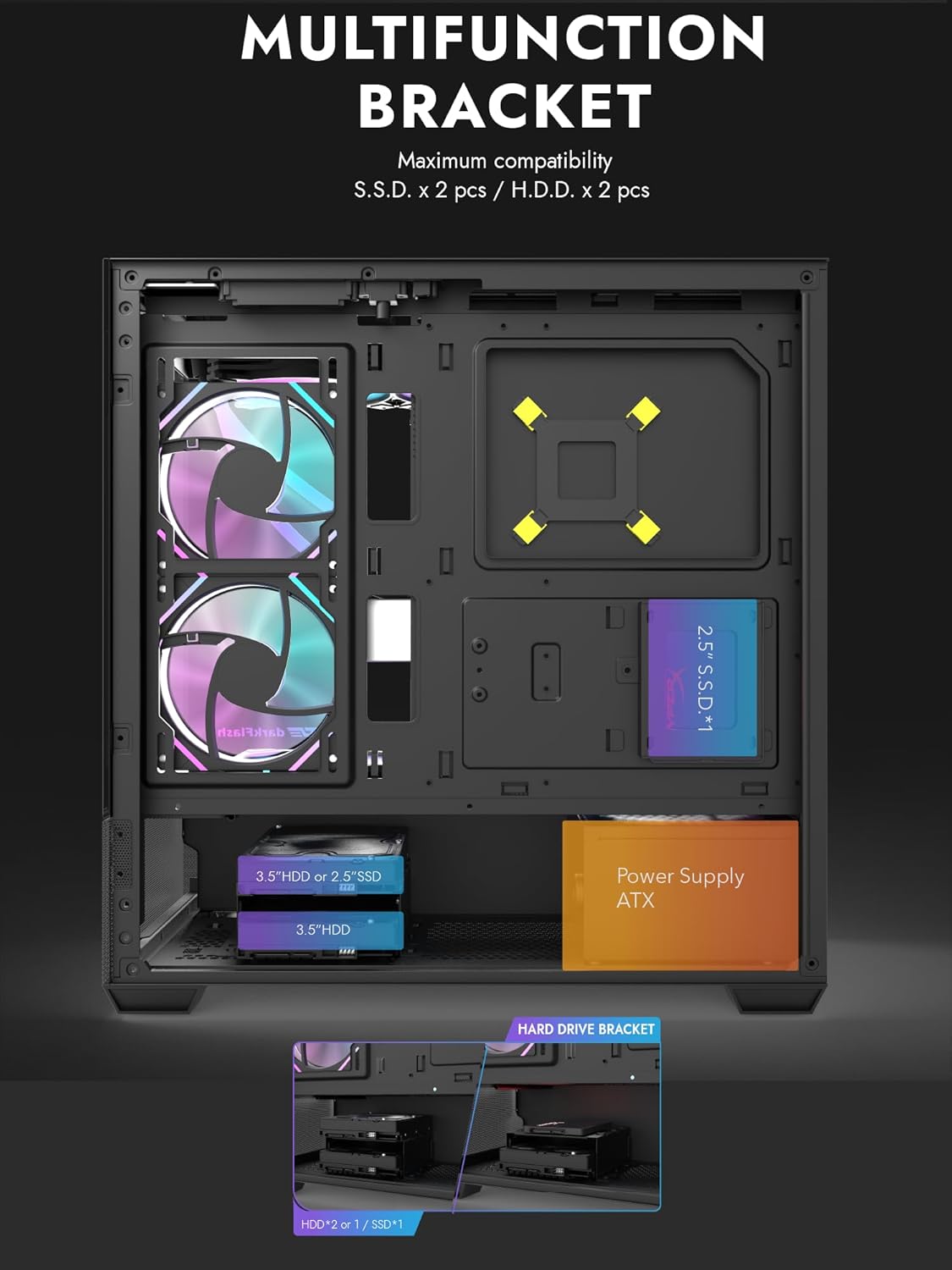
Figure 4.1: Internal layout showing the multifunction drive bracket and the bottom-mounted PSU chamber.
4.4. Stàladh Inneal Stòraidh
The case supports up to two 3.5" HDDs or 2.5" SSDs in the hard drive bracket, and two additional 2.5" SSDs on the multifunction bracket.
- 3.5" HDD / 2.5" SSD: Install drives into the removable hard drive bracket located in the PSU chamber. Secure with screws.
- 2.5" SSD: Mount 2.5" SSDs onto the multifunction bracket located on the motherboard tray. Secure with screws.
4.5. Stàladh Cairt Grafaigean (GPU)
- Thoir air falbh na còmhdaichean slot PCIe riatanach bho chùl a’ chùis.
- Cuir a-steach do chairt grafaiceachd a-steach don t-slot PCIe iomchaidh air a’ bhòrd-màthar.
- Daingnich a’ chairt grafaiceachd le sgriothan. Tha a’ chùis a’ toirt taic do GPUan suas ri 425mm a dh’fhaid.
4.6. Cooling System Installation (Fans/Radiators)
The DS900 Air offers extensive cooling options:
- Top: Supports up to 3x 120mm fans or 2x 140mm fans, or a 360mm radiator.
- Gu h-ìosal: Supports up to 3x 120mm fans.
- Cùl: A’ toirt taic do neach-leantainn 1x 120mm.
- Taobh Dheas: Supports 2x 120mm fans or a 240mm radiator.
Install fans and radiators using the appropriate screws and mounting points. Ensure correct airflow direction for optimal cooling.

Figure 4.2: Fan support locations and quantities within the DS900 Air chassis.

Figure 4.3: Airflow diagram demonstrating optimal cooling paths through the case.
4.7. Connecting Front I/O Cables
Connect the front panel cables (USB-C, USB 3.0, HD Audio, Power, Reset, LED) to their corresponding headers on your motherboard. Refer to your motherboard manual for exact header locations.

Figure 4.4: Top-right I/O panel featuring USB-C and USB 3.0 ports.
4.8. Riaghladh càball
Utilize the cable routing cutouts and tie-down points behind the motherboard tray to manage cables. This improves airflow and aesthetics.
5. Ag Obrachadh do PC
Once all components are installed and cables are connected, replace the side panels. Connect your monitor, keyboard, mouse, and power cable. Press the power button on the case to start your system. Ensure all fans are spinning and components are receiving power.
6. Cumail suas
Bidh cumail suas cunbhalach a’ cuideachadh le bhith a’ dèanamh cinnteach à coileanadh agus fad-beatha as fheàrr airson pàirtean do PC.
- Glanadh Duslach: Periodically clean dust filters and internal components using compressed air. The DS900 Air features mesh panels that help filter dust.
- Sruth-adhair: Ensure no obstructions block the intake or exhaust vents of the case.
- Riaghladh càbaill: Re-evaluate cable routing periodically to ensure no cables are interfering with fan blades or airflow.
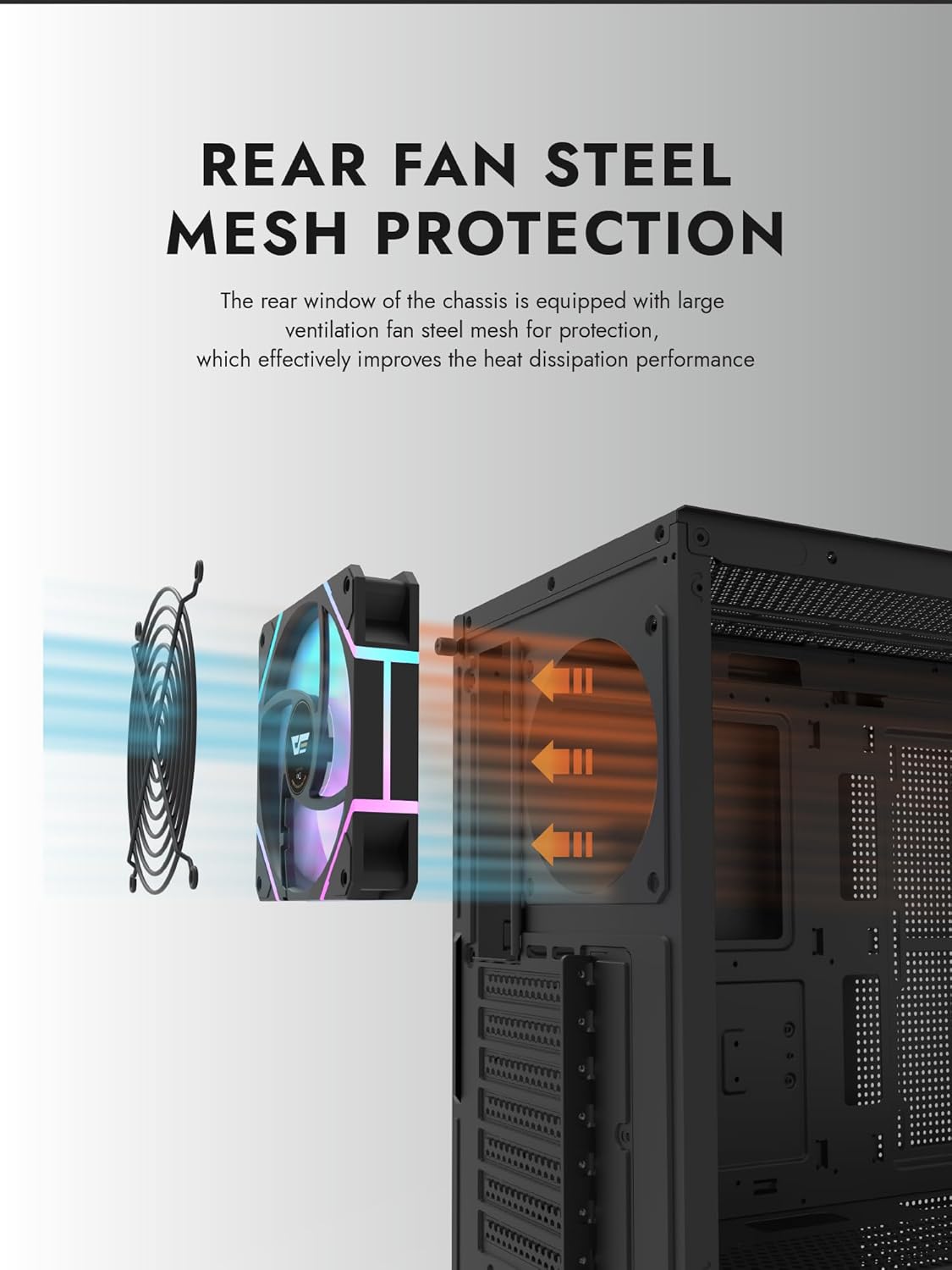
Figure 6.1: Rear fan steel mesh protection, designed to improve heat dissipation.
7. A ’dèanamh trioblaid
Ma thachras tu ri duilgheadasan leis a’ choimpiutair agad, smaoinich air na ceumannan cumanta a leanas airson fuasgladh dhuilgheadasan:
- Gun chumhachd: Check all power connections, including the PSU to the wall, PSU to motherboard, and front panel power switch cable to the motherboard.
- Gun taisbeanadh: Ensure your monitor is connected to the graphics card (not the motherboard I/O unless using integrated graphics). Reseat the graphics card and RAM.
- Overheating: Verify all fans are spinning correctly and are oriented for proper airflow. Check CPU cooler installation.
- Co-phàirt nach deach a lorg: Reseat the component (e.g., RAM, GPU, storage drive) and check its power and data connections.
8. Barantas agus Taic
darkFlash products are manufactured to high-quality standards. For warranty information or technical support, please refer to the official darkFlash weblàrach no cuir fios chun neach-reic agad. Cùm dearbhadh do cheannach airson tagraidhean barantais.