
1. Os a chionnview
The CORBOBO AULA F3099 is a versatile wireless keyboard designed for various computing needs, offering multiple connectivity options, customizable RGB backlighting, and a comfortable typing experience. This manual provides detailed instructions for setup, operation, and maintenance.
Prìomh fheartan:
- Ceangal trì-mhodh: Seamlessly switch between 2.4GHz wireless, Bluetooth 5.0, and USB-C wired connections.
- 2-in-1 Multifunction Knob: Control media volume/mute or cycle RGB backlight effects and brightness.
- Programmable Driver: Customize macros and assign functions to individual keys (Windows systems, wired mode only).
- Durable & Quiet Typing: Membrane silicone keys provide a smooth, quiet keystroke feel.
- Solais-cùil RGB: Multiple lighting effects with 16.8 million colors, adjustable brightness and speed.
- Dealbhadh ergonomic: Foldable dual-stage stand for adjustable tilt angles to reduce wrist strain.
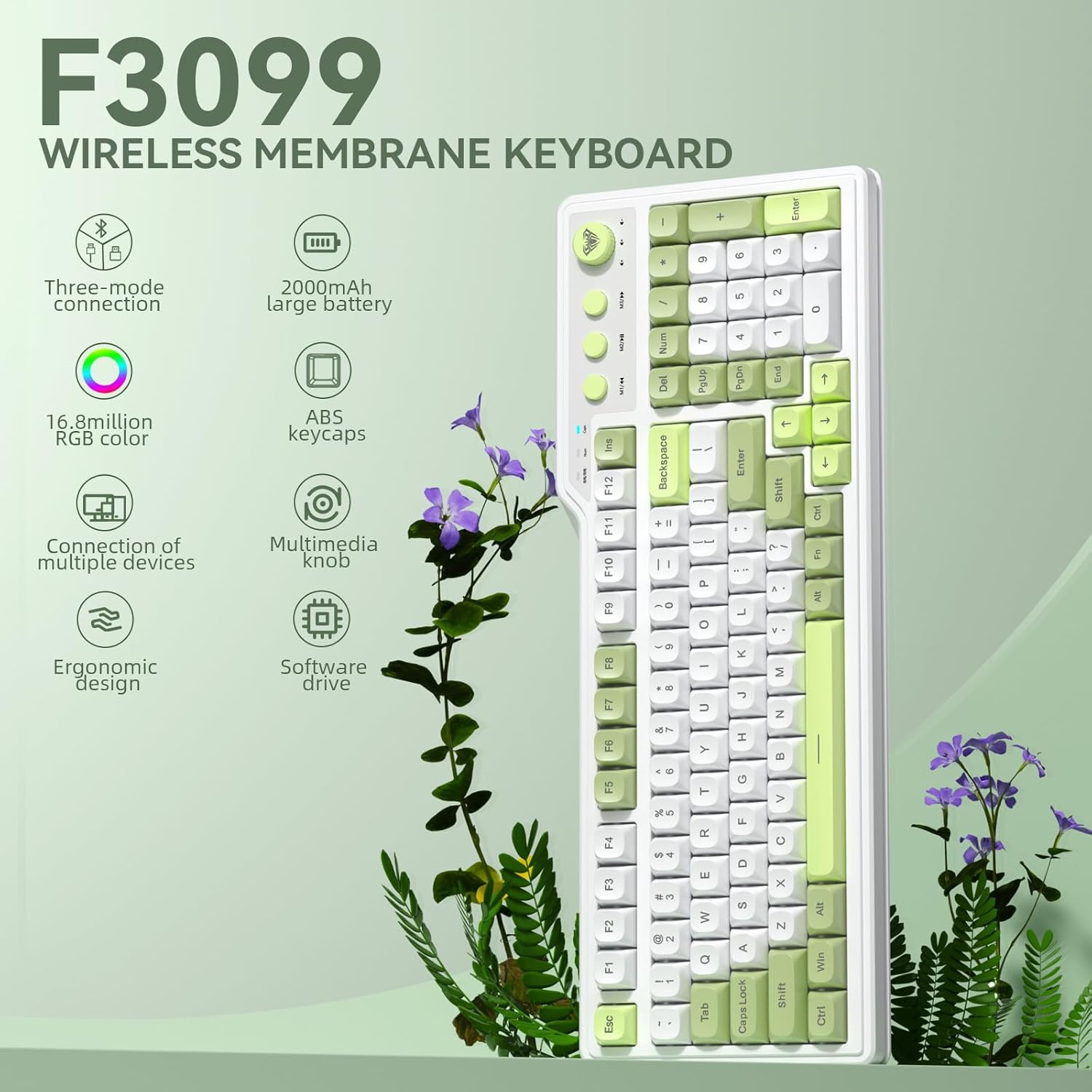
Dealbh 1.1: Thairisview of the AULA F3099 Wireless Membrane Keyboard, illustrating its triple-mode connection, 2000mAh battery, RGB color, multi-device support, multimedia knob, ergonomic design, and software driver capabilities.
2. Pasgan-susbaint
Dearbhaich gu bheil a h-uile nì an làthair anns a’ phacaid toraidh agad:
- AULA F3099 Wireless Keyboard x 1
- Leabhar-làimhe cleachdaiche x 1
- Càball USB-C x 1
- Keycap Puller x 1
Video 2.1: An unboxing video demonstrating the contents of the AULA F3099 Wireless Keyboard package, including the keyboard, USB-C cable, and keycap puller.
3. Suidhich
The AULA F3099 keyboard supports three connection modes: 2.4GHz wireless, Bluetooth 5.0, and USB-C wired. Choose the mode that best suits your device and needs.
3.1. Cumhachd air / dheth
Locate the power switch on the back of the keyboard. Slide it to "ON" to power on the keyboard or "OFF" to power it down.
Modh gun uèir 3.2. 2.4GHz
- Locate the 2.4GHz USB receiver stored in the compartment on the back of the keyboard.
- Plug an cuidhteas USB a-steach do phort USB a tha ri fhaighinn air do choimpiutair.
- Air a 'mheur-chlàr, brùth fn + ~ to switch to 2.4GHz wireless mode. The keyboard will automatically connect.

Image 3.1: Illustration of the keyboard's tri-mode connection capabilities, showing 2.4GHz wireless, Bluetooth 5.0, and USB-C wired connections to various devices.
3.3. Modh Bluetooth 5.0
- Brùth Fn+1, Fn+2, or Fn+3 to select a Bluetooth channel. The indicator light will flash, indicating pairing mode.
- On your device (PC, laptop, smartphone, tablet), go to Bluetooth settings and search for "AULA F3099".
- Tagh am meur-chlàr airson paidhreachadh. Aon uair ‘s gu bheil e ceangailte, sguiridh an solas comharrachaidh deàrrsadh.
- The keyboard can save up to three different Bluetooth devices. Repeat the process for additional devices on different channels.
Note: Windows 7 and earlier systems do not support Bluetooth connections.
3.4. Modh Uèirle USB-C
- Ceangail an càball USB-C a tha air a thoirt seachad ri port USB-C a’ mheur-chlàir agus an ceann eile ri port USB a’ choimpiutair agad.
- Brùth Fn+4 to switch to wired mode. The keyboard will be ready for use.
4. Stiùireadh Obrachaidh
4.1. Multifunction Knob & Media Keys
The keyboard features a dual-mode knob and dedicated media keys for enhanced control.
- Modhan tionndaidh: Long-press the knob for 3 seconds to toggle between Gaming Mode and Office Mode.
- Modh Gaming:
- Press the knob to cycle through RGB backlight effects.
- Rotate the knob to adjust backlight brightness.
- M1/M2/M3 keys can be programmed for macros (see section 4.3).
- Modh Oifis:
- Rotate the knob to increase/decrease computer volume.
- Press the knob briefly to mute/unmute audio.
- M1 (Previous Song), M2 (Play/Pause), M3 (Next Song) keys function as standard multimedia controls.

Ìomhaigh 4.1: Mion-fhiosrachadh view of the dual-mode multimedia knob and adjacent media keys, explaining their functionalities for both gaming and office environments.
Video 4.2: A demonstration of the F3099 Wireless Keyboard's media knob functionality, showcasing its use for volume control and backlight adjustments.
4.2. Smachd air Solais-cùil RGB
The keyboard features multiple RGB lighting effects. Adjust them using the knob or shortcut keys:
- Fn + Deireadh: Adjust lighting colors (in constant light mode).
- Fn + PgUp: Adjust to the next light effect.
- Fn + PgDn: Adjust to the last light effect.
- Fn + [: Adjust lighting brightness up.
- Fn + ]: Adjust lighting brightness down.
- Fn + -: Adjust lighting speed up.
- Fn + =: Adjust lighting speed down.
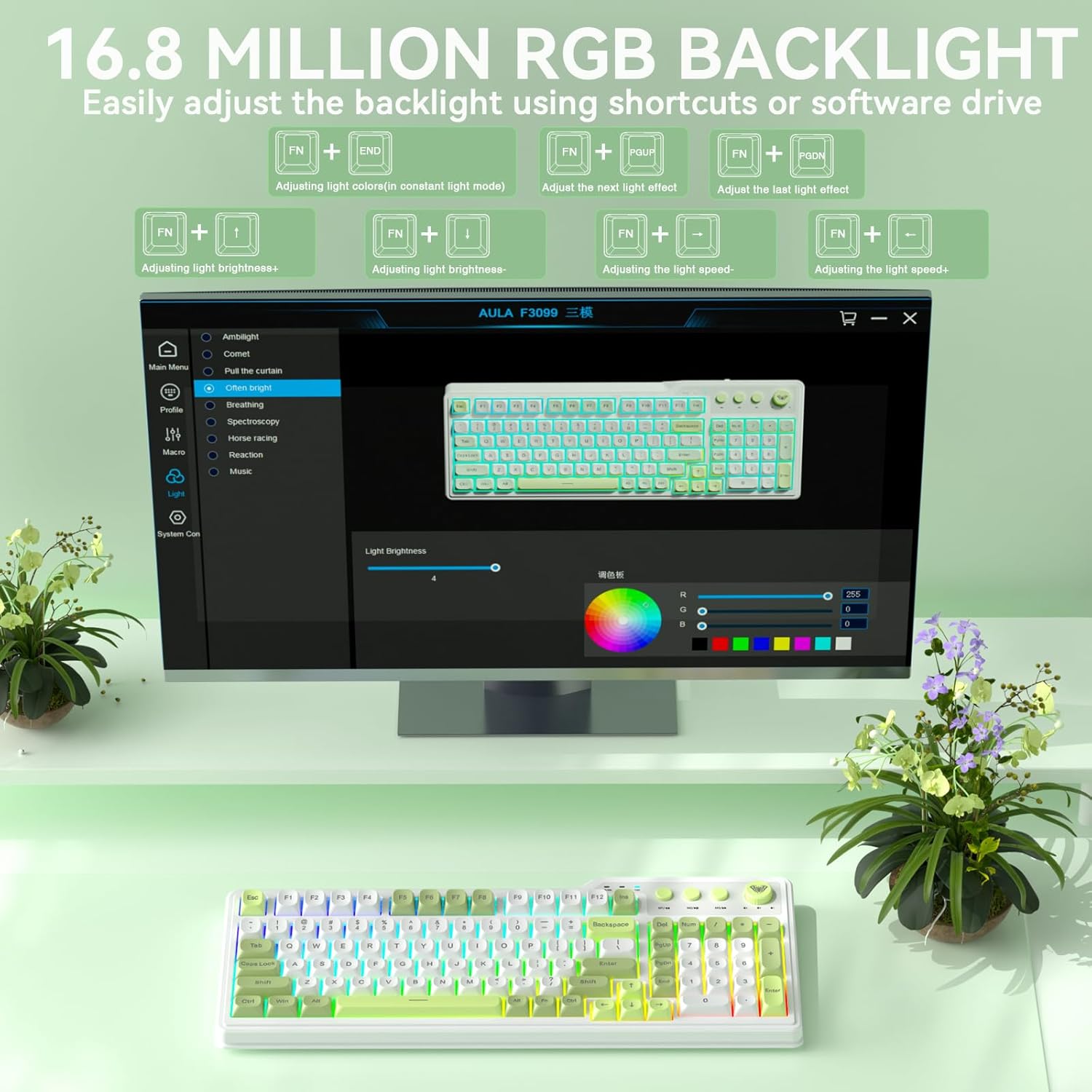
Image 4.3: Visual representation of the 16.8 million RGB backlighting, showing different lighting effects and the shortcut keys for adjustment.
4.3. Programmable Driver & Macro Customization
The F3099 keyboard supports full-key macro programming via its dedicated driver. This feature is available only when the keyboard is connected in wired mode on Windows systems.
- Luchdaich sìos an driver bho: bit.ly/m/corbobo
- Install the driver on your Windows system.
- Connect the keyboard via USB-C cable.
- Open the driver software to access macro customization, key remapping, and advanced RGB settings.

Image 4.4: The software driver interface for the AULA F3099, demonstrating options for macro recording, all-key programmability, and RGB settings.
5. Cumail suas
5.1. Glanadh
- Dì-cheangail am meur-chlàr bho gach stòr cumhachd mus glan thu e.
- Cleachd clò bog, gun lint beagan dampair a nighe le uisge no le fuasgladh glanaidh tlàth gus an uachdar a ghlanadh.
- For dust and debris between keys, use compressed air or the provided keycap puller to remove keycaps for deeper cleaning.
5.2. Cìs bataraidh
The keyboard is equipped with a rechargeable battery. Connect the USB-C cable to the keyboard and a power source (computer USB port or USB wall adapter) to charge. The charging indicator light will show the charging status.
5.3. Keycap Removal and Installation
Use the included keycap puller to safely remove and install keycaps for cleaning or customization.
Video 5.1: A short video demonstrating the method for installing accidentally detached keycaps, useful for maintenance and customization.
6. A ’dèanamh trioblaid
| Trioblaid | Fuasgladh |
|---|---|
| Keyboard not connecting via 2.4GHz wireless. | Ensure the USB receiver is securely plugged in and the keyboard is in 2.4GHz mode (fn + ~). Try a different USB port. |
| Chan eil am meur-chlàr a’ ceangal tro Bluetooth. | Dèan cinnteach gu bheil am meur-chlàr ann am modh paidhreachaidh Bluetooth (Fn + 1/2/3) and your device's Bluetooth is enabled. Forget the device on your computer and re-pair. Ensure your operating system supports Bluetooth 5.0. |
| Chan eil na h-iuchraichean a’ freagairt no tha iad a’ taipeadh gu ceàrr. | Check the connection mode (wired/wireless). Ensure the keyboard is charged. If using the programmable driver, verify macro settings. Restart the keyboard and computer. |
| RGB backlighting is not working or stuck. | Ensure the keyboard is powered on. Try cycling through lighting effects using Fn + PgUpAtharraich soilleireachd le Fn + [ or Fn + ]. If using the driver, check lighting settings. |
| Programmable driver not working. | The driver only supports wired mode operation on Windows systems. Ensure the keyboard is connected via USB-C and your system is Windows. Reinstall the driver if necessary. |
7. Sònrachaidhean
| Feart | Mion-fhiosrachadh |
|---|---|
| Meudan toraidh | 17.51"F x 8.07"L x 1.96"À |
| Cuideam nì | 2.57 not |
| Dèanadair | CORBOBO |
| Àireamh Modail Nì | F3099 |
| Bataraidhean | 1 Bataraidh Neo-àbhaisteach (air a ghabhail a-steach) |
| Teicneòlas ceangail | 2.4GHz, BT 5.0, USB-C |
| Tuairisgeul meur-chlàr | Membran |
| Feart sònraichte | Backlit, Ergonomic, Rechargeable, Volume Roller |
| Taic Dath Backlighting Meur-chlàr | RGB (16.8 millean dathan) |
| Innealan co-fhreagarrach | Consól Gèam, Laptop, PC, Smartphone, Tablet |
8. Barantas agus Taic
For warranty information and technical support, please refer to the documentation included with your purchase or visit the official CORBOBO weblàrach. Cùm dearbhadh ceannach airson tagraidhean barantais sam bith.