
1. Ro-ràdh
Thank you for choosing the Pisichen 24 inch Touch Screen Gaming Monitor. This manual provides essential information for setting up, operating, and maintaining your monitor. Please read it thoroughly before use to ensure optimal performance and safety.
This monitor features a 24-inch QHD (2560x1440P) display with a 165Hz refresh rate, 2ms response time, and 10-point projected capacitive touchscreen functionality. It supports FreeSync and HDR, offering a vibrant and responsive visual experience for both gaming and professional applications.

Image: The Pisichen 24-inch 2K 165Hz Touch Screen Monitor highlighting its key features like HDR, IPS Panel, and 10-point Touch.
2. Pasgan-susbaint
Mus lean thu air adhart leis an stèidheachadh, dèan cinnteach gu bheil na pàirtean uile an làthair sa phacaid:
- Pisichen 24 inch Touch Screen Monitor
- Seasamh Monitor (Bonn agus Amhaich)
- Càball DP
- Càball HDMI
- USB B Touch Cable
- Càball USB CC
- Adaptor Cumhachd DC
- Leabhar-làimhe cleachdaiche (an sgrìobhainn seo)
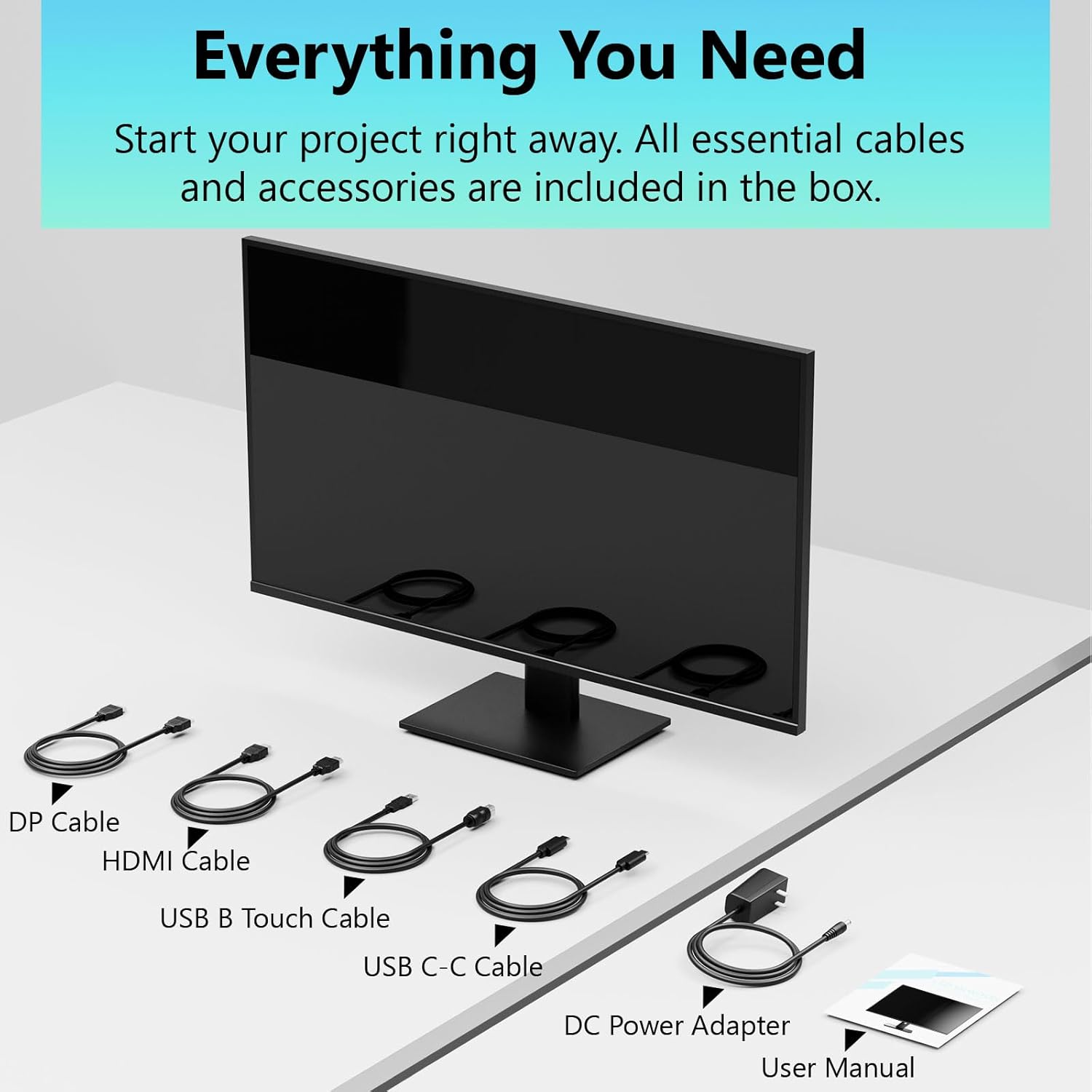
Image: All essential cables and accessories included in the box for the monitor setup.
3. Stiùireadh Stèidheachaidh
3.1 A’ cur an t-Seasaimh ri chèile
- Carefully remove the monitor from its packaging, placing it face down on a soft, clean surface to prevent scratches.
- Attach the stand neck to the monitor's rear panel.
- Daingnich bonn an t-seasamh ri amhach an t-seasamh a’ cleachdadh nan sgriothan a tha air an toirt seachad.
- Dèan cinnteach gu bheil a h-uile ceangal daingeann mus cuir thu am monitor dìreach.
3.2 Stàladh Suidheachadh VESA (Roghainneil)
This monitor supports VESA mounting. If you plan to use a VESA-compatible arm or wall mount, remove the stand and attach the VESA mount according to the mount's instructions. The VESA pattern is typically 75x75mm or 100x100mm (refer to specifications for exact details).
3.3 A’ ceangal ri inneal
Tha grunn roghainnean ceangail aig an monitor:
- HDMI: Ceangail aon cheann den chàball HDMI ri port HDMI an monitor agus an ceann eile ri toradh HDMI a’ choimpiutair agad.
- DisplayPort (DP): Connect one end of the DP cable to the monitor's DP port and the other end to your computer's DP output.
- USB Type-C: For compatible devices, connect the USB C-C cable to the monitor's USB Type-C port and your device's USB Type-C port. This single cable can transmit video, data, and power (charging).
- USB Type-B (for Touch Functionality): To enable the touch screen feature, connect the USB B Touch Cable from the monitor's USB Type-B port to an available USB Type-A port on your computer.

Image: The monitor's rear panel with various connectivity options, including HDMI, DisplayPort, and USB-C ports.
3.4 Ceangal cumhachd
Connect the DC Power Adapter to the monitor's power input port, then plug the adapter into a power outlet.
3.5 Initial Power On and Touch Compatibility
Press the power button on the monitor. The display should light up. If no image appears, ensure all cables are securely connected and the correct input source is selected on the monitor (via the OSD menu).
For touch functionality, ensure the USB B Touch Cable is connected to your computer. Touch compatibility may vary by operating system and device. Most Windows PCs support multi-touch. For Mac devices, single-touch click is generally supported, but multi-touch may require specific drivers or configurations. Game consoles (PS3/4/5, Xbox, Steam Deck) and some other devices (Fire TV, Apple products like iPhone/iPad) typically do not support touch functionality.

Image: A compatibility chart illustrating which devices support multi-touch or single-touch, and which devices do not support touch functionality with the monitor.
4. Stiùireadh Obrachaidh
4.1 Cumhachd air / dheth
Brùth am putan cumhachd a tha suidhichte air an sgrìn gus a thionndadh air no dheth. Seallaidh an solas comharra cumhachd inbhe an sgrìn.
4.2 Clàr-taice Taisbeanaidh Air-sgrion (OSD)
The OSD menu allows you to adjust various monitor settings. Use the control buttons (usually located on the back or bottom of the monitor) to navigate the menu. Common menu options include:
- Roghainnean dealbhan: Brightness, Contrast, Sharpness, Color Temperature, HDR mode.
- Roghainnean taisbeanaidh: Aspect Ratio, Input Source selection (HDMI, DP, USB-C).
- Roghainnean Geamannan: FreeSync, Response Time (Overdrive), Crosshair.
- Roghainnean Fuaim: Volume (if internal speakers or audio output are present).
- Roghainnean an t-siostaim: Cànan, Follaiseachd OSD, Ath-shuidheachadh gu Roghainnean Bunait Factaraidh.
4.3 Gnìomhachd an Sgrion-suathaidh
The monitor supports 10-point multi-touch, allowing for intuitive interaction directly on the screen. Ensure the USB B Touch Cable is connected to your computer for this feature to work.
- Tap singilte: Equivalent to a left-click.
- Tap is Cùm: Co-ionann ri briogadh deas.
- Pinch-gu-Zoom: Cleachd dà mheur gus zoom a-steach no a-mach.
- Swipe: Navigate through content or scroll.

Image: A user interacting with the monitor's touch screen, highlighting its precision and responsiveness for creative tasks.
4.4 Atharrachaidhean Eirgonomiach
The monitor stand allows for tilt adjustments to achieve the most comfortable viewing and touch angle. Gently adjust the screen to your preferred position.
4.5 Feartan Cùram Sùla
The monitor includes advanced eye-comfort features such as Flicker-Free technology and Low Bluelight mode to reduce eye strain during prolonged use. These settings can typically be adjusted within the OSD menu.

Image: Visual representation of the monitor's advanced eye-comfort features, including Flicker-Free and Low Bluelight technologies.
5. Cumail suas
5.1 Glanadh an monitor
- Cuir dheth an monitor an-còmhnaidh agus tarraing a-mach an càball cumhachd mus glan thu e.
- Cleachd clò bog gun lint gu h-aotrom dampair a nighe le uisge no le inneal-glanaidh sgrion tlàth, neo-sgrìobach.
- Na spraeadh inneal-glanaidh gu dìreach air an sgrion. Cuir air a’ chlò e an toiseach.
- Seachain beinséin, tanaichear, innealan-glanaidh stèidhichte air ammonia, no stuthan sgrìobach, oir faodaidh iad sin milleadh a dhèanamh air uachdar na sgrìn.
5.2 Stòradh
Nuair a bhios tu a’ stòradh an sgrìn airson ùine mhòr, dèan cinnteach gu bheil e dheth, gun a bhith a’ cur a’ phluga ris, agus air a stòradh ann an àite fionnar, tioram air falbh bho sholas dìreach na grèine agus teòthachd anabarrach. Cleachd am pacaigeadh tùsail ma tha e ri fhaighinn airson an dìon as fheàrr.
6. A ’dèanamh trioblaid
Ma thachras tu ri duilgheadasan leis an sgrìn agad, thoir sùil air na ceumannan cumanta fuasgladh-cheistean a leanas:
- Gun chumhachd: Dèan cinnteach gu bheil an inneal-atharrachaidh cumhachd ceangailte gu tèarainte ris an sgrìn agus ri socaid cumhachd a tha ag obair. Thoir sùil a bheil an solas comharra cumhachd air.
- Gun Ìomhaigh/Comharra:
- Verify that the video cable (HDMI, DP, or USB-C) is securely connected to both the monitor and your computer.
- Dèan cinnteach gu bheil an stòr cuir-a-steach ceart air a thaghadh ann an clàr-taice OSD an monitor.
- Thoir sùil air roghainnean taisbeanaidh a’ choimpiutair agad gus dèanamh cinnteach gu bheil am monitor air a lorg agus air a chomasachadh.
- No Touch Functionality:
- Confirm the USB B Touch Cable is connected from the monitor to your computer.
- Check your computer's device manager to see if the touch screen driver is installed and functioning correctly.
- Refer to the "Initial Power On and Touch Compatibility" section for device-specific limitations.
- Ìomhaigh a’ priobadh no air a shaobhadh:
- Thoir sùil air a’ chàball bhidio airson milleadh no ceanglaichean sgaoilte.
- Feuch càball bhidio no port eadar-dhealaichte.
- Atharraich an ìre ùrachaidh ann an roghainnean taisbeanaidh a’ choimpiutair agad.
- Pixels Marbh: A small number of bright or dark pixels are common in LCD/LED technology and are not considered a defect unless they exceed manufacturer specifications.
Ma mhaireas an duilgheadas às dèidh dhut na ceumannan seo fheuchainn, cuir fios gu taic luchd-cleachdaidh.
7. Sònrachaidhean
| Feart | Sònrachadh |
|---|---|
| Brand | Pisichen |
| Modail Àireamh | 24IN165HZ-QHD |
| Meud sgrion | 23.8 òirlich |
| Fuasgladh | QHD Wide 1440p (2560 x 1440) |
| Co-mheas taobh | 16:9 |
| Ìre Ath-nuadhachaidh | 165 Hz |
| Àm Freagairt | 2 milliseconds |
| Seòrsa Taisbeanaidh | LED IPS |
| Gile | 400 Candela (cd/m²) |
| Co-mheas coimeas | 3000:1 |
| Viewann an Ceàrn | 178 ceum |
| Gamut dath | 99% |
| Picture Quality Enhancement | HDR |
| Adaptive Sync | FreeSync |
| Teicneòlas ceangail | DisplayPort, HDMI, USB Type-C, USB Type-B |
| Feartan a bharrachd | Tilt Adjustment, 10-Point Touchscreen |
| Meudan nì (D x W x H) | 0.75"D x 21.5"W x 12.7"H |
| Cuideam nì | 5.38 cileagram |
| Dath | Dubh |
8. Fiosrachadh Barantais
This product comes with a 1-year limited warranty from the date of purchase. The warranty covers manufacturing defects and workmanship under normal use. It does not cover damage caused by misuse, accidents, unauthorized modifications, or external factors. Please retain your proof of purchase for warranty claims.
9. Taic teachdaiche
For technical assistance, warranty claims, or further inquiries, please contact Pisichen customer support. You may find contact information on the official Pisichen weblàrach-lìn no tron neach-reic agad.
Airson goireasan a bharrachd agus fiosrachadh mu thoraidhean, tadhail air Pisichen Store on Amazon.