
1. Ro-ràdh
This manual provides essential information for the NIMO 15.6" Gaming Laptop (Model N159). It covers product features, setup procedures, operating instructions, maintenance guidelines, troubleshooting tips, and detailed specifications. Please read this manual thoroughly before using your new laptop to ensure optimal performance and longevity.

Image: The NIMO 15.6" Gaming Laptop, showcasing its display and key features like fingerprint unlock, Type-C PD charger, and backlit keyboard.
2. Dè tha sa bhogsa
Dèan cinnteach gu bheil a h-uile nì anns a’ phacaid:
- 1 x Coimpiutair NIMO N159
- 1 x Charger Luath Seòrsa-C 100W PD
- 1 x Leabhar-làimhe Cleachdaiche (an sgrìobhainn seo)
- Siostam-obrachaidh Windows 11 Home (ro-stàlaichte)
- Warranty Information (2 Years Warranty, 90 Days Return)
3. Toradh thallview
3.1 Prìomh fheartan
- Pròiseasar: AMD Ryzen 7 7735HS (8 Cores, 16 Threads, up to 4.75GHz)
- Grafaigean: Integrated AMD Radeon 680M GPU
- Taisbeanadh: 15.6" Full HD (1920x1080) IPS Anti-Glare Display
- Cuimhne: 16GB DDR5 RAM (upgradeable)
- Stòradh: 1TB PCIe 4.0 SSD (upgradeable)
- A' cur cosgais: 100W Type-C PD Fast Charger
- Tèarainteachd: Fingerprint Reader for secure unlock
- Meur-chlàr: Backlit Keyboard with Numeric Keypad
- Fuaim: Dual 2W stereo speakers, dual beamforming microphones
- Webcam: 2MP with physical camera shutter
- Siostam-obrachaidh: Windows 11 dachaigh

Image: An illustration detailing the AMD Ryzen 7 7735HS processor, highlighting its 8 cores, 16 threads, and integrated Radeon 680M graphics for balanced performance.
3.2 Puirt agus Ceangalaichean
Familiarize yourself with the available ports on your NIMO laptop:

Image: A detailed diagram illustrating the location and type of ports on the NIMO laptop, including USB 2.0, USB 3.2 Gen1, Type-C Gen2 (multifunction), HDMI 2.0, Audio Jack, Micro SD Reader, and Kensington Lock.
- Port USB 2.0: Airson innealan USB nas sine a cheangal.
- USB 3.2 Gen1 Ports (x4): Airson gluasad dàta aig astar luath le innealan USB co-chòrdail.
- Type-C Gen2 Ports (x2, Multifunction): Supports data transfer, video output, and power delivery (100W PD fast charging).
- HDMI 2.0 Port: Airson ceangal ri taisbeanaidhean no telebhiseanan taobh a-muigh.
- Seacaid claisneachd: Airson ceangal chluas-cinn no luchd-labhairt taobh a-muigh.
- Micro SD Reader: Airson cairtean cuimhne Micro SD a leughadh.
- Slot Lock Kensington: For securing your laptop with a compatible lock.
4. Suidhich
4.1 Cumhachd Tòiseachaidh Air adhart
- Thoir a-mach am bogsa an laptop agus na goireasan uile.
- Connect the 100W Type-C PD Fast Charger to one of the Type-C ports on the laptop and then to a power outlet.
- Fosgail mullach an laptop. Dh’fhaodadh an laptop tòiseachadh gu fèin-ghluasadach, no dh’fhaodadh gum feum thu am putan cumhachd a bhrùthadh.
- Lean an stiùireadh air an sgrion gus rèiteachadh Windows 11 Home a chrìochnachadh, a’ gabhail a-steach taghadh cànain, ceangal lìonra, agus cruthachadh cunntas cleachdaiche.
4.2 A’ cur cosgais air a’ bhataraidh
Before first use, it is recommended to fully charge the laptop battery. The 100W Type-C PD Fast Charger can provide approximately 5 hours of usage time with just 1 hour of charging.

Image: A visual representation of the 100W Type-C lightning-fast charger connected to the NIMO laptop, demonstrating its ability to charge quickly and efficiently.
5. Stiùireadh Obrachaidh
5.1 Cumhachd Air/Dheth agus Modh Cadail
- Cumhachd air: Brùth am putan cumhachd a tha suidhichte air a’ mheur-chlàr.
- Cumhachd dheth: Briog air a’ phutan Tòisich ann an Windows, agus an uairsin tagh Cumhachd > Dùin sìos.
- Modh cadail: Briog air a’ phutan Tòisich, an uair sin tagh Cumhachd > Cadal, no dùin còmhdach an laptop.
5.2 Using the Fingerprint Unlock
The fingerprint reader is integrated into the touchpad for quick and secure access.
- During Windows setup or later in Windows Settings, configure your fingerprint for login.
- To unlock, simply place your registered finger on the fingerprint reader on the touchpad.
5.3 Adjusting the Backlit Keyboard
The keyboard backlight can be adjusted for comfortable typing in various lighting conditions.

Image: A visual guide demonstrating the fingerprint unlock feature on the touchpad and the functionality of the backlit keyboard, including how to cycle through brightness settings using the F9 key.
- Brùth an F9 key to cycle through backlight settings:
- 1 Tap: Light (Temporary)
- 2 Taps: Light (Temporary)
- 3 Taps: Light (Constant)
- 4 Taps: Off
5.4 A ’cleachdadh an Webcam Shutter
For privacy, the laptop includes a physical camera shutter.
- Slide the shutter to the left to open the camera.
- Slide the shutter to the right to close and cover the camera lens.

Image: A visual guide demonstrating the physical camera shutter, showing both the 'Camera Open' and 'Camera Close' statuses for enhanced privacy.
6. Cumail suas
6.1 Glanadh an Laptop
- Always power off the laptop and disconnect the charger before cleaning.
- Cleachd clò bog, gun lint beagan dampair a nighe le uisge no le inneal-glanaidh sgrion airson an taisbeanaidh.
- Airson a’ mheur-chlàir agus an chassis, cleachd clò bog, tioram. Seachain ceimigean cruaidh no stuthan sgrìobach.
- Use compressed air to clear dust from vents periodically.
6.2 Cùram Bataraidh
- Seachain a bhith a’ leigeil às a’ bhataraidh gu tur gu tric.
- Stòraich an laptop ann an àite fionnar, tioram mura tèid a chleachdadh airson ùine mhòr.
- Na cuir an laptop fo theodhachd anabarrach.
6.3 Ùrachaidhean bathar-bog
Thoir sùil gu cunbhalach airson ùrachaidhean air an t-siostam obrachaidh agus draibhearan agus stàlaich iad gus dèanamh cinnteach à coileanadh agus tèarainteachd as fheàrr.
7. A ’dèanamh trioblaid
| Trioblaid | Adhbhar a dh’fhaodadh a bhith ann | Fuasgladh |
|---|---|---|
| Chan eil an laptop a’ dol air. | Bataraidh ìosal no duilgheadas leis an inneal-atharrachaidh cumhachd. | Connect the charger and wait a few minutes before attempting to power on. Ensure the charger is properly connected to both the laptop and the power outlet. |
| Tha an scrion bàn no dubh. | Laptop ann am modh cadail, duilgheadas le roghainnean taisbeanaidh, no duilgheadas le bathar-cruaidh. | Press any key or the power button to wake from sleep. Try connecting an external monitor to check if the display output works. Restart the laptop. |
| Solas-cùil a’ mheur-chlàir nach eil ag obair | Backlight turned off or at lowest setting. | Brùth an F9 key repeatedly to cycle through brightness levels and turn on the backlight. |
| Fingerprint unlock not working. | Finger not properly placed, or sensor issue. | Ensure your finger is clean and dry and covers the sensor completely. Re-register your fingerprint in Windows Settings if the issue persists. |
| Coileanadh slaodach. | Too many applications running, insufficient storage, or outdated drivers. | Close unnecessary applications. Check available storage space. Update Windows and device drivers. |
If you encounter issues not listed here or require further assistance, please contact NIMO customer support.
8. Sònrachaidhean
| Brand | NIMO |
| Ainm Modail | NIMO N159B |
| Meud sgrion | 15.6 òirlich |
| Fuasgladh sgrion | 1920 x 1080 piogsail (FHD IPS) |
| Pròiseasar | AMD Ryzen 7 7735HS (8 Cores, 4.75 GHz Max Turbo) |
| RAM | 16 GB DDR5 (4800 MHz) |
| Dràibhear cruaidh | SSD 1024 GB (PCIe 4.0) |
| Grafaigeachd coprocessor | AMD Radeon 680M (Aonaichte) |
| Siostam-obrachaidh | Windows 11 dachaigh |
| Seòrsa gun uèir | 802.11a/b/g/n/ac |
| Puirt USB 2.0 | 1 |
| Puirt USB 3.0 | 4 |
| Beatha bataraidh cuibheasach | 5 Hours (54Wh, 11.4V/4700mAh) |
| Cuideam nì | 3.8 not |
| Meudan toraidh | 14.07 x 8.98 x 0.76 òirleach |
| Dath | Gorm |
| Cùl WebFuasgladh cam | 2 BP |
| Feartan sònraichte | Meur-chlàr le solas cùil, Leughadair lorgan-meòir, Fuaim HD, Meur-chlàr àireamhach |
9. Barantas agus Taic
9.1 Barantas an Neach-dèanamh
Your NIMO N159 laptop is covered by a comprehensive Barantas an Neach-dèanamh 2-bliadhna from Nimo Direct Inc. This warranty covers defects in materials and workmanship under normal use. For warranty claims, please contact customer support.
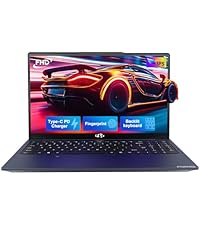
Image: A technician working on a laptop's internal components, representing the 2-year support provided for Nimo products.
9.2 Poileasaidh Tilleadh
Nimo Direct Inc. offers a 90-Day Hassle-Free Return Policy. You may return any Nimo product for any reason within 90 days of purchase. Please refer to your purchase documentation for specific return procedures.
Image: A delivery person handing a package to a customer, illustrating the 90-day return policy for Nimo products.
9.3 Taic teachdaiche
For any product-related questions, technical assistance, or warranty claims, please contact our professional after-sales service team. Our dedicated support team is available to resolve issues or facilitate replacements.
- Post-d: seirbheis@nimopc.com
- Air-loidhne: Visit the official NIMO website or product page for contact options.
Image: Customer service representatives wearing headsets, indicating professional customer assistance available via phone and live chat.