
1. Ro-ràdh
This manual provides detailed instructions for the use and maintenance of your OPPO Pencil 2 stylus. The OPPO Pencil 2 is designed to enhance your interaction with compatible OPPO Pad devices, offering precise control and a natural writing experience.
Co-chòrdalachd: The OPPO Pencil 2 is compatible with OPPO Pad 4 Pro, OPPO Pad 3 Pro, OPPO Pad 3, and OPPO Pad 2.
2. Pasgan-susbaint
Upon opening your OPPO Pencil 2 package, please ensure all the following items are present:
- 1 x OPPO Pencil 2 Stylus
- 1 x Replacement Stylus Tip
- 1 x Leabhar-làimhe Stiùiridh

Image: A table detailing product parameters, including the packing list for the OPPO Pencil 2 stylus.
3. Suidhich
3.1. A’ cur cosgais air an Stylus
The OPPO Pencil 2 supports wireless charging. Simply attach the stylus magnetically to the designated charging area on your compatible OPPO Pad device. The device will indicate when charging is active.
3.2. Pairing with Your OPPO Pad
Once the stylus is magnetically attached to your OPPO Pad, it should automatically pair. If pairing does not occur, ensure Bluetooth is enabled on your OPPO Pad and check the stylus's charge level. Follow any on-screen prompts for initial setup.
4. Stiùireadh Obrachaidh
4.1. Shortcut iuchraichean
The OPPO Pencil 2 features physical shortcut keys on its body for quick access to common functions:
- Cliog Singilte: Change brushes or tools within compatible applications.
- Clò Long: Glac dealbhan-sgrìn.

Image: A close-up of the OPPO Pencil 2 stylus, highlighting the physical shortcut button on its side for one-click access to functions.
4.2. Writing and Drawing Experience
The stylus is engineered for a fluid and responsive experience:
- Ultra-ìosal Latency: A self-developed stylus engine and 240 Hz sampling rate minimize lag, ensuring strokes appear instantly on screen.
- Cugallachd cuideam: With 4096 levels of pressure sensitivity, the stylus accurately detects varying pressure, allowing for nuanced line thickness and shading. A light press produces clear writing, and details are richer with varied pressure.
- Realistic Nib Feel: The thick, soft rubber nib provides friction similar to a pen on paper, preventing slipping even without a paper-like screen protector.
- Beachdan Haptic: An integrated linear motor provides a realistic writing sensation, mimicking the feel of traditional writing instruments.
- Pencil Sound Effect: The stylus supports a special sound effect for an enhanced sensory experience.
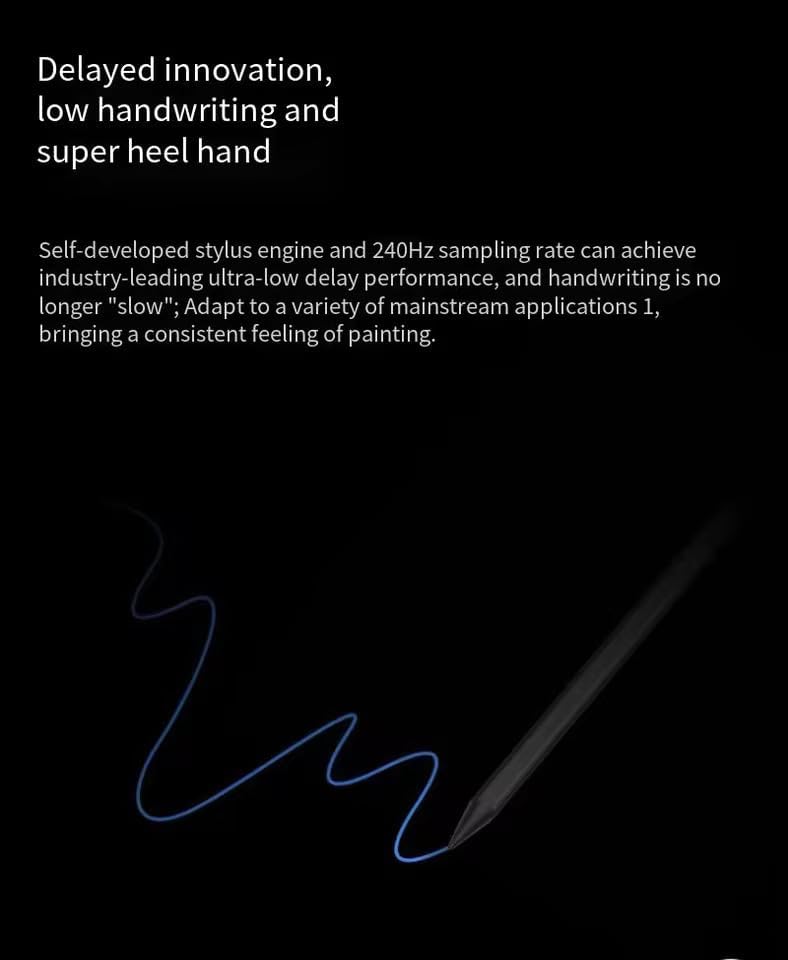
Image: A visual representation of the OPPO Pencil 2 stylus drawing a smooth, continuous line on a dark background, illustrating its ultra-low latency performance.
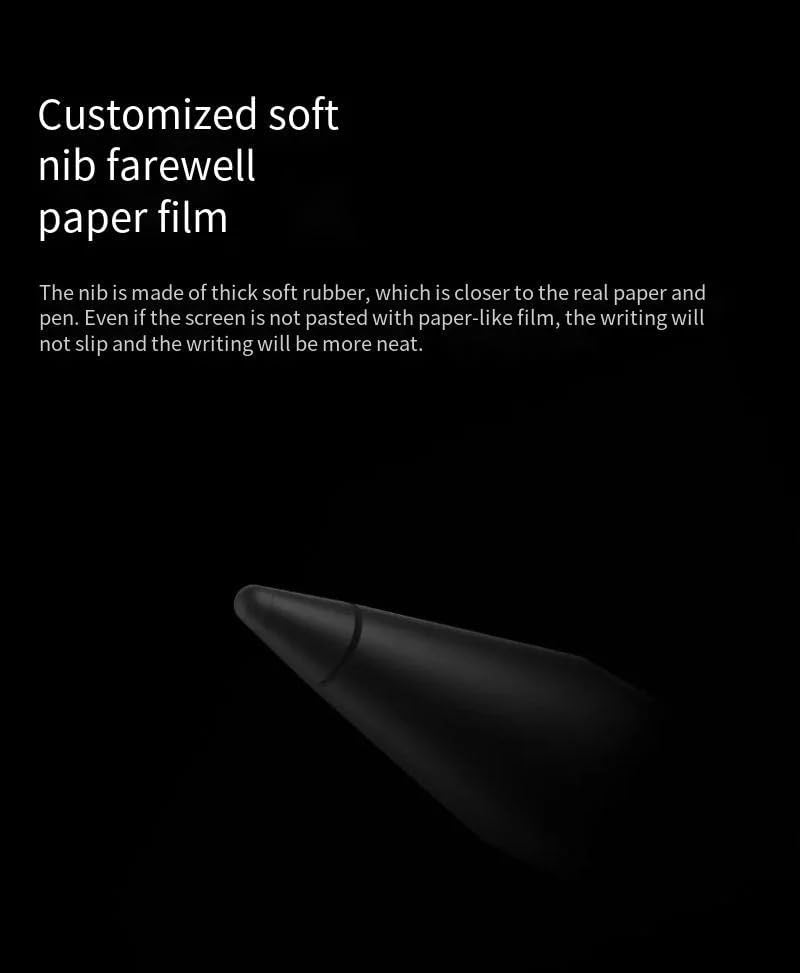
Ìomhaigh: Sealladh dlùth view of the OPPO Pencil 2's soft rubber nib, emphasizing its texture designed for a natural writing feel.

Image: The OPPO Pencil 2 stylus actively writing on a tablet screen, displaying a recipe, to illustrate its precise and effortless ink flow.
4.3. Gnìomhan Adhartach
Utilize these functions for enhanced productivity:
- Swipe for Floating Window: Swipe the pen tip inward from the upper right corner of the screen to open a floating window or a post-it note. You can also click on the comment after a screen capture.
- Screen Shorthand: When you pause the screen, you can quickly open a post-it note and record information.
- Automatic Text Conversion: Writing in an input box with the pen can be automatically converted into text.

Image: Three diagrams illustrating advanced functions of the OPPO Pencil 2: swiping from the corner for a floating window, using screen shorthand, and automatic text conversion when writing in an input box.
5. Feartan Tharview (OPPO Pencil 2 vs. OPPO Pencil 2 Pro)
Below is a comparison of key features between the OPPO Pencil 2 and the OPPO Pencil 2 Pro:
| Feart | OPPO Pencil 2 | OPPO Pencil 2 Pro |
|---|---|---|
| Corp peann | Bright pen body | Leather-like texture pen body |
| Nib Type | Thickened soft rubber nib | Thickened soft rubber nib |
| Pressure Sensitivity Level | 4096 | 16,000 |
| Switching Tool | With physical keys | Dèan briogadh dùbailte |
| Motor Vibrating | Gun taic | Le taic |
| Pencil Sound Effect | Le taic | Le taic |
| Dàil Ultra Ìosal | Le taic | Le taic |
| Modh taisbeanaidh | Gun taic | Le taic |
| Gnìomh smachd iomallach | Gun taic | Le taic |

Image: A side-by-side comparison table detailing the differences in features between the OPPO Pencil 2 and the OPPO Pencil 2 Pro, including pen body, pressure sensitivity, and additional functionalities.
6. Cumail suas
6.1. Glanadh an Steilus
To maintain optimal performance, gently wipe the stylus body with a soft, dry, lint-free cloth. Avoid using harsh chemicals or abrasive materials.
6.2. Replacing the Stylus Tip
Over time, the stylus tip may wear down. To replace it, gently pull the old tip straight out from the stylus body. Insert a new replacement tip firmly until it clicks into place. Ensure you use only official OPPO replacement tips.

Image: A vertical image of the OPPO Pencil 2 stylus tip, showing its design.
7. A ’dèanamh trioblaid
7.1. Stoidhle Gun Fhreagairt
- Ensure the stylus is sufficiently charged. Place it on the charging area of your OPPO Pad.
- Check if Bluetooth is enabled on your OPPO Pad.
- Try re-pairing the stylus by detaching and reattaching it to the charging area.
- Restart your OPPO Pad device.
7.2. Inaccurate or Intermittent Strokes
- Dèan cinnteach gu bheil an tip stylus glan agus saor bho sprùilleach.
- Check if the stylus tip is securely attached. If worn, replace it with a new one.
- Ensure there are no strong magnetic fields or electronic interference near your device.
7.3. Cùisean Cosgais
- Verify that the stylus is correctly aligned with the wireless charging area on your OPPO Pad.
- Ensure your OPPO Pad itself has sufficient power.
- Clean the charging contacts on both the stylus and the OPPO Pad.
8. Sònrachaidhean
Detailed technical specifications for the OPPO Pencil 2:
| Paramadair | Mion-fhiosrachadh |
|---|---|
| Modail iomchaidh | OPPO Pad 3 Pro (and other compatible OPPO Pad models) |
| Fad | Mu 165.3 mm |
| Trast-thomhas | Mu 8.88 mm |
| Cuideam | Mu 12.4 g |
| Dath | Dubh |
| Modh solarachaidh cumhachd | Cìs gun uèir |
| Seasmhachd | Mu 14 uair a thìde |
| Cugallachd cuideam | 4096 ìrean |
| Stuth a' Bhùird | Thickened Soft Rubber |
| Stuth Corporra | Generic (Bright finish) |
Image: A table displaying the detailed product parameters for the OPPO Pencil 2, including dimensions, weight, color, power, and endurance.
9. Barantas agus Taic
For warranty information and customer support, please refer to the warranty card included in your product packaging or visit the official OPPO support weblàrach. Cùm dearbhadh ceannach airson tagraidhean barantais.