
1. Ro-ràdh
This manual provides detailed instructions for the installation, operation, and maintenance of your TESmart HDMI KVM Switch 8 Port 8K@60Hz. Please read this manual thoroughly before using the device to ensure proper functionality and to prevent damage.
2. Pasgan-susbaint
Dearbhaich gu bheil na nithean uile a tha air an liostadh gu h-ìosal air an toirt a-steach sa phacaid agad. Ma tha nithean sam bith a dhìth no millte, cuir fios gu taic luchd-cleachdaidh.
- 1 x 8x1 HDMI KVM Switch
- 8 x KVM Cables (HDMI + USB, 5ft each)
- 1 x IR Remote Control (AAA batteries not included)
- Càball cuidhteas 1 x IR
- Adaptor Cumhachd 1 x DC 12V
- 2 x Rack-ears
- 1 x Leabhar-làimhe Cleachdaiche
- 1 x 3-Pin Connector (for RS232)
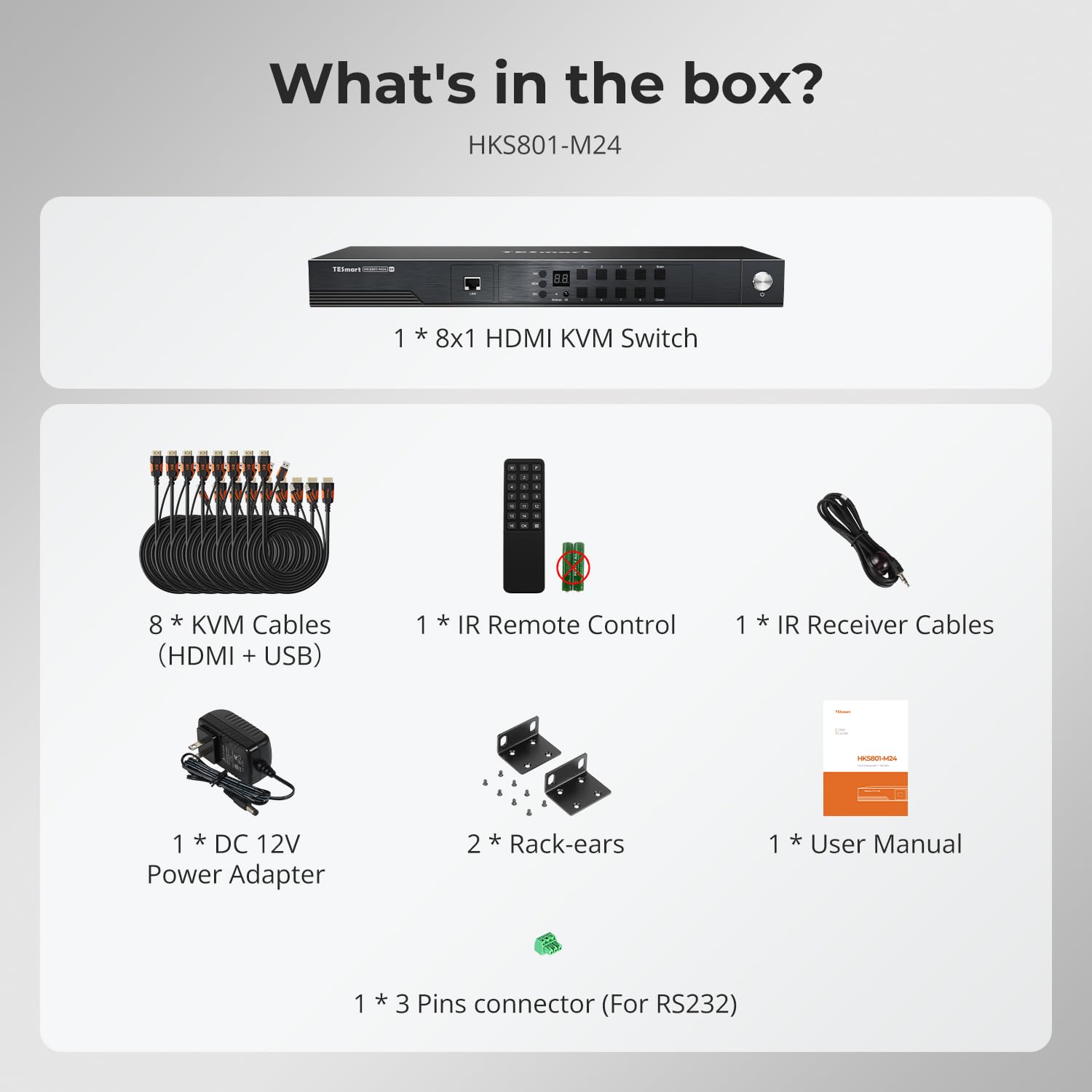
Image: All components included in the TESmart HDMI KVM Switch package.
3. Feartan toraidh
- 8-Port HDMI KVM Switch: Connects up to 8 HDMI-enabled computers to a single monitor, keyboard, and mouse console.
- 8K@60Hz Resolution: Supports ultra-high-definition resolutions up to 7680x4320 at 60Hz.
- Hub USB 3.0: Features two standard USB 3.0 ports for connecting additional peripherals like barcode scanners or USB hard drives.
- EDID Emulator: Integrated EDID emulators ensure correct display information is maintained across all input ports, preventing display setting changes during switching.
- Iomadh Dòigh-obrach Atharrachaidh: Offers flexible control via IR remote, front panel buttons, keyboard hotkeys, mouse wheel, RS232 commands, and IP control.
- Auto Switching & Auto Detect Mode: Supports automatic switching between connected computers at specified intervals and automatically detects active devices.
- Plug and Play: Requires no special software installation and supports hot-swapping of devices.
- Dealbhadh Rackmount: Includes rack-ears for easy installation into standard server racks.
4. Setup agus Stàladh
Lean na ceumannan seo gus an suidse KVM agad a stèidheachadh:
- Innealan cumhachd dheth: Ensure all computers and the monitor are powered off before beginning the installation.
- Ceangail Monitor: Connect your monitor to the HDMI OUTPUT port on the KVM switch using an HDMI cable.
- Ceangail am Meur-chlàr agus an Luchag: Connect your USB keyboard and mouse to the dedicated K/M USB ports on the KVM switch.
- Ceangail Coimpiutairean: For each computer (up to 8), connect an HDMI cable from the computer's HDMI output to an HDMI INPUT port (PC 1-8) on the KVM switch. Simultaneously, connect a USB cable from the computer's USB port to the corresponding USB INPUT port (PC 1-8) on the KVM switch. Use the provided KVM cables for optimal performance.
- Ceangal cumhachd: Plug the DC 12V power adapter into the KVM switch and then into a power outlet.
- Cumhachd air: Power on the KVM switch, then power on your monitor, and finally power on your connected computers.

Image: Connection diagram for the TESmart 8-port KVM switch.

Image: Comprehensive connection overview including optional RS232, LAN, and USB device connections.
5. Stiùireadh Obrachaidh
The TESmart KVM switch offers several methods for switching between connected computers:
5.1 Switching Methods
- Putanan Pannal aghaidh: Press the numbered buttons on the front panel to switch directly to the corresponding PC input.
- Smachd Iomallach IR: Use the included IR remote control to switch inputs. (Requires 2x AAA batteries, not included).
- Hotkeys meur-chlàr: Specific key combinations allow for quick switching without moving your hand from the keyboard. Refer to the full user manual for specific hotkey commands.
- Mouse Wheel Switching: Scroll the mouse wheel to switch between inputs.
- Smachd RS232: Connect via RS232 for serial command control.
- Smachd IP: Control the KVM switch over a network using IP commands.

Ìomhaigh: Tharview of the six available switching methods.
5.2 Auto Detect Mode
The KVM switch can automatically detect when a connected PC becomes active and switch to its input. This eliminates the need for manual switching when a computer is powered on.

Image: Auto Detect Mode functionality.
5.3 Auto Scan Mode
In Auto Scan Mode, the KVM switch cycles through all connected active inputs at a user-defined interval (e.g., 5 seconds to 1 hour). This is useful for monitoring multiple systems.

Image: Auto Scan Mode for monitoring multiple devices.
5.4 EDID Emulation
The built-in EDID emulators ensure that your computers always receive correct display information, preventing issues like desktop icon rearrangement, screen flicker, or resolution changes when switching between inputs or when a computer is disconnected.

Image: EDID Emulation prevents display issues during switching.
5.5 Gnìomh glasaidh
The KVM switch includes a lock function to prevent accidental input changes. Press the [0/Close] button on the front panel to turn off the HDMI display and disable hotkeys and remote control functions. Press it again to re-enable the display and controls.
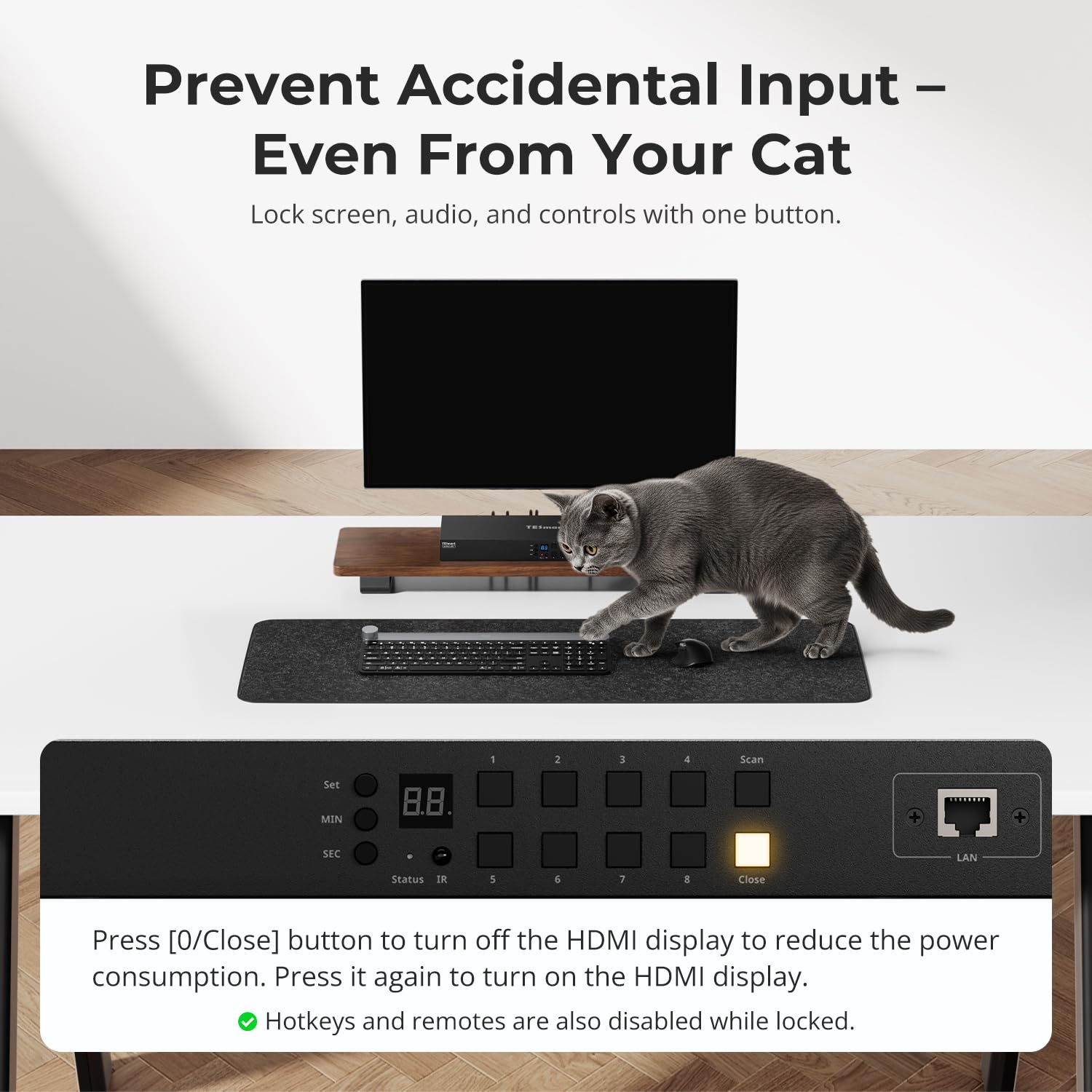
Image: Using the lock function to prevent unintended input.
6. Cumail suas
To ensure the longevity and optimal performance of your KVM switch, follow these maintenance guidelines:
- Glanadh: Cleachd clò bog, tioram gus taobh a-muigh an inneil a ghlanadh. Seachain innealan-glanaidh leaghaidh no fuasglaidhean a chleachdadh.
- Fionnarachadh: Dèan cinnteach gu bheil fionnarachadh iomchaidh aig an suidse KVM. Na cuir bacadh air fosglaidhean fionnarachaidh sam bith.
- Àrainneachd: Operate the device within the specified temperature range (up to 40°C). Avoid extreme temperatures, humidity, and direct sunlight.
- Riaghladh càbaill: Keep cables organized and free from kinks or excessive tension to prevent damage to connectors and ports.
- Ùrachaidhean firmware: Thoir sùil air an neach-dèanamh weblàrach-lìn bho àm gu àm airson ùrachaidhean firmware sam bith a tha rim faighinn a dh’ fhaodadh coileanadh a leasachadh no feartan a chur ris.
7. A ’dèanamh trioblaid
Ma thachras tu ri duilgheadasan leis an suidse KVM agad, thoir sùil air na duilgheadasan agus na fuasglaidhean cumanta a leanas:
- Gun taisbeanadh/comharra:
- Ensure all HDMI and USB cables are securely connected to both the KVM switch and the computers/monitor.
- Verify the KVM switch is powered on and the correct input is selected.
- Try connecting the computer directly to the monitor to confirm the computer's video output is functional.
- Thoir sùil a bheil an monitor air a shuidheachadh chun an stòr cuir-a-steach ceart.
- Meur-chlàr/Luchag gun fhreagairt:
- Ensure the keyboard and mouse are connected to the dedicated K/M USB ports on the KVM switch.
- Try connecting the keyboard and mouse directly to the computer to verify functionality.
- Some specialized gaming or multimedia keyboards/mice may require pass-through mode. Refer to the full manual for enabling this feature.
- Slow Switching Time:
- Switching times can vary depending on the connected devices and their display handshake processes. High-resolution or high-refresh-rate devices (e.g., PS5 at 4K 120Hz HDR) may experience longer switching delays (up to 5 minutes in some cases).
- For other devices, typical switching time is 5-10 seconds.
- Display Issues with High-Performance Devices (e.g., PS5):
- Devices requiring 4K 120Hz HDR VRR may be particularly sensitive to HDMI signal integrity.
- Ensure high-quality HDMI 2.1 certified cables are used.
- Consider simplifying the setup by connecting the KVM switch directly to the display, rather than through an A/V receiver, if experiencing signal drops or resolution degradation.
- If green lines or signal loss occur, try adjusting display settings on the source device to a lower resolution or refresh rate as a test.
- Audio Issues (e.g., Dolby Atmos):
- This KVM switch may not support certain advanced audio formats like Dolby Atmos. Verify audio compatibility with your specific setup.
- Control Software Issues:
- If experiencing difficulties with official control software for advanced settings (e.g., disabling the beep sound), check the TESmart website for updated software or drivers.
- Some users have reported success with third-party applications for controlling TESmart KVM switches; however, use such software at your own discretion.
8. Sònrachaidhean
| Feart | Sònrachadh |
|---|---|
| Modail Àireamh | HKS801-M24-USBK |
| Modh obrachaidh | AIR-OFF |
| Rangachadh làithreach | 3 Amps |
| Vol Obrachaidhtage | 12 Volt |
| Seòrsa ceangail | HDMI, USB 3.0 |
| Meudan nì (L x W x H) | 17.32 x 5.9 x 1.8 òirleach |
| Cuideam nì | 4.22 not |
| Stuth | Meatailt |
| Dath | Dubh |
| Dètage | 36 watt |
| Ìre Teothachd Uarach | 40 Ceuman Celsius |
| Ìre Dìon Eadar-nàiseanta | IP30 |
| Innealan co-fhreagarrach | Computers, servers, DVR/NVR, laptops, USB devices, HDMI 2.1 compatible devices |
9. Barantas agus Taic
TESmart products are designed for reliability and performance. For specific warranty information, please refer to the warranty card included with your product or visit the official TESmart website. For technical support, troubleshooting assistance, or to inquire about replacement parts, please contact TESmart customer service through their official channels.


