
1. Ro-ràdh
The EWEADN F61 is a compact 60% wired gaming keyboard designed for efficiency and performance. It features vibrant RGB backlighting, durable PBT keycaps, and an ergonomic design for comfortable extended use. This manual provides detailed instructions for setting up, operating, and maintaining your keyboard.
2. Pasgan-susbaint
- EWEADN F61 60% Wired RGB Gaming Keyboard
- Càball USB-C so-ruigsinneach
- Leabhar-làimhe cleachdaiche
3. Suidhich
To begin using your EWEADN F61 keyboard, follow these simple steps:
- Ceangail an càball USB-C: Plug the detachable USB-C cable into the Type-C port on the keyboard and the other end into an available USB port on your computer (PC, laptop, gaming console, smartphone, or tablet). The keyboard is plug-and-play, requiring no additional drivers.
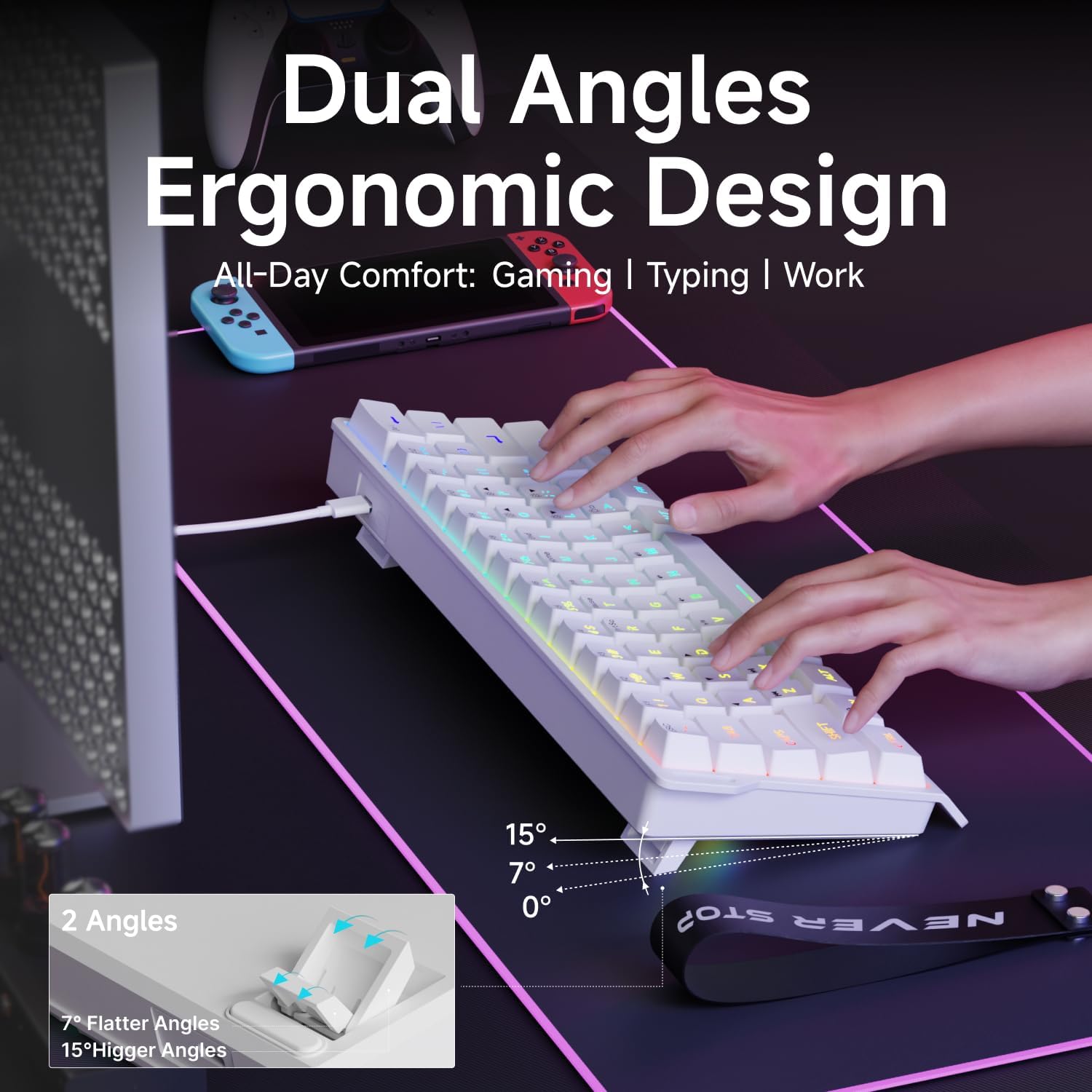
- Adjust Ergonomic Kickstands: The keyboard features dual-layer feet support with two adjustable angles (7° and 15°) for enhanced typing comfort. Flip out the kickstands on the underside of the keyboard to your preferred height.
- Co-fhreagarrachd an t-siostam: The keyboard is compatible with both Windows and Mac operating systems. To switch between modes, hold down the 'FN' key and press 'A' for Windows or 'S' for Mac.
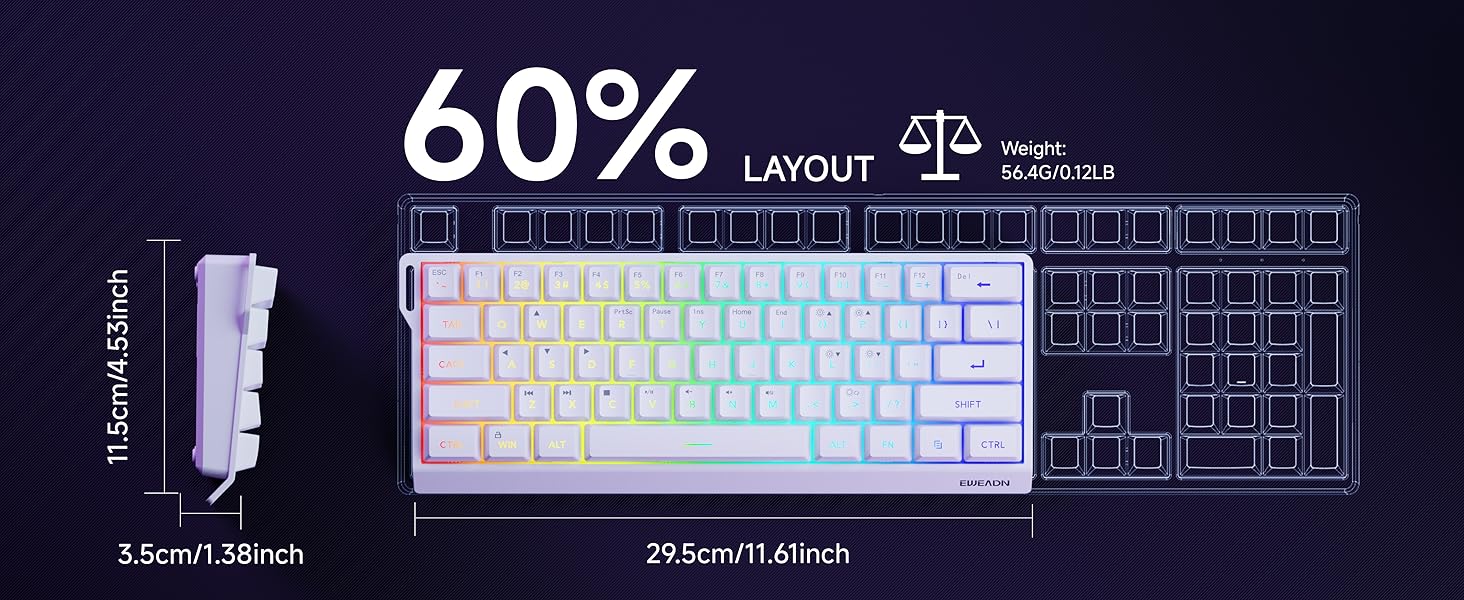
Video: Demonstrates the compact 60% design of the EWEADN F61 keyboard, highlighting its portability and suitability for gaming and travel. Shows the keyboard being connected and used.
4. Stiùireadh Obrachaidh
4.1 Smachd Solais RGB
The EWEADN F61 features 16.8 million RGB backlight colors with 6 effects and 5 brightness levels. Use the following key combinations to customize your lighting:
- Atharraich buaidhean backlight: Cùm FN + INS to cycle through the 6 available lighting effects.
- Atharraich soilleireachd: Cùm FN + P (to increase brightness) or FN + ;: (to decrease brightness). There are 5 brightness levels.
- Adjust Lighting Speed: Cùm FN + O (to increase speed) or FN + L (to decrease speed).
- Tionndaidh na solais air / dheth: Cùm FN + Cùl-raon to toggle the backlight on or off.
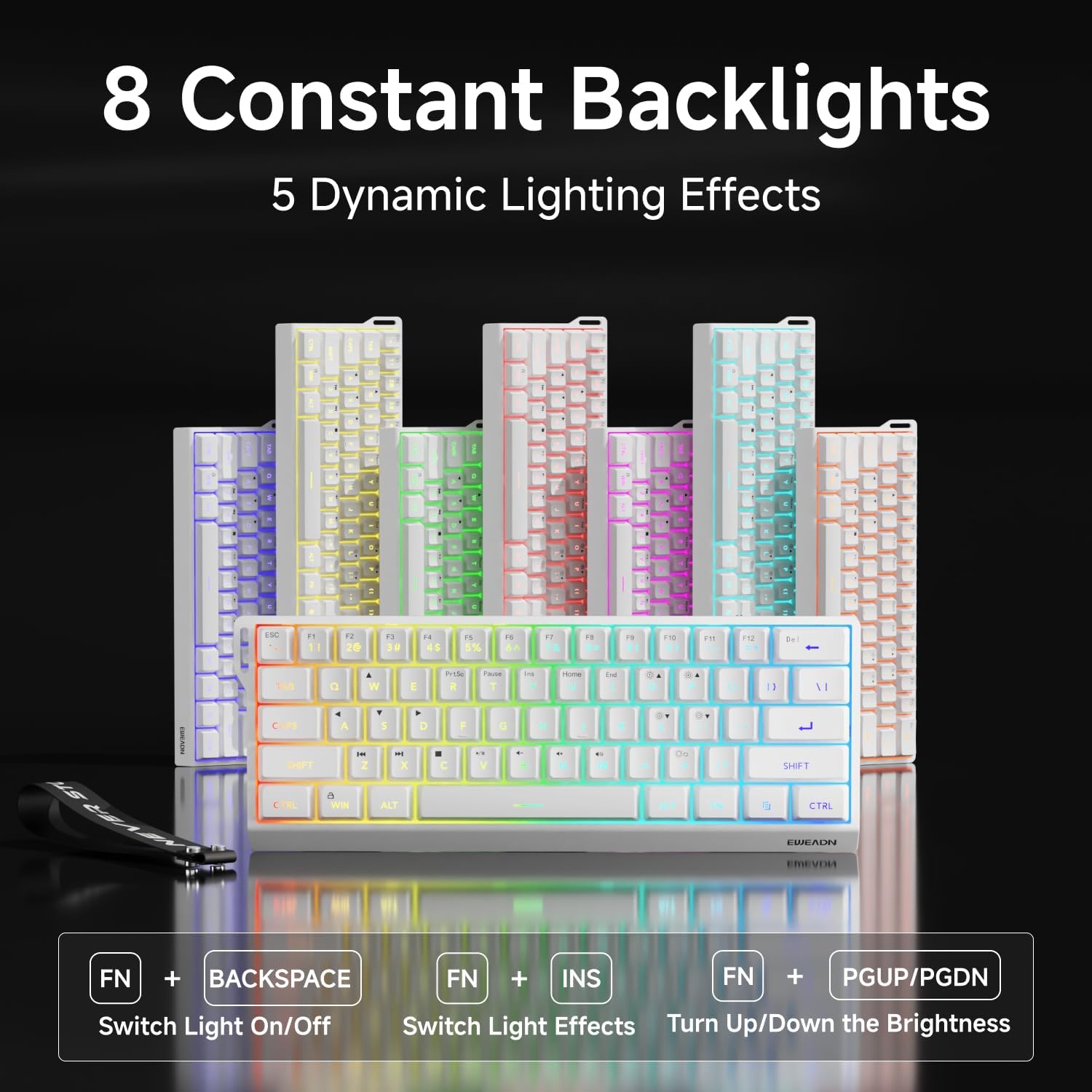

Video: A vertical video showcasing the EWEADN F61 60% Wired RGB Backlit Gaming Keyboard, demonstrating its compact size and various RGB lighting effects.
4.2 Prìomh Ghnìomhan agus Cruth
The F61 features a 60% compact layout, which means some keys are accessed via the 'FN' (Function) key. This design saves desk space while retaining essential functionality.
- Lockable Win Key: Prevent accidental interruptions during gaming by locking the Windows key. Press FN + Buaigh to toggle the Win key lock.
- Còpannan iuchrach PBT: The keyboard is equipped with dual-layer injection PBT keycaps, ensuring durability and clear, translucent characters that resist fading.
- Silent Membrane Switches: Experience quieter keystrokes for a more comfortable and less disruptive typing or gaming session.


5. Cumail suas
To ensure the longevity and optimal performance of your EWEADN F61 keyboard, follow these maintenance guidelines:
- Glanadh cunbhalach: Use a soft, dry cloth to wipe down the keycaps and keyboard surface. For deeper cleaning, you can use a can of compressed air to remove dust and debris from between the keys.
- Seachain dòrtadh leaghaidh: While durable, direct exposure to liquids can damage the internal components. In case of a spill, immediately disconnect the keyboard and allow it to dry completely before reconnecting.
- Cùram càball: Handle the detachable USB-C cable with care. Avoid sharp bends or excessive pulling to prevent damage to the cable or port.
6. A ’dèanamh trioblaid
If you encounter any issues with your EWEADN F61 keyboard, refer to the following troubleshooting tips:
- Meur-chlàr gun fhreagairt:
- Dèan cinnteach gu bheil an càball USB-C ceangailte gu tèarainte ris a’ mheur-chlàr agus ris a’ choimpiutair agad.
- Feuch ri am meur-chlàr a phlugadh a-steach do phort USB eadar-dhealaichte air a’ choimpiutair agad.
- Ath-thòisich an coimpiutair agad.
- RGB Lights Not Working/Incorrect:
- Check if the backlight is turned off (FN + Backspace).
- Cycle through lighting effects (FN + INS) to see if they respond.
- Adjust brightness levels (FN + P / ;:).
- Keys Not Functioning as Expected (e.g., Esc, Delete):
- Remember that due to the 60% layout, many functions are accessed via the 'FN' key in combination with other keys. Refer to the keycap legends or the user manual for specific combinations.
- Ensure the correct system compatibility mode is selected (FN + A for Windows, FN + S for Mac).
7. Sònrachaidhean
| Feart | Mion-fhiosrachadh |
|---|---|
| Dèanadair | EWEADN |
| Modail Àireamh | F61 |
| Cruth | 60% teann |
| Ceangalachd | Uèirleichte (USB-C) |
| Stuth Keycap | PBT (Dual-Layer Injection) |
| Seòrsa Switch | Membrane (Silent) |
| Cùl-sholais | RGB (6 buaidhean, 5 ìrean soilleireachd) |
| Ergonomics | Dual-Angle Adjustable Feet (7°, 15°) |
| Innealan co-fhreagarrach | Consól Gèam, Laptop, PC, Smartphone, Tablet |
| Siostaman-obrachaidh | Windows, Mac |
| Meudan | 11.61 x 4.53 x 1.93 òirleach (29.5 x 11.5 x 4.9 cm) |
| Cuideam nì | 1.32 not (0.6 kg) |
8. Barantas agus Taic
For any product inquiries, technical assistance, or warranty claims, please contact EWEADN customer support:
- Taic Post-d: eweadnkeyboard@outlook.com
Please have your product model number (F61) and purchase details ready when contacting support.
