
1. Toiseach tòiseachaidh
This section provides instructions for the initial setup of your HP 15 Laptop.
1.1 Fosgladh a’ bhogsa agus sgrùdadh tùsail
Thoir an laptop agus na goireasan uile a-mach às a’ phacaid gu faiceallach. Dèan cinnteach gu bheil na pàirtean uile an làthair:
- Laptop HP 15
- Power Adapter (45W AC adapter)
- Sgrìobhainnean
Inspect the laptop for any visible damage. If any damage is found or components are missing, contact your retailer or HP support immediately.
1.2 Cumhachd ceangail
Before first use, ensure the laptop is fully charged. Connect the power adapter to the laptop's AC power port and then to a wall outlet.

Image: Essential ports on the HP 15 Laptop, highlighting the AC power input.
The battery indicator light will show the charging status. Allow the laptop to charge for at least 30 minutes before initial power-on, or until fully charged.
1.3 First Power-On and Windows 11 Pro Setup
Open the laptop lid and press the power button. The laptop will boot up and guide you through the Windows 11 Pro setup process. Follow the on-screen instructions to:
- Tagh do sgìre agus do chànan.
- Ceangail ri lìonra Wi-Fi.
- Gabh ris na teirmichean ceadachais.
- Cruthaich no clàraich a-steach le cunntas Microsoft.
- Suidhich PIN no facal-faire.
- Cuir roghainnean prìobhaideachd air dòigh.
Once Windows 11 Pro is set up, you will be presented with the desktop.
1.4 Microsoft Office 365 Activation
Your HP 15 Laptop includes Microsoft Office 365. To activate it:
- Ensure you are connected to the internet.
- Fosgail aplacaid Oifis sam bith (me, Word, Excel).
- Follow the prompts to sign in with your Microsoft account or create a new one.
- The Office 365 subscription will be linked to your account.
2. Ag Obrachadh an Laptop agad
This section covers the basic operation and features of your HP 15 Laptop.
2.1 Meur-chlàr agus Pad-suathaidh
The laptop features a full-size keyboard with a numeric keypad and a precision touchpad. Use the touchpad for navigation and gestures. Refer to Windows settings for touchpad customization.
2.2 Ceangalachd
Your laptop supports various connectivity options:
- Wi-Fi 5: Ceangail ri lìonraidhean gun uèir airson ruigsinneachd eadar-lìn.
- Bluetooth 5: Pair with compatible devices such as headphones, mice, or keyboards.
- Puirt USB:
- 1 x USB Type-C (5Gbps)
- 2 x USB Type-A (5Gbps)
- HDMI 1.4b: Ceangail ri taisbeanaidhean no proiseactaran taobh a-muigh.
- SD Media Card Reader: Cuir a-steach cairtean SD airson gluasad dàta.
- Seac Combo Fònaichean-cluaise / Micreofon: Connect headphones or external microphones.
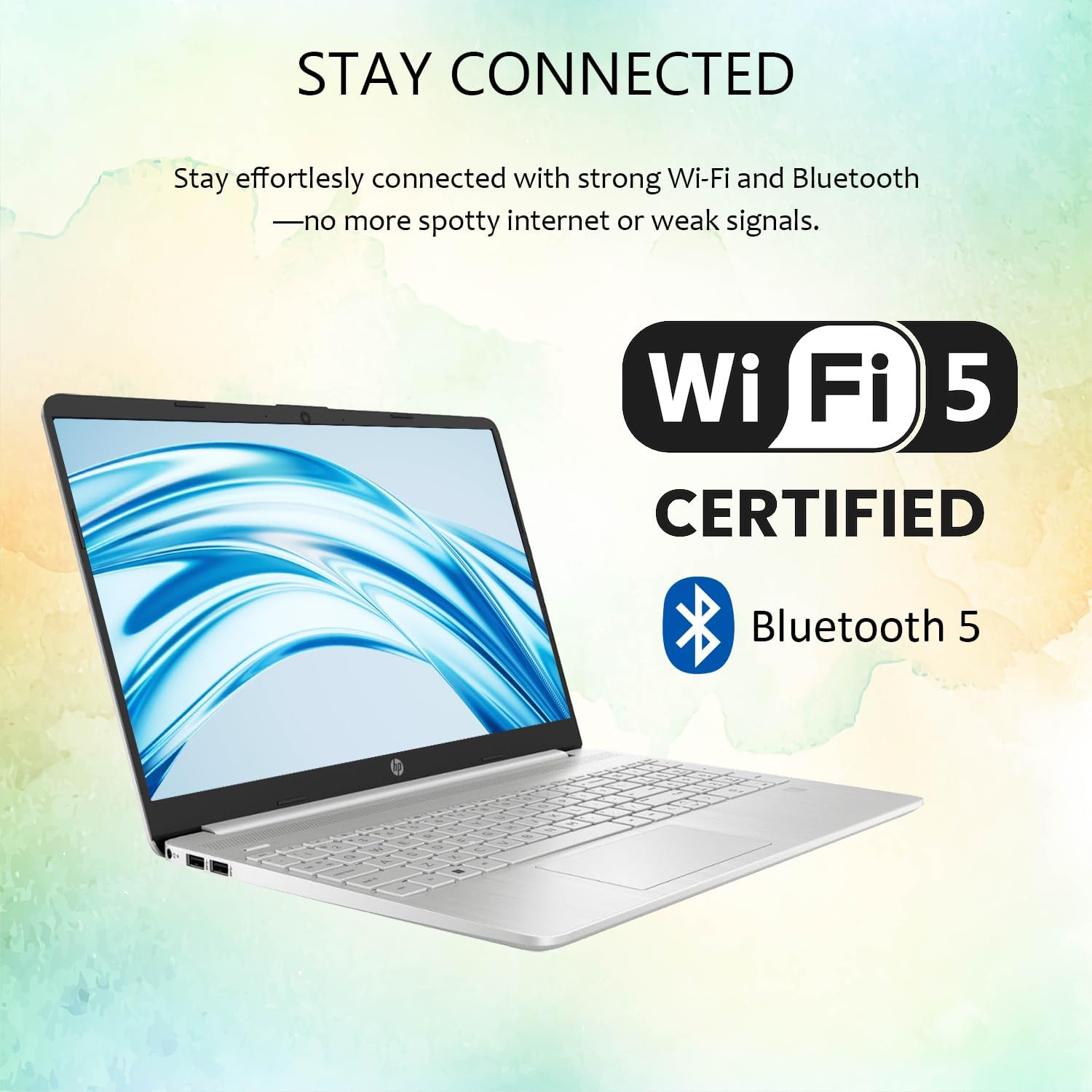
Image: Wireless connectivity features of the HP 15 Laptop.
2.3 Taisbeanadh agus Fuaim
The 15.6-inch Full HD (1920 x 1080) IPS display features an anti-glare coating for comfortable viewing. Dual stereo speakers provide audio output, and dual array microphones are integrated for communication.

Image: The 15.6-inch Full HD IPS display with anti-glare coating.
2.4 Using Copilot AI
Your laptop includes Copilot AI, an intelligent assistant integrated into Windows 11 Pro. Access Copilot to assist with tasks, answer questions, and enhance productivity. You can typically launch Copilot from the taskbar or by using a dedicated key if available.
3. Cumail suas agus Cùram
Proper maintenance ensures the longevity and optimal performance of your HP 15 Laptop.
3.1 Glanadh do choimpiutair-uchd
- Sgrion: Cleachd clò bog gun lint gu h-aotrom dampair a nighe le uisge no inneal-glanaidh sgrion. Seachain ceimigean làidir.
- Meur-chlàr agus Chassis: Use a soft cloth. For dust, use compressed air.
- Dèan cinnteach gu bheil an laptop dheth agus gun a bhith a’ cleachdadh a’ phlug mus glan thu e.
3.2 Ùrachaidhean bathar-bog
Regularly check for and install Windows updates to ensure your system has the latest security patches and performance improvements. Go to Roghainnean > Ùrachadh Windows gus ùrachaidhean a riaghladh.
3.3 Cùram Bataraidh
- Seachain teòthachd anabarrach.
- Na cuir às don bhataraidh gu tur gu tric.
- Airson stòradh fad-ùine, cuir cosgais air a’ bhataraidh gu timcheall air 50-70%.
3.4 Stiùireadh Stòraidh
Bho àm gu àm athview agus cuir às do neo-riatanach files to free up storage space. Windows 11 Pro includes tools like Storage Sense (in Roghainnean> Siostam> Stòradh) to automate this process.
4. A ’dèanamh trioblaid
This section addresses common issues you might encounter with your HP 15 Laptop.
4.1 Cùisean Cumhachd
- Laptop nach eil a’ tionndadh air: Dèan cinnteach gu bheil an inneal-atharrachaidh cumhachd ceangailte gu tèarainte agus gu bheil an socaid ag obair. Feuch socaid eile.
- Bataraidh gun a bhith a ’togail cosgais: Thoir sùil air an inneal-atharrachaidh cumhachd agus a’ chàball airson milleadh. Dèan cinnteach gu bheil am port cosgais glan.
4.2 Taisbeanaidhean Trioblaidean
- Gun taisbeanadh: Connect an external monitor via HDMI to check if the issue is with the laptop screen or the system itself.
- Sgrion a’ priobadh: Ùraich draibhearan grafaigean. Atharraich ìre ùrachaidh an taisbeanaidh ann an roghainnean Windows.
4.3 Duilgheadasan Ceangail
- Chan eil Wi-Fi a’ ceangal: Restart your router and laptop. Check Wi-Fi settings in Windows. Ensure Wi-Fi is enabled.
- Inneal Bluetooth gun a bhith a’ paidhreachadh: Ensure the device is in pairing mode and within range. Remove and re-add the device in Bluetooth settings.
4.4 Coileanadh an t-siostaim
- Coileanadh slaodach: Close unnecessary applications. Check for background processes in Task Manager. Ensure sufficient free storage space.
- Bidh an siostam a’ reothadh: Perform a hard reset by holding the power button until the laptop shuts down, then restart.
For more advanced troubleshooting or issues not covered here, refer to the HP support weblàrach-lìn no cuir fios gu seirbheis teachdaiche.
5. Sònrachaidhean
Detailed technical specifications for the HP 15 Laptop (Model G9).

Image: Key features and specifications of the HP 15 Laptop.
| Feart | Sònrachadh |
|---|---|
| Ainm Modail | HP 15 Laptop (G9) |
| Siostam-obrachaidh | Windows 11 pro |
| Pròiseasar | Intel N4120 (4 Cores / 4 Threads, up to 2.6 GHz) |
| Grafaigean | Grafaigean Intel UHD (Amailte) |
| Taisbeanadh | 15.6" Full HD (1920 x 1080) IPS, Anti-Glare, 250 nits |
| Cuimhne (RAM) | 4GB DDR4 (Configurable up to 16GB DDR4) |
| Stòradh | 128GB SSD (Configurable up to 512GB SSD) |
| Ceangal gun uèir | Wi-Fi 5, Bluetooth 5 |
| Puirt | 1x USB Type-C (5Gbps), 2x USB Type-A (5Gbps), 1x HDMI 1.4b, 1x SD Media Card Reader, 1x Headphone/Microphone Combo Jack, 1x AC Power Port |
| Fuaim | Dual stereo speakers, Dual array microphones |
| Webcam | Built-in 720p HD Camera |
| Meur-chlàr | US English, Full-size with Numeric Keypad |
| Adapter cumhachd | 45W AC adapter |
| Meudan (L x W x H) | 14.09" x 9.53" x 0.78" |
| Cuideam | 3.8 lb |
6. Barantas agus Taic
This section provides information regarding your product's warranty and how to obtain support.
6.1 Barantas toraidh
Your HP 15 Laptop (Model G9) comes with a standard manufacturer's warranty. The warranty period is typically 1 bhliadhna bho cheann-latha a’ cheannaich, a’ còmhdach lochdan ann an stuthan agus obair-ciùird fo chleachdadh àbhaisteach. Feuch an gleidh thu dearbhadh do cheannach airson tagraidhean barantais.
For detailed warranty terms and conditions, please refer to the documentation included with your product or visit the official HP support weblàrach.
6.2 Taic Teicnigeach
If you encounter any issues that cannot be resolved using the troubleshooting steps in this manual, or require further assistance, please contact HP Technical Support.
- Taic air-loidhne: Tadhail air taic oifigeil HP website for drivers, manuals, FAQs, and diagnostic tools.
- Taic Fòn: Contact HP customer service via phone. Refer to the HP weblàrach-lìn airson àireamhan conaltraidh roinneil.
- When contacting support, have your laptop's serial number and model number (G9) ready.
Thoir an aire: If you purchased this product through Amazon and have an Amazon Order ID, you may also contact your seller for initial assistance as indicated in the product description.