
1. Toradh thallview
The avedio links VHS to Digital Converter is a USB capture device designed to convert analog video signals from various sources into a digital USB format. This allows for the preservation and playback of older media on modern computers.
- Analog gu tionndadh didseatach: Converts analog video (RCA/Composite) to digital USB signals, supporting resolutions up to 1080p at 30Hz.
- Co-fhreagarrachd farsaing: Ideal for connecting old camcorders, set-top boxes, DVD players, VHS recorders, and DVRs.
- Plug & Play: Designed for ease of use with most current laptops, ensuring stable video recording and transmission.
- Càball Leudaichte: Features a 1-meter USB cable for flexible connection options.
- Taic siostam: Compatible with Windows and macOS operating systems.
- Amalachadh bathar-bog: Works seamlessly with popular recording software such as OBS and PotPlayer for video capture and screen recording.

Image 1.1: The avedio links VHS to Digital Converter, showing its RCA (yellow, white, red) and S-Video input connectors, and the USB output connector. This device facilitates the conversion of analog audio and video to a digital format.
2. Pasgan-susbaint
Dèan cinnteach gu bheil a h-uile nì anns a’ phacaid:
- RCA and S-Video to USB Capture Adapter
- Tionndadh USB-A gu USB-C
- CD draibhear
- Leabhar-stiùiridh (an sgrìobhainn seo)
3. Stiùireadh Stèidheachaidh
Follow these steps to set up your avedio links VHS to Digital Converter:
- Stàlaich draibhearan: Insert the included Driver CD into your computer's CD/DVD drive and follow the on-screen instructions to install the necessary drivers. If your computer does not have a CD drive, drivers may be available for download from the avedio links support weblàrach.
- Connect Analog Source: Connect your analog video source (e.g., VCR, camcorder, DVD player) to the converter using the appropriate RCA (yellow for video, white for left audio, red for right audio) or S-Video cables. Ensure all connections are secure.
- Ceangail ris a’ choimpiutair: Plug the USB connector of the capture device into an available USB 2.0 port on your laptop or PC. If your computer only has USB-C ports, use the provided USB-A to USB-C converter.
- Install Recording Software: Install your preferred video recording software (e.g., OBS Studio, PotPlayer). These applications are widely available and offer robust features for video capture.
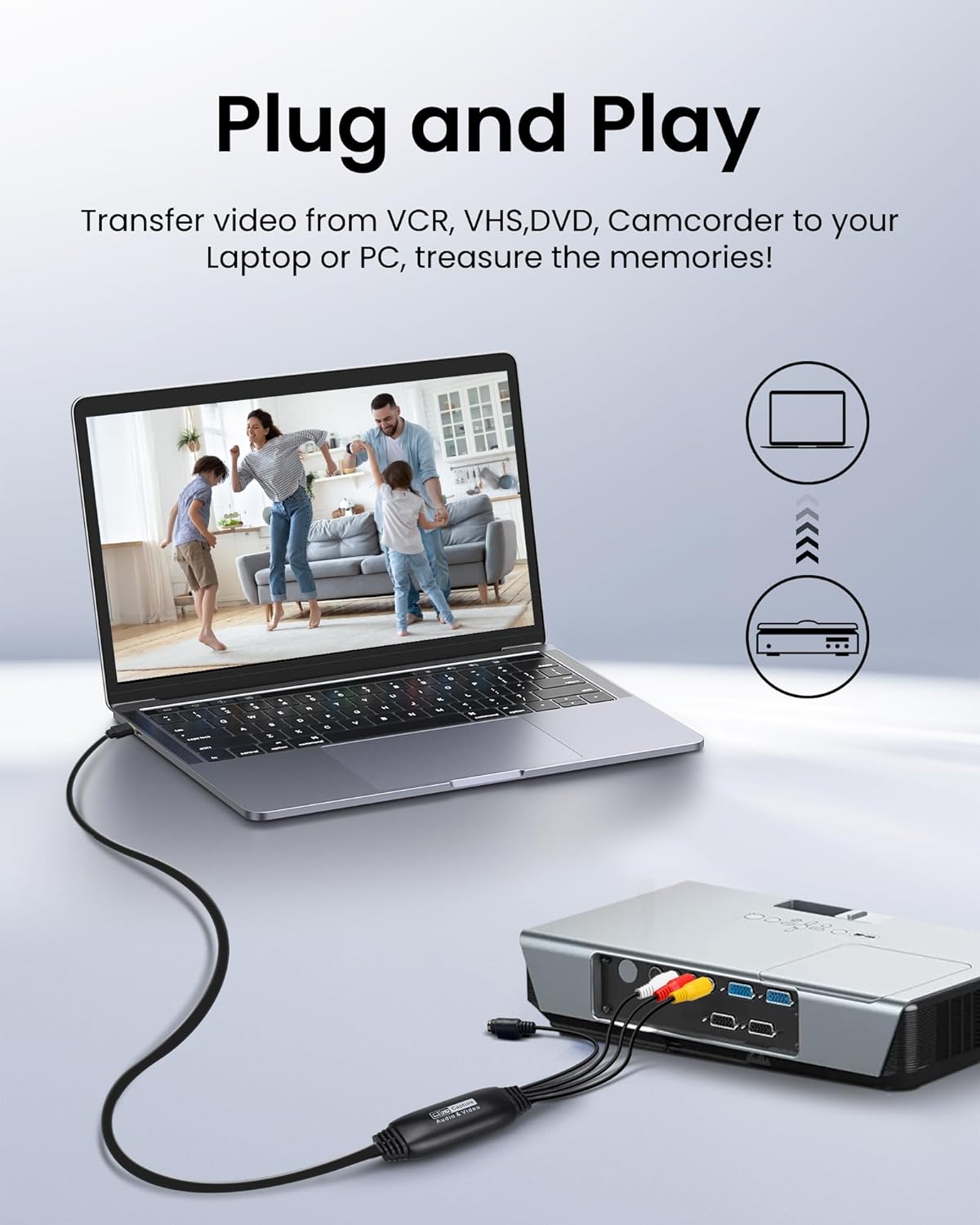
Image 3.1: Connection diagram illustrating how to connect an analog source (VCR) to the avedio links converter and then to a laptop for digital conversion.

Image 3.2: The converter is compatible with various operating systems including Mac OS, Windows, Android, and Linux, and supports software like OBS, Xsplit, VLC, and Skype for video capture.
4. Stiùireadh Obrachaidh
Once the setup is complete, follow these steps to capture video:
- Cumhachd air innealan: Ensure your analog video source (VCR, camcorder) and computer are powered on.
- Bathar-bog air bhog: Open your chosen video recording software (e.g., OBS Studio).
- Select Video Input: In the software settings, locate the video input source selection. Choose the avedio links capture device (it may appear as 'USB Video Device' or similar).
- Tagh Cuir-a-steach Fuaime: Similarly, select the audio input source, which should also correspond to the avedio links capture device.
- Dèan rèiteachadh air na roghainnean: Adjust video resolution, frame rate, and audio settings within the software as needed. For optimal quality, aim for 1080p at 30Hz if supported by your source and software.
- Tòisich ath-chluich: Begin playing the video on your analog source device.
- Tòisich a’ clàradh: In your software, click the 'Record' button to begin capturing the video. Monitor the preview window to ensure the signal is being received correctly.
- Cuir stad air clàradh: Once the playback is complete, stop the recording in your software. Save the captured video file to your desired location on your computer.
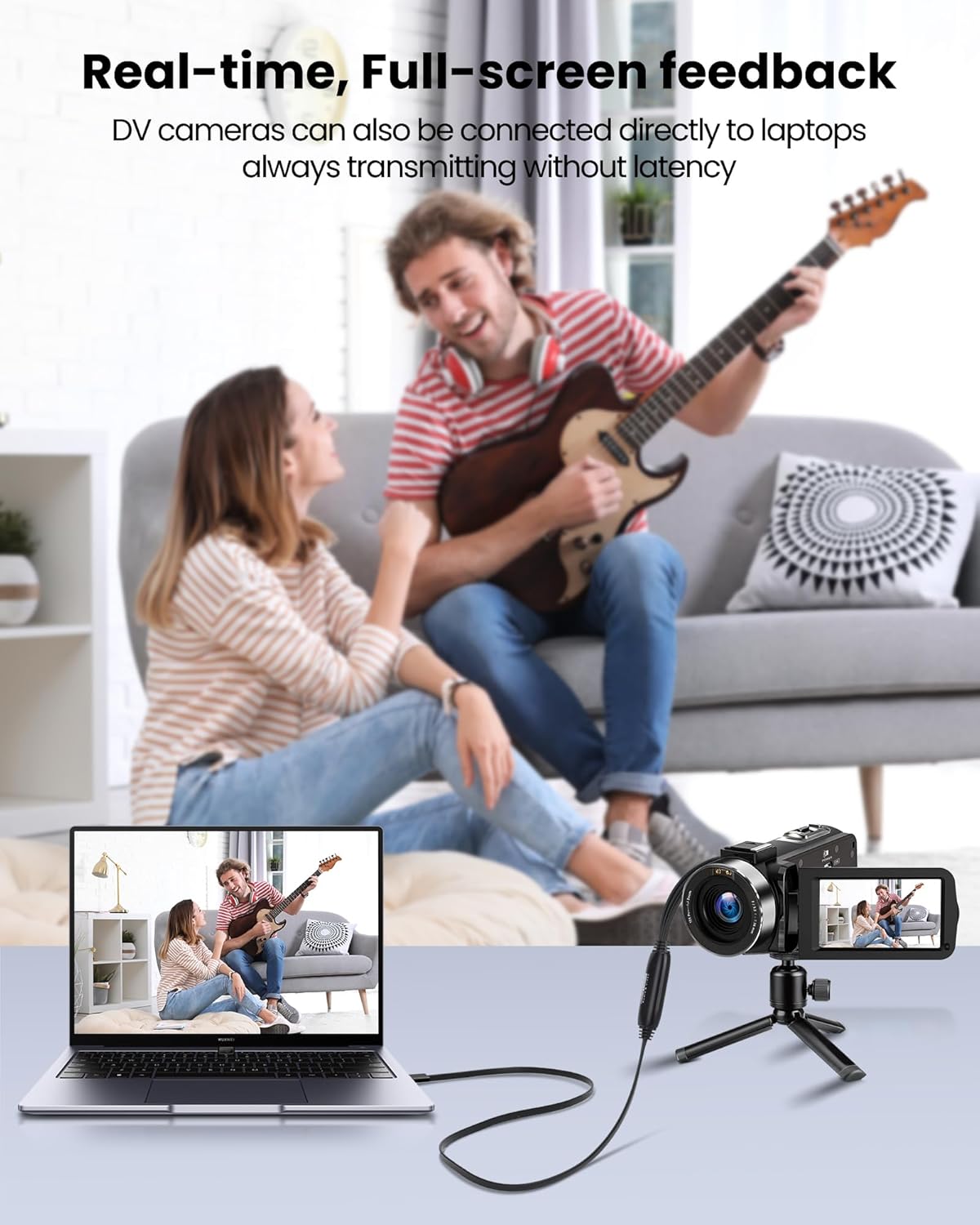
Image 4.1: Demonstrates real-time, full-screen feedback when a DV camera is connected directly to a laptop using the converter, ensuring no latency during transmission.

Image 4.2: The converter supports up to 1080P@30Hz output, as shown with a gaming console connected to a television.
5. Cumail suas
To ensure the longevity and optimal performance of your avedio links converter:
- Glanadh: Cleachd clò bog, tioram airson an inneal a ghlanadh. Seachain innealan-glanaidh leaghaidh no stuthan sgrìobach.
- Stòradh: Store the converter in a cool, dry place away from direct sunlight and extreme temperatures.
- Cùram càball: Avoid bending or kinking the cables excessively. Do not pull on the cables to disconnect the device.
- Ùrachaidhean bathar-bog: Periodically check for updated drivers or software for your operating system and recording application to ensure compatibility and performance.
6. A ’dèanamh trioblaid
Ma thachras tu ri duilgheadasan, thoir sùil air na molaidhean fuasgladh-cheistean a leanas:
- Gun chomharradh bhidio/fuaime:
- Ensure all cables (RCA/S-Video, USB) are securely connected.
- Verify that the analog source device (VCR, camcorder) is powered on and playing content.
- Check if the correct video and audio input sources are selected in your recording software.
- Confirm that the drivers for the capture device are correctly installed. Reinstall if necessary.
- Droch chàileachd bhidio / claisneachd:
- Ensure the analog source is providing a clean signal. Test with a different tape or DVD if possible.
- Check cable quality. Damaged or low-quality cables can degrade the signal.
- Adjust resolution and bitrate settings in your recording software. Higher settings generally result in better quality but larger file meudan.
- Bathar-bog nach eil ag aithneachadh an inneil:
- Ensure drivers are installed correctly. Try uninstalling and reinstalling them.
- Ath-thòisich do choimpiutair an dèidh stàladh an draibhear.
- Feuch port USB eile air a’ choimpiutair agad.
- Update your recording software to the latest version.
- Cùisean Stàlaidh Bathar-bog:
- If you experience issues installing software from the CD, try downloading the latest version directly from the software developer's website (e.g., OBS Studio).
- Dèan cinnteach gu bheil an siostam obrachaidh agad a’ coinneachadh ris na riatanasan as ìsle airson a’ bhathar-bhog.
7. Sònrachaidhean
| Brand | ceanglaichean avedio |
| Modail Àireamh | 9799240a-5448-44ed-a7ce-1925c09da1aa |
| Meudan toraidh | 16.3 x 13.1 x 1.5 cm |
| Cuideam | 110 gram |
| Dath | Dubh |
| Eadar-aghaidh cur-a-steach | RCA (Composite), S-Video |
| Eadar-aghaidh toraidh | USB 2.0 (with USB-A to USB-C converter) |
| Fuasgladh Max | 1080p @ 30Hz |
| Innealan co-fhreagarrach | Laptop, PC |
| Siostaman-obrachaidh | Windows, macOS (also compatible with Android, Linux) |

Image 7.1: The avedio links converter featuring its 1-meter extended USB cable, providing increased flexibility for connections.
8. Barantas agus Taic
For technical support, driver updates, or warranty inquiries, please visit the official avedio links weblàrach-lìn no cuir fios chun t-seirbheis teachdaiche aca. Cùm do chuidhteas ceannach airson tagraidhean barantais.