
Vetroo M06
Leabhar-stiùiridh airson Cùis PC Gèam Vetroo M06 Micro-ATX/Mini-ITX
Modail: M06
Ro-ràdh
This manual provides detailed instructions for the installation, operation, and maintenance of your Vetroo M06 Micro-ATX/Mini-ITX Gaming PC Case. Please read this manual thoroughly before beginning assembly to ensure proper setup and optimal performance.

Image: The Vetroo M06 Micro-ATX/Mini-ITX Gaming PC Case in black, showcasing its mesh front panel and side window, viewed bho cheàrn.
Prìomh fheartan
- Dealbhadh Compact: Micro-ATX / Mini-ITX form factor with a high-airflow mesh front panel, designed for space-efficient builds.
- Fuarachadh leasaichte: Supports up to five 120mm fans and a 240mm top-mounted liquid radiator for efficient thermal management.
- Co-chòrdalachd GPU: A’ gabhail ri cairtean grafaigeachd suas ri 355mm a dh’fhaid.
- Flexible PSU Mounting: Features an adjustable power supply installation area with a maximum length of 160mm.
- Ceangal ùr-nodha: Front panel includes USB Type-C and USB 3.0 ports for convenient peripheral access.
Susbaint pacaid
Dèan cinnteach gu bheil na pàirtean uile an làthair mus lean thu air adhart leis an stàladh:
- Vetroo M06 PC Case
- Bogsa Goireasan (sgriuban, seasamh-offs, ceanglaichean càbaill)
- SFX PSU Bracket (1x)
- Leabhar-làimhe cleachdaiche (an sgrìobhainn seo)
Sònrachaidhean
| Feart | Mion-fhiosrachadh |
|---|---|
| Ainm Modail | M06 |
| Seòrsa cùise | Mini-Tùr |
| Co-fhreagarrachd motherboard | Micro ATX, Mini ITX |
| Meudan toraidh (L x W x H) | 15.55" x 7.87" x 13.07" (395mm x 200mm x 332mm) |
| Cuideam nì | 13.37 not (6.06 kg) |
| Stuth | Acrylonitrile Butadiene Styrene (ABS), SPCC (0.8mm metal plate) |
| Fad GPU Max | 355mm |
| Àirde nas fhuaire CPU | 165mm |
| Fad PSU Max | 160mm (Adjustable mounting) |
| Taic Fan | Suas gu luchd-leantainn 5 x 120mm |
| Taic Radiator | 1 x 240mm (Top) |
| Puirt aghaidh I / O. | 1 x USB Type-C, 1 x USB 3.0, HD Audio, Power Button, Reset Button |

Image: Diagram illustrating the compact dimensions of the Vetroo M06 PC case, measuring 15.5 inches in depth, 7.8 inches in width, and 13.0 inches in height.

Image: A detailed diagram outlining the compatibility specifications for the Vetroo M06 PC case, including maximum CPU cooler height (165mm), GPU length (355mm), PSU length (160mm), and supported motherboard form factors (M-ATX/ITX).
Stàladh agus stàladh
Before starting, ensure you have a clean, static-free workspace. Refer to your component manuals for specific installation details.
1. Stàladh motherboard
- Remove the side panel(s) of the case.
- Install the necessary motherboard standoffs into the case tray according to your motherboard's form factor (Micro-ATX or Mini-ITX).
- Cuir do bhòrd-màthar gu faiceallach air na standoffs, a’ co-thaobhadh nan tuill sgriubha.
- Dìon am motherboard le sgriothan.
2. Stàladh GPU
- Remove the appropriate PCIe slot covers from the rear of the case.
- Insert your graphics card into the primary PCIe slot on your motherboard.
- Daingnich a’ chairt grafaiceachd ris a’ chùis le sgriothan.
- Connect any required PCIe power cables from your power supply to the GPU.
3. Stàladh PSU
- Determine the desired mounting position for your power supply. The Vetroo M06 supports adjustable PSU mounting.
- If using an SFX power supply, attach the included SFX bracket to the PSU.
- Slide the power supply into its designated bay and secure it with screws from the rear of the case.
- Route the necessary power cables to your components.

Ìomhaigh: Taobh a-staigh view of the Vetroo M06 PC case highlighting the three adjustable mounting positions for ATX/SFX power supplies, along with an illustration of the included SFX bracket.
4. Storage Installation (HDD/SSD)
- Locate the designated mounting points for 3.5" HDDs and 2.5" SSDs.
- Secure your storage drives using the provided screws.
- Connect SATA data and power cables to each drive.
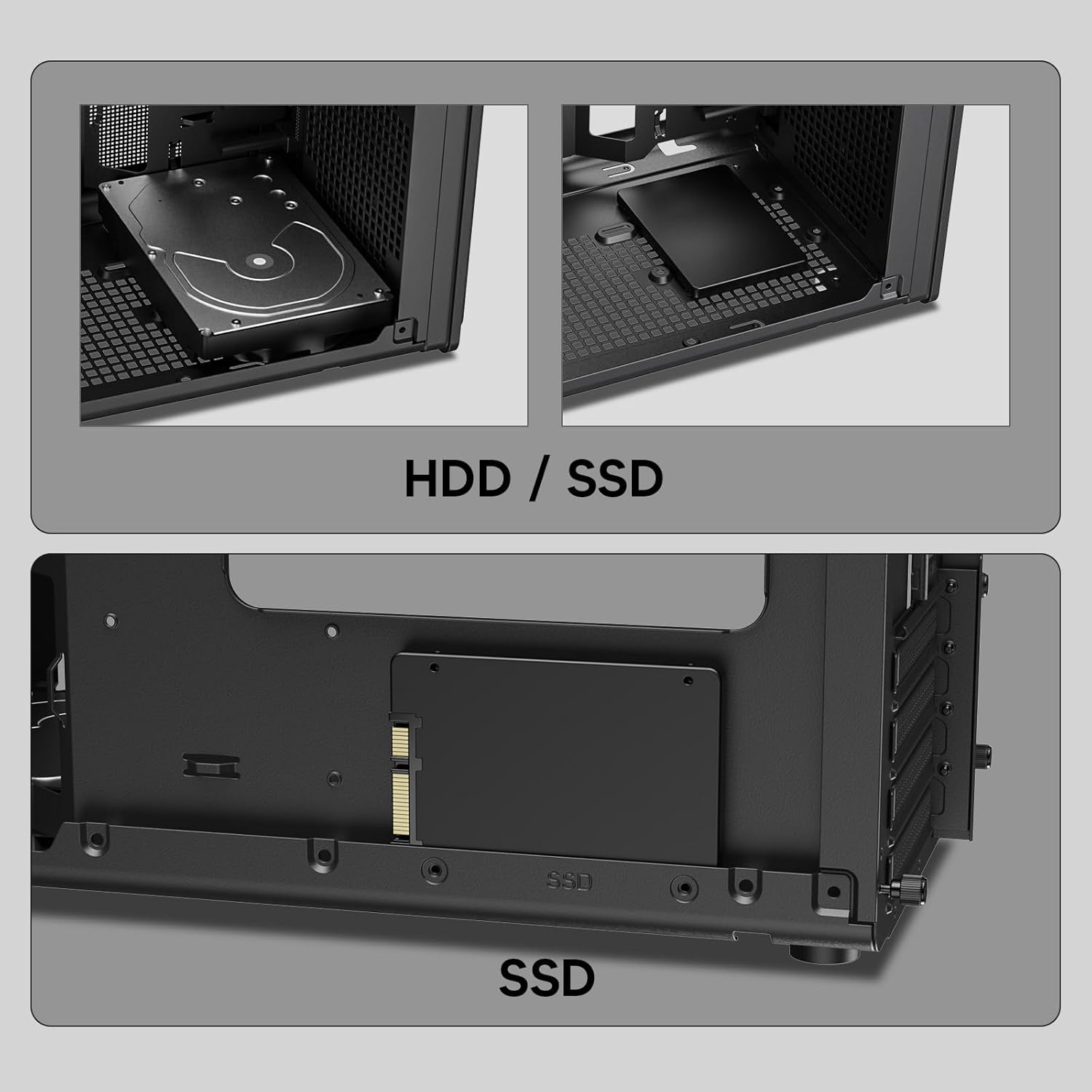
Ìomhaigh: Dlùth-shealladh views of the Vetroo M06 PC case interior, demonstrating the mounting options for both 3.5-inch Hard Disk Drives (HDDs) and 2.5-inch Solid State Drives (SSDs).
5. Cooling System Installation (Fans/Radiator)
- Identify the fan mounting locations (up to five 120mm fans).
- Mount fans using appropriate screws, ensuring correct airflow direction.
- For liquid cooling, install a 240mm radiator at the top mounting position, securing it with screws.
- Connect fan and pump cables to your motherboard or fan controller.
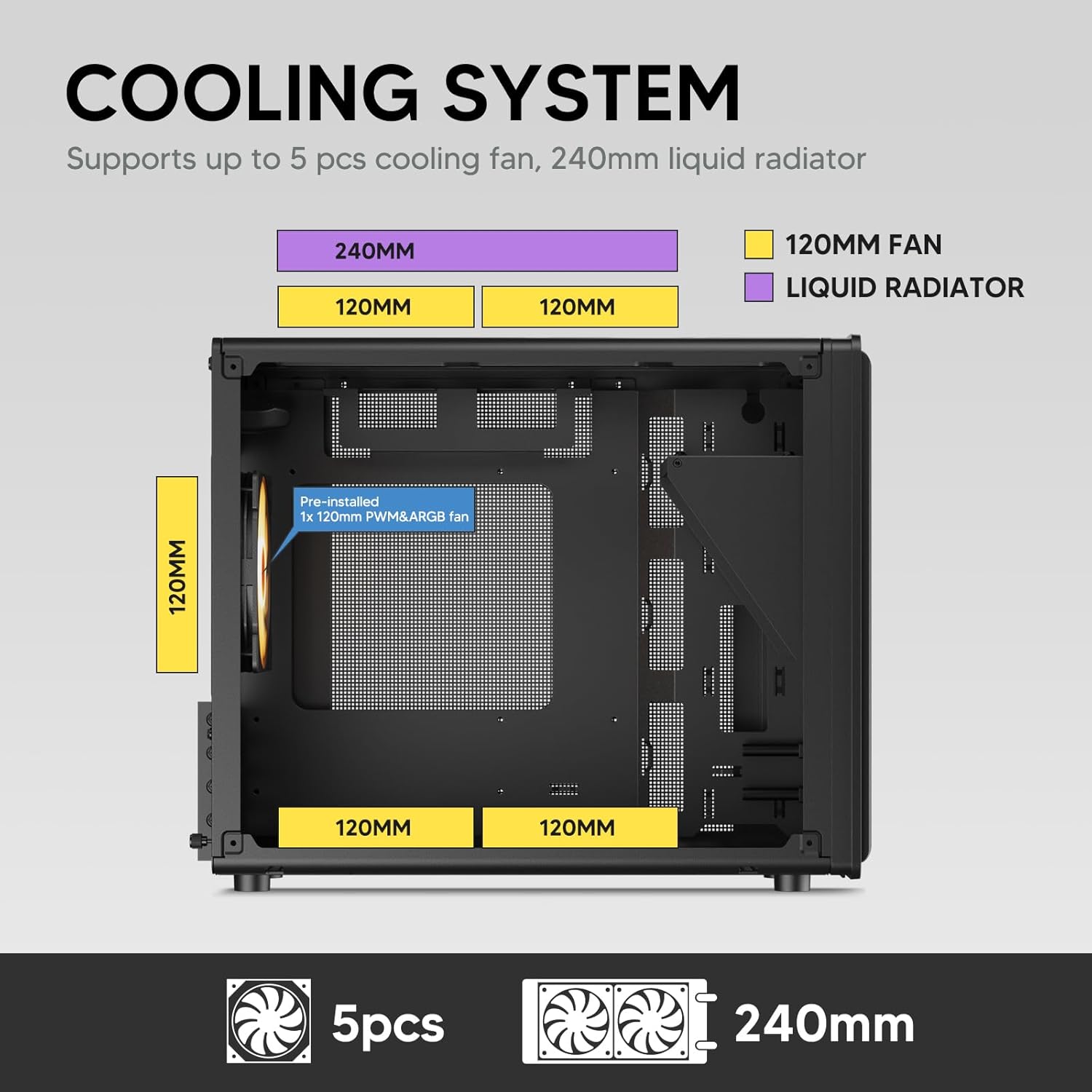
Image: A diagram illustrating the cooling system layout within the Vetroo M06 PC case, detailing the positions for up to five 120mm fans and a 240mm liquid radiator at the top.
6. Ceanglaichean Pannal I/O
- Connect the front panel cables (Power, Reset, USB 3.0, USB Type-C, HD Audio) to the corresponding headers on your motherboard. Refer to your motherboard manual for header locations.

Image: A close-up of the Vetroo M06 PC case's front I/O panel, clearly labeling the Power button, Reset button, USB 3.0 port, HD Audio jack, and USB Type-C port.
Stiùireadh Obrachaidh
Once all components are installed and cables are connected, replace the side panels. Connect your peripherals (monitor, keyboard, mouse) and power cable to the PSU. Press the power button on the front panel to start your system.
Riaghladh sruth-adhair
The Vetroo M06 case features an excellent airflow design with mesh panels to facilitate optimal cooling. Ensure fans are installed to create a balanced airflow, typically with intake fans at the front/bottom and exhaust fans at the rear/top.

Image: An exploded diagram of the Vetroo M06 PC case, illustrating the intended airflow patterns with blue arrows indicating cool air intake and red arrows showing warm air exhaust through its mesh panels.
Cumail suas
Bidh cumail suas cunbhalach a’ cuideachadh le bhith a’ leudachadh beatha phàirtean do PC agus a’ dèanamh cinnteach à coileanadh as fheàrr.
- Glanadh Duslach: Periodically clean dust filters and internal components using compressed air. Ensure the system is powered off and unplugged before cleaning.
- Riaghladh càbaill: Verify that internal cables are neatly routed and do not obstruct airflow.
- Sgrùdaidhean Co-phàirtean: Ensure all screws are tight and components are securely seated.

Image: A close-up shot of the Vetroo M06 PC case, featuring a digital caliper measuring the thickness of the metal plate, which is specified as 0.8mm, highlighting the case's robust construction.
Fuasgladh thrioblaidean
Ma thachras tu ri duilgheadasan, thoir sùil air na ceumannan cumanta fuasgladh-cheistean a leanas:
- Siostam gun chumhachdachadh:
- Check all power connections, including the PSU to wall outlet, PSU to motherboard (24-pin and CPU 8-pin), and front panel power switch cable to motherboard.
- Dèan cinnteach gu bheil suidse an PSU san t-suidheachadh 'ON'.
- Gun toradh taisbeanaidh:
- Verify that your monitor is connected to the graphics card (not the motherboard's integrated graphics ports, unless you are using integrated graphics).
- Ath-shuidhich na modalan cairt grafaiceachd agus RAM.
- Cùisean cus-teasachaidh:
- Ensure all case fans are spinning and oriented correctly for optimal airflow.
- Check CPU cooler installation and thermal paste application.
- Clean any dust buildup from fans and filters.
- Puirt USB nach eil ag obair:
- Verify that the front panel USB 3.0 and USB Type-C cables are correctly connected to the motherboard headers.
Barantas agus Taic
Vetroo products are designed for quality and reliability. For warranty information and technical support, please visit the official Vetroo weblàrach-lìn no cuir fios chun t-seirbheis teachdaiche aca. Cùm dearbhadh do cheannach airson tagraidhean barantais.
Vetroo Official Weblàrach: Vetroo Store on Amazon
For further assistance, please refer to the contact information provided with your product packaging or on the official Vetroo support channels.
Ask a question about this manual
Ask about setup, troubleshooting, compatibility, parts, safety, or missing instructions. Manuals+ will review the question and use this page’s manual context to help answer it.