
1. Ro-ràdh
Thank you for choosing the ZEUSLAP Z18W Dual Screen Portable Monitor. This device is designed to enhance your productivity and multimedia experience by providing two additional 18.5-inch displays for your compatible devices. This manual provides essential information for setting up, operating, and maintaining your monitor.
2. Toradh thallview
2.1 Prìomh fheartan
- Dual 18.5-inch Full HD IPS Displays: Tlachd a ghabhail air dathan beòthail agus farsaingeachd viewing angles with 1920x1080 resolution on each screen.
- Ìre ùrachaidh 120Hz: Experience smooth visuals, ideal for gaming and fast-paced multimedia.
- Type-C Connectivity: Single cable solution for power and video transmission with compatible devices.
- Raon dath sRGB 100%: Ensures accurate and rich color reproduction.
- 300 cd/m² Brightness: A’ toirt seachad sealladh soilleir ann an diofar shuidheachaidhean solais.
- Gnìomhachd scrion suathaidh: Interact directly with the display for intuitive control.
- Co-fhreagarrachd farsaing: Connects to Laptops, Desktops, Gaming Consoles, and Smartphones.
2.2 Susbaint a’ phacaid
Thoir sùil air a’ phacaid airson nan nithean a leanas:
- ZEUSLAP Z18W Dual Screen Portable Monitor
- USB-C to USB-C Cable (for video and power)
- USB-A to USB-C Power Cable (for additional power if needed)
- Leabhar-làimhe cleachdaiche

This image shows the ZEUSLAP Z18W dual portable monitor set up next to a laptop, demonstrating its extended display capabilities for enhanced productivity.
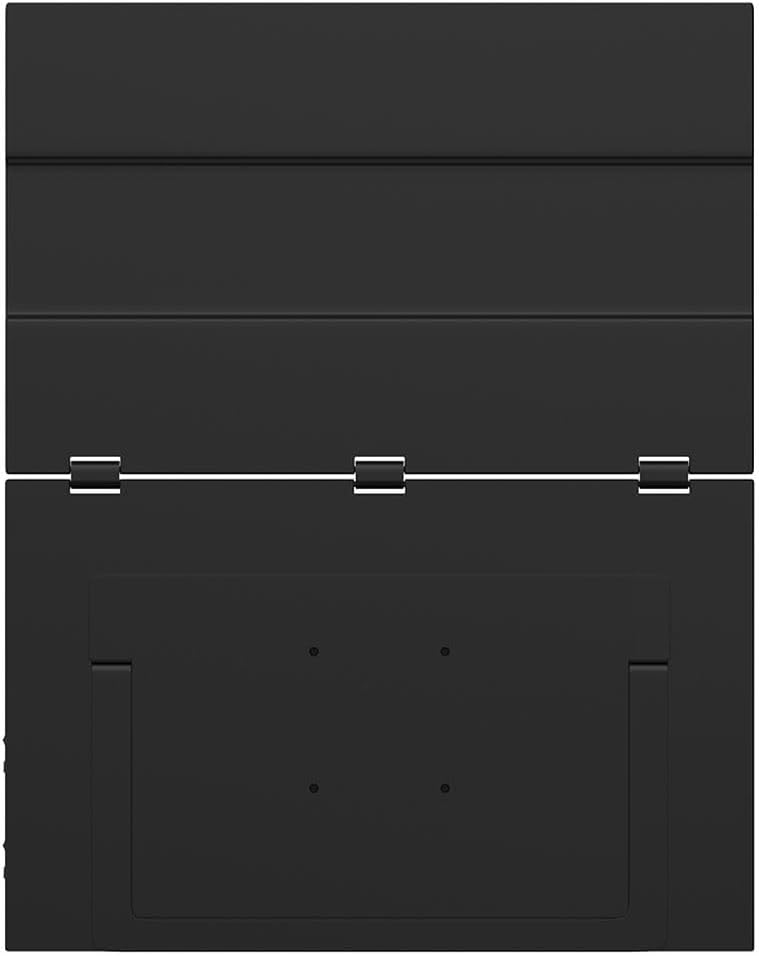
An druim view of the ZEUSLAP Z18W monitor highlights its robust hinge design and integrated stand, allowing for flexible positioning and stability.
3. Suidhich
3.1 A’ ceangal ri inneal
The ZEUSLAP Z18W monitor supports various connection methods. Ensure your device has the necessary ports.
- USB-C (Làn-ghnìomhach): If your laptop, smartphone, or gaming console has a full-featured USB-C port (supporting DisplayPort Alternate Mode and power delivery), connect the monitor using the provided USB-C to USB-C cable. This single cable can transmit video, audio, and power to the monitor.
- USB-C (Power Only) + HDMI (Video): If your device's USB-C port does not support video output, or if you are connecting to a device with an HDMI port, you will need two cables:
- Connect an HDMI cable (not included) from your device to the monitor's HDMI input.
- Connect the provided USB-A to USB-C power cable from a USB power source (e.g., laptop USB port, wall adapter) to the monitor's USB-C power input.
3.2 A’ cur cumhachd air/dheth
- Cumhachd air: Once connected to a compatible device and receiving power, the monitor should automatically power on. If not, press the Power button located on the side of the monitor.
- Cumhachd dheth: Press and hold the Power button for a few seconds until the display turns off. Disconnect the cables when not in use.
4. Stiùireadh Obrachaidh
4.1 Clàr-taice Taisbeanaidh Air-sgrion (OSD)
The OSD menu allows you to adjust various display settings. The monitor typically features a joystick or a set of buttons for navigation.
- Accessing the OSD: Press the OSD button (or push the joystick) to open the menu.
- Seòladh: Use the joystick or directional buttons to move through menu options.
- Taghadh: Press the OSD button (or push the joystick in) to select an option.
- A-mach: Navigate to the 'Exit' option or press the 'Back' button to close the OSD menu.
Common OSD settings include Brightness, Contrast, Color Temperature, Input Source, Aspect Ratio, and Volume.
4.2 Modhan Taisbeanaidh
When connected to a computer, you can configure the display mode through your operating system's display settings:
- Modh leudachaidh: Each monitor displays a separate desktop, allowing for more screen space and multitasking.
- Modh dùblaichte: All monitors display the same content, useful for presentations or sharing your screen.
4.3 Gnìomhachd an Sgrion-suathaidh
The ZEUSLAP Z18W features a touch screen. For touch functionality to work, ensure your device supports touch input over the connected interface (typically USB-C) and that the necessary drivers are installed (usually automatically by the operating system).
- Singilte suathaidh: Tap to select or open items.
- Gluasadan ioma-suathaidh: Use gestures like pinch-to-zoom, two-finger scroll, etc., as supported by your operating system.
5. Cumail suas
5.1 Glanadh an monitor
- Cuir dheth an monitor an-còmhnaidh agus dì-cheangail a h-uile càball mus glan thu e.
- Cleachd clò bog gun lint gu h-aotrom dampair a nighe le uisge no le inneal-glanaidh sgrion neo-sgrìobach.
- Na spraeadh inneal-glanaidh gu dìreach air an sgrion.
- Seachain deoch làidir, ammonia no innealan-glanaidh sgrìobach a chleachdadh, oir faodaidh iad uachdar na sgrìn a mhilleadh.
5.2 Stòradh
- Stòraich am monitor ann an àite fionnar, tioram air falbh bho sholas dìreach na grèine agus teòthachd anabarrach.
- Use the original packaging or a protective case to prevent damage during transport or storage.
6. A ’dèanamh trioblaid
| Trioblaid | Adhbhar a dh’fhaodadh a bhith ann | Fuasgladh |
|---|---|---|
| No display / "No Signal" message |
|
|
| Monitor powers on but no image |
|
|
| Sgrion suathaidh nach eil a’ freagairt |
|
|
| Ìomhaigh a’ priobadh no a’ saobhadh |
|
|
7. Sònrachaidhean
| Feart | Mion-fhiosrachadh |
|---|---|
| Ainm Modail | Z18W |
| Meud sgrion | 2 x 18.5 òirleach |
| Fuasgladh | 1920 x 1080 (làn HD) |
| Ìre Ath-nuadhachaidh | 120 Hz |
| Seòrsa pannal | IPS |
| Gamut dath | 100% sRGB |
| Gile | 300 cd / m² |
| Ceangalachd | USB-C, USB |
| Feartan sònraichte | Dual Screen, High Refresh Rate, Type-C Connection, Touch Screen |
| Innealan co-fhreagarrach | Laptop, Desktop, Gaming Console, Smartphone |
8. Barantas agus Taic
The ZEUSLAP Z18W Dual Screen Portable Monitor comes with a standard manufacturer's warranty. Please refer to the warranty card included in your package for specific terms and conditions, including the warranty period and coverage details.
For technical support, troubleshooting assistance, or warranty claims, please contact the retailer where you purchased the product or visit the official ZEUSLAP weblàrach-lìn airson fiosrachadh conaltraidh seirbheis luchd-cleachdaidh.