
1. Ro-ràdh
Thank you for choosing the Zeuslap Z13KT 13.3-inch Portable Touchscreen Monitor. This device is designed to enhance your productivity and entertainment experience with its high-resolution 2K IPS display, 100% sRGB color gamut, and responsive touch functionality. This manual provides essential information for the safe and efficient use of your monitor, including setup, operation, maintenance, and troubleshooting.
2. Fiosrachadh Sàbhailteachd
- Read all instructions carefully before using the monitor.
- Na cuir am monitor fosgailte do uisge, taiseachd no teòthachd anabarrach.
- Seachain a bhith a’ cur an monitor faisg air stòran teas no ann an solas dìreach na grèine.
- Cleachd an inneal-atharrachaidh cumhachd agus na càbaill a tha air an toirt seachad no air am moladh leis an neach-dèanamh a-mhàin.
- Na feuch ri am monitor a thoirt às a chèile no a chàradh thu fhèin. Thoir aire do luchd-obrach teisteanasach airson a h-uile seirbheiseachadh.
- Clean the monitor with a soft, dry cloth. Avoid using liquid cleaners or aerosols.
- Cùm am monitor air falbh bho raointean magnetach làidir.
3. Pasgan-susbaint
Thoir sùil air susbaint a’ phacaid nuair a dh’fhosglas tu am bogsa. Ma tha rud sam bith a dhìth no millte, cuir fios chun neach-reic agad.
- Zeuslap Z13KT Portable Monitor
- Càball USB-C gu USB-C (airson cumhachd agus bhidio/suathadh)
- Mini HDMI to HDMI Cable (for video)
- USB-A to USB-C Cable (for power)
- Adaptor Cumhachd (ma tha e ann)
- Protective Cover/Stand
- Leabhar-làimhe cleachdaiche (an sgrìobhainn seo)
4. Toradh thallview
Familiarize yourself with the monitor's components and ports.
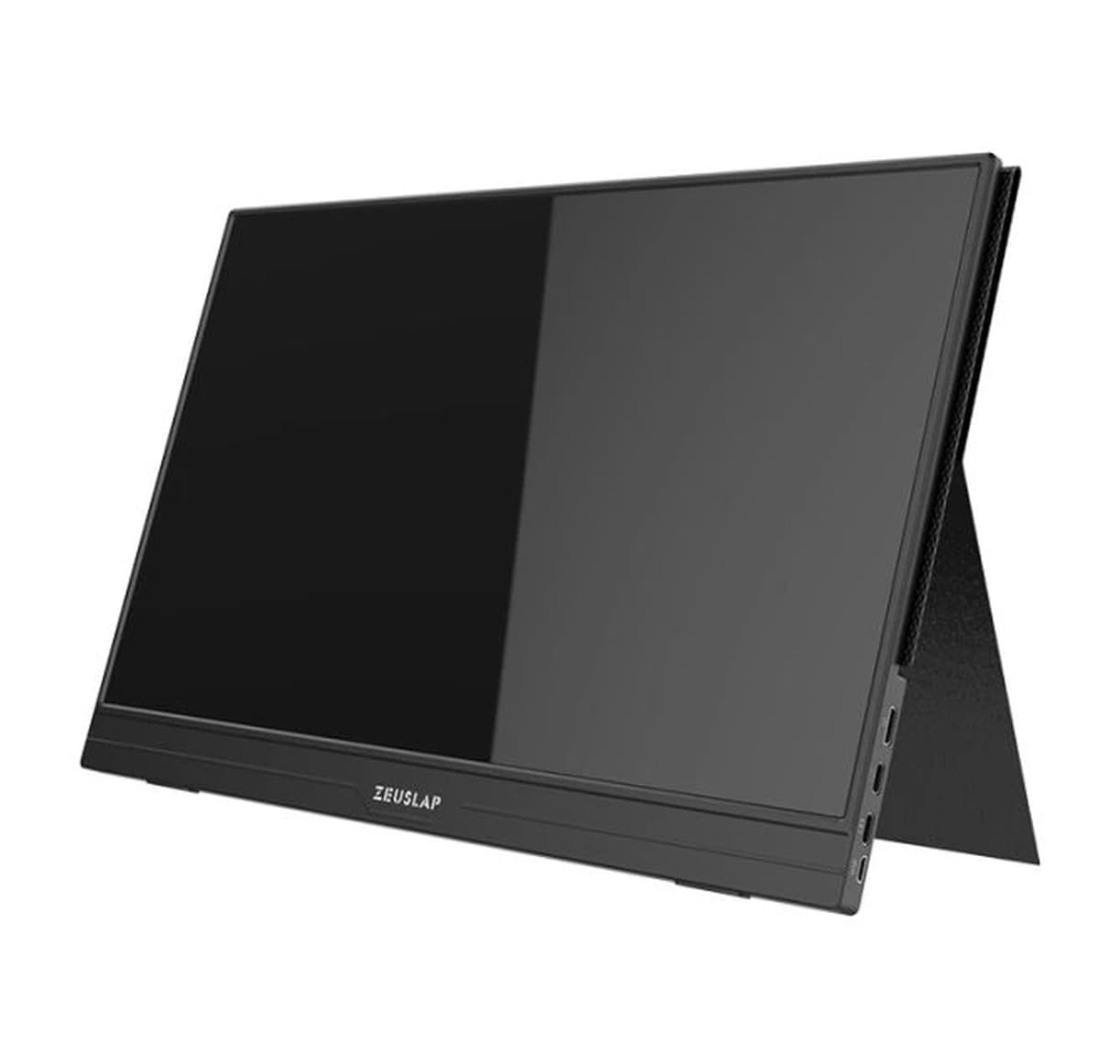
Figear 4.1: Aghaidh view of the Zeuslap Z13KT portable monitor, showcasing its slim design and screen.
4.1. Monitor Components
- 13.3-inch 2K IPS Touchscreen: Main display area with touch input capability.
- Putan Cumhachd: Turns the monitor on/off and can be used to access the OSD menu.
- Putanan Clàr-taice/Seòlaidh: For navigating the On-Screen Display (OSD) menu.
- Luchd-labhairt: Toradh claisneachd amalaichte.
4.2. Puirt a tha rim faighinn
- USB-C Port (Full-featured): For power, video signal, and touch data transmission from compatible devices (e.g., laptops, smartphones).
- USB-C Port (Power Only): For connecting to an external power adapter to supply power to the monitor.
- Port Mini HDMI: For video signal input from devices like gaming consoles, cameras, or older laptops.
- Jack claisneachd 3.5mm: Airson ceangal a dhèanamh eadar fònaichean-cluaise no luchd-labhairt taobh a-muigh.
5. Suidhich
Follow these steps to connect your Zeuslap Z13KT monitor to your device.
5.1. Connecting to a Laptop/PC (USB-C with DisplayPort Alt Mode)
- Ensure your laptop's USB-C port supports DisplayPort Alternate Mode (DP Alt Mode) and power delivery.
- Connect one end of the provided USB-C to USB-C cable to the full-featured USB-C port on the monitor.
- Connect the other end of the USB-C to USB-C cable to your laptop's compatible USB-C port.
- The monitor should automatically detect the signal and power on. If not, press the monitor's power button.
- For touch functionality, ensure the USB-C connection is established correctly.
5.2. Connecting to a Laptop/PC (HDMI + USB for Power/Touch)
- Connect one end of the Mini HDMI to HDMI cable to the Mini HDMI port on the monitor.
- Ceangail ceann eile a’ chàball HDMI ri port HDMI an laptop agad.
- For power, connect the USB-A to USB-C cable from your laptop's USB-A port (or a power adapter) to the power-only USB-C port on the monitor.
- For touch functionality, if your laptop has a USB-A port, connect the USB-A end of the USB-A to USB-C cable to your laptop and the USB-C end to the full-featured USB-C port on the monitor. This will provide touch data.
- The monitor should power on and display the image.
5.3. Connecting to a Smartphone (USB-C with DisplayPort Alt Mode)
Note: Not all smartphones support video output via USB-C. Check your phone's specifications.
- Connect one end of the USB-C to USB-C cable to the full-featured USB-C port on the monitor.
- Connect the other end of the USB-C to USB-C cable to your compatible smartphone's USB-C port.
- The monitor will draw power from the phone. For extended use or if the phone cannot supply enough power, connect an external power adapter to the monitor's power-only USB-C port.
- The monitor should display your phone's screen, and touch functionality should be active.
6. Stiùireadh Obrachaidh
6.1. Cumhachd air / dheth
- Gus cumhachd a thoirt air: Brùth air a 'phutan Power.
- Gus cumhachd a thoirt dheth: Brùth agus cum am putan Cumhachd airson 3 dhiog.
6.2. Clàr-taice Taisbeanaidh On-Screen (OSD).
Leigidh clàr-taice OSD leat diofar shuidheachaidhean sgrùdaidh atharrachadh.
- Accessing the OSD: Press the Menu button (or short press the Power button, depending on model variation).
- Seòladh: Use the navigation buttons (or touch gestures if enabled) to move through menu options.
- Taghadh: Press the Menu button (or tap) to select an option.
- A-mach: Navigate to the "Exit" option or wait for the OSD to time out.
6.3. Roghainnean OSD cumanta
- Gile / coimeas: Atharraich ìrean soilleireachd agus iomsgaradh an taisbeanaidh.
- Roghainnean dath: Atharraich teòthachd dath, dath, agus sùghaidh.
- Tobar a-steach: Tagh le làimh eadar cuir-a-steach USB-C agus Mini HDMI.
- Co-mheas taobh: Change the display aspect ratio (e.g., 16:9, 4:3).
- Meud: Adjust the built-in speaker volume.
- Cànan: Tagh cànan a’ chlàr-taice OSD.
6.4. Touchscreen Functionality
The monitor supports multi-touch gestures. Ensure your device (laptop/smartphone) is compatible and connected via a full-featured USB-C cable for touch input to function.
- Tap: Co-ionann ri cliog luchaige.
- Swipe: For scrolling or navigating.
- Pinch-gu-Zoom: For zooming in or out on content.
7. Cumail suas
7.1. Glanadh an Monitor
- Cuir dheth an cumhachd agus dì-phlugaich am pluga an-còmhnaidh mus glan thu an monitor.
- Use a soft, lint-free cloth to gently wipe the screen and casing.
- Airson smùid stòlda, cuir beagan uisge air.ampnigh an clò le uisge no le fuasgladh glanaidh sònraichte airson sgrion. Na spraeadh leaghan gu dìreach air an sgrion.
- Avoid using abrasive cleaners, alcohol, or ammonia-based solutions, as they can damage the screen surface.
7.2. Stòradh
- When not in use, store the monitor in a cool, dry place.
- Use the provided protective cover to prevent scratches and dust accumulation.
- Seachain a bhith a’ cur nithean troma air mullach an sgrùdair.
8. A ’dèanamh trioblaid
Ma thachras tu ri duilgheadasan leis an sgrìn agad, thoir sùil air na duilgheadasan agus na fuasglaidhean cumanta a leanas.
| Trioblaid | Adhbhar a dh’fhaodadh a bhith ann | Fuasgladh |
|---|---|---|
| Gun taisbeanadh/Gun chomharradh |
|
|
| Touchscreen nach eil ag obair |
|
|
| Flickering or unstable display |
|
|
| No audio from monitor speakers |
|
|
9. Sònrachaidhean
| Feart | Mion-fhiosrachadh |
|---|---|
| Modail | ZL-Z13KT |
| Meud sgrion | 13.3 òirlich |
| Fuasgladh | 2560 x 1600 (2K) |
| Ìre Ath-nuadhachaidh | 60 Hz |
| Seòrsa pannal | IPS |
| Gamut dath | 100% sRGB |
| Gile | 300 cd / m² |
| Sgrion-touch | Tha |
| Ceangalachd | 2x USB-C (1x Full-featured, 1x Power), 1x Mini HDMI, 1x 3.5mm Audio Jack |
| Cuir a-steach cumhachd | USB-C (5V-20V) |
10. Barantas agus Taic
Specific warranty information for the Zeuslap Z13KT monitor is not available in the provided product data. Please refer to the warranty card included with your product or visit the official ZEUSLAP weblàrach-lìn airson teirmichean is cumhaichean barantais mionaideach.
For technical support, product inquiries, or service requests, please contact your retailer or the manufacturer directly through their official support channels.