
NIMO Nimo N156
NIMO 15.6" FHD Business Laptop User Manual
Model: Nimo N156
Ro-ràdh
This user manual provides comprehensive instructions for setting up, operating, maintaining, and troubleshooting your NIMO 15.6" FHD Business Laptop. Please read this manual carefully before using your device to ensure optimal performance and longevity. Keep this manual for future reference.
Dè th' anns a' Bhocsa
Dèan cinnteach gu bheil a h-uile nì anns a’ phacaid:
- 1 x Nimo N156 Laptop
- 1 x Charger Luath Seòrsa-C 100W PD
- 1 x Leabhar-làimhe Cleachdaiche (an sgrìobhainn seo)
- Windows 11 Home (pre-installed)
- 2 Years Warranty, 90 Days Return information
Bathar seachadview
Familiarize yourself with the key components of your NIMO laptop.

Figear 1: Aghaidh view of the NIMO 15.6 inch FHD Business Laptop, showcasing its full HD IPS display, Intel Core i5 processor, fingerprint reader, Type-C PD charger port, and backlit keyboard.

Figear 2: Close-up of the NIMO laptop's backlit full keyboard, highlighting the integrated webcam shield, fingerprint sensor, and numeric keypad for enhanced productivity and security.

Figear 3: Diagram illustrating the multiple ports on the NIMO laptop, including Micro SD slot, USB 2.0, USB 3.0, Headphone Jack, Kensington lock, Type-C (multifunction), Type-C (PD Charger Only), HDMI, and Charge LED.
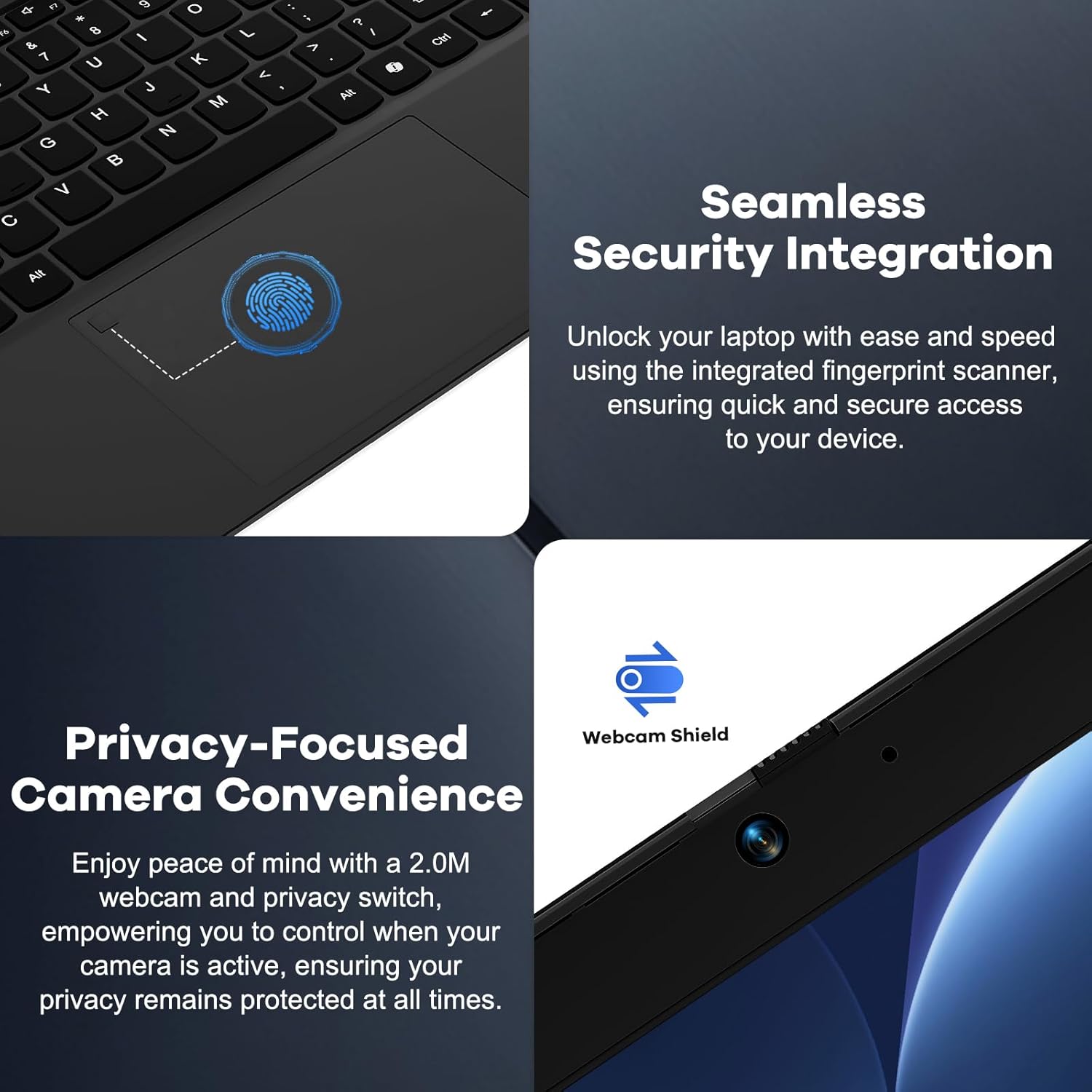
Figear 4: Details on the seamless security integration with the fingerprint sensor for quick login and the privacy-focused camera convenience with a built-in webcam shield.

Figear 5: The compact 100W GaN Type-C PD Fast Charger included with the NIMO laptop, capable of charging to 50% in 15 minutes and compatible with various devices.
Suidhich
1. A’ chiad chumhachd air
- Unpack: Thoir an laptop agus na goireasan uile a-mach às a’ phacaid gu faiceallach.
- Ceangal cumhachd: Plug the 100W GaN Type-C PD Fast Charger into a power outlet and connect the USB-C cable to the laptop's Type-C charging port. The Charge LED will illuminate.
- A 'chiad bhròg: Open the laptop lid. The system may power on automatically or you may need to press the power button (located on the top right of the keyboard).
- Suidheachadh Windows: Lean an stiùireadh air an sgrion gus pròiseas rèiteachaidh Windows 11 Home a chrìochnachadh. Tha seo a’ gabhail a-steach taghadh do roinn, do chànan, ceangal ri lìonra Wi-Fi, agus cunntas cleachdaiche a chruthachadh.
2. Ceangal Peripherals
Your NIMO laptop offers various ports for connecting external devices:
- Innealan USB: Connect USB flash drives, external hard drives, mice, or keyboards to the USB 2.0 or USB 3.0 ports.
- Taisbeanadh taobh a-muigh: Cleachd am port HDMI gus monitor no proiseactair taobh a-muigh a cheangal.
- Fuaim: Plug headphones or external speakers into the 3.5mm Headphone Jack.
- Cairtean Cuimhne: Insert a Micro SD card into the Micro SD slot for additional storage.
Stiùireadh Obrachaidh
1. Obrachadh Bunaiteach
- Cumhachd air / dheth: Press the power button to turn the laptop on. To shut down, click the Start button in Windows, then Power > Shut down.
- Modh cadail: Close the lid or click the Start button, then Power > Sleep to put the laptop into sleep mode.
- Fingerprint Login: Utilize the integrated fingerprint sensor for quick and secure login to Windows. Register your fingerprints through Windows Settings > Accounts > Sign-in options.
- Meur-chlàr backlit: The keyboard features backlighting for low-light conditions. Use the dedicated function key (Fn + F key combination, typically F3 or F4) to toggle or adjust the backlight brightness.
- WebPrìobhaideachd camara: The laptop includes a physical webcam shield. Slide the switch next to the webcamara gus lionsa a’ chamara a chòmhdach no a thoirt a-mach airson prìobhaideachd.
2. Windows 11 Features
Your laptop comes with Windows 11 Home pre-installed. Explore its features for enhanced productivity and entertainment:
- Leacan Snap: Easily organize open windows on your screen.
- Giuirlidean: Faigh cothrom air fiosrachadh pearsanaichte aig aon sealladh.
- Bùth Microsoft: Luchdaich sìos is stàlaich aplacaidean.
- Tèarainteachd: Windows Defender provides built-in antivirus and firewall protection.
Cumail suas
- Glanadh: Use a soft, lint-free cloth to clean the screen and chassis. For stubborn smudges, slightly dampnigh an clò le uisge no le fuasgladh glanaidh sgrion. Seachain ceimigean làidir.
- Cùram Bataraidh: Gus beatha a’ bhataraidh a leudachadh, seachain a bhith ga leigeil às gu tur gu tric. Thathar a’ moladh cosgais a’ bhataraidh a chumail eadar 20% agus 80% nuair as urrainnear. Stòraich an laptop ann an àite fionnar, tioram mura tèid a chleachdadh airson ùine mhòr.
- Ùrachaidhean bathar-bog: Regularly check for and install Windows updates and driver updates to ensure system stability and security. Go to Windows Settings > Windows Update.
- Stiùireadh Stòraidh: Glan suas rudan neo-riatanach bho àm gu àm files and applications to free up storage space and improve performance.
Fuasgladh thrioblaidean
| Trioblaid | Adhbhar a dh’fhaodadh a bhith ann | Fuasgladh |
|---|---|---|
| Chan eil an laptop a’ dol air. | Bataraidh ìosal no duilgheadas leis an inneal-atharrachaidh cumhachd. | Ensure the charger is properly connected and the power outlet is working. Allow the laptop to charge for at least 30 minutes before attempting to power on again. |
| Tha an taisbeanadh bàn no a’ priobadh. | Incorrect display settings or driver issue. | Try connecting an external monitor to check if the issue is with the laptop's display. Update graphics drivers. Restart the laptop. |
| Duilgheadasan le ceangal Wi-Fi. | Incorrect network settings or driver issue. | Ensure Wi-Fi is enabled. Restart your router and laptop. Update Wi-Fi drivers. Forget and reconnect to the network. |
| Solas-cùil a’ mheur-chlàir nach eil ag obair | Backlight feature is off or driver issue. | Press the Fn + F key combination (e.g., F3 or F4) to toggle the backlight. Check keyboard settings in Windows. |
If the problem persists, please refer to the Warranty and Support section for assistance.
Sònrachaidhean
| Feart | Mion-fhiosrachadh |
|---|---|
| Brand | NIMO |
| Ainm Modail | Nimo N156 |
| Meud sgrion | 15.6 òirlich |
| Fuasgladh sgrion | 1920 x 1080 piogsail (FHD IPS) |
| Pròiseasar | Intel Core i5-12450H (8 Cores, up to 4.4 GHz) |
| RAM | 8 GB DDR4 (Upgradable) |
| Dràibhear cruaidh | 256 GB PCIe SSD (Upgradable) |
| Grafaigeachd coprocessor | Grafaigean Intel aonaichte |
| Siostam-obrachaidh | Windows 11 dachaigh |
| Seòrsa gun uèir | 802.11a/b/g/n/ac (WiFi 6) |
| Bluetooth | BT5.2 |
| Puirt | 1x USB 2.0, 3x USB 3.0, Type-C (PD Charger Only), Type-C (Multifunction), HDMI, Headphone Jack, Micro SD Slot |
| Adapter cumhachd | 100W GaN Type-C PD Fast Charger |
| Beatha bataraidh cuibheasach | 5 Hours (54Wh Smart Battery for up to 9 Hours Standby) |
| Cuideam nì | 3.8 not |
| Meudan toraidh | 14.07 x 8.98 x 0.76 òirleach |
| Feartan sònraichte | Backlit Keyboard, Fingerprint Reader, HD Audio, Memory Card Slot, Numeric Keypad, Webcam Shield |
Barantas agus Taic
NIMO stands behind the quality of its products. Your NIMO laptop comes with the following:
- Barantas 2-bliadhna: A 2-Year Warranty from NIMO Direct Inc. covers manufacturing defects and hardware failures.
- 90-Day Hassle-Free Returns: Faigh tlachd bho phoileasaidh tilleadh 90-latha airson do shìth inntinn.
- 24/7 Dedicated Support: For any issues or inquiries, dedicated support is available to provide instant resolution.
For warranty claims or technical assistance, please contact NIMO customer support through the contact information provided on the official NIMO weblàrach-lìn no na sgrìobhainnean ceannach agad.
Bhidio: An còrrview of the NIMO laptop, highlighting its features, performance, and the comprehensive 90-day return policy and 2-year warranty, demonstrating NIMO's commitment to customer satisfaction.
Ask a question about this manual
Ask about setup, troubleshooting, compatibility, parts, safety, or missing instructions. Manuals+ will review the question and use this page’s manual context to help answer it.