
Ro-ràdh
This manual provides comprehensive instructions for the setup, operation, maintenance, and troubleshooting of your KOORUI GN10 27-inch QHD 240Hz Mini-LED Gaming Monitor. Please read this manual thoroughly before using the product to ensure proper functionality and to prevent damage.
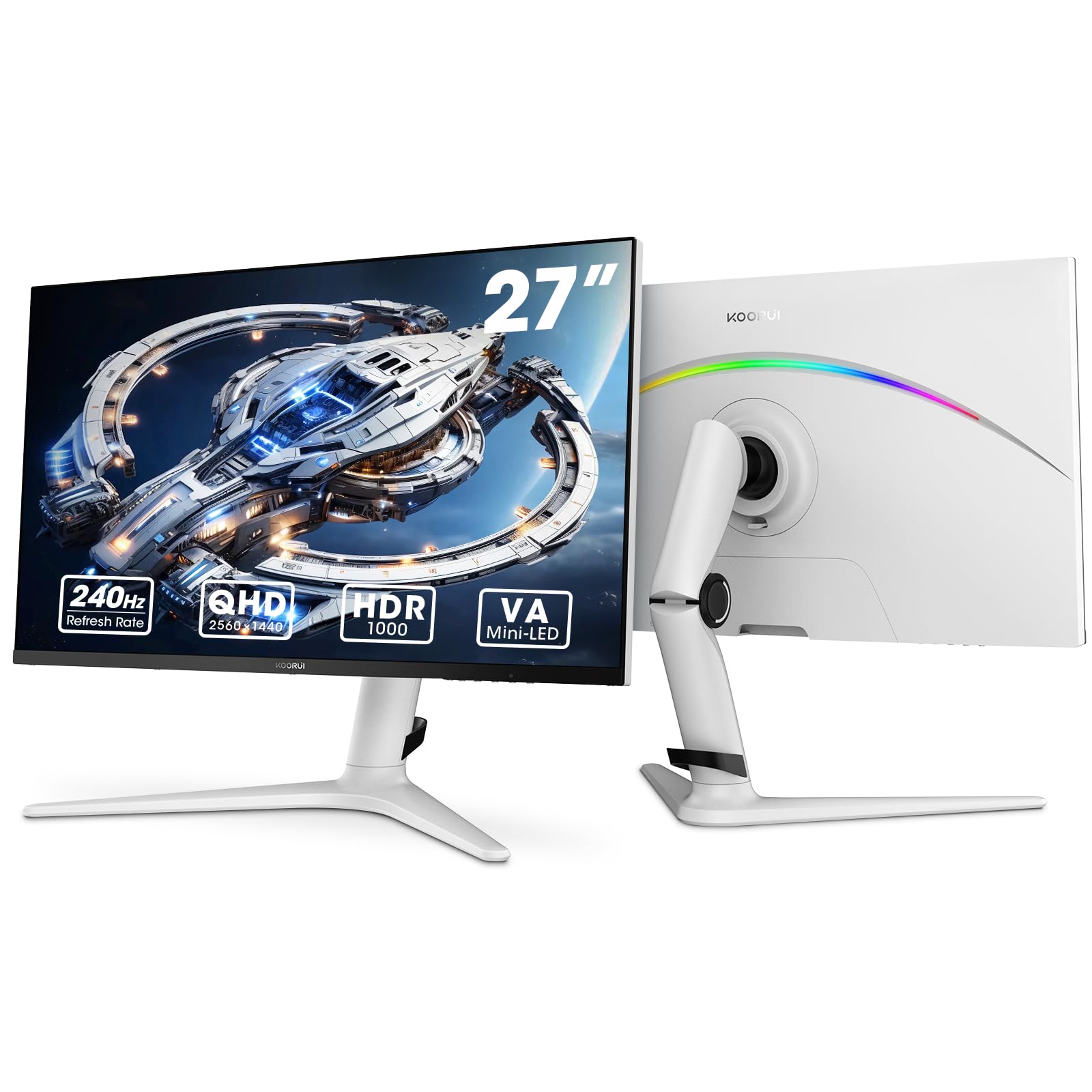
Figure 1: KOORUI GN10 27-inch QHD 240Hz Mini-LED Gaming Monitor.
1. Suidhich
1.1 Fosgladh a’ bhogsa agus susbaint a’ phacaid
Thoir a h-uile pàirt a-mach às a’ phacaid gu faiceallach. Dèan cinnteach gu bheil na nithean uile a tha air an liostadh gu h-ìosal an làthair:
- KOORUI GN10 Monitor
- Seasamh Monitor (Bonn agus Gàirdean)
- Càball cumhachd
- Càball HDMI (x2)
- Càball DisplayPort (DP)
- Leabhar-làimhe cleachdaiche (an sgrìobhainn seo)
1.2 Cruinneachadh an t-Seasaimh
Lean na ceumannan seo gus an seasamh monitor a chur ri chèile:
- Attach the stand arm to the monitor panel. Ensure it clicks securely into place or is fastened with screws if provided.
- Connect the stand base to the stand arm. Tighten any screws to secure the base.
- Cuir am monitor cruinnichte air uachdar seasmhach, còmhnard.

Figure 2: Monitor stand showing height, tilt, swivel, and pivot adjustments.
The ergonomic stand allows for height, tilt, swivel, and pivot adjustments to optimize your viewceàrn ing.

Figure 3: Monitor dimensions for placement planning.
1.3 A 'ceangal ri innealan
The monitor supports multiple input sources. Connect your computer or gaming console using the provided cables.
- DisplayPort (DP): For optimal performance, especially at 240Hz refresh rate and QHD resolution, use the DisplayPort cable.
- HDMI: Two HDMI 2.0 ports are available for connecting other devices such as gaming consoles (PS5, Xbox, Switch) or additional computers.
- Fuaim a-mach: Ceangail luchd-labhairt no fònaichean-cluaise taobh a-muigh ris an t-seacaid toraidh claisneachd 3.5mm.

Figear 4: Cùl view of the monitor showing available ports (Audio Out, DP 1.4, HDMI 2.0 x2) and VESA mount points.
1.4 Cumhachd Tòiseachaidh Air adhart
- Ceangail an càball cumhachd ris a’ mhonatair agus an uair sin ri socaid cumhachd.
- Press the power button, usually located on the back or bottom of the monitor, to turn it on.
- The monitor will automatically detect the input source. If not, use the OSD menu to select the correct input.
2. Stiùireadh Obrachaidh
2.1 Clàr-taice Taisbeanaidh Air-sgrion (OSD)
The OSD menu allows you to adjust various monitor settings. Access the OSD menu using the joystick or buttons typically located on the back or bottom of the monitor.
Common OSD menu options include:
- Roghainnean dealbhan: Brightness, Contrast, Sharpness, Gamma.
- Roghainnean dath: Color Temperature, Hue, Saturation, Color Space (sRGB, DCI-P3).
- Taghadh a-steach: Gluais le làimh eadar cuir-a-steach DisplayPort agus HDMI.
- Fuaim: Volume control for the audio output.
- Feartan gèam: Adaptive Sync, Response Time (Overdrive), Game Modes.
- Roghainnean OSD: Language, OSD Timeout, Transparency.
2.2 Roghainnean taisbeanaidh
The KOORUI GN10 monitor offers advanced display features for an enhanced visual experience.
- Fuasgladh: The native resolution is QHD (2560 x 1440). Ensure your connected device is set to this resolution for optimal clarity.
- Ìre Ath-nuadhachaidh: Supports up to 240Hz. Configure your graphics card settings to utilize this high refresh rate for smoother motion.
- Ùine freagairt: Features a 1ms (GtG) response time, reducing motion blur and ghosting in fast-paced content.
- HDR 1000: High Dynamic Range 1000 provides superior contrast and color depth. Enable HDR in your operating system and monitor settings for compatible content.

Figure 5: Visual comparison illustrating the enhanced contrast and detail with HDR 1000 enabled.

Figure 6: Comparison of QHD (2560x1440) and FHD (1920x1080) resolutions, highlighting increased detail with QHD.
2.3 Feartan Gèam
The monitor includes features designed to enhance your gaming experience:
- Adaptive Sync (G-Sync Compatible): Synchronizes the monitor's refresh rate with your GPU's frame rate to eliminate screen tearing and stuttering. Ensure this feature is enabled in both the monitor OSD and your graphics card control panel.
- Game Display Modes: Access specific on-screen overlays via the OSD menu, such as:
- Crois: A’ toirt seachad crois-fhair air an sgrion airson amas nas fheàrr.
- Uaireadair: Displays a countdown timer.
- Cunntas FPS: Shows your current frames per second.
- RTS Counter: A specific counter for Real-Time Strategy games.

Figure 7: Illustration of various exclusive game display modes and Adaptive Sync functionality.

Figure 8: Visual representation of smooth gaming experience with 240Hz refresh rate and 1ms response time.
Solais RGB 2.4
The monitor features a crescent RGB light strip on the back. This lighting can be customized through the OSD menu to match your preference or gaming setup.

Figear 9: Cùl view of the monitor highlighting the customizable RGB light strip.
3. Cumail suas
3.1 Glanadh an monitor
Gus coltas agus coileanadh an sgrìn a chumail suas, lean na stiùiridhean glanaidh seo:
- Cuir dheth an monitor an-còmhnaidh agus tarraing a-mach an càball cumhachd mus glan thu e.
- Cleachd clò bog, gun lint beagan dampair a nighe le uisge no le inneal-glanaidh sgrion neo-sgrìobach.
- Na spraeadh inneal-glanaidh gu dìreach air an sgrion. Cuir air a’ chlò e an toiseach.
- Seachain deoch làidir, ammonia no innealan-glanaidh sgrìobach a chleachdadh, oir faodaidh iad sin uachdar na sgrìn a mhilleadh.
- Sguab an sgrion gu socair gus duslach is smudges a thoirt air falbh.
- Glan an monitor casing le clò bog, tioram.
3.2 Cùram Coitcheann
- Seachain nithean troma a chur air an monitor no na càbaill aige.
- Na cuir am monitor fo sholas dìreach na grèine, teas ro mhòr no fuachd anabarrach.
- Keep the monitor away from liquids and high humidity environments.
- Dèan cinnteach gu bheil fionnarachadh iomchaidh timcheall air an monitor gus casg a chur air cus teasachadh.
4. A ’dèanamh trioblaid
Ma thachras tu ri duilgheadasan leis an sgrìn agad, thoir sùil air na duilgheadasan agus na fuasglaidhean cumanta a leanas:
| Trioblaid | Adhbhar a dh’fhaodadh a bhith ann | Fuasgladh |
|---|---|---|
| Gun ìomhaigh air an sgrion |
|
|
| Ìomhaigh a’ priobadh no a’ saobhadh |
|
|
| No sound from audio out |
|
|
| Chan eil sioncronachadh atharrachail ag obair |
|
|
Ma mhaireas an duilgheadas às dèidh dhut na fuasglaidhean seo fheuchainn, cuir fios gu taic luchd-cleachdaidh.
5. Sònrachaidhean
| Feart | Mion-fhiosrachadh |
|---|---|
| Brand | KOORUI |
| Modail Àireamh | GN10 |
| Meud sgrion | 27 òirlich |
| Fuasgladh | QHD Wide 1440p (2560 x 1440) |
| Co-mheas taobh | 16:9 |
| Uachdar na Sgrion | Mata |
| Co-mheas coimeas | 20,000,000:1 |
| Ìre Ath-nuadhachaidh | 240 Hz |
| Teicneòlas taisbeanadh | Mini-LED |
| Viewann an Ceàrn | 178 ceum |
| Gile | 350 Coinnle |
| Gamut dath | 100% sRGB, 95% DCI-P3 |
| Àm Freagairt | 1 Millisecond (GtG) |
| puirt HDMI | 2 (HDMI 2.0) |
| Port Taisbeanaidh | 1 (DP 1.4) |
| Fuaim a-mach | Tha |
| Adaptive Sync | Co-chòrdail ri G-Sync |
| Feartan a bharrachd | Flicker-Free, Frameless, Height Adjustable, Tilt Adjustable, Swivel Adjustable, Rotatable |
| Dath | Geal/liath |
| Seòrsa stàladh | Desk Mount, VESA 75x75mm compatible |
6. Barantas agus Taic
6.1 Fiosrachadh Barantais
The KOORUI GN10 monitor comes with a Barantas cuibhrichte 3-bliadhna. The display screen is backed for 1 year, and other accessories for 3 years. A 12-month replacement service is also provided for eligible issues.
Tha am barantas seo a’ còmhdach lochdan saothrachaidh agus mì-ghnìomhachd fo chleachdadh àbhaisteach. Chan eil e a’ còmhdach milleadh air adhbhrachadh le droch chleachdadh, tubaistean, atharrachaidhean gun chead, no factaran bhon taobh a-muigh.
6.2 Taic teachdaiche
For technical assistance, warranty claims, or inquiries regarding missing accessories, please contact KOORUI customer support. Have your product model (GN10) and purchase information ready when contacting support.
Contact information can typically be found on the KOORUI official weblàrach-lìn no tro shianalan taic an neach-reic agad.
7. Taisbeanadh Bhidio Bathar
Bhidio 1: Taisbeanadh bhidio oifigeil toraidhasing the KOORUI GN10 Gaming Monitor's features and design.