
Bathar seachadview
The NDYIN PrintPods Mini Printer D21 is a compact and lightweight portable thermal printer designed for on-the-go printing of various items such as tickets, labels, notes, and stickers. Its inkless thermal printing technology eliminates the need for ink cartridges, offering a convenient and economical printing solution.
This device connects wirelessly via Bluetooth to your smartphone or tablet, utilizing the NADA Print App for content creation and management. It supports the creation of personalized stickers and notes, making it suitable for journaling, DIY projects, and educational activities.
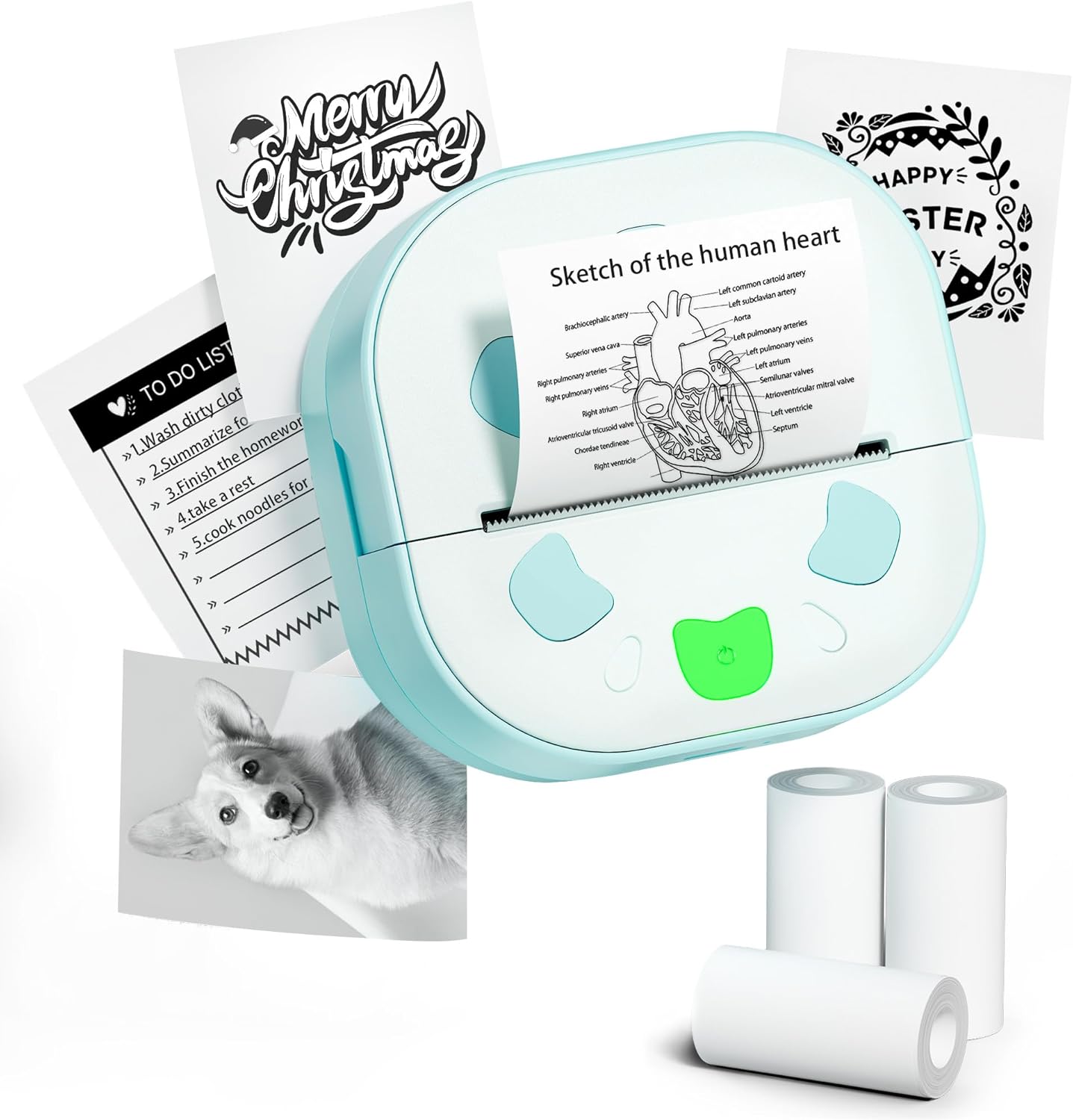
Image: The NDYIN PrintPods Mini Printer D21, showcasing its compact design alongside examples of printed notes, to-do lists, and stickers, and three rolls of thermal paper.
Stiùireadh rèiteachaidh
Susbaint pacaid
Before beginning, please verify that all components are present in the package:
- 1 x D21 Sticker Printer
- 1 x càball USB Type-C
- 1 x Leabhar-làimhe Cleachdaiche (an sgrìobhainn seo)
- 3 Rolls of Sticker Papers

Image: A clear display of all items included in the product package: the D21 printer, USB Type-C charging cable, user manual, and three rolls of thermal sticker paper.
Ceumannan Suidheachaidh Tùsail
- Cuir cosgais air a’ chlò-bhualadair: Connect the D21 printer to a power source using the provided USB Type-C cable. Ensure the printer is fully charged before first use.
- Luchdaich pàipear teirmeach:
Open the printer's paper compartment. Insert a roll of 2.24-inch (57mm) thermal paper, ensuring the paper feeds smoothly through the output slot. Close the compartment securely.

Image: The D21 printer with its top cover open, illustrating the correct way to insert a 57mm thermal paper roll into the designated slot.
- Cumhachd air: Long press the power button located on the printer to turn it on.
- Download the NADA Print App: Lorg airson "NADA Print" in your device's app store (available on iOS App Store and Google Play Store) and install it.

Image: A visual representation highlighting the NADA Print App and the printer's Bluetooth connectivity, along with icons indicating no ink or toner is required.
- Dèan ceangal tro Bluetooth:
- Open the NADA Print App on your smartphone or tablet.
- Navigate to the connection section within the app.
- Select the corresponding printer model (D21) from the list of available devices to establish a Bluetooth connection. Ensure Bluetooth is enabled on your mobile device.

Image: A step-by-step guide illustrating how to power on the printer, connect it within the NADA Print App, and select the correct printer model for Bluetooth pairing.
Stiùireadh Obrachaidh
Using the NADA Print App
The NADA Print App is the primary interface for creating and managing your prints. It offers various functionalities:
- Clò-bhuail Ìomhaighean: Select photos or images from your device's gallery to print.
- Clò-bhuail Sgrìobhainnean: Print text documents or notes created within the app.
- Teamplaidean: Access a library of pre-designed templates for labels, notes, to-do lists, and decorative graphics.
- Deasachadh teacsa: Create and edit text directly within the app for printing.
- Dealbhadh Grafaigeach: Utilize built-in graphic tools to add icons, borders, and other design elements to your prints.

Ìomhaigh: Tharview of the NADA Print App's user interface, displaying its main menu, graphic design options, and a marketplace for various printing templates.
Pròiseas Clò-bhualaidh
- Prepare Content: Within the NADA Print App, create or select the content you wish to print (e.g., text, image, template).
- Tòisich Clò-bhualadh: Tap the "Print" button or icon within the app. The printer will begin thermal printing.
- Retrieve Print: Once printing is complete, gently tear off the printed output from the printer's output slot. The printer features a built-in cutter for clean tears.
The D21 printer produces monochrome (black and white) prints only. It is compatible with 2.24-inch (57mm) continuous thermal paper rolls.
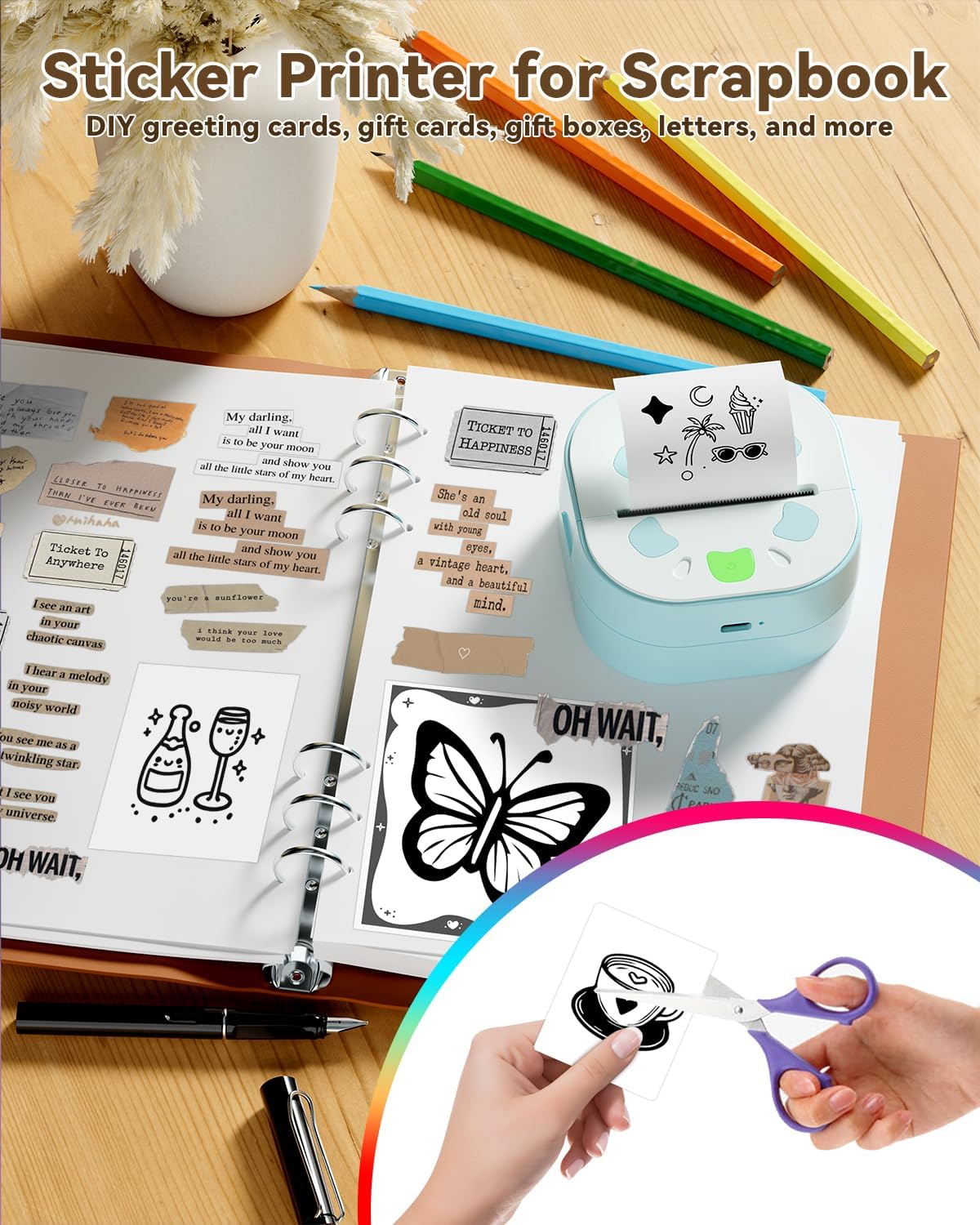
Image: The D21 printer in use, positioned next to an open scrapbook, illustrating how it can be used to print various stickers and notes for creative and organizational purposes.

Image: A collage demonstrating the versatility of the D21 printer, showcasing examples of printed photos, study notes, personalized gift cards, and various stickers.
Cumail suas
The NDYIN PrintPods Mini Printer D21 is designed for low maintenance due to its inkless thermal printing technology. Regular cleaning and proper handling will ensure optimal performance and longevity.
- A’ glanadh ceann a’ chlò: If print quality degrades (e.g., faded lines, streaks), gently wipe the thermal print head with a lint-free cloth lightly dampair a lìonadh le deoch-làidir isopropyl. Dèan cinnteach gu bheil am clò-bhualadair dheth agus gu tur tioram mus cleachd thu e.
- Glanadh a-muigh: Clean the exterior of the printer with a soft, dry cloth. Avoid using abrasive cleaners or solvents.
- Stòradh: Stòraich am clò-bhualadair ann an àite fionnar, tioram air falbh bho sholas dìreach na grèine agus teòthachd anabarrach.
- Làimhseachadh pàipear: Use only high-quality thermal paper designed for your printer model. Store paper rolls in a cool, dark place to prevent premature fading.
Fuasgladh thrioblaidean
| Trioblaid | Adhbhar a dh’fhaodadh a bhith ann | Fuasgladh |
|---|---|---|
| Chan eil an clò-bhualadair a’ tionndadh air. | Bataraidh ìosal no trioblaid cumhachd. | Ensure the printer is charged using the provided USB Type-C cable. Verify the charging cable and adapter are functioning correctly. |
| Chan urrainnear ceangal a dhèanamh tro Bluetooth. | Bluetooth is off on device, printer not in pairing mode, or app issue. |
|
| Poor print quality (faded, unclear, streaks). | Dirty print head, low battery, or poor paper quality. |
|
| Paper jam or paper not feeding. | Improper paper loading or foreign object. |
|
Sònrachaidhean Bathar
| Feart | Mion-fhiosrachadh |
|---|---|
| Brand | NDYIN |
| Ainm Modail | D21 |
| Teicneòlas clò-bhualaidh | Teirmeach |
| Toradh Clò-bhualadair | Monochrome (Dubh is Geal) |
| Teicneòlas ceangail | Bluetooth |
| Seòrsa inc clò-bhualadair | Chan eil feum air inc |
| Meud as motha de na meadhanan | 57 milliméadar (2.24 òirleach) |
| Comas duilleag cuir a-steach as àirde | 3 rolan |
| Fuasgladh Clò-bhualaidh Dubh is Geal as àirde | 300 pso |
| Monochrome Max Printspeed | 60 ppm (duilleagan gach mionaid) |
| Meudan toraidh | 3.34 x 3.38 x 1.69 òirleach |
| Cuideam nì | 5.8 unnsa |
| Bataraidhean | Bataraidh 1 x 12V (air a thoirt a-steach) |
| UPC | 762849575100 |
| Co-phàirtean air an toirt a-steach | 1 x D21 Sticker Printer, 1 x USB Type-C Cable, 1 x User Manual, 3 Rolls Sticker Papers |
Barantas agus Taic
Fiosrachadh Barantais
The NDYIN PrintPods Mini Printer D21 comes with a limited warranty. Please refer to the warranty card included in your package or contact the manufacturer for specific terms and conditions regarding coverage and duration.
Taic Luchd-cleachdaidh
For technical assistance, troubleshooting not covered in this manual, or warranty claims, please contact NDYIN customer support. Contact information can typically be found on the product packaging, the manufacturer's official weblàrach-lìn, no tron àite ceannach agad.
When contacting support, please have your product model (D21) and purchase information readily available.
Fiosrachadh Sàbhailteachd Cudromach
- Do not disassemble or modify the printer.
- Cùm an clò-bhualadair air falbh bho uisge agus lioftaichean eile.
- Seachain a bhith a’ nochdadh a’ chlò-bhualadair do theodhachd anabarrach no do sholas dìreach na grèine.
- Cleachd an càball cosgais agus an inneal-atharrachaidh cumhachd a tha sònraichte a-mhàin.
- Keep out of reach of small children to prevent accidental ingestion of small parts or paper.