
Macally BTZKEYA
MACALLY BTZKEYA Bluetooth Wireless Keyboard for Mac (JIS Layout) - Rechargeable, Multi-Device Pairing Instruction Manual
Model: BTZKEYA
Ro-ràdh
Welcome to the Macally family. Thank you for purchasing the ACEBTKEY series keyboard. Our mission is to provide visually appealing, high-quality, and affordable peripherals and accessories to satisfy our customers. To achieve this, we create innovative and practical products, prioritizing ease of use above all else.
This manual provides comprehensive instructions for setting up, operating, and maintaining your new Macally BTZKEYA Bluetooth Wireless Keyboard. Please read it thoroughly to ensure optimal performance and longevity of your device.
Susbaint pacaid
- Macally BTZKEYA Bluetooth Wireless Keyboard
- Càball USB-C gu USB-A
- Stiùireadh Cleachdaiche
Riatanasan an t-siostaim
- Bluetooth-enabled computer, laptop, smartphone, or tablet.
- Mac OS X or later.
- A USB-A port on your laptop or desktop PC for charging the keyboard.
- If your laptop or desktop PC only has USB-C ports, a USB-C to USB-A hub or adapter is required for charging.
Bathar seachadview
The Macally BTZKEYA keyboard is designed for efficiency and comfort, featuring a full-size layout with a numeric keypad and dedicated macOS shortcut keys. Its slim profile and scissor-switch keys provide a quiet and responsive typing experience.

Figear 1: The Macally BTZKEYA keyboard's slim profile and integrated kickstand. The keyboard is only 0.8 inches (approx. 2cm) thick.

Figear 2: The keyboard features 111 scissor-switch keys and 14 dedicated shortcut keys for macOS, enhancing productivity.

Figear 3: Scissor-switch keycaps provide a smooth, tactile, and quiet typing experience.

Figear 4: The keyboard supports multi-sync Bluetooth, allowing pairing with up to three devices like MacBook, iMac, iPad, and iPhone, with a wireless range of 30 feet.
Suidhich
A luchdachadh a-nuas a ' mheur-chlàir
Before initial use, ensure the keyboard is fully charged. The built-in rechargeable battery provides extended usage.
- Connect the USB-A end of the included cable to a USB-A port on your computer, laptop, or a USB-compatible AC adapter.
- Connect the USB-C end to the USB-C charging port located on the side of the keyboard.
- Thoir an aire: This cable is for charging only. The keyboard will not function as a wired device when connected via this cable.
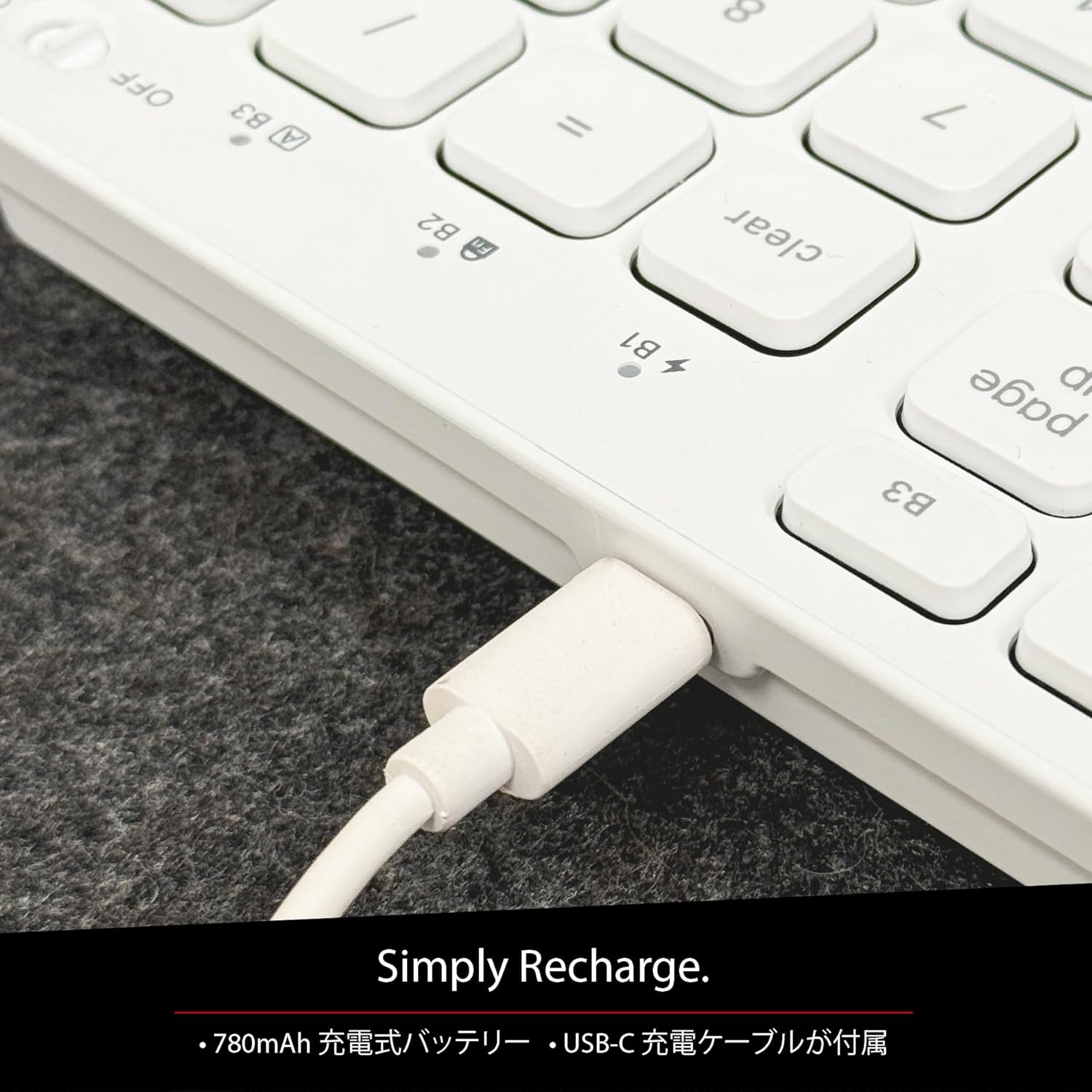
Figear 5: The USB-C charging port for easy recharging. The keyboard includes a 780mAh rechargeable battery.
Comharran cosgais LED:
- LED dhearg: A 'cur cosgais air adhart.
- Uaine uaine: Air a ghearradh gu h-iomlan.
- All Bluetooth Channel LEDs flashing: Tha bataraidh ìosal.
Modh-obrach paidhir Bluetooth
The keyboard can be paired with up to three Bluetooth-enabled devices. The number keys 1, 2, and 3 on the top row (not the numeric keypad) are labeled B1, B2, and B3, representing the Bluetooth channels.
Ensure the keyboard is powered on and sufficiently charged before starting the pairing process. The power switch is a slide button located on the side of the keyboard (Red for Off, Green for On).
Steps to Pair (using Bluetooth Channel 1 (B1) as an example):
- On the device you wish to connect (laptop, desktop, tablet, smartphone, etc.), open the Bluetooth settings screen.
- Air a’ mheur-chlàr, brùth is cum sìos am putan fn iuchair, an uairsin brùth air an iuchair 1 key (B1) to select Bluetooth Channel 1.
- Next, press and hold the fn key and simultaneously press the P key. This will put the keyboard into pairing mode, and the B1 LED will flash rapidly.
- On your device's Bluetooth settings screen, click or tap the device name "ACEBTKEY" to initiate pairing.
- Once pairing is complete, the B1 LED on the keyboard will remain steadily lit in blue.
To connect to a second or third device, follow the same procedure using B2 (fn+2) or B3 (fn+3).
Keyboard Setup Assistant (For Mac Users)
If your Bluetooth keyboard is not immediately recognized by macOS, the Keyboard Setup Assistant will automatically launch, prompting you to specify the keyboard type. Follow the on-screen instructions.
- When prompted, press the Z iuchair.
- An uairsin, brùth air an ? iuchair.
- Confirm that "ANSI" is selected as the keyboard type and click "Done".
If keys do not respond or different characters are entered than printed, you may need to manually launch the Keyboard Setup Assistant:
- Open "System Settings" or "System Preferences".
- Select "Keyboard" and click "Change Keyboard Type".
- When the "Keyboard Setup Assistant" window appears, click "Continue" and follow the on-screen instructions.
Stiùireadh Obrachaidh
Switching Between Multiple Devices
After pairing all your devices with the keyboard, you can easily switch between them:
- Brùth agus cùm an fn iuchair.
- Fhad 'sa tha e a' cumail fn, press the desired Bluetooth channel key (B1, B2, or B3).
- Release both keys. The keyboard will switch to the selected device.
Shortcut and Function Keys
The F-row (function key row) at the top of the keyboard defaults to shortcut mode. These keys perform functions indicated by the small white icons or text printed on them (e.g., play, pause, cut, copy).
To use standard function keys (F1, F2, etc.), press the desired function key while holding down the fn iuchair.
You can toggle between shortcut mode and standard F1-F12 function keys at any time by pressing fn + Esc. After switching, if you wish to use a shortcut function, press the desired shortcut key while holding down the fn iuchair. A' bruthadh fn + Esc again will return the keyboard to shortcut mode.
F-Key Functions:
| Gnìomh | Mac OSX | Windows | iOS | Android |
|---|---|---|---|---|
| fn+esc (Toggle F-row mode) | ✓ | ✓ | ✓ | ✓ |
| Gile sgrion sìos | ✓ | ✓ | ||
| Sgrion Brightness Up | ✓ | ✓ | ||
| Gearr | ✓ | ✓ | ✓ | ✓ |
| Dèan lethbhreac | ✓ | ✓ | ✓ | ✓ |
| Paste | ✓ | ✓ | ✓ | ✓ |
| Rian roimhe | ✓ | ✓ | ✓ | ✓ |
| Cluich / Stad | ✓ | ✓ | ✓ | ✓ |
| An ath Rian | ✓ | ✓ | ✓ | ✓ |
| Mut | ✓ | ✓ | ✓ | ✓ |
| Meud Sìos | ✓ | ✓ | ✓ | ✓ |
| Tomhais Suas | ✓ | ✓ | ✓ | ✓ |
| Clò-bhuail | ✓ | |||
| Mac: Eject Mac / Windows: Media Eject | ✓ | ✓ | ||
| Area Capture (Screenshot) | ✓ | |||
| Meur-chlàr air-sgrion | ✓ | |||
| Rannsachadh | ✓ | ✓ | ✓ | ✓ |
| Putan Dachaigh | ✓ | ✓ | ||
| Clàr-taice | ✓ | |||
| Glasadh | ✓ | ✓ | ✓ | ✓ |
Nota Cudromach: Standard function keys (F1-F12) may have special functions assigned by the connected operating system or currently running programs.
Modh sàbhalaidh cumhachd
The keyboard is designed with power-saving features. Based on an average of 3 hours of daily use, the built-in rechargeable battery can last up to 3 months on a single charge.
Cumail suas
To ensure the longevity and optimal performance of your Macally BTZKEYA keyboard, please follow these maintenance guidelines:
- Keep the device away from liquids, moisture, and water.
- Use the device only within the specified temperature range of 0°C (32°F) to 40°C (104°F).
- Clean the keyboard regularly with a soft, dry cloth. Avoid using harsh chemicals or abrasive materials.
- Do not disassemble the device. Disassembly will void the warranty.
- When disposing of the product, do not treat it as general waste. Take it to your nearest recycling center for proper disposal.
Fuasgladh thrioblaidean
Cùisean Paidhir:
- If pairing fails, delete all existing pairing records for the keyboard on your device and attempt to reconnect.
- Dèan cinnteach gu bheil am meur-chlàr làn-luchdaichte agus air a chumhachdachadh.
- Dèan cinnteach gu bheil Bluetooth an uidheim agad air a chomasachadh agus gu bheil e ri lorg.
Key Response Issues:
- If keys do not respond or different characters are entered than printed, manually launch the Keyboard Setup Assistant on your Mac (refer to the "Keyboard Setup Assistant" section under Setup).
- Ensure the keyboard is within the 30-foot wireless range of your device.
Co-fhreagarrachd coitcheann:
- While designed for Mac, this keyboard is also compatible with Windows PCs. However, some functions may behave differently depending on the operating system or running programs.
Sònrachaidhean
| Feart | Mion-fhiosrachadh |
|---|---|
| Brand | Macally |
| Modail Àireamh | BTZKEYA |
| Àireamh de dh'Iuchraichean | 111 keys (Mac layout) |
| Seòrsa Prìomh Atharrachadh | Siosar-suidse |
| Teicneòlas ceangail | Bluetooth |
| Taic ioma-inneal | Suas gu 3 innealan |
| Comas Bataraidh | 780mAh (ath-phàigheadh) |
| Port luchdadh a-nuas | USB-C |
| Meudan toraidh | 42 x 14 x 2 cm |
| Cuideam toraidh | 650 g |
| Cleachdadh air a mholadh | Multimedia, Everyday Use, Personal, Education, Student, Business |
Fiosrachadh Barantais
Macally Peripherals warrants this product against defects in title, materials, and workmanship for a period of one year from the date of purchase. If a defect is found in the product, Macally's sole obligation and your sole remedy will be to repair or replace the product.
This is a limited warranty applicable only to the product accompanied by this user guide. This warranty does not apply in the following cases:
- Droch-chleachdadh no mì-chleachdadh an toraidh.
- Exposure to abnormal electrical or environmental conditions.
- Use under conditions not considered normal use.
- Disassembly of the device.
Macally Peripherals' liability arising from this warranty and sale is limited to a refund of the purchase price. Macally is not responsible for the cost of procuring substitute products or services, lost profits, or any other consequential, incidental, direct, or indirect damages. These limitations apply even if the limited remedies fail of their essential purpose.
Taic Teicnigeach
For technical assistance, please contact Macally support during the following hours:
- Uairean obrach: Monday to Friday, 9 AM to 5 PM (Pacific Standard Time)
- Post-d: techsupport@macally.com
When contacting support, please have your product model number (BTZKEYA) and purchase information ready.
Aithris Gèillidh FCC
Tha an inneal seo a’ cumail ri Pàirt 15 de Riaghailtean FCC. Tha gnìomhachd an urra ris an dà chumha a leanas: (1) Is dòcha nach adhbhraich an inneal seo bacadh cronail, agus (2) feumaidh an inneal seo gabhail ri bacadh sam bith a gheibhear, a’ toirt a-steach bacadh a dh’ fhaodadh obrachadh neo-mhiannach adhbhrachadh.
Dh’fhaodadh atharrachaidhean no mùthaidhean nach eil air an aontachadh gu soilleir leis a’ phàrtaidh a tha an urra ri gèilleadh ùghdarras an neach-cleachdaidh an uidheamachd obrachadh a thoirt air falbh.
Chaidh an uidheamachd seo a dhearbhadh agus chaidh a lorg gu bheil e a rèir nan crìochan airson inneal didseatach Clas B, a rèir Pàirt 15 de Riaghailtean FCC. Tha na crìochan sin air an dealbhadh gus dìon reusanta a thoirt seachad an aghaidh bacadh cronail ann an ionad còmhnaidh. Bidh an uidheamachd seo a’ gineadh, a’ cleachdadh, agus faodaidh e lùth tricead rèidio a radiachadh agus, mura tèid a chuir a-steach agus a chleachdadh a rèir an stiùiridh, dh’ fhaodadh e bacadh cronail a chuir air conaltradh rèidio. Ach, chan eil gealltanas sam bith ann nach tachair bacadh air stàladh sònraichte. Ma dh ’adhbhraicheas an uidheamachd seo bacadh cronail air fàilteachadh rèidio no telebhisean, a dh’ fhaodar a dhearbhadh le bhith a ’tionndadh an uidheamachd dheth agus air adhart, thathas a’ brosnachadh an neach-cleachdaidh feuchainn ris a ’bhacadh a cheartachadh le aon no barrachd de na ceumannan a leanas:
- Ath-stiùireadh no gluasad an antenna a tha a 'faighinn.
- Meudaich an dealachadh eadar an uidheamachd agus an inneal-glacaidh.
- Ceangail an uidheamachd a-steach do shocair air cuairt eadar-dhealaichte bhon fhear ris a bheil an cuidhteas ceangailte.
- Bruidhinn ris an neach-reic no teicneòlaiche rèidio / Tbh eòlach airson cuideachadh.
Chaidh an inneal seo a mheasadh gus coinneachadh ri riatanasan nochdaidh RF coitcheann. Faodar an inneal a chleachdadh ann an suidheachaidhean nochdaidh so-ghiùlain gun chuingealachadh.
Bhideothan toraidh
Macally BTZKEYA Bluetooth Keyboard Overview
Tha am bhidio seo a’ toirt sealladh coitcheannview of the Macally BTZKEYA Bluetooth keyboard, highlighting its features and design.
Macally Mac Bluetooth Keyboard - Premium Multi-Device
A detailed look at the Macally Bluetooth keyboard for Mac, emphasizing its premium build and multi-device capabilities.
Macally SLIMKEYPROA Keyboard Features
This video showcases the features of the Macally SLIMKEYPROA keyboard, which shares similar design and functionality with the BTZKEYA model.
Macally BLSlimkeyproA Keyboard Demonstration
A demonstration of the Macally BLSlimkeyproA keyboard, highlighting its compact design and key features.
Macally ACEBTKEYSGCB Keyboard Overview
Tha am bhidio seo a’ toirt seachad seachadview of the Macally ACEBTKEYSGCB keyboard, showcasina dhealbhadh agus a ghnìomhachd.
Macally SLIMKEYPRO Manual Guide
A visual guide to the Macally SLIMKEYPRO, offering insights into its usage and features.
Ask a question about this manual
Ask about setup, troubleshooting, compatibility, parts, safety, or missing instructions. Manuals+ will review the question and use this page’s manual context to help answer it.