
1. Ro-ràdh
The Memoking Mini Printer T02 is a portable, inkless thermal printer designed for various printing needs, including study notes, labels, photos, and creative projects. Its compact size and Bluetooth connectivity make it suitable for on-the-go use with smartphones and tablets. This manual provides essential information for setting up, operating, and maintaining your device.

Image 1.1: Memoking Mini Printer T02 and exampna clò-bhualaidhean.
2. Pasgan-susbaint
Dèan cinnteach gu bheil na nithean gu lèir a tha air an liostadh gu h-ìosal air an toirt a-steach don phacaid agad:
- Memoking Mini Printer T02 x 1
- White Sticky Paper Roll x 1
- Purple Sticky Paper Roll x 1
- Green Sticky Paper Roll x 1
- Càball USB-C x 1
- Leabhar-làimhe an Neach-cleachdaidh x 1

Image 2.1: Contents of the Memoking Mini Printer T02 package.
3. Toradh thallview
Familiarize yourself with the components of your Memoking Mini Printer T02:
Image 3.1: Memoking Mini Printer T02 component diagram.
- Rubber Roller: Feeds the thermal paper.
- Printer Lid: Opens to load paper.
- Putan AIR / OFF: Cuiridh e an inneal air no dheth.
- Solas comharra: Shows device status (e.g., power, charging, error).
- Putan Ath-shuidheachadh: Air a chleachdadh airson ath-shuidheachadh factaraidh no fuasgladh dhuilgheadasan
- Port cosgais: USB-C port for charging the printer.
- Neach-gleidhidh pàipear: Secures the paper roll inside the printer.
4. Suidhich
4.1. Pàipear luchdachadh
- Open the printer lid by sliding the release button or gently lifting it.
- Insert the paper roll into the paper holder, ensuring the printing side faces outwards.
- Pull a small length of paper out beyond the print head.
- Close the printer lid firmly until it clicks into place.
4.2. A 'ceangal ris an App
- Download the "Phomemo" app from your device's app store (compatible with iOS and Android).
- Ensure your printer is powered on and Bluetooth is enabled on your smartphone or tablet.
- Open the "Phomemo" app and follow the on-screen instructions to pair your device via Bluetooth. The connection typically takes a few seconds.

Image 4.1: Step-by-step guide for paper loading and printing.
5. Stiùireadh Obrachaidh
5.1. Clò-bhualadh
- Once connected to the "Phomemo" app, select the content you wish to print (e.g., text, image, template).
- Adjust settings such as size, density, or filters within the app as needed.
- Tap the print button in the app to send the data to your Memoking Mini Printer T02.
- The printer will automatically feed and print the content. Tear off the printed paper along the serrated edge.
5.2. Iarrtasan
The Memoking Mini Printer T02 supports a wide range of applications:
- Study Aids: Print notes, flashcards, anatomical diagrams, and graphics for various subjects.
- Buidheann: Create labels for storage, to-do lists, shopping lists, and memos.
- Pròiseactan Cruthachail: Design custom stickers, journal entries, bookmarks, and greeting cards.
- Dealbhan: Print monochrome photos for scrapbooking or personal use.
- Children's Activities: Print coloring pages, games, and learning materials.
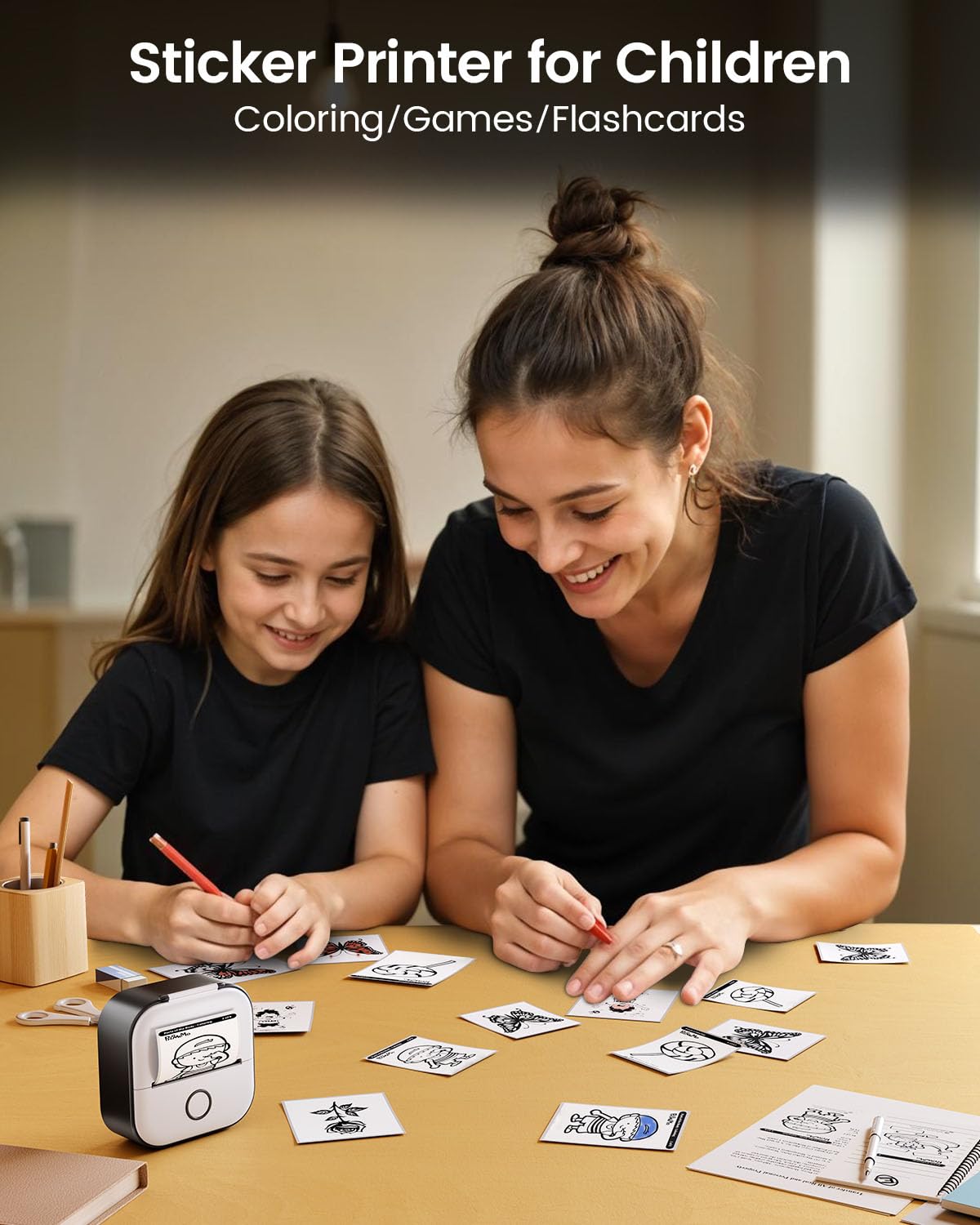
Ìomhaigh 5.1: Eisimpleiramples of study graphics printed with the T02 printer.
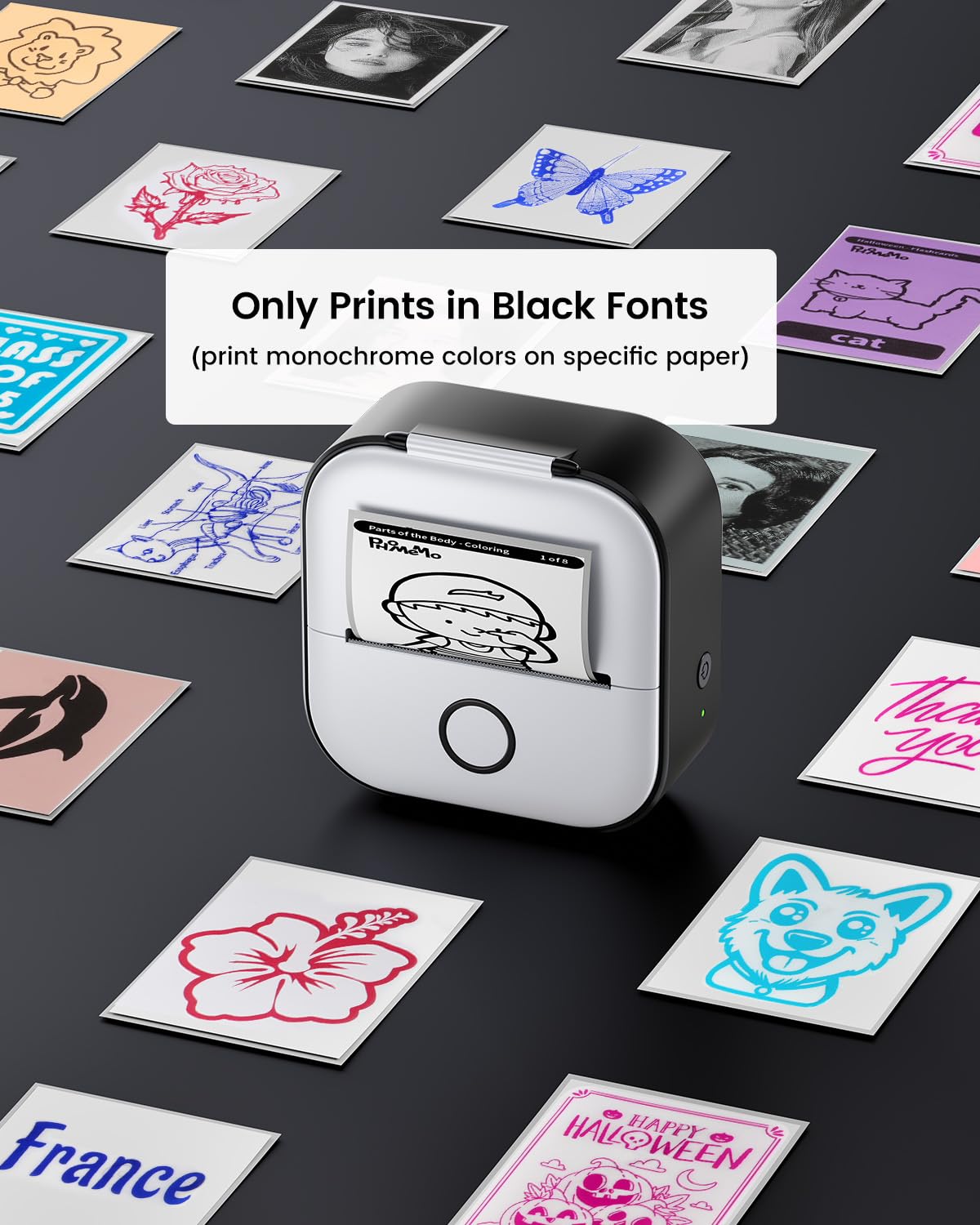
Image 5.2: The T02 printer used for children's coloring and games.
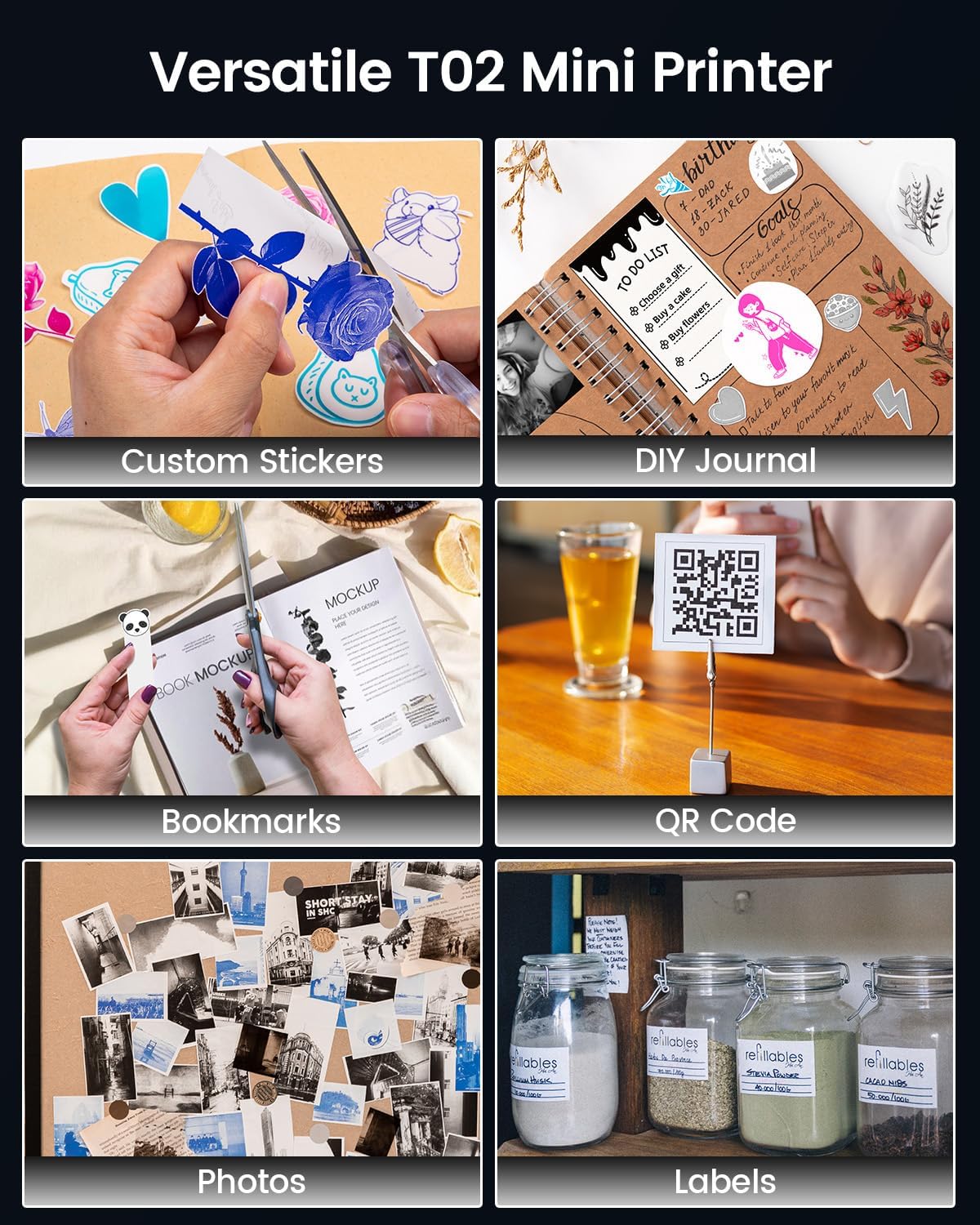
Image 5.3: Versatile applications of the Memoking T02 Mini Printer.
6. Cumail suas
6.1. Glanadh Ceann a’ Chlò-bhualaidh
Gus dèanamh cinnteach à càileachd clò-bhualaidh as fheàrr, glan ceann a’ chlò-bhualaidh bho àm gu àm:
- Cuir dheth an clò-bhualadair agus dì-cheangail an càball cumhachd.
- Open the printer lid.
- Sguab ceann a’ chlò-bhualaidh gu socair le swab cotain.ampair a dhèanamh le deoch-làidir isopropyl.
- Allow the print head to dry completely before closing the lid and turning on the printer.
6.2. Paper Handling and Storage
- Use only Memoking-approved thermal paper for best results and to prevent damage to the printer.
- Store thermal paper in a cool, dry place away from direct sunlight and heat to preserve its quality and image duration.
- Avoid touching the printing surface of the thermal paper excessively, as oils from skin can affect print quality.

Image 6.1: Specifications and features of Memoking thermal paper.
7. A ’dèanamh trioblaid
- Clò-bhualadair gun a bhith a’ tionndadh air: Ensure the printer is charged. Connect it to a power source using the provided USB-C cable.
- Chan urrainnear ceangal a dhèanamh tro Bluetooth: Make sure Bluetooth is enabled on your device and the printer is within range. Restart both the printer and your mobile device. Ensure no other devices are currently paired with the printer.
- Càileachd clò truagh: Check if the paper roll is inserted correctly with the printing side facing out. Clean the print head as described in Section 6.1. Ensure the paper is not old or damaged.
- No Paper Feed: Verify that the paper roll is properly seated and not jammed. Ensure the printer lid is fully closed.
- Printer Only Prints Black Fonts: The Memoking T02 is a monochrome thermal printer and prints only in black. While specific paper types may show different background colors, the printed text/images will always be black.
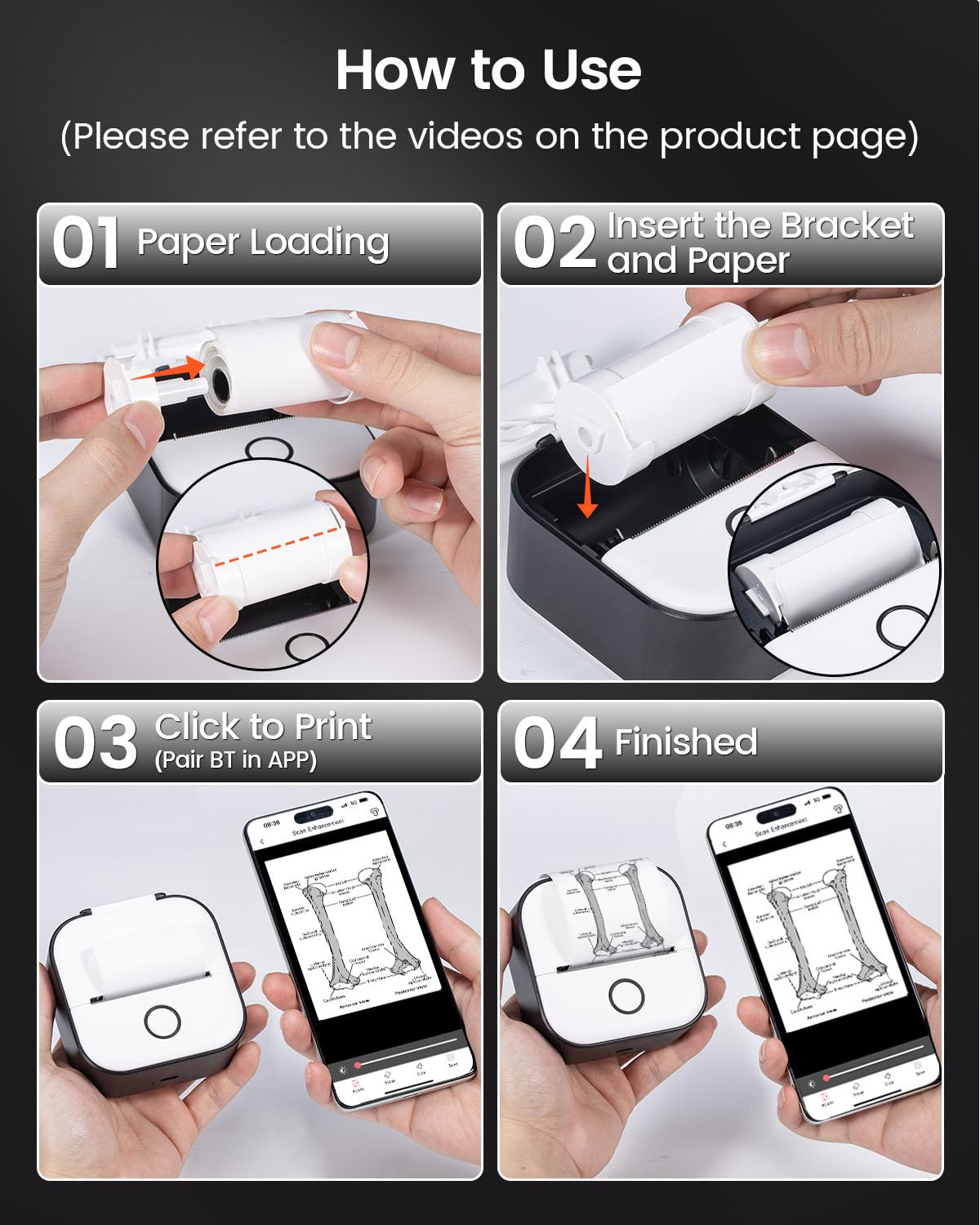
Image 7.1: The T02 printer produces monochrome (black) prints.
8. Sònrachaidhean
| Ainm Modail | T02 |
| Brand | A' cuimhneachadh |
| Teicneòlas clò-bhualaidh | Teirmeach |
| Teicneòlas ceangail | Bluetooth |
| Fuasgladh Clò-bhualaidh Dubh is Geal as àirde | 203 Dots Per Inch (DPI) |
| Meud as motha de na meadhanan | 53mm |
| Meudan toraidh (L x W x H) | 1.4 x 3.4 x 3.4 òirleach (3.6 x 8.6 x 8.6 cm) |
| Cuideam nì | 10.2 unnsa (290 gram) |
| Innealan co-fhreagarrach | Fònaichean sgairteil (iOS, Android) |
| Toradh Clò-bhualadair | Monochrome |
9. Barantas agus Taic
For warranty information or technical support, please refer to the documentation included with your product or visit the official Memoking website. You may also contact Memoking customer service directly for assistance with product inquiries, troubleshooting, or replacement parts.