
1. Ro-ràdh
Thank you for choosing the Auusda T156A 15.6-inch Business Laptop. This manual provides essential information for setting up, operating, and maintaining your new laptop. Please read this manual thoroughly before using the device to ensure proper function and longevity. This laptop is designed for productivity and portability, featuring a 4-core processor, 8GB DDR4 RAM, and a 512GB M.2 PCIe NVMe SSD, all running on Windows 11 Pro.
2. Pasgan-susbaint
Dèan cinnteach gu bheil a h-uile nì anns a’ phacaid:
- Auusda T156A Laptop
- Adaptor cumhachd agus càball
- Còmhdach Meur-chlàir Shoilleir
- Spanish Keyboard Cover
- Leabhar-stiùiridh (an sgrìobhainn seo)

Image: The laptop, power adapter, and keyboard covers as included in the package.
3. Toradh thallview
3.1 Prìomh fheartan
- Coileanadh cumhachdach: Equipped with a 4-core N95 processor (1.7-3.4 GHz) and 8GB DDR4 RAM for efficient multitasking.
- Ample Stòradh: Features a 512GB M.2 PCIe NVMe SSD for fast data access and sufficient storage.
- Vibrant Full HD Display: A 15.6" Full HD IPS LCD screen offers clear visuals with wide viewing ceàrnan.
- Feartan goireasach: Includes a backlit keyboard for low-light use and a fingerprint reader for secure access.
- Connectivity & Versatility: Offers Bluetooth, an SD card reader, and essential ports for various devices.

Ìomhaigh: Tharview of the Auusda T156A laptop with its main features labeled.
3.2 Pròiseasar agus Cuimhne
The laptop is powered by an Intel N95 4-core processor, capable of speeds up to 3.4 GHz, ensuring smooth operation for business and academic tasks. It comes with 8GB of DDR4 RAM and a 512GB M.2 PCIe NVMe Solid State Drive (SSD) for quick boot times and application loading.

Image: A visual representation of the 4-core N95 processor chip.

Image: The laptop highlighting its 8GB RAM and 512GB SSD configuration.
3.3 Taisbeanadh
Experience clear and vibrant visuals on the 15.6-inch Full HD (1920x1080) IPS LCD display. The screen features a narrow bezel and supports 16 million colors, providing an immersive viewing experience. A privacy shutter is integrated for the webOrains.

Image: The laptop's 15.6-inch Full HD IPS LCD display and its features.
3.4 Meur-chlàr agus Pad-suathaidh
The laptop features a full-size backlit keyboard, allowing comfortable typing in various lighting conditions. The integrated touchpad includes a fingerprint sensor for secure and quick login.

Image: The backlit keyboard and the fingerprint ID sensor on the touchpad.
3.5 Puirt agus Ceanglaichean
The Auusda T156A offers a range of connectivity options:
- Cuir a-steach cumhachd DC
- USB-A Ports (multiple)
- Toradh HDMI
- Leughadair cairt microSD
- Jack headphone
- Bluetooth and Wi-Fi (802.11ac, 802.11ax)
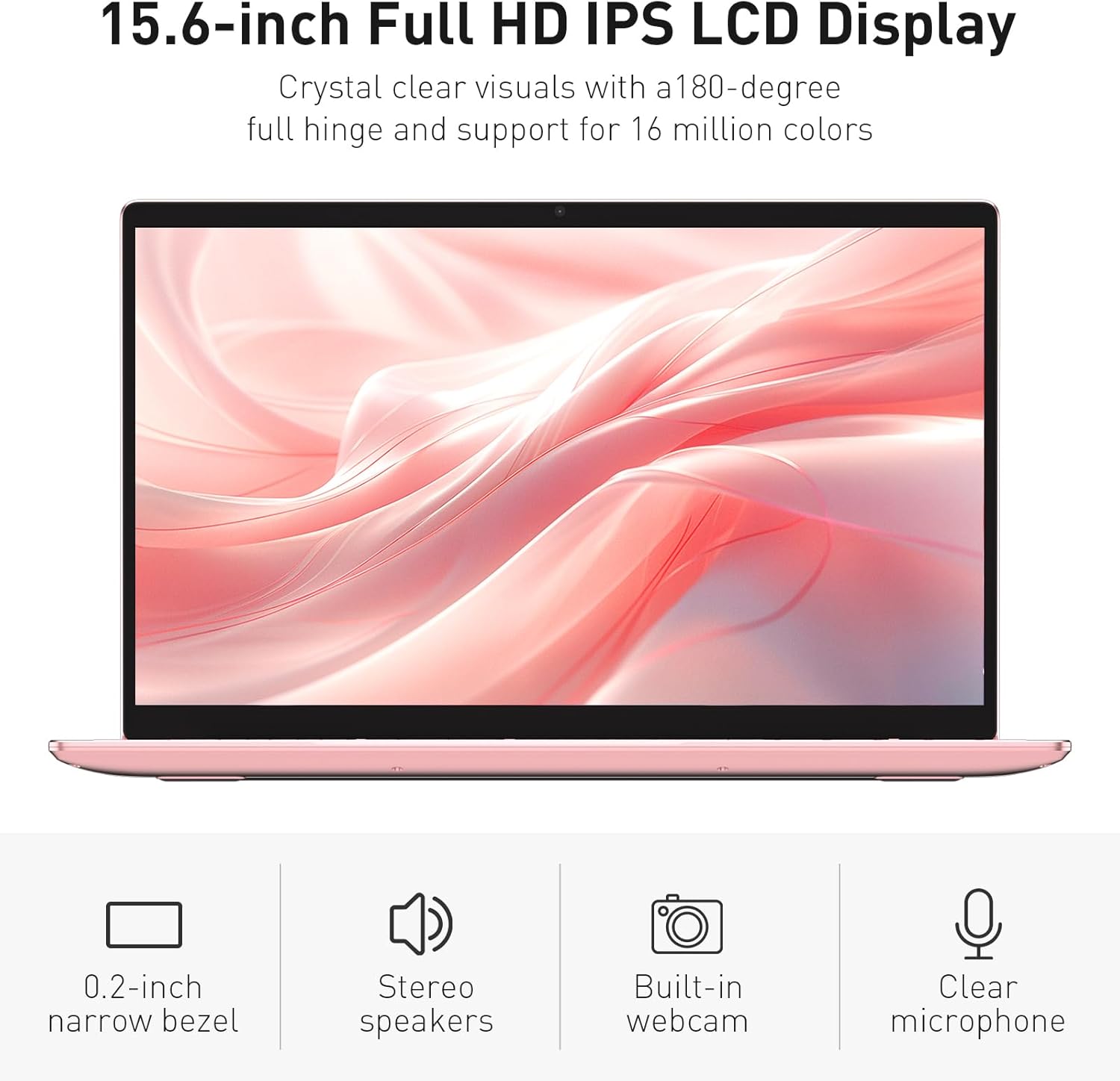
Image: The various ports available on the sides of the laptop.
4. Suidhich
4.1 A’ chiad chumhachd air agus a’ cur cosgais air
- Unpack the laptop and power adapter from the box.
- Connect the power adapter to the DC power input port on the laptop and then to a power outlet.
- Allow the laptop to charge for at least 30 minutes before initial use, or until the charging indicator light shows a full charge.
- Brùth am putan cumhachd gus an laptop a thionndadh.
4.2 Windows 11 Pro Setup
Follow the on-screen instructions to complete the initial Windows 11 Pro setup. This will include:
- A’ taghadh do roinn agus cruth a’ mheur-chlàir.
- A 'ceangal ri lìonra Wi-Fi.
- A’ gabhail ris an aonta ceadachais.
- A’ cruthachadh cunntas cleachdaiche no a’ clàradh a-steach le cunntas Microsoft.
4.3 Suidheachadh Braitear Meòir-lorg
For enhanced security, set up the fingerprint sensor:
- Once Windows is set up, navigate to Roghainnean > Cunntasan > Roghainnean clàraidh a-steach.
- Fo 'Windows Hello Fingerprint', cliog Suidhich.
- Follow the on-screen prompts to register your fingerprint. You will be asked to lift and place your finger multiple times on the sensor until it is fully registered.
5. A’ cleachdadh an laptop
5.1 Cleachdadh Bunaiteach
- Cumhachd air / dheth: Press the power button located on the top right of the keyboard to turn the laptop on or off.
- Modh cadail: Dùin am mullach no brùth air a’ phutan cumhachd goirid gus an laptop a chur ann am modh cadail.
- Restart/Shut Down: Access these options from the Start Menu in Windows.
5.2 Smachd Meur-chlàir le Solas Cùil
The keyboard backlight can be adjusted or turned off using the function keys. Look for the key with a keyboard icon (often F5 or F6) to cycle through brightness levels or toggle the backlight on/off.
5.3 Webcam Prìobhaideachd Shutter
Amalaichte webcam includes a physical privacy shutter. Slide the small cover located directly above the webcam lens to open or close it, ensuring your privacy when the camera is not in use.
5.4 A’ ceangal innealan taobh a-muigh
Use the available ports to connect peripherals:
- Innealan USB: Plug USB drives, mice, or keyboards into the USB-A ports.
- Taisbeanadh taobh a-muigh: Connect an external monitor or projector using the HDMI port.
- Fuaim: Use the headphone jack for headphones or external speakers.
- Cairt MicroSD: Insert a microSD card into the dedicated slot for additional storage or data transfer.
5.5 Coileanadh Gheamannan
The Auusda T156A is capable of handling light gaming and provides a smooth experience for many popular titles. For optimal performance, ensure your drivers are updated and close unnecessary background applications.
Video: Demonstration of the Auusda T156A laptop's light gaming capabilities.
Bhidio: Criomag ghoirid a’ sealltainnasing the laptop's performance during racing games.
6. Cumail suas
- Glanadh: Cleachd clò bog, gun lint, gus an sgrion agus an taobh a-muigh a ghlanadh. Airson smugaid stòlda, dampnigh an clò le uisge no le inneal-glanaidh a tha sàbhailte airson sgrionaichean. Seachain ceimigean làidir.
- Cùram Bataraidh: To prolong battery life, avoid fully discharging the battery frequently. It is recommended to keep the battery charged between 20% and 80% when possible. Store the laptop in a cool, dry place.
- Ùrachaidhean bathar-bog: Regularly check for and install Windows updates and driver updates to ensure optimal performance and security.
- Fionnarachadh: Dèan cinnteach nach eil beul-fhionnaidh an laptop dùinte gus casg a chur air cus teasachadh. Cleachd an laptop air uachdar cruaidh, rèidh.
- Cùl-taic dàta: Dèan cùl-taic cunbhalach de dhàta cudromach gu draibh taobh a-muigh no stòradh sgòthan gus casg a chuir air call dàta.
7. A ’dèanamh trioblaid
This section addresses common issues you might encounter with your Auusda T156A laptop.
| Trioblaid | Fuasgladh comasach |
|---|---|
| Chan eil an laptop a’ dol air. | Ensure the power adapter is securely connected and the outlet is working. Try charging the laptop for a while before attempting to power it on again. |
| Tha an scrion bàn no dubh. | Check if the laptop is powered on. Try pressing Fn + F1 (or the display toggle key) to ensure the display is not turned off. Connect to an external monitor to check if the issue is with the laptop's screen. |
| Duilgheadasan le ceangal Wi-Fi. | Dèan cinnteach gu bheil Wi-Fi air a chomasachadh ann an roghainnean Windows. Ath-thòisich an router agad agus an laptop. Thoir sùil airson draibhearan Wi-Fi ùraichte. |
| Chan eil an sensor lorgan-meòir ag obair. | Ensure your finger is clean and dry. Re-register your fingerprint in Windows settings. Check for driver updates for the fingerprint sensor. |
| Solas-cùil a’ mheur-chlàir nach eil ag obair | Press the dedicated backlight function key (e.g., Fn + F5 or F6) to toggle or adjust brightness. |
| Tha an laptop ag obair gu slaodach. | Close unnecessary applications. Check Task Manager for resource-intensive processes. Ensure sufficient free space on the SSD. Run a malware scan. |
8. Sònrachaidhean
Detailed technical specifications for the Auusda T156A laptop:
| Feart | Mion-fhiosrachadh |
|---|---|
| Brand | Auusda |
| Ainm Modail | T156A |
| Meud sgrion | 15.6 òirlich |
| Meud diosc cruaidh | 512 GB (SSD) |
| Modail CPU | Intel N95 (4-Core, 1.7 GHz base, up to 3.4 GHz turbo) |
| Meud Cuimhne RAM Stàlaichte | 8 GB DDR4 |
| Siostam-obrachaidh | Windows 11 pro |
| Feartan sònraichte | Meur-chlàr le solas cùil, leughadair lorgan-meòir |
| Grafaigeachd coprocessor | UHD Graphics (Integrated) |
| Teicneòlas ceangail | Bluetooth, Wi-Fi (802.11ac, 802.11ax) |
| Àireamh de phuirt | 2 (USB-A, HDMI, microSD, Headphone Jack) |
| Seòrsa cealla bataraidh | Poileimear Lithium (6000 mAh) |
| Meudan nì (L x W x Tighead) | 14"F x 9"L x 0.7"À |
| Fuasgladh Dùthchasach | 1920x1080 piogsail |
| Ìre Ath-nuadhachaidh | 60 Hz |
| Webcam Capability | Yes (with privacy shutter) |
9. Barantas & Taic
9.1 Barantas toraidh
The Auusda T156A laptop comes with a Barantas Dèanadair 2-bliadhna. Please retain your proof of purchase for warranty claims. For detailed warranty terms and conditions, refer to the documentation provided with your product or contact Auusda customer support.
9.2 Taic teachdaiche
For technical assistance, troubleshooting, or service inquiries, please visit the official Auusda Store or contact their customer support channels. You can find more information and support resources at the Auusda Official Store on Amazon.
Video: A short promotional video from the Auusda Official Store, showcasing the laptop's features for college students.