
Taiahiro Bk6301
Leabhar-làimhe Cleachdaiche airson Meur-chlàr is Luchag Gèam Meacanaigeach gun Uèir Taiahiro Bk6301
Model: Bk6301
1. Ro-ràdh
Thank you for choosing the Taiahiro Bk6301 Wireless Mechanical Gaming Keyboard and Mouse Combo. This manual provides detailed instructions for setting up, operating, and maintaining your new peripheral devices. This combo offers versatile connectivity options including 2.4G wireless, Bluetooth 5.0, and wired USB-C, ensuring compatibility with various devices.
2. Pasgan-susbaint
Dèan cinnteach gu bheil a h-uile nì an làthair sa phacaid agad:
- Taiahiro Bk6301 Wireless Mechanical Gaming Keyboard
- Taiahiro Wireless Gaming Mouse
- USB 2.4G Receiver (stored in mouse battery compartment)
- USB-C gu càball cosgais / dàta USB-A
- Leabhar-làimhe cleachdaiche
- 1 AA Battery (for mouse, may be pre-installed or included separately)

Image 2.1: Contents of the Taiahiro Bk6301 Keyboard and Mouse Combo package, including the keyboard, mouse, USB receiver, and USB-C cable.
3. Toradh thallview
3.1 Feartan a’ Mheur-chlàir
- Cruth 98-iuchrach: Compact design with a full numeric keypad.
- Suidsichean Gorma Meacanaigeach: Provide tactile and audible feedback for typing.
- Solais-cùil RGB: Customizable lighting effects.
- Seasamh Meur-chlàir Atharrachail: Allows for ergonomic positioning.
- Ceangal ioma-mhodh: Supports 2.4G wireless, Bluetooth 5.0, and wired USB-C.
- Bataraidh ath-thagraidh: Built-in 2000mAh battery for wireless operation.
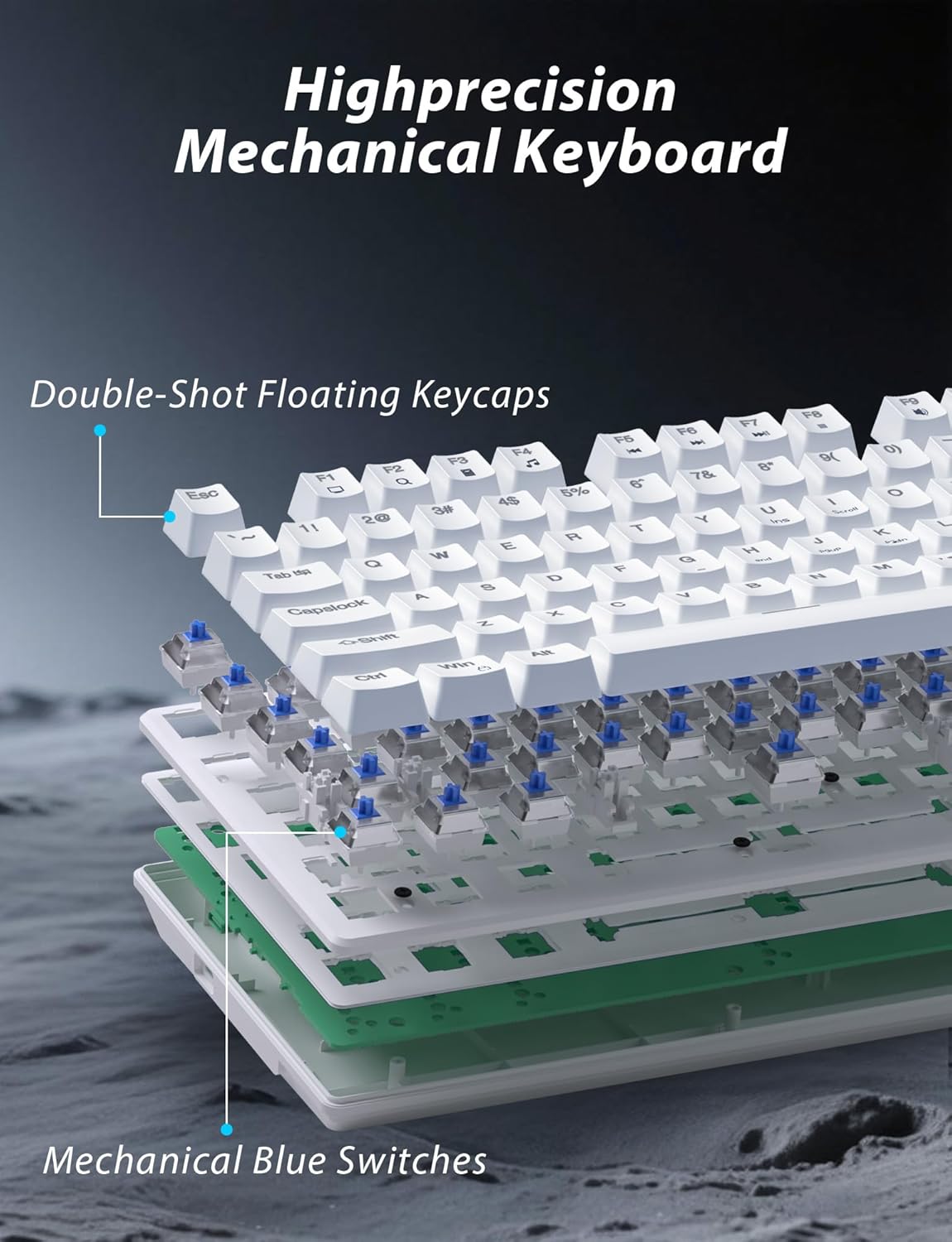
Ìomhaigh 3.1: Spreadhadh view illustrating the internal structure of the mechanical keyboard, highlighting the double-shot floating keycaps and mechanical blue switches.

Ìomhaigh 3.2: Taobh view of the keyboard demonstrating its ergonomic design and adjustable stand for comfortable use.
3.2 Feartan na luchaige
- Dealbhadh ergonomic: Shaped for comfortable grip.
- DPI a ghabhas atharrachadh: Four levels (800/1600/2400/3200) for precision control.
- Putanan Air Adhart/Air Ais: Convenient side buttons for navigation.
- Ceangal dà-mhodh: Supports 2.4G wireless and Bluetooth.
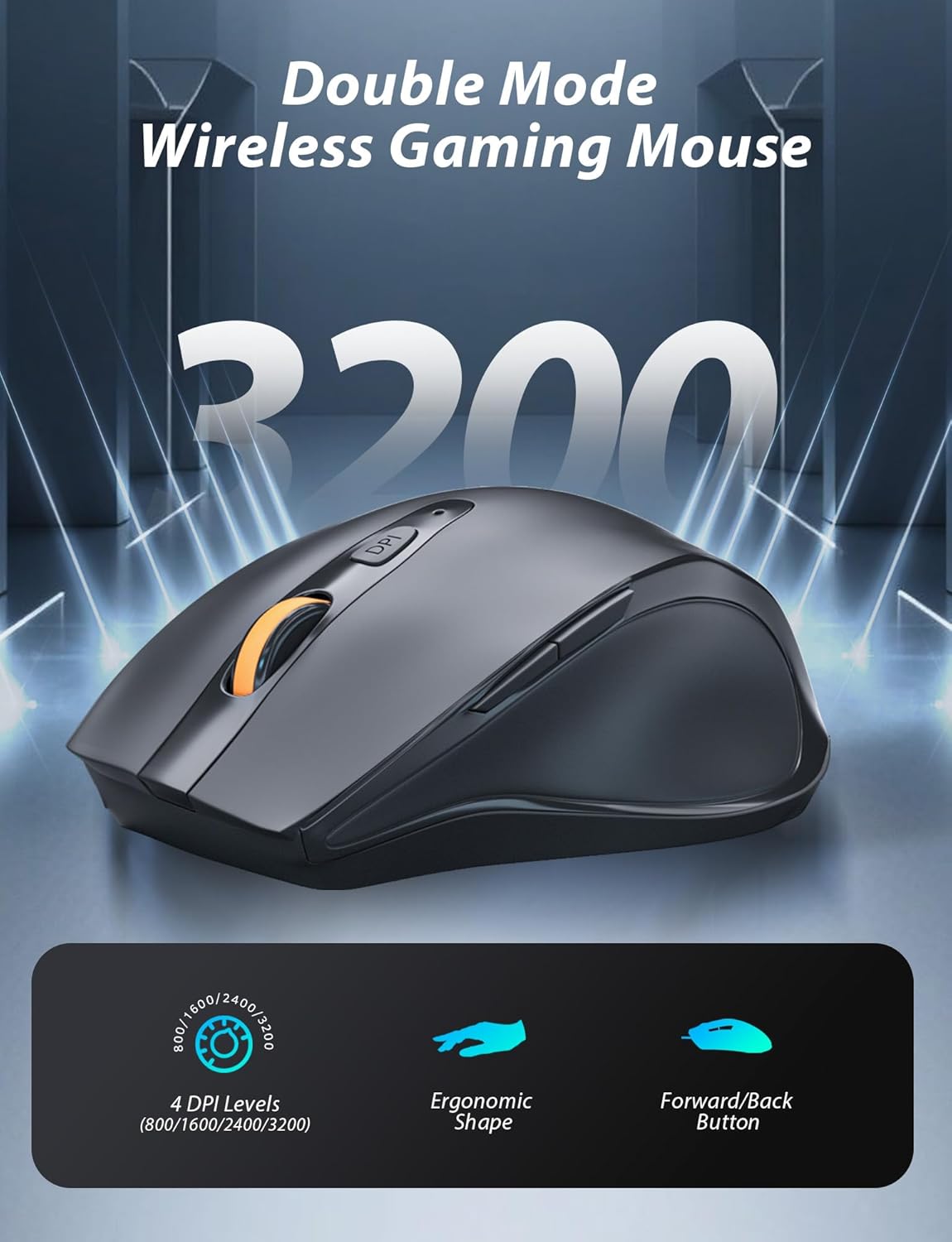
Image 3.3: The wireless gaming mouse, highlighting its ergonomic shape and four adjustable DPI levels.
4. Stiùireadh Stèidheachaidh
4.1 Ceangal Meur-chlàir
The keyboard supports three connection modes: 2.4G wireless, Bluetooth, and wired USB-C.

Image 4.1: The keyboard displaying its three connectivity options: Bluetooth, 2.4GHz wireless, and USB-C wired connection.
Modh gun uèir 2.4G:
- Locate the USB 2.4G receiver, typically stored in the mouse's battery compartment.
- Cuir a-steach an cuidhteas USB a-steach do phort USB a tha ri fhaighinn air do choimpiutair.
- On the keyboard, slide the mode switch (usually located on the top edge or bottom) to the '2.4G' position.
- Bu chòir don mheur-chlàr ceangal gu fèin-ghluasadach.
Modh Bluetooth:
- Slide the mode switch on the keyboard to the 'BT' (Bluetooth) position.
- Bidh solas comharrachaidh a’ mheur-chlàir a’ priobadh, a’ comharrachadh gu bheil e ann am modh càraideachaidh.
- On your device (computer, laptop, smartphone), open Bluetooth settings and search for new devices.
- Select "Taiahiro Bk6301" or a similar name from the list of available devices to pair.
- Aon uair ‘s gu bheil iad air an càraideachadh, bidh an solas comharrachaidh a’ tionndadh gu bhith daingeann.
Modh USB-C le uèir:
- Ceangail an càball USB-C a tha air a thoirt seachad ri port USB-C a’ mheur-chlàir.
- Ceangail an ceann eile (USB-A) ri port USB a tha ri fhaighinn air a’ choimpiutair agad.
- The keyboard will function as a wired device and will charge simultaneously.
4.2 Mouse Connection
The mouse supports 2.4G wireless and Bluetooth connectivity.

Image 4.2: The underside of the mouse, illustrating the battery compartment for one AA battery and the storage slot for the tiny USB receiver.
Stàladh bataraidh:
- Fosgail roinn a’ bhataraidh aig bonn na luchaige.
- Insert one AA battery, ensuring correct polarity.
- Dùin an roinn bataraidh.
Modh gun uèir 2.4G:
- Ensure the USB 2.4G receiver is plugged into your computer.
- Slide the mode switch on the underside of the mouse to the '2.4G' position.
- Bu chòir don luchag ceangal gu fèin-ghluasadach.
Modh Bluetooth:
- Slide the mode switch on the underside of the mouse to the 'BT' (Bluetooth) position.
- The mouse will enter pairing mode.
- Air an inneal agad, fosgail roghainnean Bluetooth agus rannsaich airson innealan ùra.
- Select "Taiahiro Mouse" or a similar name from the list to pair.
5. Stiùireadh Obrachaidh
5.1 Gnìomhan meur-chlàr
Smachd solais cùl:
The keyboard features customizable RGB backlighting.
- Atharraich Modh Solais-cùil: Brùth Fn + Dachaigh to cycle through 18 different lighting effects.
- Atharraich soilleireachd: Brùth Fn + ↑ (Saighead Suas) or Fn + ↓ (Saighead Sìos) to adjust between 5 brightness levels.
- Atharraich astar: Brùth Fn + ← (Saighead Chlì) or Fn + → (Saighead Deas) to adjust between 5 lighting speed levels.

Image 5.1: Keyboard layout highlighting the function key combinations for controlling backlight modes, brightness, and speed.
Feartan ioma-mheadhain:
Access multimedia controls by pressing the Fn key in combination with the designated F-keys (F1-F12).
- Fn+F1: Cluicheadair mheadhanan
- Fn+F2: Meud Sìos
- Fn+F3: Tomhais Suas
- Fn+F4: Mut
- Fn+F5: Stad
- Fn+F6: Rian roimhe
- Fn+F7: Cluich / Stad
- Fn+F8: An ath Rian
- Fn+F9: Post-d
- Fn+F10: Web Brabhsair
- Fn+F11: Mo choimpiutair
- Fn+F12: Àireamhair
5.2 Gnìomhan na Luchaige
Atharrachadh DPI:
Brùth an Putan DPI (located behind the scroll wheel) to cycle through the four DPI settings: 800, 1600, 2400, and 3200. Each press changes the sensitivity, allowing you to adjust cursor speed to your preference.
6. Cumail suas
6.1 Glanadh
- Meur-chlàr: Use a soft, dry cloth to wipe the surface. For deeper cleaning, use compressed air to remove debris from between keys. Avoid using harsh chemicals or abrasive materials.
- Luch: Sguab uachdar na luchaige le clò bog, beagan fliuchamp cloth. Ensure no liquid enters the internal components.
6.2 Riaghladh Bataraidh
- Meur-chlàr: The keyboard has a built-in rechargeable battery. Connect the USB-C cable to a power source (e.g., computer USB port, USB wall adapter) to charge. The indicator light will show charging status.
- Luch: The mouse uses one AA battery. Replace the battery when the mouse performance degrades or it stops responding. Ensure proper polarity when inserting a new battery.
7. A ’dèanamh trioblaid
If you encounter issues with your Taiahiro keyboard and mouse combo, please refer to the following solutions:
| Trioblaid | Fuasgladh comasach |
|---|---|
| Keyboard/Mouse not responding (2.4G) |
|
| Meur-chlàr/Luchag gun cheangal (Bluetooth) |
|
| Keyboard backlight not working or stuck |
|
| Keys not responding or double-typing |
|
8. Sònrachaidhean
| Feart | Mion-fhiosrachadh |
|---|---|
| Modail Àireamh | Bk6301 |
| Ceangalachd | Bluetooth 5.0, 2.4G gun uèir, USB-C le uèir |
| Seòrsa meur-chlàr | Meur-chlàr Gaming Meacanaigeach |
| Cruth na h-iuchrach | 98 Keys (with Numeric Keypad) |
| Seòrsa Switch | Suidsichean gorm meacanaigeach |
| Backlight meur-chlàr | RGB (18 modes, 5 brightness, 5 speed levels) |
| Bataraidh meur-chlàr | 2000mAh Rechargeable |
| Ìrean DPI na luchaige | 800/1600/2400/3200 |
| Bataraidh na luchaige | 1 x Bataraidh AA |
| Innealan co-fhreagarrach | Personal Computer, Laptop, Smartphone |
| Cuideam nì | 2.72 pounds (combo) |
| Meud pacaid | 15 x 5.59 x 3.11 òirleach |
9. Barantas agus Taic
9.1 Fiosrachadh Barantais
Taiahiro products are covered by a limited warranty from the date of purchase. Please refer to the warranty card included in your package or visit the official Taiahiro website for detailed warranty terms and conditions. This warranty typically covers manufacturing defects and material faults under normal use.
9.2 Taic teachdaiche
For technical assistance, troubleshooting, or any questions regarding your Taiahiro Bk6301 combo, please contact our customer support team. You can find contact information on the Taiahiro official website or through your purchase platform. When contacting support, please have your product model number (Bk6301) and purchase details ready.