
Ro-ràdh
This manual provides detailed instructions for the installation, operation, and maintenance of your Mio MiVue 935W 4K UHD Dashcam. Please read this manual thoroughly before using the device to ensure proper functionality and safety.
Prìomh fheartan
- 4K 2160P Ultra High Definition Recording: Captures video with four times the resolution of Full HD for exceptional detail.
- Sony STARVIS CMOS Sensor: Ensures clear, high-contrast videos with rich colors, even in low-light conditions.
- Raon Àrd Dynamic (HDR): Automatically combines multiple exposures to produce clearer, sharper images with reduced noise, especially in challenging lighting.
- Integrated High-Speed Wi-Fi: Enables fast video transfers and easy connection to the MiVue Pro app via QR code.
- GPS aonaichte: Provides location data, speed camera alerts (where permitted), and lane departure warnings.
- G-Sensor: Detects sudden movements or impacts and automatically protects the current recording.
- Dealbhadh Compact: Discreetly fits into your vehicle's interior.
Susbaint pacaid
Dèan cinnteach gu bheil na nithean gu lèir a tha air an liostadh gu h-ìosal air an toirt a-steach don phacaid agad:
- Mio MiVue 935W Dashcam
- Charger càr
- Mount Adhesive 3M
- Static Window Sticker
- Leabhar-làimhe cleachdaiche (an sgrìobhainn seo)
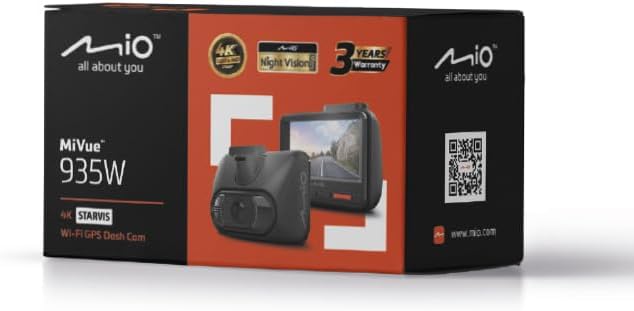
Image: Retail packaging of the Mio MiVue 935W Dashcam, showing the box contents and key features.
Bathar seachadview
Familiarize yourself with the components of your MiVue 935W dashcam.
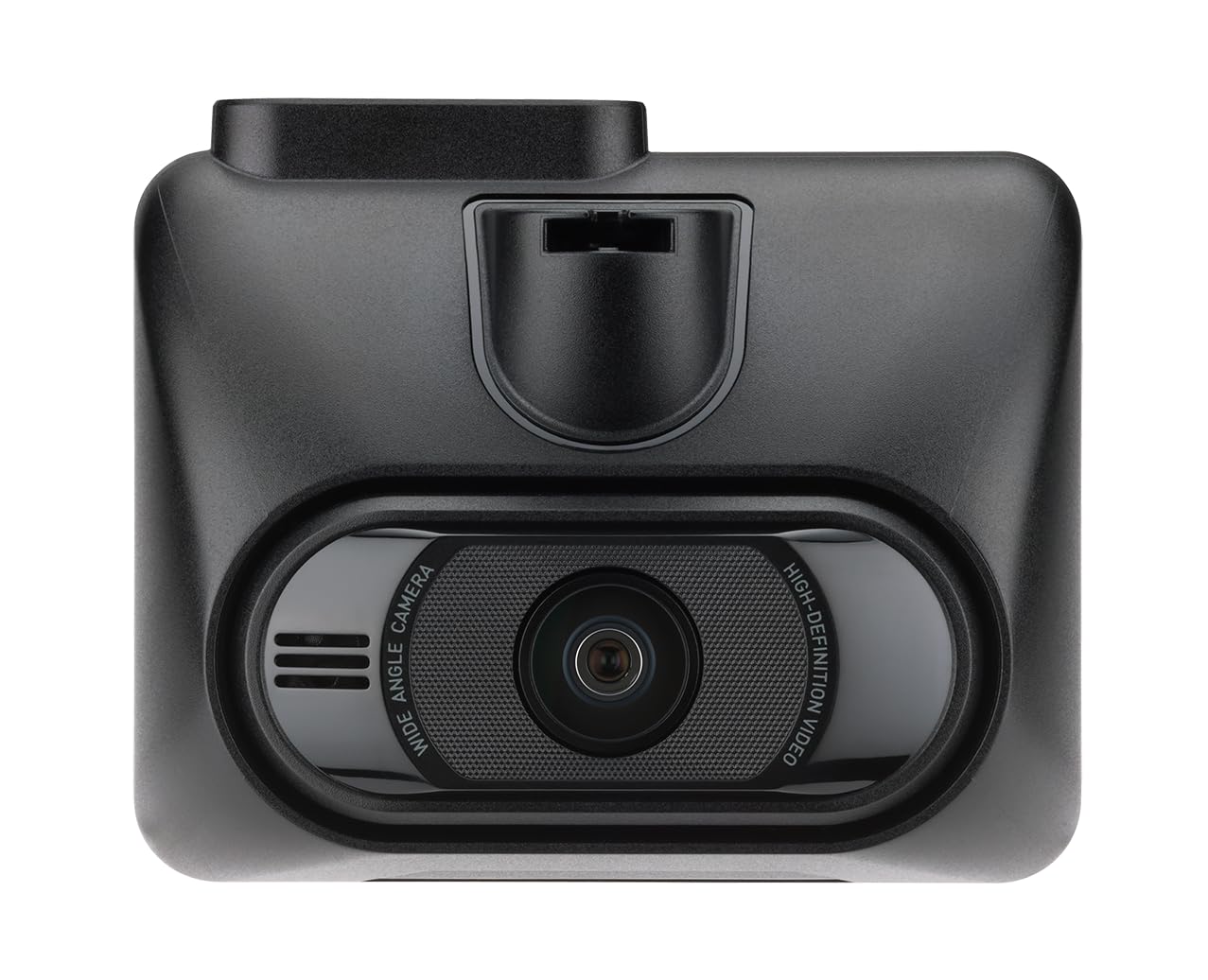
Ìomhaigh: Aghaidh view of the MiVue 935W dashcam, displaying the screen and control buttons below it.

Ìomhaigh: Mullach view of the MiVue 935W dashcam, highlighting the power input and rear camera connection ports.

Image: The 3M adhesive mount for securing the dashcam to the windshield.
Suidhich
1. Installing the Dashcam
- Glan an sgìre air do ghaoth-sgrion far a bheil thu an dùil an camara-stiùiridh a chuir suas. Dèan cinnteach nach eil e a’ cur bacadh air do view.
- Apply the static window sticker to the chosen area on the windshield. This helps protect your windshield and allows for easier repositioning.
- Attach the 3M adhesive mount to the static sticker. Press firmly for secure adhesion.
- Slide the MiVue 935W dashcam onto the mount until it clicks into place.
- Atharraich ceàrn a’ chamara gus dèanamh cinnteach gu bheil e a’ glacadh an rathaid air thoiseach gu soilleir.
2. A’ cur a-steach cairt MicroSD
A MicroSD card (not included) is required for recording. The device supports cards up to 256GB. Ensure the card is formatted before first use.
- With the dashcam powered off, locate the MicroSD card slot.
- Insert the MicroSD card with the contacts facing the screen until it clicks into place.
- Gus a thoirt a-mach, brùth gu socair air a’ chairt gus an leum i a-mach.
3. Ceangal Cumhachd
- Connect the car charger to the dashcam's power input port (usually located on top).
- Cuir ceann eile an charger càr a-steach do socaid cumhachd 12V do charbaid (socaid lasair toitean).
- The dashcam will automatically power on and begin recording when your vehicle starts.
Stiùireadh Obrachaidh
Obrachadh Bunaiteach
- Cumhachd air / dheth: The dashcam powers on automatically with vehicle ignition and powers off shortly after the engine is turned off. You can also manually power it on/off using the power button.
- Clàradh: The dashcam automatically starts continuous loop recording when powered on.
- Clàradh èiginn: The built-in G-sensor detects sudden impacts or harsh braking and automatically saves the current recording to a protected folder, preventing it from being overwritten.
Ceangal Wi-Fi
The integrated high-speed Wi-Fi allows for quick video transfers and easy management via the MiVue Pro app.
- Luchdaich sìos an MiVue Pro aplacaid bhon stòr aplacaidean air an fhòn-smart agad.
- On the MiVue 935W, navigate to the Wi-Fi settings and enable it. A QR code will be displayed on the dashcam screen.
- Open the MiVue Pro app on your smartphone and use the app to scan the QR code displayed on the dashcam.
- Aon uair 's gu bheil thu ceangailte, faodaidh tu view beò footage, transfer recordings, and adjust settings directly from your smartphone.
Gnìomhan GPS
The integrated GPS module provides accurate location and speed data, enhancing your driving records.
- Rabhaidhean Camara Luas: The MiVue 935W provides alerts for speed cameras, displaying the distance, time, speed limit, and your average speed. Note: Speed camera alerts are not active in France, Germany, Switzerland, and Turkey due to local regulations.
- Rabhadh mu Imeachd Lane: This feature helps monitor your lane position and provides alerts if you unintentionally drift from your lane.
HDR (Raon Àrd Dynamic)
The HDR function improves video clarity in challenging lighting conditions.
- The dashcam automatically captures multiple images at different exposure levels and combines them into a single, optimized image.
- The 2.5K 1440P/Auto HDR mode automatically switches the image sensor between day and night settings for optimal video quality.
Modh Faireachaidh Pàirceadh
When properly configured and with a continuous power supply (e.g., via a hardwire kit, sold separately), the dashcam can monitor your vehicle while parked.
- The dashcam will automatically record if it detects motion or an impact while your vehicle is stationary.
Cumail suas
A 'glanadh an inneal
- Use a soft, dry cloth to clean the dashcam's exterior.
- For the lens, use a specialized lens cleaning cloth to avoid scratches.
- Do not use chemical cleaners or solvents, as they may damage the device.
MicroSD Card Care
- Regularly format your MicroSD card (at least once a month) to maintain optimal recording performance and prevent data corruption.
- Replace the MicroSD card periodically, especially if you notice recording errors or reduced performance, as memory cards have a limited lifespan.
Ùrachaidhean firmware
Check the official Mio weblàrach (www.mio.com) for available firmware updates. Keeping your dashcam's firmware up-to-date ensures optimal performance and access to new features.
Fuasgladh thrioblaidean
| Trioblaid | Adhbhar a dh’fhaodadh a bhith ann | Fuasgladh |
|---|---|---|
| Chan eil an dashcam a’ dol air. | Gun solar cumhachd no ceangal lochtach. | Check car charger connection to both the dashcam and the vehicle's 12V outlet. Ensure the vehicle's ignition is on. |
| Stad clàradh gun dùil. | MicroSD card error or full. | Format the MicroSD card. Replace the card if the issue persists. Ensure the card is Class 10 or higher. |
| Deagh chàileachd bhidio. | Dirty lens or incorrect settings. | Clean the camera lens. Check video resolution settings in the menu. Ensure HDR is enabled for challenging light. |
| Duilgheadasan le ceangal Wi-Fi. | Incorrect password or app issue. | Ensure Wi-Fi is enabled on the dashcam and you are scanning the correct QR code. Restart both the dashcam and your smartphone. |
| GPS gun obair. | Poor satellite signal. | Dèan cinnteach gu bheil camara-stiùiridh soilleir view of the sky. Avoid mounting near metallic objects that might block the signal. |
Sònrachaidhean
| Feart | Mion-fhiosrachadh |
|---|---|
| Ainm Modail | Mio MiVue 935W |
| Meud sgrion | IPS 2.7 òirleach |
| Fuasgladh Clàraidh | 4K (2160P) / 30fps |
| Sensor Bhidio | Braitear CMOS Sony STARVIS |
| Fosgladh | F1.8 |
| Cruth Clàraidh | SuperMP4 (H.265) |
| Lionsa ceàrn farsaing | 140 ceum |
| Ceangalachd | Integrated Wi-Fi, GPS |
| Feartan sònraichte | Compact Design, G-Sensor, Speed Camera Alerts, Lane Departure Warning, HDR |
| Stòr cumhachd | 1 bataraidh lithium-polymer (air a ghabhail a-steach) |
| Meudan (W x H x D) | 63 x 76.5 x 41.2 mm |
| Cuideam | 99.94 g |
| Seòrsa carbaid co-fhreagarrach | Càr, Truca, Baidhsagal-motair |
| Seòrsa stàladh | Self-adhesive mount |
| Dath | Dubh |
Barantas agus Taic
Fiosrachadh Barantais
The Mio MiVue 935W Dashcam comes with a Barantas 3-bliadhnaCùm dearbhadh ceannach airson tagraidhean barantais.
Taic Luchd-cleachdaidh
For technical assistance, firmware updates, or further information, please visit the official Mio weblàrach:
Mio products are tested in a TAF-accredited laboratory by MITAC, ensuring high quality and reliability.