
Ro-ràdh
This manual provides essential information for setting up, operating, maintaining, and troubleshooting your HP 14-cf2733wm laptop. Please read this manual thoroughly before using your device to ensure proper function and longevity.
The HP 14-cf2733wm is a 14-inch laptop designed for portability and everyday productivity. It features an Intel Celeron N4120 processor, 4GB of RAM, and 64GB eMMC storage, running on Windows 11 Home in S mode.
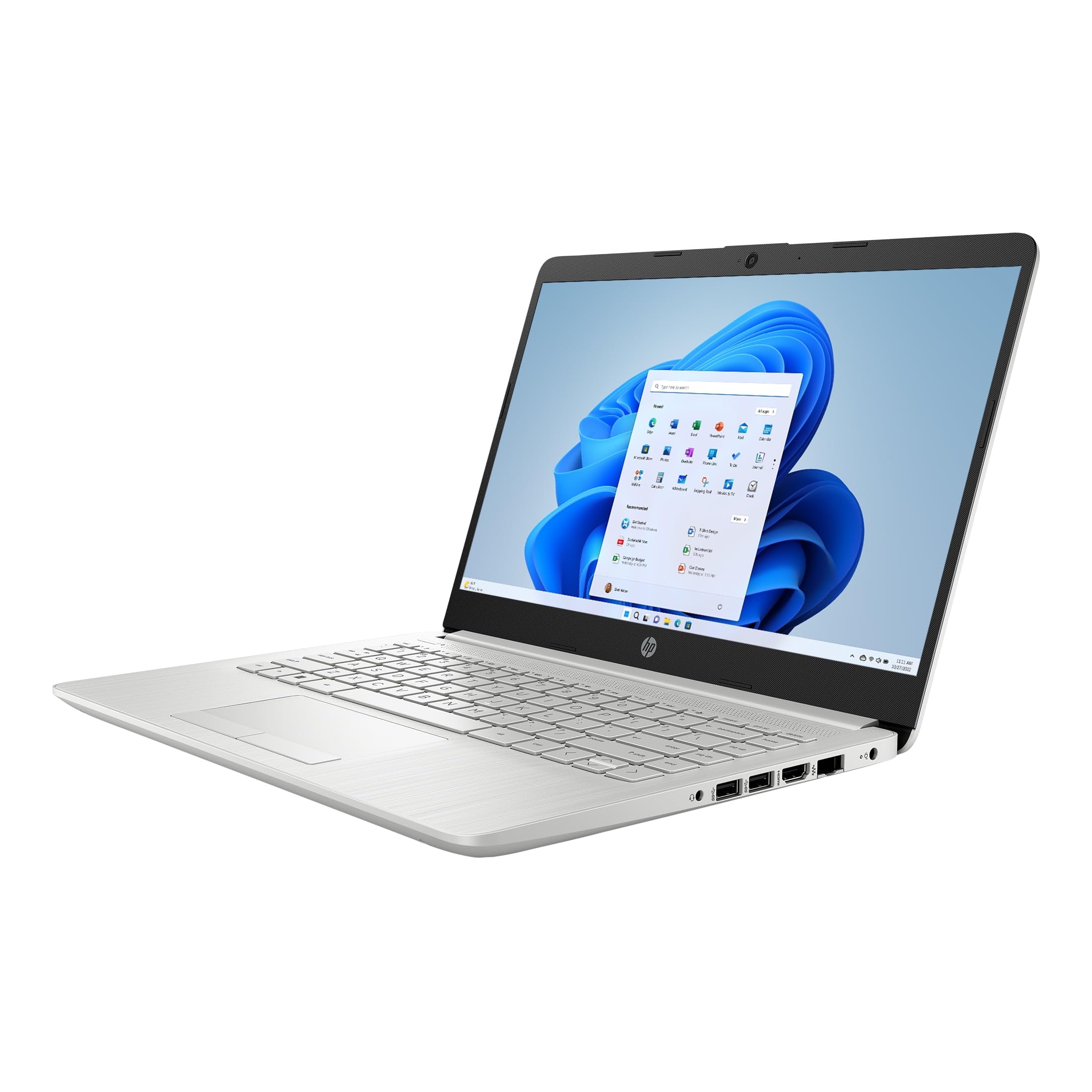
Figure 1: HP 14-cf2733wm Laptop. This image shows the silver HP laptop in a closed position, highlighting its slim design.
1. Suidhich
1.1 Unpacking the Laptop
Thoir a h-uile pàirt a-mach às a’ phacaid gu faiceallach. Dèan cinnteach gu bheil na nithean a leanas an làthair:
- HP 14-cf2733wm Laptop
- Adaptor cumhachd agus càball
- Sgrìobhainnean (Stiùireadh Tòiseachaidh Luath, Fiosrachadh Sàbhailteachd)
1.2 A’ ceangal an inneal-atharrachaidh cumhachd
- Ceangail an càball cumhachd ris an inneal cumhachd.
- Plug an adapter cumhachd a-steach do bhalla a-muigh.
- Insert the adapter's connector into the power port on the side of your HP laptop.
Thathar a’ moladh an laptop a ghearradh gu h-iomlan mus cleachd thu e an toiseach.
1.3 A’ chiad chumhachd air agus suidheachadh Windows
- Fosgail mullach an laptop.
- Brùth am putan cumhachd, a tha mar as trice suidhichte air deic a’ mheur-chlàir.
- Follow the on-screen instructions to complete the Windows 11 Home in S mode setup. This includes selecting your region, language, connecting to a Wi-Fi network, and creating a user account.
- Activate the included 12-month Microsoft 365 Personal subscription as prompted during setup or later via the Microsoft Store.
2. A’ cleachdadh an laptop
2.1 A’ cleachdadh a’ phàipear-suathaidh
The precision touchpad supports multi-touch gestures for navigation. Common gestures include:
- Tap: Single tap to click, double tap to open.
- Scroll dà-mheur: Slaod dà mheur suas no sìos gus sgroladh.
- Pinch-gu-zoom: Brùth dà mheur ri chèile no sgaoil iad bho chèile gus zoom a-steach no a-mach.
- Tap dà-mheur: Acts as a right-click.
2.2 A’ ceangal innealan taobh a-muigh
Your laptop features various ports for connecting peripherals:
- Puirt USB: Connect USB drives, external mice, keyboards, or other compatible USB devices.
- Port HDMI: Connect an external monitor or TV for extended display.
- Seacaid claisneachd: Ceangail fònaichean-cluaise no luchd-labhairt taobh a-muigh.
2.3 Ceangal Wi-Fi agus Bluetooth
Gus ceangal ri lìonra Wi-Fi:
- Briog air ìomhaigh Wi-Fi anns a’ bhàr-tasg.
- Tagh an lìonra a tha thu ag iarraidh bhon liosta.
- Cuir a-steach facal-faire an lìonraidh ma thèid iarraidh ort agus cliog air “Ceangail”.
To enable or disable Bluetooth:
- Rach gu Suidhichidhean > Bluetooth & innealan.
- Toggle the Bluetooth switch On or Off.
2.4 Windows 11 Home in S mode
Windows 11 Home in S mode is a version of Windows optimized for security and performance. It exclusively runs apps from the Microsoft Store and uses Microsoft Edge for safe browsing. If you need to install apps outside the Microsoft Store, you can switch out of S mode. This is a one-way switch.
To switch out of S mode:
- On your PC running Windows 11 in S mode, open Suidhichidhean > Siostam > Gnìomhachadh.
- In the "Switch to Windows 11 Home" section, select Go to the Store.
- On the "Switch out of S mode" (or similar) page that appears in the Microsoft Store, click the Faigh putan.
- After you see a confirmation message on the page, you'll be able to install apps from outside the Microsoft Store.
3. Cumail suas
3.1 Glanadh an Laptop
- Sgrion: Cleachd clò bog gun lint gu h-aotrom dampair a nighe le uisge no inneal-glanaidh sgrion. Seachain ceimigean làidir.
- Meur-chlàr agus Chassis: Cleachd clò bog, tioram. Airson salachar stòlda, cleachd clò beagan tioram.amp cloth can be used. Avoid getting moisture into openings.
- Puirt: Cleachd èadhar teannaichte gus duslach a ghlanadh gu socair bho phuirt.
Cuir dheth an cumhachd agus dì-phlugaich am pluga an-còmhnaidh mus glan thu an laptop.
3.2 Cùram Bataraidh
- Seachain teòthachd anabarrach.
- Na cuir às don bhataraidh gu tur gu cunbhalach.
- Ma tha thu a’ stòradh an laptop airson ùine mhòr, cuir cosgais air a’ bhataraidh gu timcheall air 50-70%.
3.3 Ùrachaidhean bathar-bog
Thoir sùil gu cunbhalach airson ùrachaidhean Windows agus stàlaich iad gus dèanamh cinnteach à seasmhachd, tèarainteachd agus coileanadh an t-siostaim. Rach gu Suidhichidhean > Ùrachadh Windows.
4. A ’dèanamh trioblaid
4.1 Chan eil an laptop a’ dol air
- Dèan cinnteach gu bheil an inneal-atharrachaidh cumhachd ceangailte gu tèarainte ris an laptop agus ri socaid balla a tha ag obair.
- Dearbhaich gu bheil an socaid balla ag obair le bhith a’ cur inneal eile a-steach.
- Feuch ri am putan cumhachd a chumail airson 15-20 diogan gus ath-shuidheachadh cruaidh a dhèanamh.
4.2 Coileanadh Mall
- Dùin aplacaidean neo-riatanach a tha a’ ruith sa chùlaibh.
- Thoir sùil airson ùrachaidhean Windows sam bith a tha ri thighinn agus stàlaich iad.
- Ensure you have sufficient free storage space on the 64GB eMMC drive.
- Ruith sganadh siostaim airson malware no bhìorasan.
4.3 Cùisean Ceangail Wi-Fi
- Restart your laptop and your Wi-Fi router.
- Dèan cinnteach gu bheil Wi-Fi air a chomasachadh ann an roghainnean Windows.
- Dìochuimhnich an lìonra agus ceangail a-rithist, a’ cur a-steach am facal-faire a-rithist.
- Thoir sùil a bheil innealan eile comasach air ceangal ris an aon lìonra Wi-Fi.
5. Sònrachaidhean
| Feart | Mion-fhiosrachadh |
|---|---|
| Ainm Modail | HP 14-cf2733wm |
| Pròiseasar | Intel Celeron N4120 (up to 2.6 GHz burst frequency) |
| Siostam-obrachaidh | Windows 11 Dachaigh ann am modh S |
| Taisbeanadh | 14-inch HD (1366 x 768) micro-edge anti-glare LED display |
| Grafaigean | Grafaigean aonaichte Intel UHD 600 |
| RAM | 4 GB DDR4 |
| Stòradh | 64 GB eMMC |
| Ceangal gun uèir | 802.11n Wi-Fi, Bluetooth |
| Puirt | 2x USB, 1x HDMI, 1x Headphone/Microphone combo |
| Bataraidh | Lithium Ion, 45 Watt Hours |
| Meudan (L x W x H) | 12.82" x 8.42" x 0.65" (32.56 x 21.39 x 1.65 cm) |
| Cuideam | 3.5 lbs (1.59 kg) |
| Dath | Airgiod |
| Webcam | Amalaichte Webcam |
6. Barantas agus Taic
6.1 Barantas Earranta
Your HP 14-cf2733wm laptop comes with a 1-year limited hardware warranty. This warranty covers defects in materials and workmanship under normal use. For full terms and conditions, please refer to the warranty documentation included with your product or visit the official HP support weblàrach.
The warranty does not cover damage caused by accidents, misuse, unauthorized modifications, or external causes such as power fluctuations.
6.2 Taic Teicnigeach
Airson taic theicnigeach, luchdachadh sìos draibhearan, no tuilleadh taic, tadhail air taic oifigeil HP website. You will need your product's model number (14-cf2733wm) and serial number (found on the product label) when contacting support.
Taic HP Weblàrach: https://support.hp.com