
AMPAI 4 Gang
AMPLeabhar-làimhe Cleachdaiche Suidse Smart Wall WiFi AI
Model: 4 Gang
1. Ro-ràdh
Tapadh leibh airson taghadh an AMPAI WiFi Wall Touch Smart Switch. This smart switch is designed to upgrade your home lighting control with advanced features and convenience. It offers multiple control methods including touch panel, RF433 remote, and voice control via Alexa and Google Home. This manual provides detailed instructions for installation, operation, and troubleshooting to ensure optimal performance and safety.

Figear 1: AMPAI WiFi Wall Touch Smart Switch (4 Gang) and included RF433 Remote.
2. Fiosrachadh Sàbhailteachd Cudromach
- Sàbhailteachd dealain: Installation should be performed by a qualified electrician or a person with a thorough understanding of electrical systems. Always turn off power at the circuit breaker before installation or maintenance.
- Co-chòrdalachd: This switch is designed for standard on/off control only. It is NOT compatible with dimmable bulbs or fixtures. Attempting to use it with dimmable bulbs may cause damage to the bulbs or the switch.
- Lìonra WiFi: The smart switch operates on a 2.4GHz Wi-Fi network only. It is not compatible with 5GHz Wi-Fi networks. Ensure your router supports 2.4GHz.
- Uèir: This switch supports both neutral wire and no neutral wire (single fire) installations. Refer to the wiring diagrams carefully.
- Not a Traditional 3-Way Switch: While it offers 3-way control via multi-control methods (app, remote, voice), it does not function as a traditional mechanical 3-way switch requiring traveler wires between two switches.

Figure 2: Key attention points regarding 2.4GHz WiFi, wiring, and non-compatibility with traditional 3-way or dimmable setups.
3. Pasgan-susbaint
Thoir sùil air susbaint a’ phacaid nuair a dh’fhosglas tu e gus dèanamh cinnteach gu bheil a h-uile nì ann agus gun mhilleadh:
- AMPAI WiFi Wall Touch Smart Switch (4 Gang)
- Bathar-cruaidh sreap (Sgriubha)
- RF433 Remote Control (if included in your specific package)
- Leabhar-làimhe cleachdaiche (an sgrìobhainn seo)
4. Setup agus Stàladh
4.1 Stiùireadh uèiridh
WARNING: Ensure power is OFF at the circuit breaker before beginning any wiring.
This smart switch supports two wiring methods: with a neutral wire or without a neutral wire (single fire). Identify your home's wiring configuration before proceeding.

Figure 3: Wiring diagrams for Neutral and Fire Line (left) and Single Fire (right) installations. A capacitor is required for single fire wiring.
- Cuir dheth an cumhachd: Locate the circuit breaker controlling the light switch and turn it OFF. Verify power is off using a voltage deuchainniche.
- Thoir air falbh an seann suidse: Thoir air falbh am plàta balla a tha ann gu faiceallach agus sgriub às an t-seann suidse bhon bhogsa balla. Dì-cheangail na uèirichean.
- Comharraich uèirichean: Identify the Live (Line), Load, and Neutral wires (if present). For single fire wiring, you will only have Live and Load.
- Uèirich an Smart Switch:
- Neutral and Fire Line Wiring: Connect the Live wire to the 'L' terminal, the Neutral wire to the 'N' terminal, and the Load wires to the 'L1', 'L2', 'L3', 'L4' terminals corresponding to your light circuits.
- Single Fire Wiring: Connect the Live wire to the 'L' terminal and the Load wires to the 'L1', 'L2', 'L3', 'L4' terminals. A capacitor must be connected across the Live and Load wires of the light fixture for stable operation.
- Stàlaich an tionndadh: Secure the smart switch into the wall box using the provided screws. Attach the glass panel.
- Ath-nuadhachadh cumhachd: Tionndaidh an cumhachd air ais AIR aig a’ bhriseadair cuairte.
4.2 App Installation and Pairing (Tuya Smart Life)
- Luchdaich sìos an aplacaid: Download the "Smart Life" or "Tuya Smart" app from the App Store (iOS) or Google Play Store (Android).
- Clàraich/Log a-steach: Fosgail an aplacaid agus clàraich cunntas ùr no log a-steach ma tha fear agad mu thràth.
- Cuir inneal ris:
- Dèan cinnteach gu bheil am fòn agad ceangailte ri lìonra Wi-Fi 2.4GHz.
- Anns an aplacaid, tap air an ìomhaigh "+" anns an oisean gu h-àrd air an làimh dheis gus inneal a chur ris.
- Select "Electrical Switch" or "Wall Switch" from the device list.
- Follow the on-screen instructions to put the switch into pairing mode (usually by pressing and holding a button on the switch until an indicator light blinks rapidly).
- Confirm the indicator light is blinking rapidly in the app and enter your Wi-Fi password.
- The app will connect to the switch. Once connected, you can rename the switch and assign it to a room.
4.3 RF433 Remote Pairing
The included RF433 remote can be paired directly with the switch for local control without Wi-Fi.
- Cuir a-steach modh paidhir: On the smart switch, press and hold the touch button you wish to pair for approximately 5-7 seconds until you hear a "beep" sound or see a small indicator light flash.
- Press Remote Button: Within 3 seconds, press the corresponding button (A, B, or C) on the RF433 remote.
- Dearbhadh: The switch will "beep" again or the light will stop flashing, indicating successful pairing.
5. A’ cleachdadh an Smart Switch
5.1 Smachd Touch
Simply touch the corresponding icon on the glass panel to turn the connected light ON or OFF.

Figure 4: The smart switch supports multiple control methods for convenience.
5.2 Smart Life / Tuya App Control
Open the Smart Life or Tuya Smart app on your smartphone. From the device list, tap on your smart switch to access its control interface. You can turn lights ON/OFF, set schedules, and create scenes from anywhere with an internet connection.
5.3 Smachd Gutha (Alexa & Google Home)
Tha an AMPAI Smart Switch is compatible with Amazon Alexa and Google Home for convenient voice control.
- Cunntas Ceangail: In the Alexa or Google Home app, enable the "Smart Life" or "Tuya Smart" skill/action and link your Smart Life/Tuya account.
- Faigh a-mach innealan: Ask Alexa or Google Home to "Discover devices" or manually add them through the app.
- Òrdughan gutha: Once discovered, you can use commands like:
- "Alexa, tionndaidh air [Ainm an t-Solais]"
- "Hey Google, cuir dheth [Ainm an t-Solais]"
- "Alexa, set [Light Name] to 50%" (Note: This switch does not support dimming, so dimming commands will not work.)

Figure 5: Enjoy hands-free control with Amazon Alexa and Google Assistant.
5.4 RF433 Remote Control
Use the paired RF433 remote to control the switch from a distance. Each button (A, B, C) on the remote can be paired to control a specific gang or group of gangs on the switch.

Figure 6: The RF433 remote provides an additional convenient control method.
5.5 Timer and Scene Functions
Utilize the Smart Life/Tuya app to set schedules and create custom scenes for your lighting. For example, you can set lights to turn on at sunset or off at a specific time, or create a "Movie Night" scene that turns off certain lights.
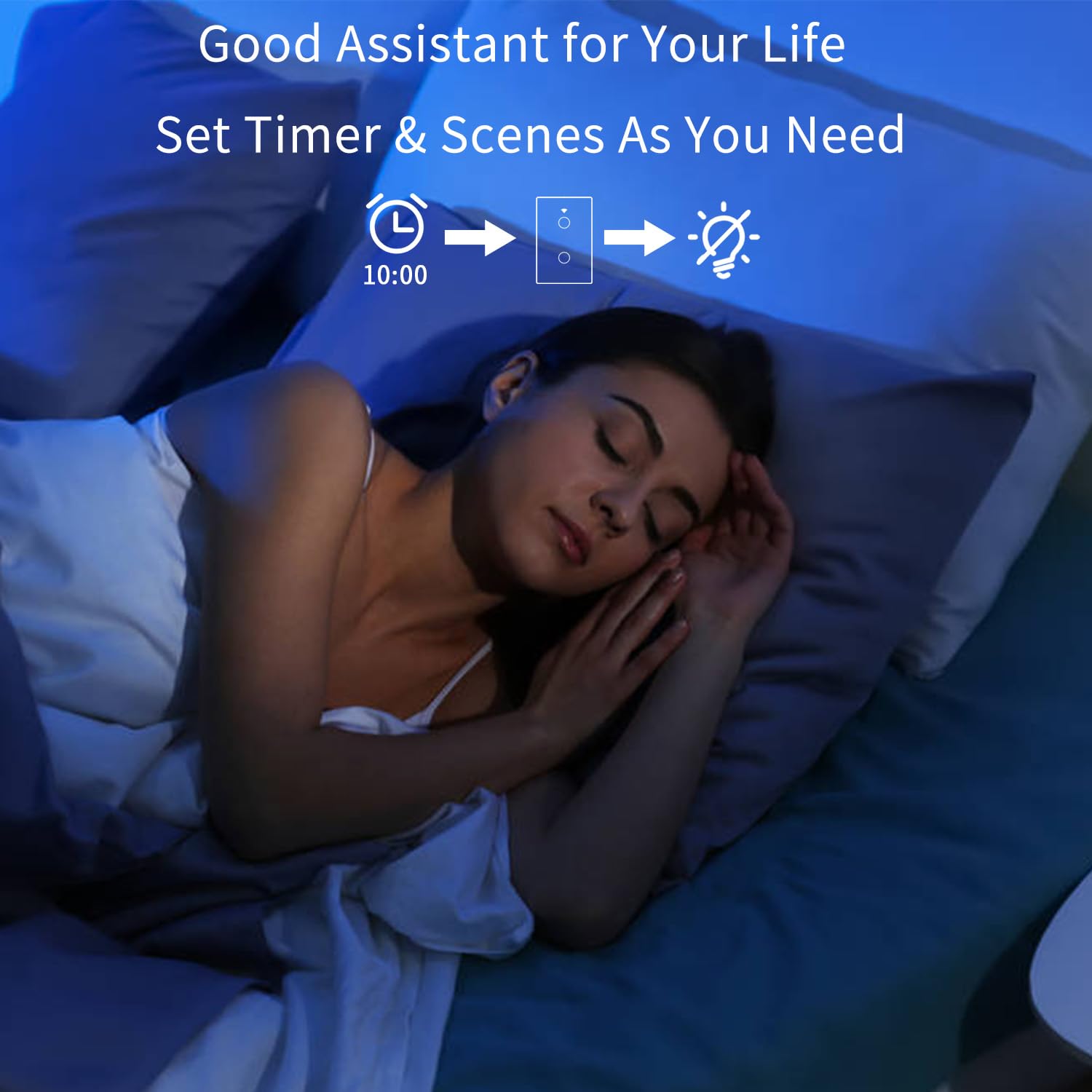
Figure 7: Set timers and scenes for automated lighting control.
6. Cumail suas
Tha an AMPAI Smart Switch requires minimal maintenance. To keep it clean and functioning properly:
- Glanadh: Gently wipe the glass panel with a soft, damp cloth. Avoid using abrasive cleaners or solvents, as they may damage the surface.
- Cearcall cumhachd: If the switch becomes unresponsive, try turning off the power at the circuit breaker for 10 seconds, then turning it back on.
- Ùrachaidhean firmware: Periodically check the Smart Life/Tuya app for any available firmware updates for your switch to ensure optimal performance and security.
7. A ’dèanamh trioblaid
| Trioblaid | Adhbhar a dh’fhaodadh a bhith ann | Fuasgladh |
|---|---|---|
| Switch not responding to touch. | No power; Loose wiring; Switch malfunction. | Check circuit breaker. Verify wiring connections. Power cycle the switch. If problem persists, contact support. |
| Chan urrainn dhuinn ceangal a dhèanamh ri Wi-Fi. | Incorrect Wi-Fi band (5GHz); Incorrect password; Router too far; Switch not in pairing mode. | Ensure your phone is on a 2.4GHz Wi-Fi network. Double-check Wi-Fi password. Move router closer or use a Wi-Fi extender. Re-enter pairing mode. |
| Lights flicker or do not turn off completely (single fire wiring). | Missing or incorrectly installed capacitor. | Ensure the capacitor is correctly installed across the Live and Load wires of the light fixture. |
| Chan eil smachd gutha ag obair. | Account not linked; Device not discovered; Incorrect commands. | Ensure Smart Life/Tuya skill/action is enabled and linked in Alexa/Google Home app. Ask to "Discover devices." Use correct device names and commands. |
| RF433 remote not controlling switch. | Remote not paired; Battery low in remote. | Re-pair the remote following section 4.3. Replace remote battery if necessary. |
| Switch does not dim lights. | This switch is not designed for dimming. | This is an on/off switch only. It is not compatible with dimmable bulbs or fixtures. |
8. Sònrachaidhean
| Feart | Mion-fhiosrachadh |
|---|---|
| Modail Àireamh | 4 Gang |
| Brand | AMPAI |
| Meudan toraidh | 2.85 x 1.36 x 4.74 òirleach |
| Vol Obrachaidhtage | 120 Volt |
| Rangachadh làithreach | 10 Amps |
| Modh obrachaidh | Uèirleas |
| Ceangalachd | Wi-Fi 2.4GHz, RF433MHz |
| Seòrsa cuairteachaidh | 3-way (Multi-control) |
| Seòrsa actuator | Pannal suathaidh |
| Co-fhreagarrachd | Tuya Smart Life App, Amazon Alexa, Google Home |
| Feart sònraichte | No Neutral Wire Required (with capacitor) |
9. Barantas agus Taic
For warranty information and technical support, please contact AMPAI customer service. You can often find support contact details on the product packaging, the manufacturer's official weblàrach, no tron àrd-ùrlar ceannach agad (me, Amazon).
Dèanadair: AMPAI
Airson tuilleadh cuideachaidh, tadhail air an AMPAI Store on Amazon.
Ask a question about this manual
Ask about setup, troubleshooting, compatibility, parts, safety, or missing instructions. Manuals+ will review the question and use this page’s manual context to help answer it.