
Promethean OPS-A1-4R32S-A
Promethean OPS-A Android Computing Module User Manual
Model: OPS-A1-4R32S-A
Ro-ràdh
This manual provides instructions for the setup, operation, and maintenance of the Promethean OPS-A Android computing module. The OPS-A is designed to integrate seamlessly with the ActivPanel LX, offering an optimized Android experience with pre-loaded applications and access to the Google Play Store.
Susbaint pacaid
Dèan cinnteach gu bheil a h-uile nì anns a’ phacaid:
- OPS-A Module (x1)
- Antennas (x2)
- Installation Guide (x1)
Stiùiridhean rèiteachaidh
The Promethean OPS-A module is designed for straightforward installation into a compatible ActivPanel LX.
- Prepare the ActivPanel LX: Ensure your ActivPanel LX is powered off and unplugged from the main power source before proceeding with the installation.
- Locate the OPS Slot: Identify the OPS (Open Pluggable Specification) slot on your ActivPanel LX. This is typically located on the side or rear of the panel.
- Insert the OPS-A Module: Carefully slide the OPS-A module into the OPS slot until it is fully seated. Ensure the module is oriented correctly.
- Dèan cinnteach gu bheil am Mòdal tèarainte: If your ActivPanel LX has a locking mechanism for the OPS slot, engage it to secure the module.
- Ceangail Antennas: Screw the two provided antennas onto the corresponding connectors on the rear of the OPS-A module. Position them vertically for optimal signal reception.
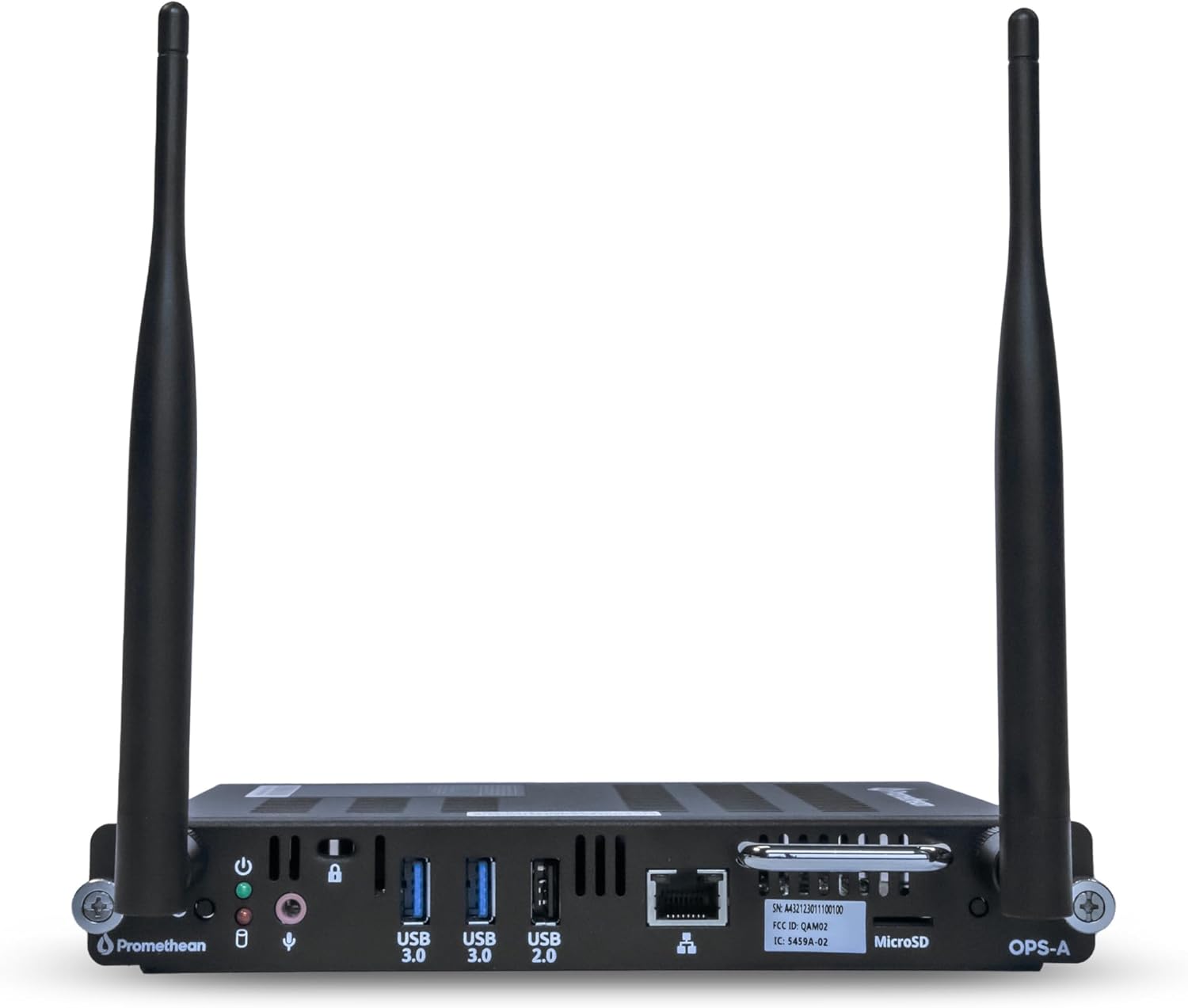
Figear 1: Cùl view of the Promethean OPS-A module, showing USB ports, network port, and antenna connectors.
- Cumhachd air: Plug the ActivPanel LX back into the power source and power it on. The ActivPanel LX should detect the OPS-A module automatically.
- An rèiteachadh tùsail: Follow the on-screen prompts on your ActivPanel LX to complete the initial setup of the Android operating system, including network connection and Google account login.
Stiùireadh Obrachaidh
The OPS-A module runs on Android 14, providing a familiar and intuitive interface.
Accessing the OPS-A
Once installed and powered on, you can switch to the OPS-A input source on your ActivPanel LX. This will display the Android desktop environment.
Pre-loaded Applications
The OPS-A comes with several applications pre-installed for immediate use:
- Google Workspace Apps: Docs, Slides, Chrome, Drive.
- Promethean Apps: Annotate, Screen Capture, Screen Share, Spinner, Timer, Whiteboard.
Google Play Store
The Google Play Store is preinstalled, allowing you to download and install additional applications to suit your specific requirements. Ensure you are connected to the internet and logged into a Google account to access the Play Store.

Figure 2: The OPS-A module integrated with an ActivPanel LX, demonstrating its use in a collaborative environment.
Cumail suas
To ensure optimal performance and longevity of your Promethean OPS-A module, consider the following maintenance guidelines:
- Ùrachaidhean bathar-bog: Regularly check for and install system updates for Android 14 and updates for installed applications via the Google Play Store. This ensures security and access to the latest features.
- Glanadh: Keep the module's exterior clean and free of dust. Use a soft, dry cloth. Avoid liquid cleaners directly on the device.
- Fionnarachadh: Ensure the ventilation slots on the module are not obstructed to prevent overheating.
Fuasgladh thrioblaidean
If you encounter issues with your OPS-A module, try the following steps:
- Gun chumhachd/Gun taisbeanadh:
- Ensure the ActivPanel LX is powered on and the OPS-A module is correctly seated in its slot.
- Verify that the ActivPanel LX input source is set to the OPS-A.
- Cùisean Ceangail Lìonra:
- Check that the antennas are securely attached.
- Verify Wi-Fi settings in the Android system.
- Ma chleachdas tu ceangal uèirleas, dèan cinnteach gu bheil an càball Ethernet ceangailte gu ceart.
- Application Malfunction:
- Try restarting the application.
- Clear the application's cache or data through Android settings.
- Ma mhaireas an duilgheadas, dì-stàlaich agus ath-stàlaich an aplacaid.
- Cùisean Coileanaidh Coitcheann:
- Restart the OPS-A module by powering off and on the ActivPanel LX.
- Ensure there is sufficient free storage space.
For further assistance, refer to the Promethean support weblàrach-lìn no cuir fios chun t-seirbheis teachdaiche aca.
Sònrachaidhean
| Feart | Mion-fhiosrachadh |
|---|---|
| Ainm Modail | OPS-A1-4R32S-A |
| Siostam-obrachaidh | Android 14 |
| Pròiseasar | 5x86 (IBM) |
| Meud Cuimhne RAM Stàlaichte | 8 GB |
| Hard Drive (via USB) | 80 USB Drive (Interface: USB, Rotational Speed: 7200 RPM) |
| Grafaigeachd coprocessor | Grafaigean aonaichte |
| Meud RAM Cairt Grafaigean | 1 GB |
| Puirt USB 2.0 | 2 |
| Puirt USB 3.0 | 1 |
| Teicneòlas ceangail | HDMI |
| Clas Còmhlan Tricead | Còmhlan Singilte |
| Cuideam nì | 2.25 not |
| Meud pacaid | 10.39 x 8.46 x 2.13 òirleach |
Barantas agus Taic
For information regarding product warranty, please refer to the warranty documentation included with your purchase or visit the official Promethean weblàrach.
For technical support, product registration, or to access additional resources, please visit the Promethean support portal: www.prometheanworld.com/support.
Ask a question about this manual
Ask about setup, troubleshooting, compatibility, parts, safety, or missing instructions. Manuals+ will review the question and use this page’s manual context to help answer it.