
Ro-ràdh
This manual provides detailed instructions for the setup, operation, and maintenance of your SCS Enterprises WF-113 WiFi Camera Hidden in Power Outlet Extender. Please read this manual thoroughly before using the device to ensure proper functionality and safety.
Susbaint pacaid
Dèan cinnteach gu bheil na nithean gu lèir a tha air an liostadh gu h-ìosal air an toirt a-steach don phacaid agad:
- SCS Enterprises WF-113 WiFi Camera Outlet Extender
- Power adapter (for 12VDC models)
- Leabhar-làimhe cleachdaiche (an sgrìobhainn seo)
Feartan toraidh
The SCS Enterprises WF-113 offers the following key features:
- Sensor àrd-rèiteachaidh: 1/2.8”, 2.0MP Ultra low light sensor for enhanced visibility in dim conditions.
- Mothachadh fo-dhearg: 940nM IR sensitive with superior glass optics.
- Gnìomh leantainneach: Direct power for 24/7 operation (not battery powered).
- Co-fhreagarrachd Uile-choitcheann: Universal video interface compliant, compatible with NVR and third-party software like iSpyConnect, AnyCam, Blue Iris.
- Stòradh a-staigh: 32GB internal memory, providing over 200 hours of motion detection recording.
- Taic inneal-làimhe: Works with iPhone, iOS, and Android devices.
- Ceangal tèarainte: Signal secured by User ID, password, and WPA Encryption.
- Gun chìsean ballrachd: No monthly fees or subscription/registration requirements.
- Rabhaidhean sa bhad: Push notification functionality.
Stiùireadh rèiteachaidh
1. Inneal thairisview
Familiarize yourself with the physical components of your WF-113 device.
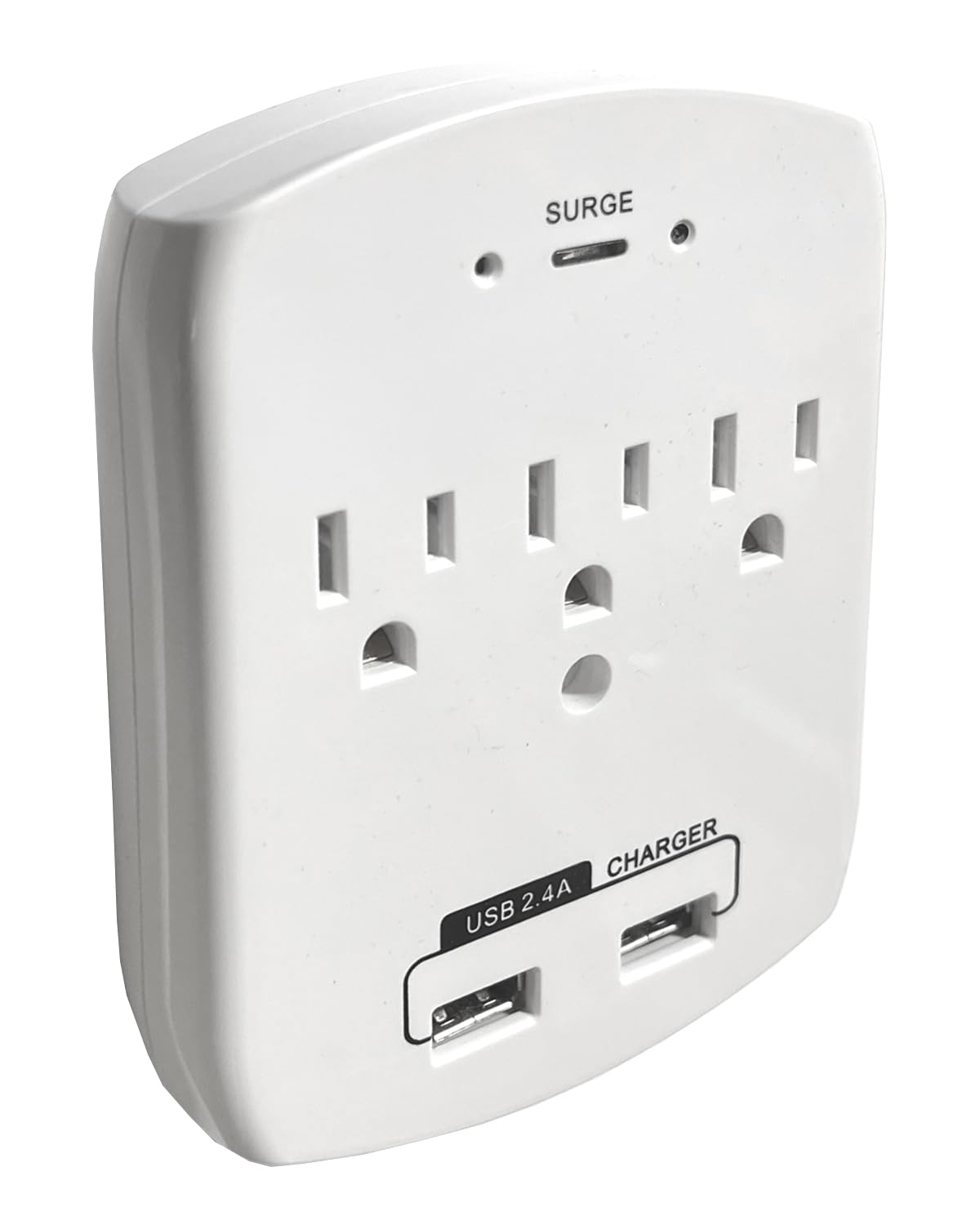
Figear 1: Aghaidh view of the WF-113, displaying the AC outlets and USB charging ports.
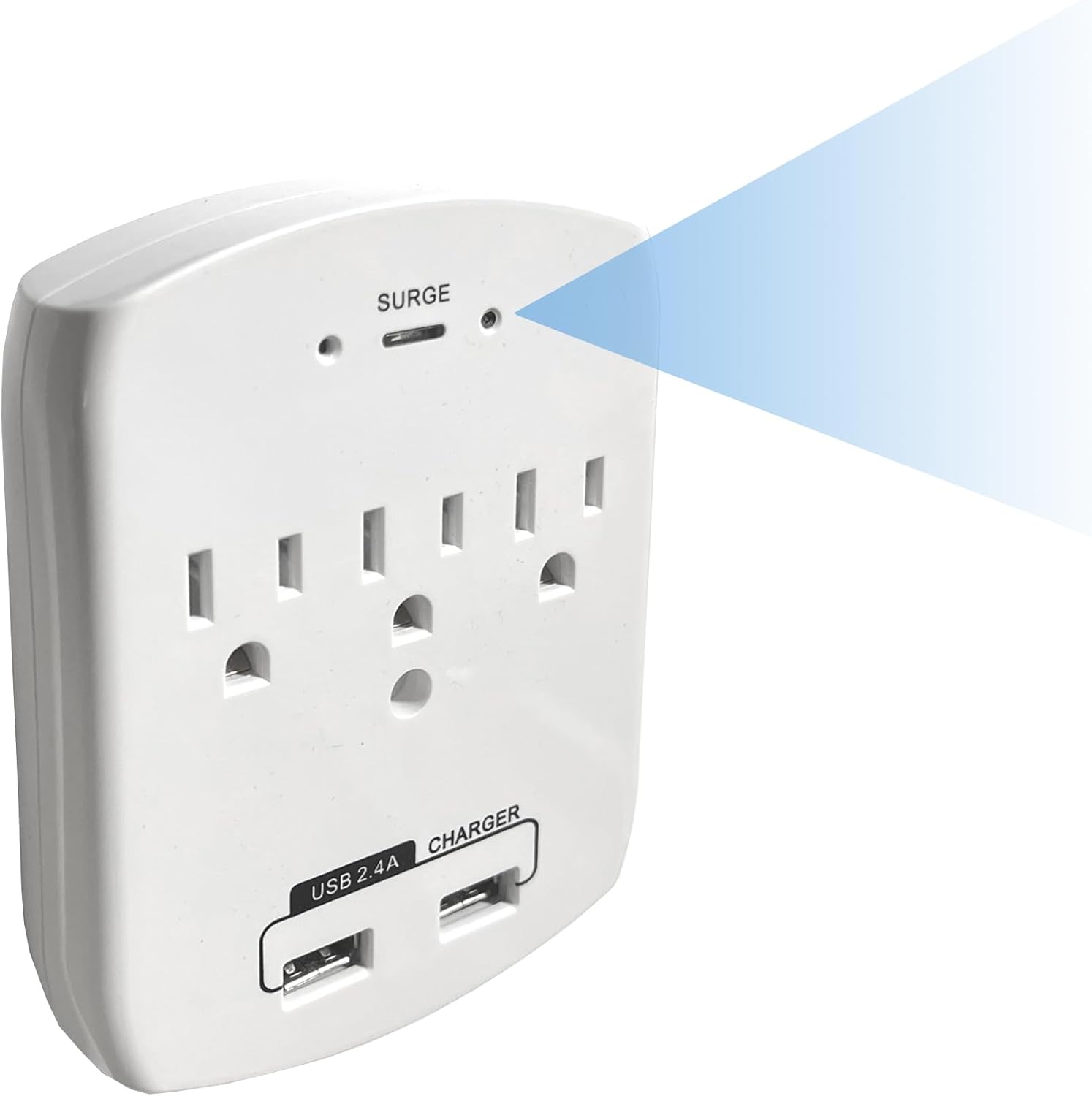
Figear 2: Ceàrnach view indicating the discreetly placed camera lens and confirming the full functionality of the power outlets.
2. Tòiseachadh Cumhachd Tùsail
- Plug the WF-113 into a standard wall outlet. Ensure it is securely seated.
- The device will power on automatically. Allow a few moments for it to initialize.
3. Stàladh App
- Download the official SCS Enterprises application from your mobile device's app store (available for iOS and Android).
- Install the application and create an account if prompted.
4. A 'ceangal ri Wi-Fi
- Open the SCS Enterprises app on your smartphone or tablet.
- Follow the in-app instructions to add a new device. This typically involves scanning a QR code on the device or manually entering its ID.
- Select your home or office Wi-Fi network and enter the password when prompted. Ensure your device is connected to a 2.4GHz Wi-Fi network, as 5GHz networks may not be supported.
- Once connected, the device status indicator in the app should confirm a successful connection.
Stiùireadh Obrachaidh
1. Iomallach Viewing
Access live video feed from your WF-113 camera from anywhere using the mobile application.
- Open the SCS Enterprises app.
- Select your WF-113 device from the list of connected cameras.
- The live 1080p video stream will appear on your screen.

Figear 3: Iomallach viewing of the 1080p live feed via the mobile application.
2. Clàradh agus Stòradh
The WF-113 features 32GB of internal memory for recording.
- Recordings are primarily triggered by motion detection.
- Gu view foo air a chlàradhtage, navigate to the 'Playback' or 'Recordings' section within the app.
- You can import recorded videos directly to your phone's storage.

Figure 4: Mobile app interface showing a list of recorded events for playback.
3. Motion Detection and Notifications
Configure motion detection settings and receive instant alerts.
- In the app settings, locate 'Motion Detection Settings'.
- Adjust sensitivity levels (Low, Medium, High, Max) to suit your environment.
- Define specific 'Motion Zones' to monitor particular areas within the camera's field of view.
- Enable 'Push Notifications' to receive alerts on your mobile device when motion is detected.

Figure 5: Motion detection settings and push notification configuration within the app.
Cumail suas
To ensure optimal performance and longevity of your WF-113 camera:
- Glanadh: Gently wipe the device and camera lens with a soft, dry cloth. Avoid using liquid cleaners or abrasive materials.
- Suidheachadh: Ensure the device is plugged into a stable wall outlet and not subjected to excessive heat, moisture, or direct sunlight.
- Ùrachaidhean firmware: Periodically check the mobile application for available firmware updates to ensure your device has the latest features and security enhancements.
Fuasgladh thrioblaidean
If you encounter issues with your WF-113, refer to the following common problems and solutions:
| Trioblaid | Adhbhar / Fuasgladh a dh’fhaodadh a bhith ann |
|---|---|
| An inneal nach eil a 'toirt cumhachd air | Ensure the device is securely plugged into a functional wall outlet. Check if the outlet has power. |
| Chan urrainn dhuinn ceangal a dhèanamh ri Wi-Fi | Verify your Wi-Fi network is 2.4GHz. Ensure the Wi-Fi password is correct. Move the device closer to the Wi-Fi router. Restart the device and your router. |
| Gun bhiadhadh bhidio beò | Check Wi-Fi connection status in the app. Ensure your mobile device has a stable internet connection. Restart the app. |
| Chan eil lorg gluasad ag obair | Verify motion detection is enabled in the app settings. Adjust sensitivity levels. Ensure motion zones are correctly configured. |
| Deagh chàileachd bhidio | Ensure adequate lighting in the monitored area. Clean the camera lens. Check your internet connection speed. |
Sònrachaidhean
| Feart | Mion-fhiosrachadh |
|---|---|
| Ainm Modail | WF-113 |
| Brand | SCS Enterprises |
| Teicneòlas ceangail | Wireless (Wi-Fi) |
| Fuasgladh glacadh bhidio | 1080p |
| Viewann an Ceàrn | 85 ceum |
| Feart sònraichte | 940nM IR mothachail |
| Cleachdadh a-staigh / a-muigh | A-staigh |
| Innealan co-fhreagarrach | Deasg, Laptop, Fòn-làimhe, Clàr |
| Seòrsa Rianadair | Android, iPhone |
| Seòrsa Mount | Srath balla |
| Stòr cumhachd | Either 12VDC or 110VAC (Never apply 110VAC directly to a 12VDC Model) |
| Bataraidhean a dhìth | Chan eil |
| Cruth glacadh bhidio | MJPEG |
| Meudan nì | 1 x 3.75 x 4.75 òirleach |
| Cuideam nì | 0.37 Punnd |
| Meud cuimhne Flash air a stàladh | 32 GB |
| Cuimhne Flash le taic Meud as àirde | 32 GB |
Fiosrachadh Barantais
For specific warranty details regarding your SCS Enterprises WF-113 device, please refer to the warranty card included with your product or contact SCS Enterprises customer support directly. General warranty terms typically cover manufacturing defects for a specified period from the date of purchase.
Taic Luchd-cleachdaidh
For any questions, technical assistance, or support, please contact SCS Enterprises customer service. Our 24/7 USA Customer Service team is available by calling or texting the number provided in your product packaging.
Please have your product model (WF-113) and purchase information ready when contacting support.