
Ro-ràdh
The MEETION C4000 Colorful Wireless Keyboard and Mouse combo is designed for versatile use across multiple devices and operating systems. Featuring dual connectivity modes (Bluetooth 5.2 and 2.4GHz wireless), ergonomic design, and long-lasting rechargeable batteries, this set aims to enhance your computing experience. The keyboard includes a convenient detachable wrist rest with integrated storage, and the mouse offers adjustable DPI settings for precise control.
Taisbeanadh bhidio oifigeil toraidhasing the MEETION C4000 Colorful Wireless Keyboard and Mouse Combo features and design.
Susbaint pacaid
- Meur-chlàr gun uèir x 1
- Luchag gun uèir x 1
- Leabhar-làimhe an Neach-cleachdaidh x 1
- USB-Type-C Charging Cable x 1
- Glacadair USB x 1
Suidhich
2.4GHz Wireless Mode Connection
- Cuir a-steach an cuidhteas USB a-steach do phort USB air do choimpiutair.
- Move the switch on the keyboard up to the "ON" position.
- Click the 2.4G button on the keyboard to switch to 2.4G mode. The corresponding 2.4G indicator light will illuminate.
- Toggle the switch on the mouse to the "ON" position.
- Click the Mode Switching Button on the mouse to switch to 2.4G mode. The corresponding 2.4G indicator will light up green, indicating a successful connection.
Visual guide for connecting the keyboard and mouse via 2.4GHz wireless mode.
Ceangal modh Bluetooth
- Move the switch on the keyboard up to the "ON" position.
- Click the Bluetooth 1 or Bluetooth 2 button to switch to the desired Bluetooth mode. The corresponding Bluetooth 1/Bluetooth 2 indicator will light up blue and start blinking.
- On your computer, tablet, or smartphone, find the device named "Meetion_KB_BT1" or "Meetion_KB_BT2" in your Bluetooth settings and connect.
- Toggle the switch on the mouse to the "ON" position.
- Click the Mode Switching Button on the mouse to switch to Bluetooth 1 or Bluetooth 2 mode. The corresponding Bluetooth 1/Bluetooth 2 indicator will light up blue and start blinking.
- On your computer, tablet, or smartphone, find the device named "Meetion_Mouse_BT1" or "Meetion_Mouse_BT2" in your Bluetooth settings and connect.
Visual guide for connecting the keyboard and mouse via Bluetooth mode.
A 'cur cosgais
Both the keyboard and mouse are rechargeable via a USB-C cable. The keyboard has a built-in 500mAh battery, and the mouse has a 700mAh battery. After 20 minutes of inactivity, both devices will automatically enter hibernation mode to conserve battery life. Click any button to wake them up.

The keyboard and mouse are Type-C rechargeable with long battery life and an auto-sleep function.
Stiùireadh Obrachaidh
Gnìomhan meur-chlàr
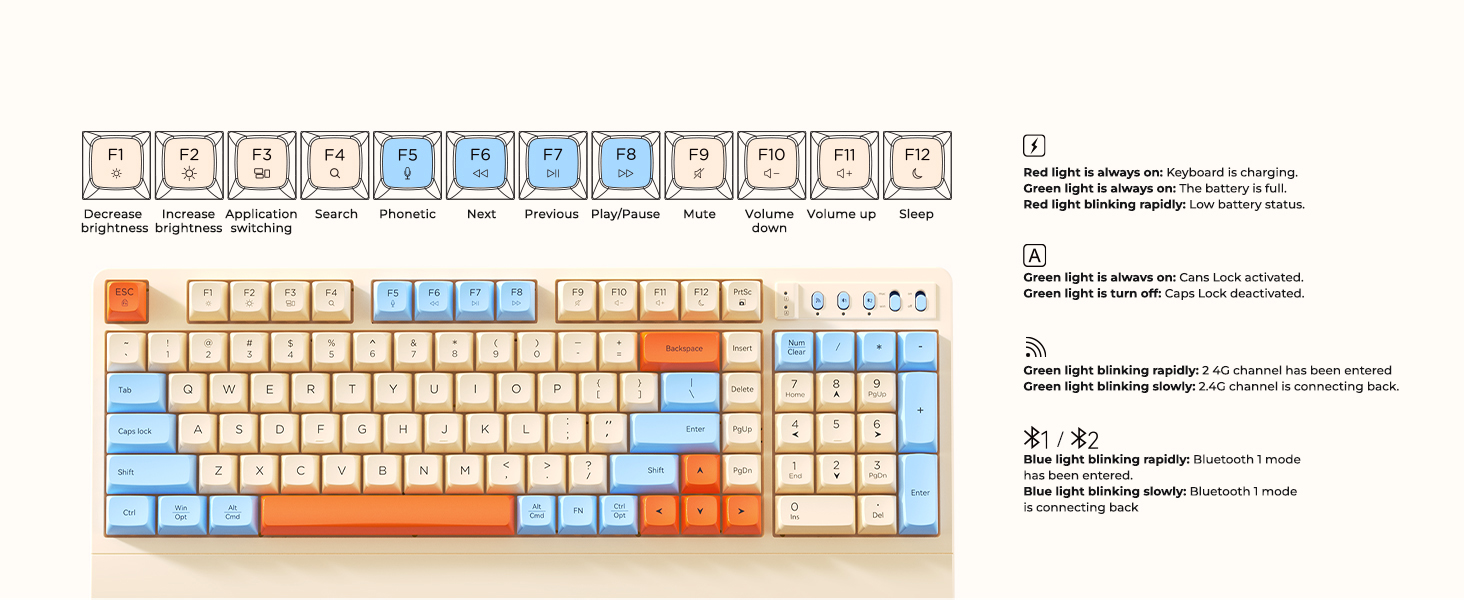
The keyboard features dedicated function keys (F1-F12) for various shortcuts, including brightness control, application switching, media playback, volume adjustment, and sleep mode. A toggle switch allows seamless switching between Mac and Windows operating system layouts.
Thairisview of keyboard function keys and indicator lights for charging, 2.4G, and Bluetooth status.
Gnìomhan Luchag
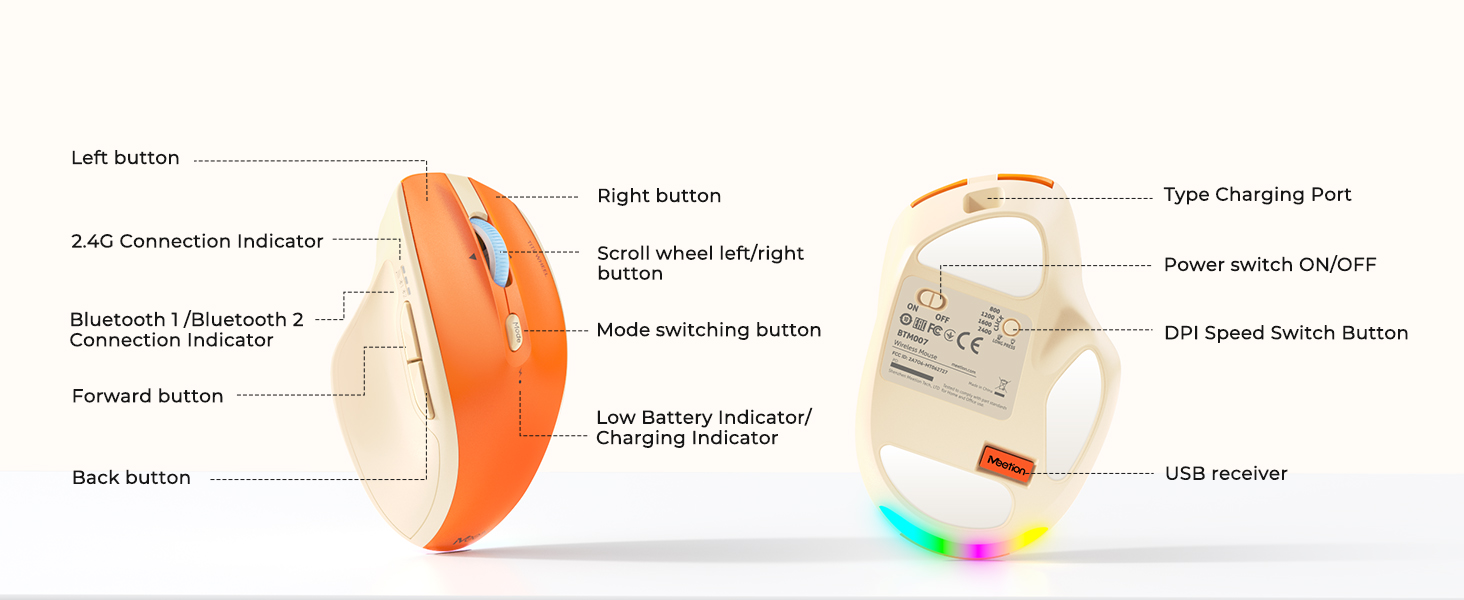
The mouse is equipped with a mode switching button to toggle between 2.4GHz and Bluetooth connections. It also features a DPI Speed Switch Button, allowing you to adjust sensitivity with 4 levels (800, 1200, 1600, 2400 DPI). The tilt wheel enables horizontal scrolling and 2-way navigation. Side buttons are available for forward and back navigation.
Gu mionaideach view of the mouse buttons, scroll wheel, DPI switch, and connectivity indicators.
Atharrachadh Ioma-Inneal
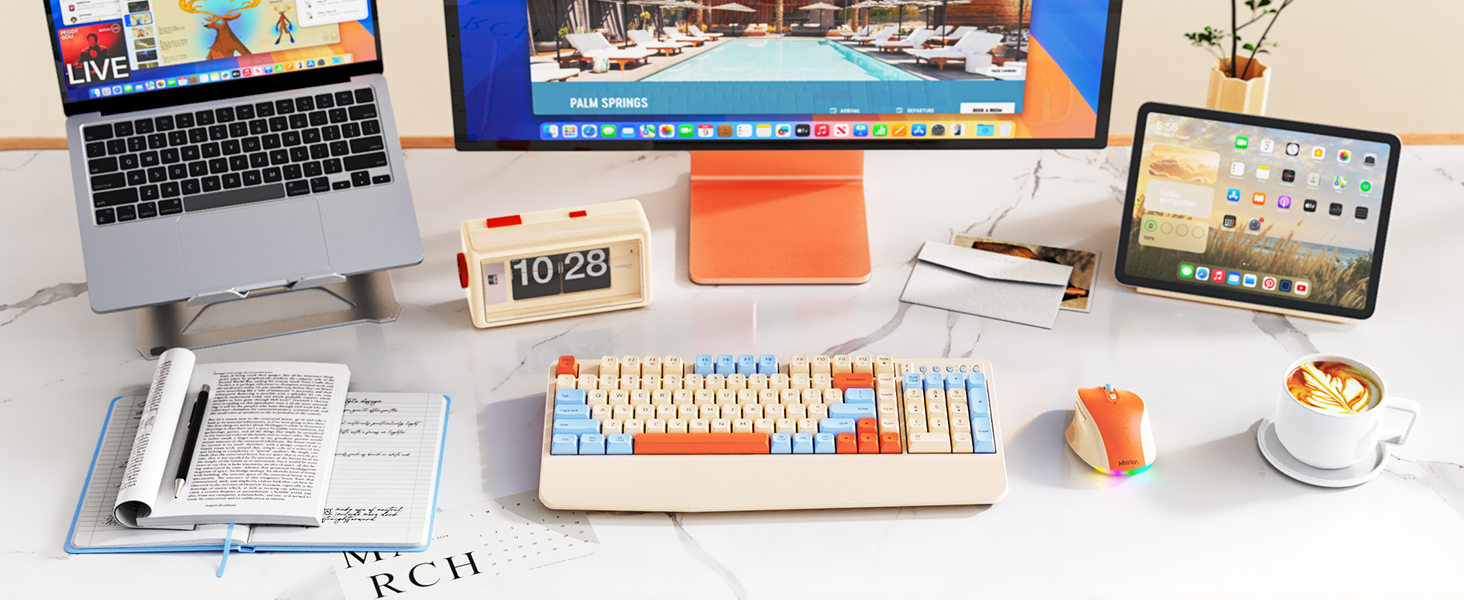
The C4000 combo supports connection to up to three devices simultaneously. Use the dedicated mode keys on both the keyboard and mouse to quickly switch between connected devices (2.4GHz, Bluetooth 1, Bluetooth 2).

The keyboard and mouse can connect to multiple devices and systems, supporting a multi-device workflow.
Cumail suas
Cleaning and Keycap Removal
The keyboard features removable keycaps, making it easy to clean. Gently pull the keycaps upwards to detach them. Ensure the keyboard is powered off before cleaning or removing keycaps.

Removable and colorful keycaps allow for easy cleaning and customization.
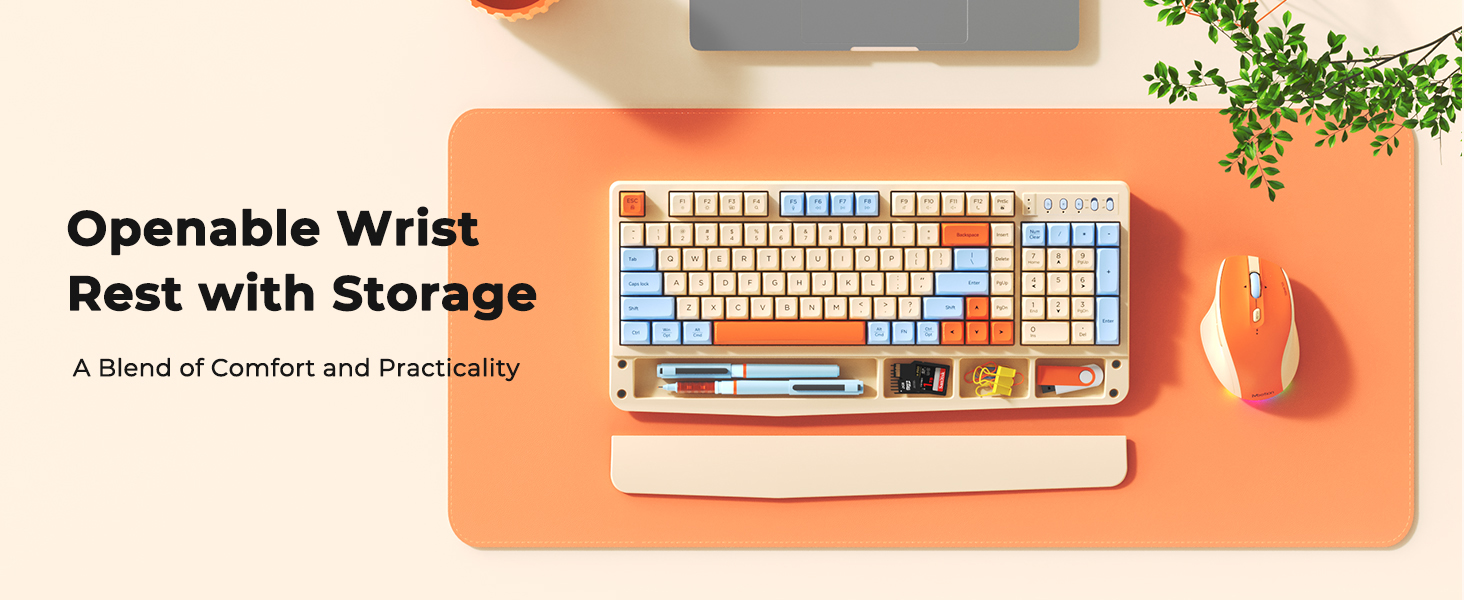
Wrist Rest with Storage
The integrated palm rest is detachable and provides a convenient storage space for small office items like pens, USB drives, or memory cards, helping to keep your desktop tidy.

The wrist rest combines comfort with utility, featuring openable storage for small accessories.
Fuasgladh thrioblaidean
Cùisean Ceangail
- No Connection (2.4GHz): Ensure the USB receiver is securely plugged into your device and the keyboard/mouse is switched to 2.4G mode. Check battery levels.
- Gun cheangal (Bluetooth): Ensure Bluetooth is enabled on your host device and the keyboard/mouse is in the correct Bluetooth pairing mode (blinking blue light). Re-pair the devices if necessary.
- Ceangal eadar-amail: Move the keyboard/mouse closer to the receiver or host device. Avoid interference from other wireless devices.
Bataraidh agus cumhachd
- Inneal nach eil a’ freagairt: The keyboard and mouse enter hibernation after 20 minutes of inactivity. Click any button to wake them up. If still unresponsive, check battery levels and charge if needed.
- Comharra cosgais: A red light indicates charging. A green light indicates a full battery. A blinking red light indicates low battery status.
Sònrachaidhean
| Feart | Mion-fhiosrachadh |
|---|---|
| Modail Àireamh | C4000 |
| Teicneòlas ceangail | Bluetooth 5.2, gun uèir 2.4GHz |
| Bataraidh meur-chlàr | 500mAh (Togailte a-steach) |
| Bataraidh na luchaige | 700mAh (Togailte a-steach) |
| Roghainnean DPI na luchaige | 800, 1200, 1600 |
| Feartan sònraichte | Ergonomic, Rechargeable, Detachable Wrist Rest with Storage |
| Innealan co-fhreagarrach | Laptop, Personal Computer, Smartphone, Tablet (Windows/Mac) |
| Cuideam nì | 2.77 not |
| Meud pacaid | 16.54 x 10.12 x 2.05 òirleach |
Barantas agus Taic
For warranty information, technical support, or any product-related inquiries, please refer to the contact details provided in the original product packaging or visit the official MEETION weblàrach. Cùm do chuidhteas ceannach airson tagraidhean barantais.