
1. Ro-ràdh
This user manual provides comprehensive instructions for the setup, operation, maintenance, and troubleshooting of your Thomson 27-inch QHD Gaming Monitor (Model: M27QG5Y14). This monitor is designed to deliver a superior visual experience with its QHD resolution, 180Hz refresh rate, and IPS panel technology, making it ideal for gaming and multimedia applications.

Dealbh 1.1: Aghaidh view of the Thomson 27-inch QHD Gaming Monitor, showcasina dhealbhadh caol agus an raon taisbeanaidh aige.
2. Fiosrachadh Sàbhailteachd
Please read all safety instructions carefully before using the monitor. Keep this manual for future reference.
- Stòr cumhachd: Use only the power adapter supplied with the monitor. Ensure the power outlet is properly grounded.
- Fionnarachadh: Na cuir bacadh air fosglaidhean fionnarachaidh. Fàg àite gu leòr timcheall air an sgrìn airson sruth-adhair ceart gus casg a chur air cus teasachadh.
- Liath agus Taiseachd: Keep the monitor away from water, rain, or excessive moisture. Do not place objects filled with liquids on the monitor.
- Glanadh: Disconnect the power cable before cleaning. Use a soft, dry cloth. Do not use liquid cleaners or aerosol cleaners.
- Suidheachadh: Cuir am monitor air uachdar seasmhach, còmhnard. Seachain a chur ann an solas dìreach na grèine no faisg air stòran teas.
- Làimhseachadh: Làimhsich an sgrìn gu faiceallach. Seachain a leigeil sìos no a bhith fo bhuaidhean làidir.
- Seirbheis: Na feuch ri seirbheis a thoirt don sgrìn thu fhèin. Thoir aire do luchd-obrach seirbheis teisteanasach airson a h-uile seirbheis.
3. Pasgan-susbaint
Dearbhaich gu bheil a h-uile rud anns a’ phacaid. Ma tha rud sam bith a dhìth no millte, cuir fios chun neach-reic agad.
- Thomson 27-inch QHD Gaming Monitor
- Seasamh Monitor (Bonn agus Amhaich)
- Inneal-atharrachaidh Cumhachd agus Càball Cumhachd
- Càball HDMI
- DisplayPort (DP) Cable (may vary by region)
- USB-B to USB-A Cable (for USB hub functionality)
- Leabhar-làimhe cleachdaiche (an sgrìobhainn seo)
- Sgriothan airson co-chruinneachadh seasamh
4. Suidhich
4.1. A’ cur an Seasamh Sgrùdaidh ri chèile
- Thoir am monitor a-mach às a phacaid gu faiceallach agus cuir e le aghaidh sìos air uachdar bog, glan gus casg a chur air sgrìoban.
- Attach the stand neck to the monitor panel using the provided screws.
- Attach the stand base to the stand neck and secure it with the designated screw.
- Once assembled, carefully lift the monitor and place it on a stable desk or table.

Image 4.1: Monitor dimensions and stand assembly overview. The monitor measures approximately 61 cm wide, 54 cm high (with stand), and 24 cm deep (with stand).
4.2. A 'ceangal an Monitor
Connect the necessary cables to the monitor's input ports. Refer to the image below for port locations.
- Ceangal cumhachd: Connect the power adapter to the "DC IN" port on the monitor, then plug the power cable into a power outlet.
- Input Video:
- Connect an HDMI cable from your computer's graphics card to an "HDMI 2.1" port on the monitor.
- Alternatively, connect a DisplayPort (DP) cable from your computer's graphics card to a "DP 1.2" port on the monitor.
- Hub USB: To enable the monitor's USB 3.0 ports, connect a USB-B cable from the "USB 3.0 B" port on the monitor to a USB-A port on your computer.
- Toradh claisneachd: Connect headphones or external speakers to the "Earphone Plug" (3.5mm audio jack) for audio output.

Image 4.2: Rear panel of the monitor displaying the various input and output ports for connectivity.
4.3. Atharrachaidhean Eirgonoma
Leigidh an seasamh monitor leat diofar atharrachaidhean a dhèanamh gus an fheum as fheàrr a dhèanamh de na rudan agad viewann an comhfhurtachd:
- Teilt: Adjust the screen's vertical angle (up or down).
- Sluasaid: Rotate the screen horizontally (left or right).
- Pivot: Cuairtich an sgrion 90 ceum airson modh portraid viewing.
- Atharrachadh àirde: Tog no ìsleaich am monitor chun ìre sùla as fheàrr leat.
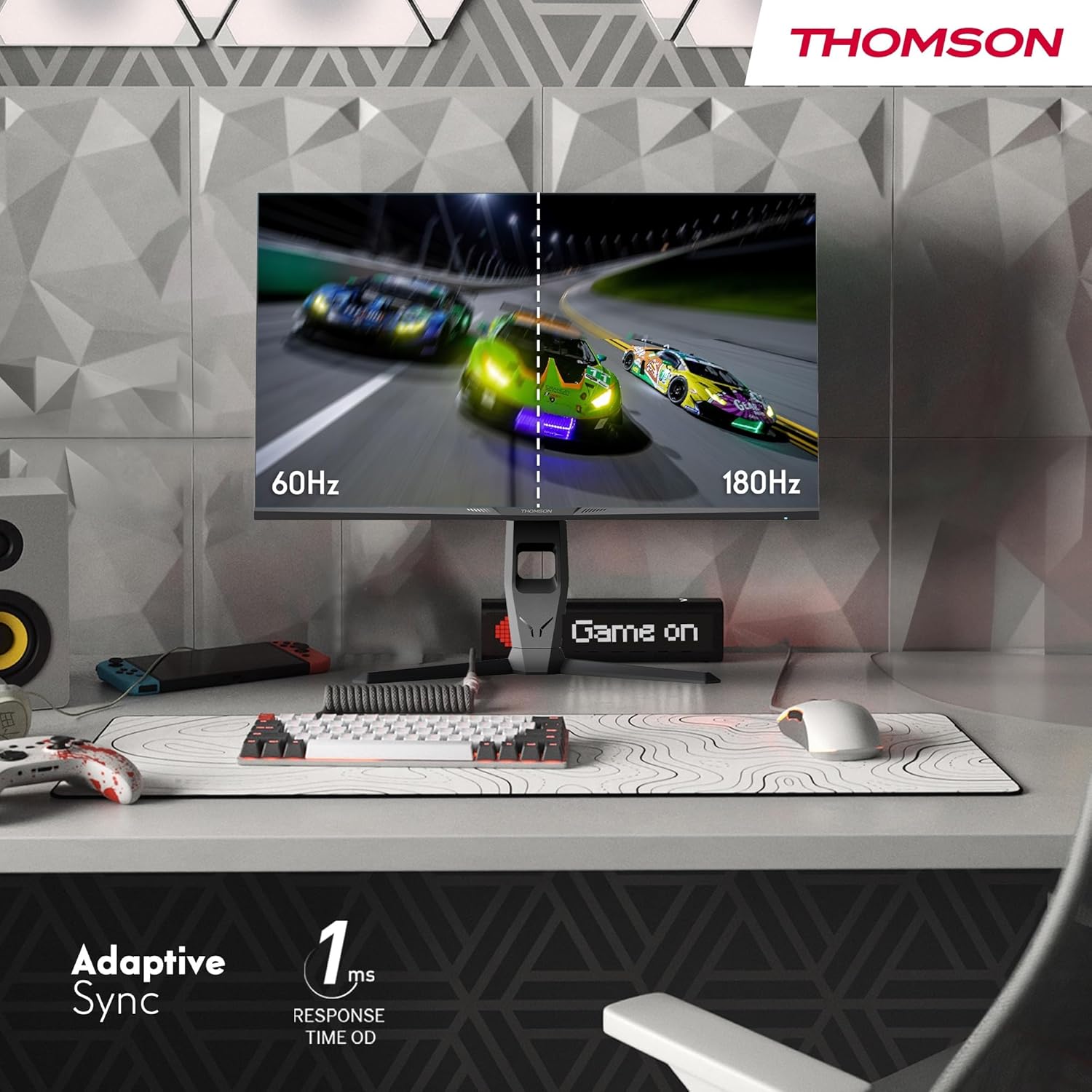
Image 4.3: Demonstrations of the monitor's ergonomic capabilities, including tilt, swivel, and pivot for optimal viewing ceàrnan.
4.4. Stèidheachadh VESA
The monitor is compatible with VESA 100x100mm mounting standards. To mount the monitor on a wall or an alternative stand, remove the original stand and attach the VESA-compatible mount (sold separately) using appropriate screws.
5. Stiùireadh Obrachaidh
5.1. Cumhachd air / dheth
Brùth am putan cumhachd, a tha mar as trice suidhichte air cùl no bonn a’ mhonatair, gus a thionndadh air no dheth. Lasaidh an solas comharra cumhachd nuair a bhios am montair air.
5.2. Clàr-taice Taisbeanaidh On-Screen (OSD).
The OSD menu allows you to adjust various monitor settings. Use the joystick or buttons (location may vary) on the monitor to navigate the menu.
- Roghainnean dealbhan: Atharraich soilleireachd, iomsgaradh, geur-leanmhainn, teòthachd dath, agus gamma.
- Roghainnean dath: Fine-tune RGB levels, saturation, and hue.
- Taghadh a-steach: Gluais le làimh eadar cuir-a-steach HDMI agus DisplayPort.
- Fuaim: Adjust volume for built-in speakers or headphone output.
- Roghainnean OSD: Atharraich cànan OSD, follaiseachd, agus crìoch-ama.
- Roghainnean Geamannan: Access features like Adaptive Sync, response time (OD), and crosshair overlays.
5.3. Feartan Gèam
- Ìre ùrachaidh 180Hz: Provides smoother motion and reduced input lag, especially beneficial for fast-paced games. Ensure your graphics card and cable support this refresh rate.
- Ùine Freagairt 1ms (OD): Minimizes motion blur and ghosting for clear, crisp images during rapid movements.
- Sync Adaptive: Synchronizes the monitor's refresh rate with your graphics card's frame rate, eliminating screen tearing and stuttering. Enable this feature in the OSD menu and your graphics card control panel.

Image 5.1: Visual comparison illustrating the difference between 60Hz and 180Hz refresh rates, highlighting the smoother motion provided by the higher refresh rate, alongside the Adaptive Sync feature.
5.4. Feartan Cùram Sùla
- Teicneòlas an-aghaidh flicker: Reduces screen flickering, which can cause eye strain during prolonged use.
- Modh Solais Gorm Ìosal: Filters out harmful blue light emissions to protect your eyes and reduce fatigue. This mode can be activated through the OSD menu.
- Sgrion an-aghaidh deàrrsadh: The matte screen surface minimizes reflections from ambient light, providing clear visuals without distraction.

Image 5.2: Depiction of the monitor's eye comfort features, including an anti-glare screen and technologies like Anti-Flicker and Low Blue Light for reduced eye strain.
5.5. RGB Ambient Lighting
The monitor features integrated RGB ambient lighting on the rear. This lighting can be customized via the OSD menu to enhance your gaming environment or match your setup's aesthetics.
6. Cumail suas
6.1. Glanadh an Monitor
- Sgrion: Sguab an sgrion gu socair le clò bog, gun lint. Airson comharran stòlda, suath gu socairampen the cloth with water or a specialized screen cleaner (ensure it's safe for LCD/IPS panels) and wipe gently. Never spray liquid directly onto the screen.
- Casing: Cleachd clò bog, tioram gus an monitor a sguabadh às.asing. Seachain innealan-glanaidh no fuasglaidhean sgrìobach a chleachdadh.
- Dì-cheangail an càball cumhachd an-còmhnaidh mus glan thu e.
6.2. Stòradh
Ma bhios tu a’ stòradh an sgrìn airson ùine mhòr, dì-cheangail na càbaill uile, pacaich e san phacaid thùsail aige (ma tha e ri fhaighinn), agus stòraich e ann an àite fionnar, tioram air falbh bho sholas dìreach na grèine agus teòthachd anabarrach.
7. A ’dèanamh trioblaid
Tha an earrann seo a’ dèiligeadh ri cùisean cumanta a dh’ fhaodadh tu a thighinn tarsainn orra. Ma mhaireas an duilgheadas, cuir fios gu taic luchd-cleachdaidh.
| Trioblaid | Adhbhar a dh’fhaodadh a bhith ann | Fuasgladh |
|---|---|---|
| Gun chumhachd | Càball cumhachd gun cheangal; Socaid cumhachd lochtach; Monitor dheth. | Ensure power cable is securely connected. Test the power outlet. Press the monitor's power button. |
| Gun chomharradh / Sgrion bàn | Video cable not connected; Incorrect input selected; Computer not outputting signal. | Check HDMI/DP cable connections. Select the correct input source via OSD. Ensure computer is on and outputting video. |
| Distorted image / Flickering | Incorrect resolution/refresh rate; Faulty cable; Graphics driver issue. | Set display resolution to 2560x1440 and refresh rate to 180Hz. Try a different video cable. Update graphics drivers. |
| No audio from speakers/headphones | Volume too low; Audio cable not connected; Incorrect audio output selected on PC. | Increase monitor volume via OSD. Ensure headphones/speakers are connected. Select monitor as audio output device in PC settings. |
8. Sònrachaidhean
Detailed technical specifications for the Thomson M27QG5Y14 monitor.
| Feart | Sònrachadh |
|---|---|
| Brand | MacThòmais |
| Modail | M27QG5Y14 |
| Meud sgrion | 27 òirlich |
| Seòrsa pannal | IPS |
| Fuasgladh | 2560 x 1440 (QHD) |
| Ìre Ath-nuadhachaidh | 180 Hz |
| Àm Freagairt | 1 Millisecond (OD) / 5 Milliseconds (GtG) |
| Gile | 350 Nithean |
| Co-mheas coimeas | 1200:1 |
| Viewann an Ceàrn | 178 Degrees (Horizontal/Vertical) |
| Gamut dath | 120% sRGB |
| Taic HDR | HDR10 (10-bit) |
| Adaptive Sync | Tha |
| Ceangalachd | 2x HDMI 2.1, 1x DisplayPort 1.2, 1x USB 3.0 Type-B (upstream), 3x USB 3.0 Type-A (downstream), 1x Earphone Plug (3.5mm) |
| Luchd-labhairt togte | Yes (2x2W) |
| Co-fhreagarrachd Mount VESA | 100x100mm |
| Meudan an toraidh (leis an stand) | 61 x 54 x 24 cm (W x H x D) |
| Cuideam (le seasamh) | 7.3 kg |
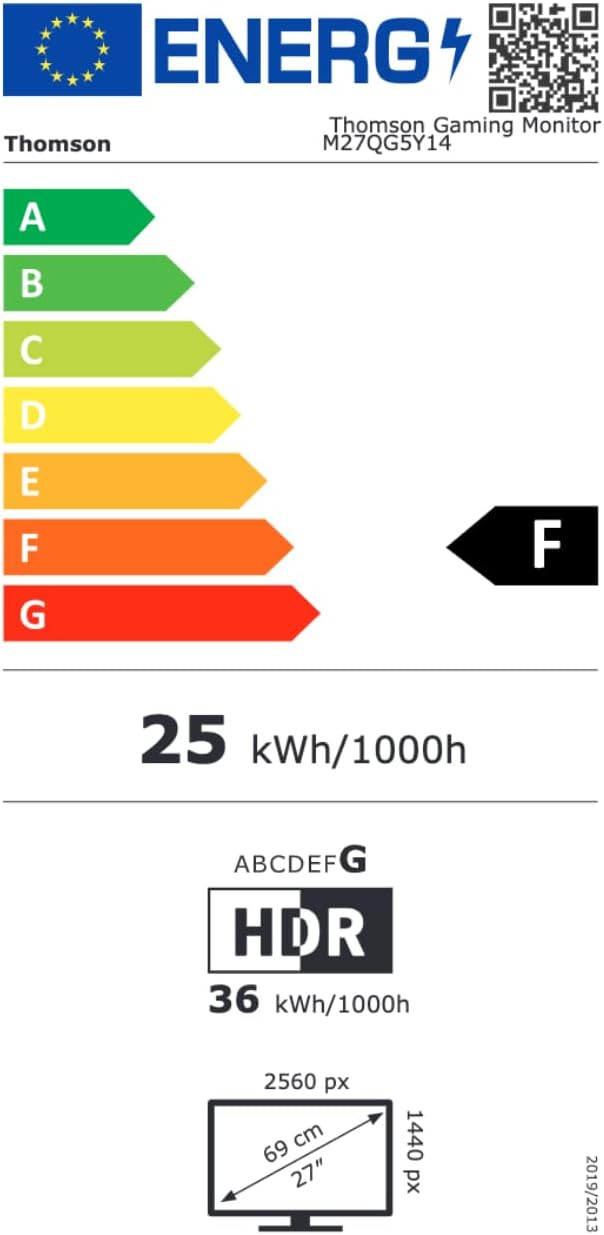
Image 8.1: EU Energy Label for the Thomson M27QG5Y14 monitor. For more details, visit the Stòr-dàta EPREL.
9. Barantas agus Taic
Thomson products are designed for reliability and performance. This monitor typically comes with a Barantas 3-bliadhna bho cheann-latha a’ cheannaich, a’ còmhdach lochdan saothrachaidh. Cùm dearbhadh do cheannaich airson tagraidhean barantais.
For technical assistance, troubleshooting beyond this manual, or warranty inquiries, please contact Thomson customer support or your local retailer. Refer to the official Thomson website or your product packaging for specific contact details.
You can also visit the official Thomson store on Amazon for more information: Thomson Store.