
EYTSE VK40
EYTSE VK40 Karaoke Machine User Manual
Stiùireadh coileanta airson stèidheachadh, obrachadh agus cumail suas.
1. Ro-ràdh
This manual provides detailed instructions for the safe and efficient use of your EYTSE VK40 Karaoke Machine. Please read this manual thoroughly before operating the device and retain it for future reference.
2. Pasgan-susbaint
Dèan cinnteach gu bheil a h-uile nì anns a’ phacaid:
- EYTSE VK40 Karaoke Machine
- Micreofonan gun uèir (x2)
- Smachd Iomallach (x1)
- Bataraidh (x4)
- Càball Seòrsa-C (x1)
- Càball HDMI (x1)
- Adaptor Cumhachd (x1)
- Leabhar-làimhe Stiùiridh (x1)

Image: EYTSE VK40 Karaoke Machine and its accessories.
3. Toradh thallview
3.1 Prìomh fheartan
- 14.1" HD Touch Swivel Screen: Adjustable display for optimal viewing.
- 400W Hi-Fi Stereo Sound: 5-speaker system with 6.5" woofer, 2x3" midrange, and 2x2" tweeters.
- Dual UHF Wireless Microphones: Reliable, interference-free performance.
- Wi-Fi 6 Connectivity: Fast and stable streaming.
- Dynamic Lighting: 18 built-in LED lights with various effects.
- 6 Voice Effects: Original, Female, Male, Kid, Chipmunk, Robot.
- Built-in Recording: Save performances directly to the device or memory card.
- Android 13 OS: Intuitive interface with access to apps.
- 8000mAh Battery: Up to 10 hours of continuous use.
- Multiple Connectivity: HDMI, Auxiliary, USB, TF-card, 6.5mm Jack, Type-C.
3.2 Pàirtean agus Smachdan

Ìomhaigh: Aghaidh view of the EYTSE VK40 Karaoke Machine.
The EYTSE VK40 features a 14.1-inch HD touch screen that can swivel 270° and fold 180° for optimal viewing angles. The front panel includes dynamic LED lights that react to music. The top panel houses the main control interface with various knobs and buttons for audio adjustments and mode selection.

Image: Control panel details.
The control panel provides access to microphone volume, bass, treble, echo, and music volume. It also includes input ports for HDMI, USB, TF card, AUX IN, Headset, AUX OUT, and OTG/LIVE connections.

Image: Dynamic LED lighting.
The 18-LED colorful lighting system offers various patterns to enhance the karaoke experience.

Image: Speaker components.
The internal speaker system consists of a 6.5-inch woofer, two 3-inch midrange drivers, and two 2-inch tweeters for balanced audio output.

Image: Multiple connection ports.
The unit supports various connections including USB, HDMI OUT, TF Card, AUX IN, Headset, AUX OUT, OTG & LIVE, and a 1/4" jack for instruments.
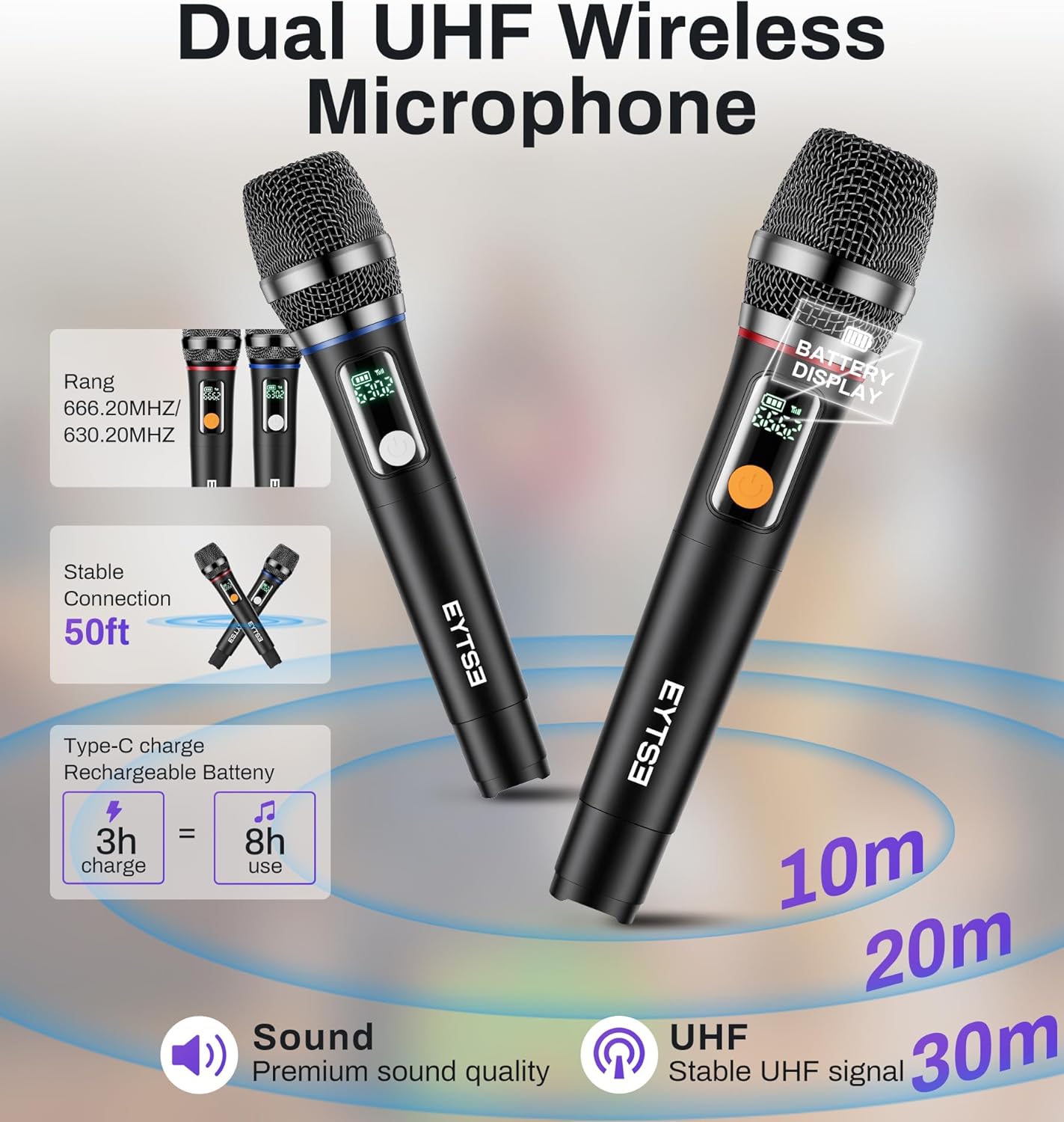
Image: Wireless UHF Microphones.
Two wireless UHF microphones are included, offering a stable connection up to 50 feet. They feature Type-C charging and provide up to 8 hours of use after a 3-hour charge.

Image: Wi-Fi 6 connectivity.
The device supports Wi-Fi 6 for smoother streaming and reduced latency.

Image: HDMI connection to TV.
Connect the VK40 to a larger TV via HDMI for an enhanced visual experience. The remote control features a mouse mode for easy navigation.

Image: Battery life and portability.
The built-in 8000mAh rechargeable battery provides up to 10 hours of continuous use, making it suitable for portable use. A full charge takes approximately 4 hours.
4. Suidhich
4.1 Cìs tòiseachaidh
Before first use, fully charge the karaoke machine using the provided power adapter and Type-C cable. The charging indicator will show the charging status.
4.2 A’ cur cumhachd air/dheth
Press and hold the power button on the unit or the remote control to turn the device on or off.
Ceangal Wi-Fi 4.3
- On the touch screen, navigate to Suidhichidhean.
- Tagh Wi-Fi.
- Tagh an lìonra a tha thu ag iarraidh bhon liosta agus cuir a-steach am facal-faire ma thèid iarraidh ort.
- Once connected, the Wi-Fi icon will appear stable.

Image: Touch screen interface with Wi-Fi option.
4.4 Suidheachadh Micreofon
The wireless UHF microphones are pre-paired with the unit. Simply insert the provided batteries into each microphone. The microphone display will show the frequency and battery level.
4.5 HDMI Connection (Optional)
To display content on a larger screen:
- Ceangail aon cheann den chàball HDMI ris a’ HDMI A-mach port on the karaoke machine.
- Connect the other end to an HDMI input port on your TV or projector.
- Select the corresponding HDMI input on your TV/projector.
Video: Demonstrates connecting the EYTSE VK40 Karaoke Machine to a TV via HDMI for a larger display.
5. Obrachadh
5.1 Using the Touch Screen Interface
The 14.1-inch touch screen operates like a tablet. Tap icons to open applications such as YouTube, Spotify, or the Media Player. Swipe to navigate between screens.
5.2 Atharrachaidhean Fuaime
Use the knobs on the control panel to adjust:
- MIC.VOL: Microphone volume.
- MIC.BASS: Microphone bass level.
- MIC.TREBLE: Microphone treble level.
- MIC.ECHO: Microphone echo effect.
- MUSIC.BASS: Music bass level.
- MUSIC.TREBLE: Music treble level.
- MUSIC.VOL: Music volume.
5.3 Buaidh Guth
The device includes 6 voice effects: Original, Female, Male, Kid, Chipmunk, and Robot. These can typically be selected via the on-screen interface or the remote control.
5.4 Recording Your Performance
Gus do sheinn a chlàradh:
- Ensure a USB drive or TF card is inserted if you wish to save recordings externally.
- Locate the recording function on the screen or remote control (often labeled REC).
- Press to start recording and again to stop.
- Recordings can be saved and played back through the Media Player.
5.5 Connecting External Instruments
Use the 1/4" guitar jack to connect instruments like guitars, keyboards, or electronic drums. Adjust the volume and effects using the control panel.
Video: Demonstrates connecting instruments like guitars and keyboards to the EYTSE VK40 Karaoke Machine.
6. Cumail suas
6.1 Glanadh
Wipe the exterior of the unit with a soft, dry cloth. For the screen, use a screen-specific cleaning solution and a microfiber cloth. Do not use abrasive cleaners or solvents.
6.2 Stòradh
Store the karaoke machine in a cool, dry place away from direct sunlight and extreme temperatures. If storing for extended periods, ensure the battery is partially charged (around 50%) to prolong its lifespan.
6.3 Cùram Bataraidh
To maintain battery health, avoid fully discharging the unit frequently. Recharge promptly when the battery is low.
7. A ’dèanamh trioblaid
| Trioblaid | Adhbhar a dh’fhaodadh a bhith ann | Fuasgladh |
|---|---|---|
| Gun chumhachd | Bataraidh air a dhrèanadh; Inneal-atharrachaidh cumhachd gun cheangal no lochtach. | Charge the unit; Check power connections. |
| Gun fhuaim bho luchd-labhairt | Volume too low; Mute activated; Incorrect input selected. | Increase volume; Check mute status; Select correct audio source. |
| Microphone nach eil ag obair | Microphone off; Batteries low/dead; Out of range. | Turn on microphone; Replace batteries; Move closer to the unit. |
| Ceangal Wi-Fi neo-sheasmhach | Comharra lag; Cùisean leis an router. | Move closer to Wi-Fi router; Restart router; Check network settings. |
| Sgrion neo-fhreagairt | Mearachd bathar-bog sealach. | Ath-thòisich an inneal. |
8. Sònrachaidhean
| Feart | Mion-fhiosrachadh |
|---|---|
| Brand | EITSE |
| Modail Àireamh | VK40 |
| Sgrion | 14.1" HD Touch Display (270° swivel, 180° fold) |
| Toradh Fuaim | 400W Hi-Fi Stereo Sound |
| Luchd-labhairt | 1x 6.5" Woofer, 2x 3" Midrange, 2x 2" Tweeters |
| Micreofon | 2 Wireless UHF Microphones |
| Ceangalachd | Wi-Fi 6, Bluetooth, HDMI, Auxiliary, USB, TF-card, 6.5mm Jack, Type-C |
| Siostam-obrachaidh | Android 13 |
| Bataraidh | 8000mAh (Up to 10 hours playtime) |
| Meudan (L x W x H) | 18 x 16 x 11 òirleach |
| Stuth cuairteachaidh | Fiodh |
9. Barantas agus Taic
9.1 Fiosrachadh Barantais
This product comes with a 30-day warranty. Please retain your proof of purchase for warranty claims. The warranty covers manufacturing defects but does not cover damage caused by misuse, accidents, or unauthorized modifications.
9.2 Taic teachdaiche
For technical assistance, troubleshooting, or warranty inquiries, please contact EYTSE customer support. Refer to the product packaging or the official EYTSE weblàrach airson fiosrachadh conaltraidh.
For optimal performance, ensure the built-in software is used in a stable network environment.
Ask a question about this manual
Ask about setup, troubleshooting, compatibility, parts, safety, or missing instructions. Manuals+ will review the question and use this page’s manual context to help answer it.