
1. Ro-ràdh
This manual provides detailed instructions for the installation, operation, and maintenance of your GreenTouch 15 Inch Industrial Open-Frame Touchscreen LCD Monitor. Please read this manual thoroughly before using the product to ensure proper functionality and longevity. Keep this manual for future reference.
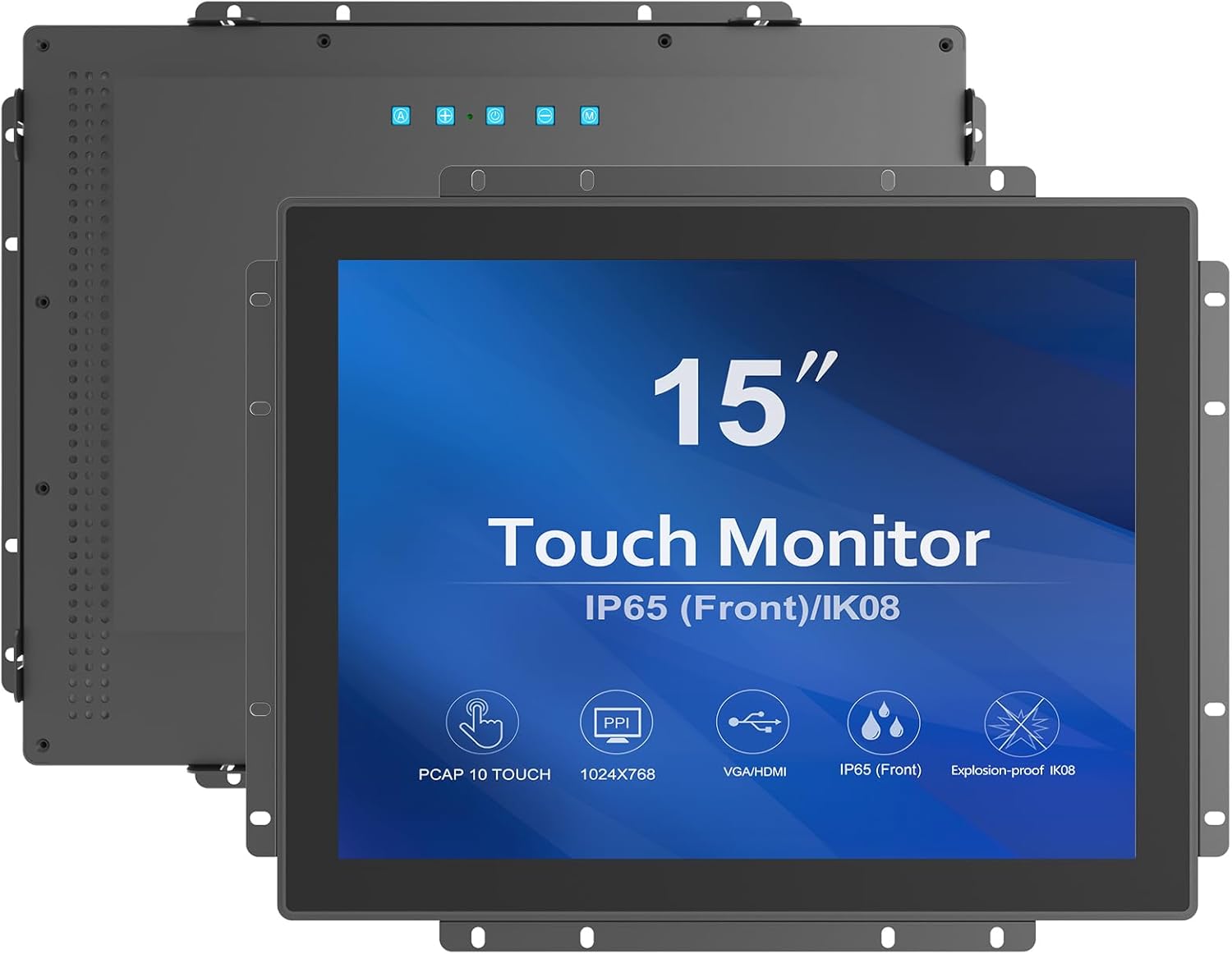
Figear 1.1: Aghaidh view of the GreenTouch 15 Inch Industrial Open-Frame Touchscreen LCD Monitor.
2. Feartan toraidh
- Ultra-Bright 1000 Nits Display: The 15-inch monitor features a 1000 Nits display for high visibility, even in direct sunlight, suitable for outdoor and industrial environments.
- Precise Multi-Touch Capability: Utilizes Projected Capacitive (PCAP) technology, supporting up to 10 touch points for accurate and interactive applications.
- Robust Industrial-Grade Design: Constructed with a durable black frame to withstand tough industrial conditions.
- High-Resolution Clarity: Offers a resolution of 1024x768 for sharp and clear visuals.
- Easy Integration and Versatile Applications: Designed for seamless integration into various setups, including kiosks, gaming machines, and industrial automation systems, with flexible mounting options.
- Built-in Turbo Fan: Features a built-in turbo fan for active air circulation and efficient heat dissipation during operation.
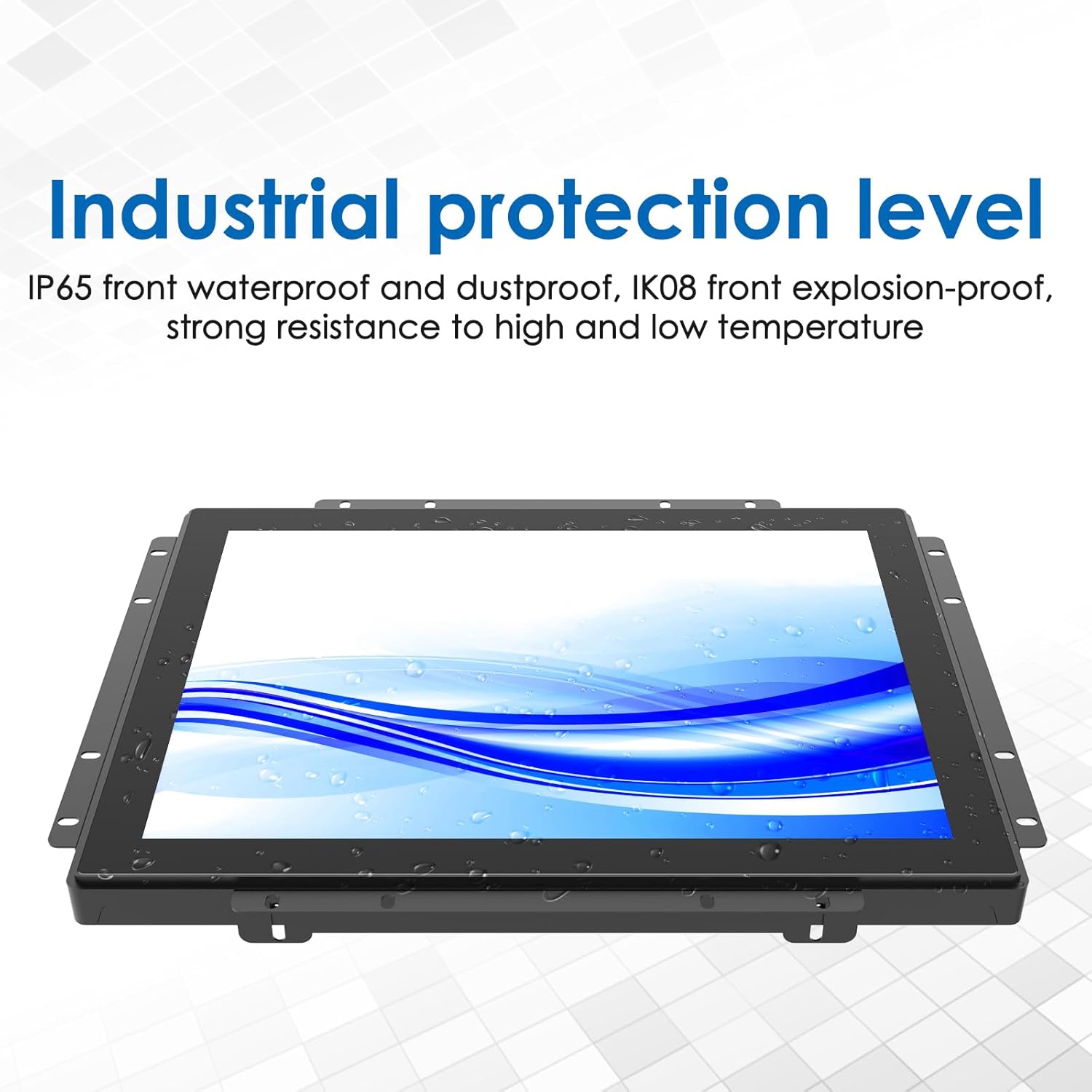
- IP65 Front Waterproof and Dustproof: The front panel is rated IP65 for protection against water and dust ingress.
- IK08 Front Explosion-Proof: The front panel provides IK08 level protection against mechanical impacts.

Figure 2.1: Industrial protection level with IP65 front waterproof and dustproof rating.

Figure 2.2: Built-in turbo fans for effective heat dissipation.
3. Suidhich
3.1 Unboxing
Carefully open the product packaging. Remove the monitor and all accessories from the box. Ensure all components listed in the packing list are present and undamaged. The monitor is protected by foam inserts; remove these carefully.
Video 3.1: Unboxing and accessory overview of the GreenTouch Open Frame Touch Monitor. This video demonstrates how to safely unpack the monitor and identifies the included cables and power adapter.
3.2 Stàladh Corporra
The monitor is designed for open-frame integration and offers flexible mounting options. It features an embedded bracket and VESA mount holes for secure installation. Ensure the mounting surface is stable and can support the monitor's weight.

Figear 3.1: Cùl view of the monitor, highlighting VESA mount holes and embedded brackets for installation.
3.3 càball ceangail
Connect the necessary cables to the monitor and your host device. The monitor supports various interfaces including HDMI, VGA, DVI, and USB for touch functionality. An external OSD keypad connector (RJ45) is also available for display configuration.
- Ceangal cumhachd: Connect the power adapter to the monitor's DC IN port and then to a power outlet.
- Ceangal bhidio: Use an HDMI, VGA, or DVI cable to connect the monitor to your computer's video output port.
- Touch Connection: Connect the USB Touch cable from the monitor's USB TOUCH port to a USB port on your computer to enable touch functionality.
- OSD External Keypad: If using, connect the RJ45 cable from the OSD connector on the monitor to the external keypad.

Figure 3.2: Available connection ports on the monitor.
Figear 3.3: Taobh view of the monitor with visible input ports.
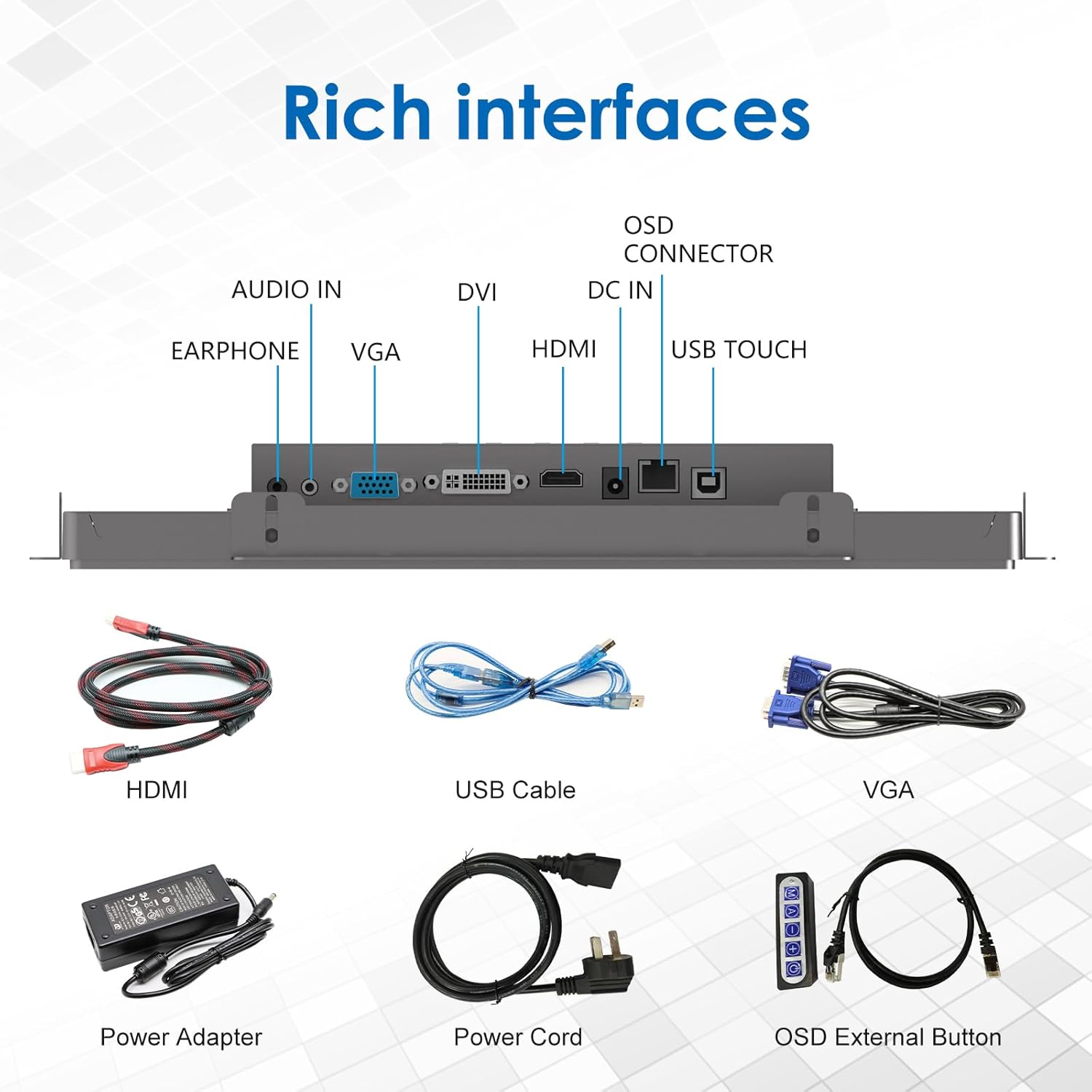
Figure 3.4: Included accessories for connectivity and power.
Video 3.2: This video demonstrates the connection process for power, video (VGA), and touch (USB) cables, followed by fan heat dissipation and touch testing.
4. Stiùireadh Obrachaidh
4.1 Basic Touch Operation
The monitor features a 10-point capacitive touch screen. Once connected via the USB touch cable, it will function as a standard touch input device for your operating system. Use gestures such as tap, drag, pinch-to-zoom, and swipe as you would on other touch-enabled devices.

Figure 4.1: Demonstration of touch interaction on the monitor.
4.2 Seòladh Clàr-taice OSD
The monitor includes an external OSD (On-Screen Display) keypad for adjusting display settings. This keypad connects via an RJ45 cable and allows access to various settings such as brightness, contrast, color temperature, and input source selection. Refer to the OSD keypad's specific instructions for detailed menu navigation.
4.3 Atharrachadh soilleireachd
The monitor's 1000 Nits brightness can be adjusted via the OSD menu to suit different lighting conditions. This high brightness ensures clear visibility in strong ambient light environments.
Figure 4.2: The monitor's bright display, capable of 1000 Nits.
5. Cumail suas
5.1 Glanadh na Sgrion
Gus an sgrion a ghlanadh, sguab gu socair e le clò bog, gun lint. Airson comharran stòlda, dampen the cloth with a small amount of water or a non-abrasive screen cleaner. Avoid using harsh chemicals, alcohol, or ammonia-based cleaners, as these can damage the screen surface. Ensure the monitor is powered off before cleaning.
5.2 Cùram Coitcheann
Keep the monitor in a well-ventilated area to prevent overheating. Do not block the ventilation openings, especially the built-in turbo fan vents. Avoid exposing the monitor to extreme temperatures, humidity, or direct sunlight for prolonged periods. Disconnect the power cable if the monitor will not be used for an extended time.
6. A ’dèanamh trioblaid
- Gun taisbeanadh:
- Dèan cinnteach gu bheil an càball cumhachd ceangailte gu tèarainte ris an sgrìn agus ris an t-socaid cumhachd.
- Verify the video cable (HDMI, VGA, or DVI) is properly connected to both the monitor and the computer.
- Check if the computer is powered on and sending a video signal.
- Cleachd clàr-taice OSD gus an stòr cuir-a-steach ceart a thaghadh.
- Touch Function Not Responding:
- Ensure the USB Touch cable is securely connected to both the monitor and the computer.
- Verify that the touch screen drivers are correctly installed on your operating system.
- Ath-thòisich an coimpiutair agus an monitor.
- Cùisean Càileachd Ìomhaigh (Doilleir, Saobhadh):
- Thoir sùil air a’ chàball bhidio airson milleadh no ceanglaichean sgaoilte.
- Atharraich roghainnean an rùn air a’ choimpiutair agad gus am bi iad a rèir rùn dùthchasach an sgrìn (1024x768).
- Use the OSD menu to adjust image settings like contrast and sharpness.
7. Sònrachaidhean
| Feart | Sònrachadh |
|---|---|
| Brand | GreenTouch |
| Modail Àireamh | GT-TM150 |
| Ainm Modail | GT-TM-1502C-CTW-HD(GL) |
| Meud sgrion | 15 òirlich |
| Seòrsa Taisbeanaidh | LCD |
| Fuasgladh Dùthchasach | 1024x768 Pixels (XGA) |
| Co-mheas taobh | 4:3 |
| Gile | 1000 Candela (Nits) |
| Co-mheas coimeas | 1000:1 |
| Ìre Ath-nuadhachaidh | 60 Hz |
| Àm Freagairt | 10 milliseconds |
| Viewann an Ceàrn | 178 ceum |
| Screen Finish | Snasail |
| Teicneòlas suathadh | Capacitive (PCAP), 10-point touch |
| Teicneòlas ceangail | HDMI, VGA, DVI, USB (for touch) |
| Total Number of HDMI Ports | 1 |
| Voltage | 12 bholt (DC) |
| Meudan nì (D x W x H) | 1.83"D x 13.97"W x 10.98"H |
| Seòrsa stàladh | Gèarr-balla (co-chòrdail ri VESA) |
| Dath | Dubh |
| Cleachdaidhean sònraichte airson toradh | Business, Industrial |
8. Barantas agus Taic
8.1 Fiosrachadh Barantais
This GreenTouch monitor comes with a Barantas Dèanadair 1 Bliadhna. Please retain your proof of purchase for warranty claims. The warranty covers defects in materials and workmanship under normal use. It does not cover damage caused by misuse, accidents, unauthorized modifications, or improper installation.
8.2 Taic Teicnigeach
For technical assistance, troubleshooting, or warranty inquiries, please contact GreenTouch customer support. Refer to the official GreenTouch weblàrach-lìn no na sgrìobhainnean ceannach agad airson an fhiosrachaidh conaltraidh as ùire.