
XunFox K30 Pro
XunFox K30 Pro Transparent Mechanical Keyboard User Manual
Modail: K30 Pro
Brand: XunFox
Ro-ràdh
Welcome to the XunFox K30 Pro Transparent Mechanical Keyboard user manual. This guide provides detailed instructions for setting up, operating, and maintaining your new keyboard. The K30 Pro features a unique transparent design, 61-key layout, RGB backlighting, and versatile 3-mode connectivity (2.4GHz wireless, Bluetooth 5.1, and wired USB).
Susbaint pacaid
- XunFox K30 Pro Mechanical Keyboard
- Càball USB-C gu USB-A (airson ceangal uèirleas agus cosgais)
- Glacadair gun uèir 2.4GHz
- Leabhar-làimhe cleachdaiche (an sgrìobhainn seo)
Bathar seachadview
The XunFox K30 Pro keyboard features a compact 61-key layout with transparent keycaps and a translucent bottom shell, showcasing its internal mechanical components.
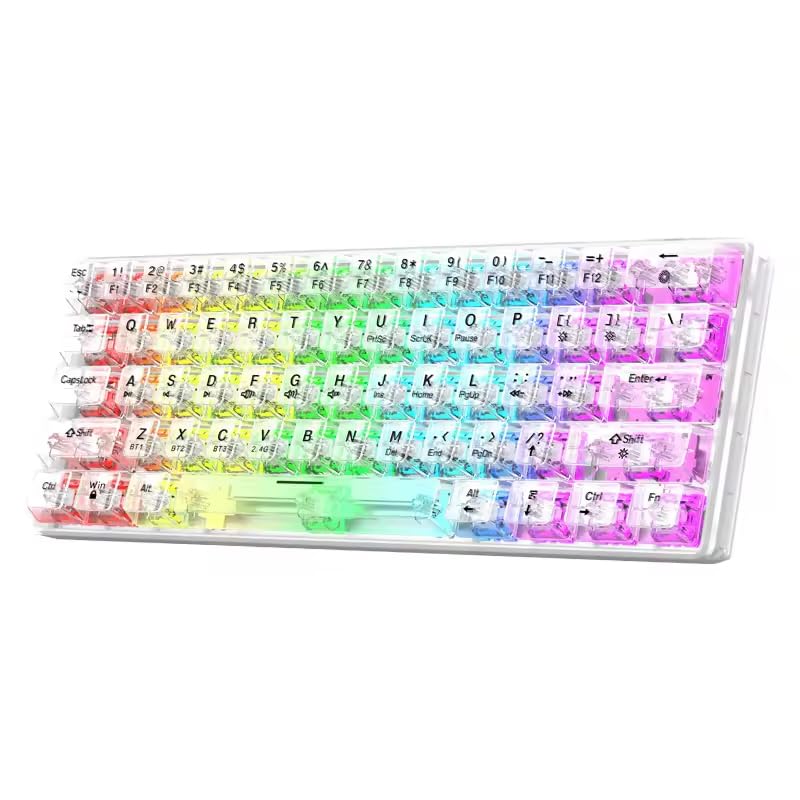
Ìomhaigh: Aghaidh view of the XunFox K30 Pro Transparent Mechanical Keyboard, showcasing its compact 61-key layout and vibrant RGB backlighting through transparent keycaps.

Image: Diagram highlighting the 61-key minimalist layout of the XunFox K30 Pro keyboard, emphasizing space-saving design compared to traditional 104-key keyboards.

Image: Exploded diagram illustrating the internal layers of the keyboard, including transparent keycaps, customized mechanical shafts, positioning plate, PCB board, and translucent bottom shell.
Prìomh fheartan:
- 61-Key Minimalist Layout: Dealbhadh a shàbhaileas àite.
- Dealbhadh follaiseach: Crystal clear hard shell and keycaps.
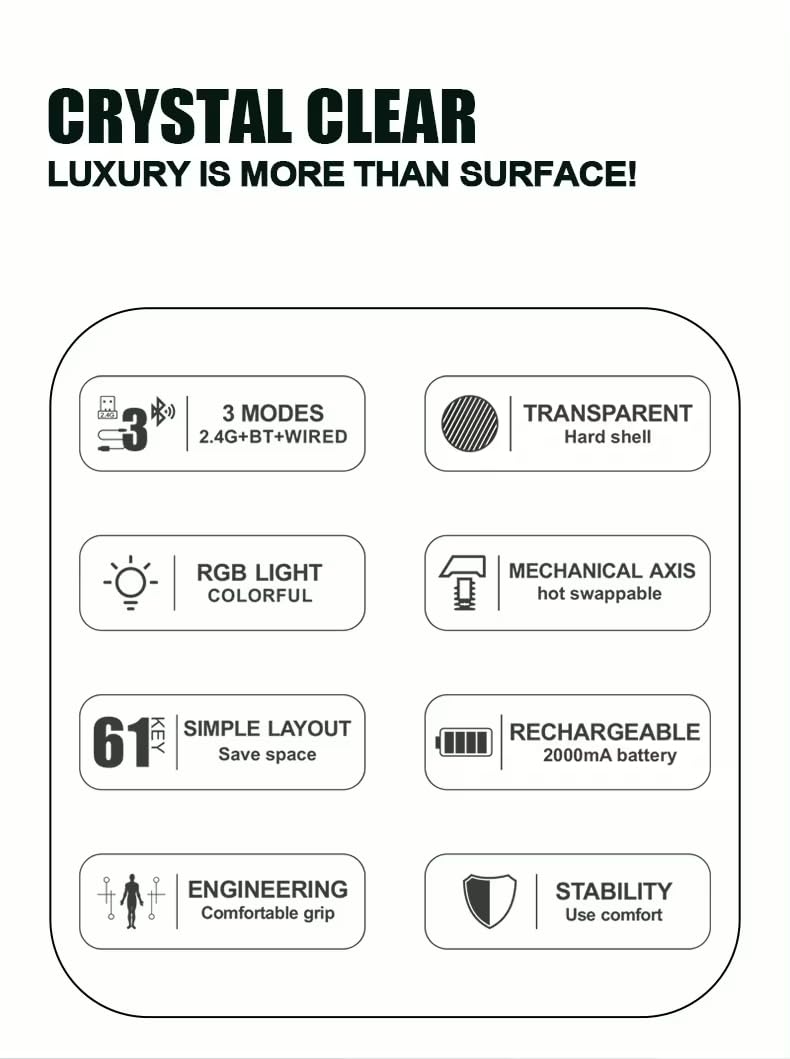
- Ceangal 3-mhodh: 2.4GHz Wireless, Bluetooth 5.1, and Wired USB.
- Solais-cùil RGB: Customizable colorful lighting effects.
- Hot-Swappable Mechanical Axis: Allows for easy switch replacement.
- Bataraidh ath-thagraidh 2000mAh: For extended wireless use.
- Dealbhadh ergonomic: Greim comhfhurtail airson cleachdadh fad-ùine.
Suidhich
1. A 'cur cosgais air a' Bhataraidh
Before first use, or when the battery is low, connect the keyboard to a USB power source (e.g., computer USB port, USB wall adapter) using the provided USB-C cable. The charging port is typically located on the back or side of the keyboard.
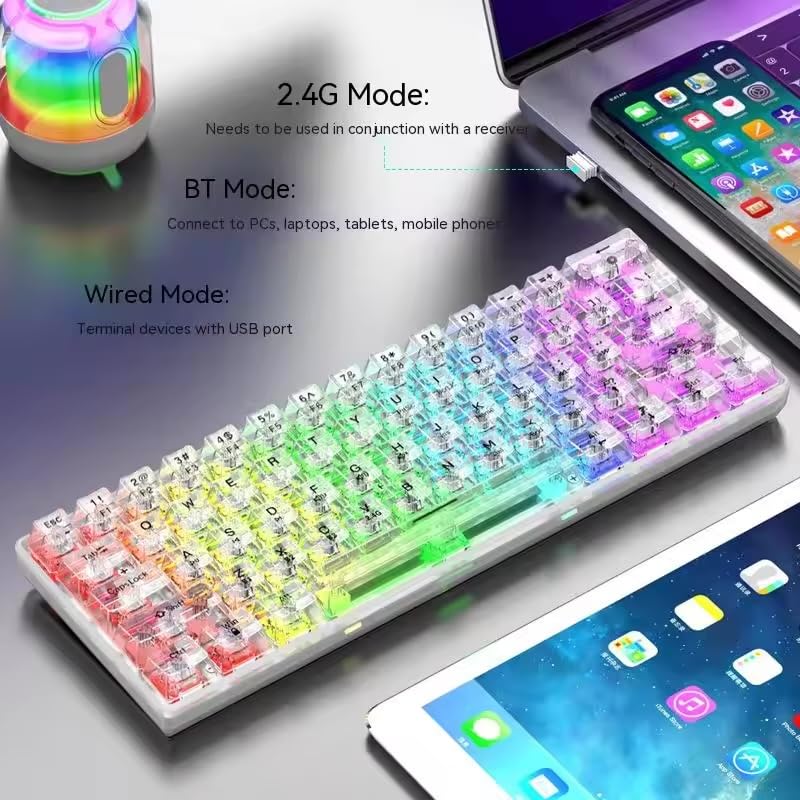
Image: The XunFox K30 Pro keyboard connected via a USB-C cable to a laptop, illustrating the charging process and highlighting the 2000mAh battery capacity.
A full charge provides approximately 2000mAh of battery life.
2. Connecting via 2.4GHz Wireless Mode
- Locate the 2.4GHz wireless receiver, usually stored in a compartment on the keyboard or included separately.
- Cuir an glacadair 2.4GHz a-steach do phort USB a tha ri fhaighinn air a’ choimpiutair agad.
- Switch the keyboard's connection mode to 2.4GHz. This is typically done using a switch on the keyboard or an FN key combination (e.g., FN + V).
- Bu chòir don mheur-chlàr ceangal ris an inneal agad gu fèin-ghluasadach.
3. A’ ceangal tro mhodh Bluetooth
- Switch the keyboard's connection mode to Bluetooth. This is typically done using a switch on the keyboard or an FN key combination (e.g., FN + Z airson BT1, FN + X airson BT2, FN + C for BT3).
- For first-time pairing, long-press the corresponding FN key combination (e.g., FN + Z for 3 seconds) to enter pairing mode. The keyboard's indicator light will flash.
- On your device (computer, laptop, tablet, phone), open Bluetooth settings and search for new devices.
- Select "XunFox K30 Pro" (or similar name) from the list of available devices to pair.
- Aon uair ‘s gu bheil iad air an càraideachadh, sguiridh an solas comharrachaidh de bhith a’ priobadh.
4. Connecting via Wired USB Mode
- Ceangail aon cheann den chàball USB-C a tha air a thoirt seachad ri port USB-C a’ mheur-chlàir.
- Ceangail ceann eile a’ chàball USB-A ri port USB a tha ri fhaighinn air a’ choimpiutair agad.
- Switch the keyboard's connection mode to Wired. This is typically done using a switch on the keyboard or an FN key combination.
- The keyboard will be recognized as a standard USB keyboard and is ready for use.

Image: Diagram illustrating the three connection modes: Bluetooth (BT), 2.4GHz Wireless (with receiver), and Wired (USB-C cable). Shows the keyboard connected to various devices.
Stiùireadh Obrachaidh
Ag atharrachadh modhan ceangail
The keyboard supports three connection modes. Use the dedicated switch or FN key combinations to switch between them:
- 2.4Ghz Wireless: Brùth FN + V (short press to switch, long press for 3 seconds to enter pairing mode). Requires the 2.4GHz receiver.
- Bluetooth 1 (BT1): Brùth FN + Z (short press to switch, long press for 3 seconds to enter pairing mode).
- Bluetooth 2 (BT2): Brùth FN + X (short press to switch, long press for 3 seconds to enter pairing mode).
- Bluetooth 3 (BT3): Brùth FN + C (short press to switch, long press for 3 seconds to enter pairing mode).
- Modh Wired: Connect the USB-C cable. The keyboard will automatically switch to wired mode or may require a specific FN key combination (refer to specific product documentation if FN key is needed).
Smachd air Solas-cùil RGB
The XunFox K30 Pro features customizable RGB backlighting. Specific FN key combinations are used to control lighting effects, brightness, and speed. Please refer to the quick start guide or product packaging for exact FN key combinations for RGB control, as these can vary.
Special Function Keys (FN Combinations)
The 61-key layout utilizes the FN key to access secondary functions printed on the keycaps.
- FN + [Number Keys]: Access F1-F12 functions.
- FN + [Other Keys]: Access multimedia controls, volume, and other system functions.
A detailed list of FN key combinations can usually be found in the quick start guide or on the product's official support page.
Cumail suas
Glanadh
Gus am meur-chlàr agad a ghlanadh:
- Disconnect the keyboard from all power sources and devices.
- Cleachd clò bog, gun lint beagan dampnigh le uisge no le fuasgladh glanaidh tlàth gus na ceapan-iuchrach agus an chassis a sguabadh às.
- Airson duslach is sprùilleach eadar iuchraichean, cleachd èadhar teannaichte.
- Seachain a bhith a 'cleachdadh cheimigean cruaidh no stuthan sgrìobach.
Switches Hot-Swappable
The K30 Pro features hot-swappable mechanical switches, allowing you to change switches without soldering. Use a switch puller tool (not included unless specified) to carefully remove and insert compatible 3-pin or 5-pin mechanical switches.
Fuasgladh thrioblaidean
Meur-chlàr nach eil a’ freagairt
- Dèan cinnteach gu bheil am meur-chlàr air a luchdadh.
- Check the connection mode (2.4GHz, Bluetooth, Wired) and ensure it matches your device's connection.
- For 2.4GHz, ensure the receiver is properly plugged in.
- For Bluetooth, ensure it's paired correctly and within range. Try re-pairing.
- For wired, ensure the USB cable is securely connected to both the keyboard and the computer.
- Feuch ri ceangal ri port USB no inneal eadar-dhealaichte.
Cùisean Ceangal Bluetooth
- Ensure the keyboard is in Bluetooth pairing mode (indicator light flashing).
- Remove the keyboard from your device's Bluetooth list and try pairing again.
- Dèan cinnteach gu bheil Bluetooth an uidheim agad air a chomasachadh.
- Reduce distance between keyboard and device.
Solais RGB nach eil ag obair
- Dèan cinnteach gu bheil am meur-chlàr air agus air a luchdadh.
- Check if the backlight has been turned off via an FN key combination.
- Adjust brightness settings using FN key combinations.
Sònrachaidhean
| Feart | Sònrachadh |
|---|---|
| Brand | XunFox |
| Modail | K30 Pro |
| Seòrsa meur-chlàr | Meacanaigeach |
| Cruth | 61 Iuchraichean |
| Ceangalachd | Gun uèir 2.4GHz, Bluetooth 5.1, Uèirle (USB-C) |
| Comas Bataraidh | 2000 mAh |
| Cùl-sholais | RGB |
| Feartan sònraichte | Backlit, Ergonomic, Rechargeable, Hot-swappable mechanical axis |
| Meudan toraidh | 40 x 8 x 4 cm |
| Cuideam nì | 900 g |
| Innealan co-fhreagarrach | Laptop, PC, Tablet, Phone |
Ìomhaigh: Suas is sìos view of the XunFox K30 Pro keyboard with key dimensions (292mm length, 102mm width, 40mm height) indicated.
Barantas agus Taic
This XunFox K30 Pro keyboard comes with a Barantas 2 bhliadhna.
For technical support, warranty claims, or further assistance, please contact:
- Cùram Luchd-cleachdaidh: +91 9906910066
- Neach-in-mhalairt/Pacaidh: NJ Infotech
Cùm dearbhadh do cheannach airson adhbharan barantais.
Ask a question about this manual
Ask about setup, troubleshooting, compatibility, parts, safety, or missing instructions. Manuals+ will review the question and use this page’s manual context to help answer it.