
THOMSON 1001W
THOMSON 10.1 Inch Digital Picture Frame User Manual
Modail: 1001W
Ro-ràdh
Thank you for choosing the THOMSON 10.1 Inch Digital Picture Frame. This device allows you to effortlessly display and share your cherished photos and videos with family and friends from anywhere in the world. Featuring a high-definition IPS touch screen, Wi-Fi connectivity, and ample storage, this frame is designed for ease of use and a vibrant viewing experience. Please read this manual carefully to ensure proper setup and operation of your digital picture frame.
Susbaint pacaid
- THOMSON 10.1 Inch Digital Picture Frame
- Adapter cumhachd
- Leabhar-làimhe cleachdaiche (an sgrìobhainn seo)
- Stand Piece
Bathar seachadview

Image: The THOMSON 10.1 Inch Digital Picture Frame showcasing a family photo, accompanied by a smartphone displaying the photo sharing application. This illustrates the frame's primary function and connectivity.
The THOMSON 10.1 Inch Digital Picture Frame features a 1280x800 HD IPS touch screen for clear, vibrant image display. It supports Wi-Fi connectivity for instant photo and video sharing via a dedicated app. The frame includes 32 GB of built-in memory and a slot for an SD card (up to 128 GB, not included) for expanded storage. Key features include auto-rotate, slideshow functionality, adjustable brightness, and a sleep mode.
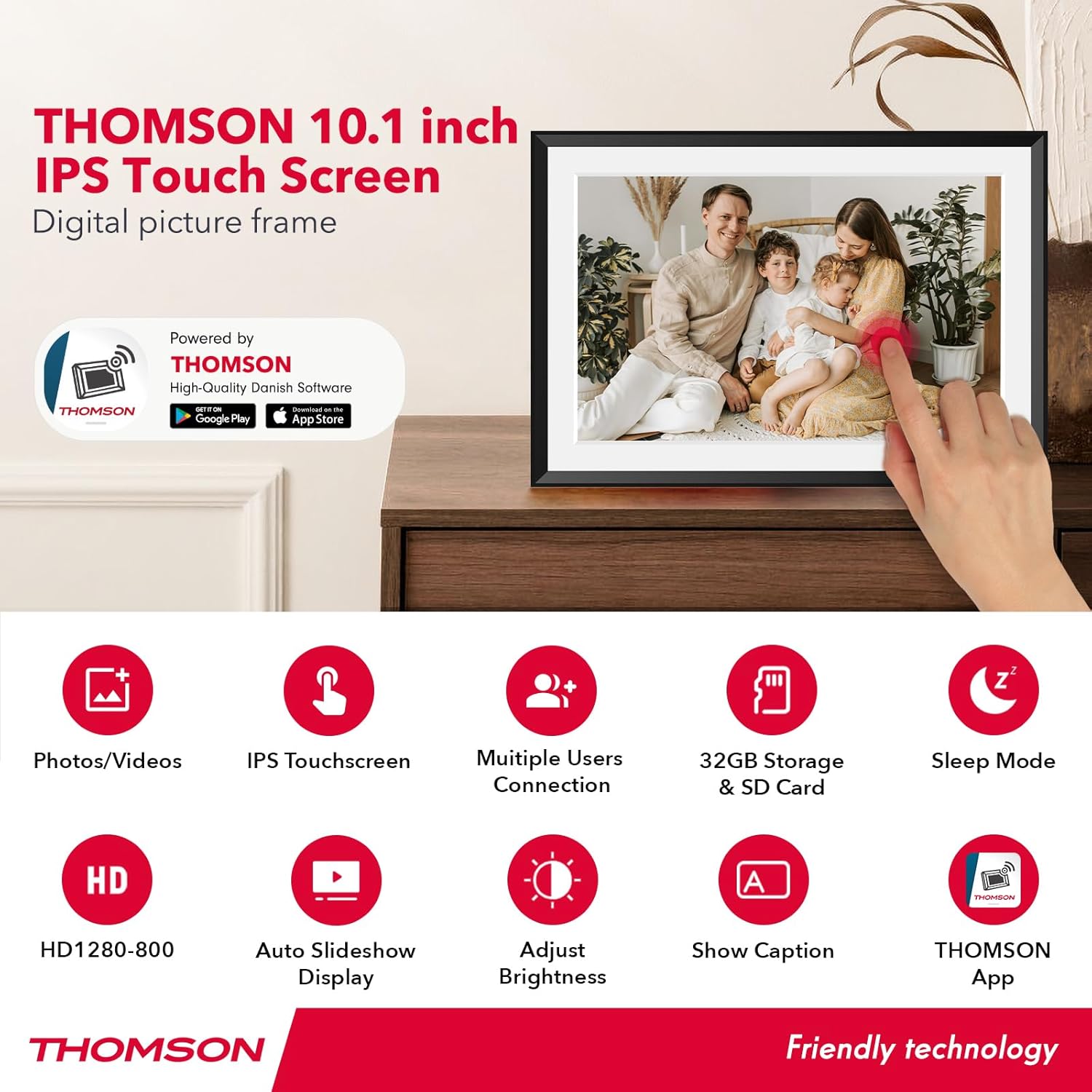
Image: An infographic highlighting the main features of the THOMSON digital picture frame, including photos/videos support, IPS touchscreen, multiple user connection, 32GB storage & SD card slot, sleep mode, HD 1280x800 resolution, auto slideshow, brightness adjustment, caption display, and the THOMSON App.
Stiùireadh rèiteachaidh
1. A’ chiad chumhachd air
- Connect the power adapter to the frame's power port and plug it into a wall outlet.
- The frame will automatically power on.
- Follow the on-screen prompts to select your language and time zone.
2. Ceangal Wi-Fi
- On the frame's touch screen, navigate to the Wi-Fi settings.
- Tagh an lìonra Wi-Fi a tha thu ag iarraidh bhon liosta.
- Enter the Wi-Fi password using the on-screen keyboard.
- Confirm the connection. A stable Wi-Fi connection is essential for sharing photos and videos remotely.
3. Luchdaich sìos an aplacaid agus paidhreachadh

Image: A visual guide demonstrating how to find and use the THOMSON app for sharing photos and videos instantly from anywhere. It shows the app download icons for Google Play and App Store, and screenshots of the app interface.
- Download the free "THOMSON" app from the Google Play Store (for Android) or Apple App Store (for iOS).
- Fosgail an aplacaid agus cruthaich cunntas no log a-steach.
- Follow the app's instructions to pair your smartphone with the digital picture frame. This typically involves scanning a QR code displayed on the frame or entering a unique device code.
- Cho luath ‘s a bhios tu còmhla, faodaidh tu tòiseachadh air dealbhan is bhideothan a cho-roinn.
Stiùireadh Obrachaidh
1. A’ roinneadh dhealbhan is bhideothan

Image: A depiction of how multiple users can privately, instantly, and securely share photos and videos to the digital picture frame from various mobile phones.
- Tro App: Open the THOMSON app on your smartphone. Select the photos or short videos you wish to share and send them directly to your paired frame. You can also invite family and friends to share to your frame.
- Tro chairt SD: Insert an SD card (max. 128 GB, not included) containing your media files into the frame's SD card slot. The frame will detect the card, and you can import files to the internal memory.
- Tro phost-d: The frame is assigned a unique email address during setup. You can send photos or short videos as attachments to this email address, and they will appear on the frame.
2. Seòladh Sgrion-suathaidh
The frame features an intuitive touch screen. Tap to select options, swipe to navigate through photos, and pinch to zoom (if supported by the software).
3. Roghainnean agus Feartan
- Rothaich fèin-ghluasadach: The frame automatically adjusts the orientation of photos to portrait or landscape mode.
- Taisbeanadh-shleamhnagan: Configure slideshow intervals, transition effects, and playback order through the settings menu.
- Gile: Atharraich soilleireachd na sgrìn a rèir na h-àrainneachd agad.
- Meud: Control the volume for videos. Note: The frame may beep upon receiving new media; this can be muted in settings.
- Modh cadail: Set a schedule for the frame to automatically turn off and on, conserving energy.
- React Feature: Use the "React" feature within the app to send emoticons back to loved ones in real-time, acknowledging photos they've sent.

Image: This visual demonstrates the frame's versatility, showing it can be placed in landscape or portrait orientation, and highlighting the wall hanging hole for mounting.
Cumail suas
- Glanadh: Cleachd clò bog, tioram, gun lint gus an sgrion agus am frèam a ghlanadh. Na cleachd innealan-glanaidh leaghaidh no spraeirean gu dìreach air an sgrion.
- Suidheachadh: Place the frame on a stable, flat surface or mount it securely on a wall. Avoid direct sunlight or extreme temperatures.
- Stòradh: If storing the frame for an extended period, power it off and disconnect the power adapter.
Fuasgladh thrioblaidean
| Trioblaid | Adhbhar / Fuasgladh a dh’fhaodadh a bhith ann |
|---|---|
| Chan eil am frèam a’ dol air. | Dèan cinnteach gu bheil an inneal-atharrachaidh cumhachd ceangailte gu tèarainte ris an fhrèam agus ri socaid cumhachd a tha ag obair. Feuch socaid eadar-dhealaichte. |
| Chan urrainn dhuinn ceangal a dhèanamh ri Wi-Fi. |
|
| Photos/Videos not appearing on frame. |
|
| Tha an sgrion neo-fhreagairt. | Restart the frame by disconnecting and reconnecting the power. If the issue persists, contact customer support. |
| Frame makes a beeping sound. | This is likely the notification sound for new media. You can disable this in the frame's settings menu. |
Sònrachaidhean
| Feart | Mion-fhiosrachadh |
|---|---|
| Meud sgrion | 10.11 òirlich |
| Fuasgladh | 1280x800 HD IPS |
| Stòradh a-staigh | 32 GB |
| Stòradh a-muigh | SD Card (max. 128 GB, not included) |
| Ceangalachd | Wi-Fi (2.4GHz) |
| Meudan toraidh | 16 x 10 x 0.99 òirleach |
| Cuideam nì | 1.5 not |
| Modail Àireamh | 1001W |
| Dèanadair | THOMSON |
Barantas agus Taic
THOMSON stands behind the quality of its products. Your digital picture frame comes with a Barantas 24 mìosan from the date of purchase. This warranty covers manufacturing defects and ensures the product performs as described.
For any technical assistance, questions, or warranty claims, please contact THOMSON customer support. We offer taic theicnigeach fad-beatha to ensure you have the best experience with your product. Please refer to the contact information provided on the product packaging or the official THOMSON weblàrach.
Sgrìobhainnean co-cheangailte - 1001W
 |
Leabhar-làimhe Cleachdaiche Frameo: Suidheachadh, Roghainnean, agus Feartan airson do Fhrèam Dealbhan Didseatach Leabhar-làimhe coileanta airson frèam dhealbhan didseatach Frameo, a’ còmhdach suidheachadh, ceangal charaidean, riaghladh dhealbhan, roghainnean, Wi-Fi, cùl-taic, agus taic. |
 |
Leabhar-làimhe Cleachdaiche Uhale Frame: Stiùireadh airson Suidheachadh, Feartan, agus Roinneadh Dealbhan Leabhar-làimhe coileanta airson an Uhale Frame, a’ còmhdach suidheachadh, ceangal Wi-Fi, roinneadh dhealbhan tron aplacaid agus web, riaghladh gailearaidh, roghainnean, agus fuasgladh dhuilgheadasan. |
 |
Leabhar-làimhe Cleachdaiche Frèam Dealbh Didseatach LOVCUBE W10 Frameo Leabhar-làimhe coileanta airson Frèam Dealbhan Didseatach LOVCUBE W10 Frameo. Ionnsaich mar a stèidhicheas tu, a cheanglas tu, a cho-roinneas tu dealbhan, a stiùireas tu roghainnean, agus a chleachdas tu feartan leithid ceangal Wi-Fi agus eadar-aghaidh scrion-suathaidh. |
 |
Leabhar-làimhe Cleachdaiche Frèam Dealbhan Frameo Leabhar-làimhe coileanta airson frèam dhealbhan Frameo, a’ còmhdach suidheachadh, seòladh, riaghladh dhealbhan, roghainnean agus fuasgladh dhuilgheadasan. Ionnsaich mar a cheanglas tu ri caraidean is teaghlach, mar a cho-roinneas tu dealbhan is bhideothan, agus mar a phearsanaicheas tu an t-eòlas frèam agad. |
 |
Leabhar-làimhe Cleachdaiche Frèam Dealbh Didseatach Smart 11" BSIMB BS-W11A Leabhar-làimhe cleachdaiche airson Frèam Dealbhan Didseatach Smart 11" BSIMB (BS-W11A), a’ còmhdach suidheachadh, luchdachadh suas dhealbhan/bhideothan tro aplacaid, post-d, USB, coimpiutair, prìomh fheartan, iomadh gnìomh, roghainnean coitcheann, agus fuasgladh dhuilgheadasan. |
 |
Leabhar-làimhe Cleachdaiche Frèam Dealbhan Didseatach Frameo - Suidheachadh, Feartan, agus Taic Leabhar-làimhe coileanta airson frèam dhealbhan didseatach Frameo, a’ còmhdach suidheachadh, ceangal charaidean is teaghlaich, riaghladh dhealbhan, roghainnean, Wi-Fi, cùl-taic, agus fiosrachadh taic. |
Ask a question about this manual
Ask about setup, troubleshooting, compatibility, parts, safety, or missing instructions. Manuals+ will review the question and use this page’s manual context to help answer it.