
Thomson TDF-1001P
Leabhar-làimhe Cleachdaiche Frèam Dealbhan Didseatach THOMSON 10.1-òirleach
Model: TDF-1001P
1. Ro-ràdh
This user manual provides comprehensive instructions for setting up, operating, and maintaining your THOMSON 10.1-inch WiFi Digital Photo Frame. Please read this manual carefully before using the device to ensure proper functionality and longevity.
2. Toradh thallview
The THOMSON Digital Photo Frame is designed to display your cherished memories with ease. It features a high-definition IPS touchscreen and WiFi connectivity for convenient photo sharing.
Prìomh fheartan:
- Cuimhne a-staigh 32GB: Stores approximately 50,000 photos. Supports SD Card/SDHC Card/MMC Card/USB Drive expansion up to 256GB.
- Suidheachadh sìmplidh: Connects to WiFi, automatically sets local date and time.
- 10.1-inch 1280x800 HD IPS Screen: Provides clear image viewing with a 180° viewceàrn ing.
- Ioma eadar-aghaidh: Supports DC-4.0, Type-C, SD, 3.5mm Jack, and USB.
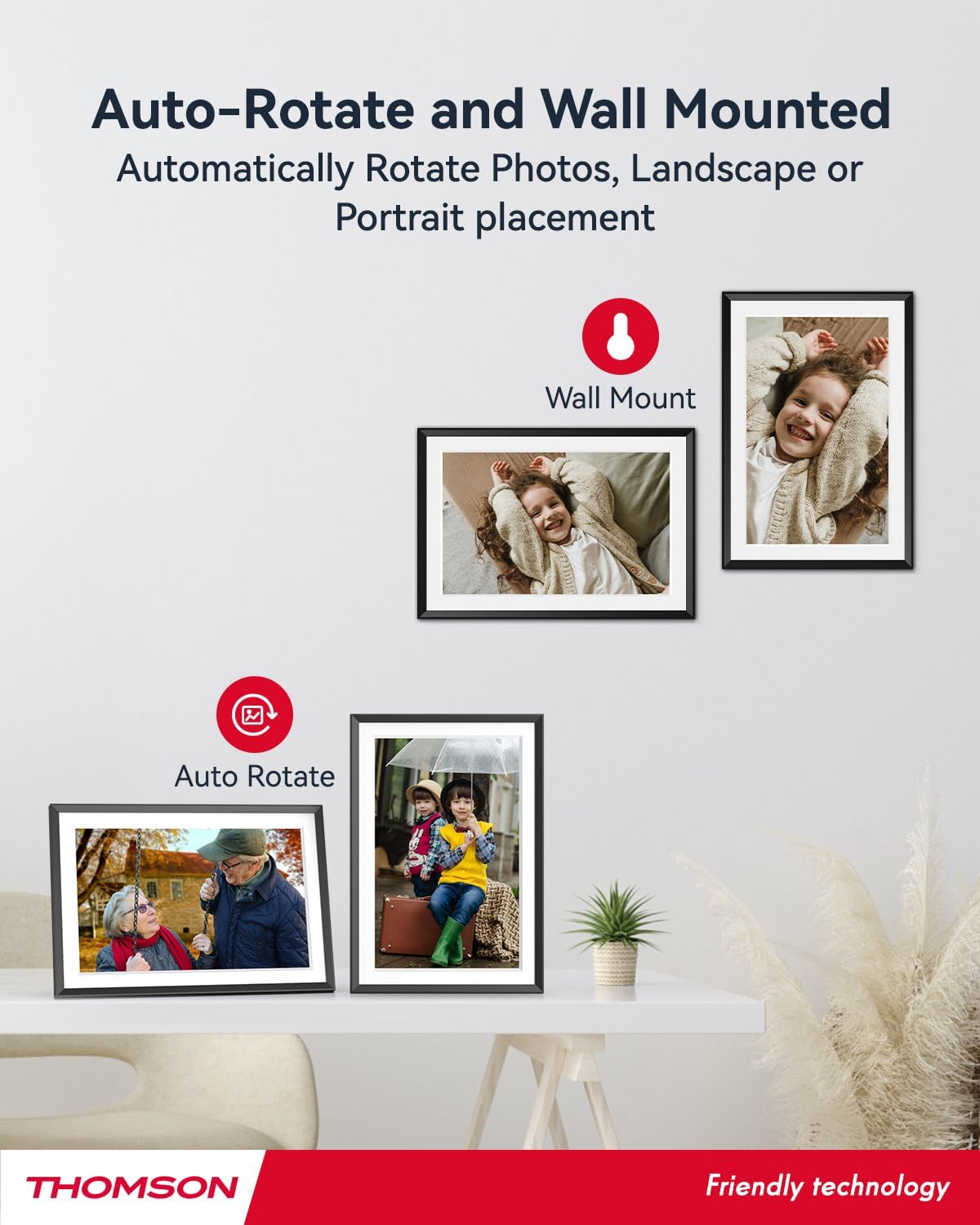
- Cuairteachadh fèin-ghluasadach: Displays photos correctly in any orientation.
- Ceòl Cùl: Play music during slideshows.
- Google Photo Support: Send photos directly from Google Photos.





3. Suidhich
3.1 Fo-phacadh agus Sgrùdadh Tùsail
- Thoir air falbh na pàirtean gu lèir bhon phacaid gu faiceallach.
- Verify that all items listed in the 'Product Overview' section are present.
- Inspect the frame for any signs of damage. If damaged, do not proceed and contact customer support.
3.2 Ceangal cumhachd
- Connect the power adapter to the DC-4.0 port on the back of the photo frame.
- Plug an inneal-atharrachaidh cumhachd a-steach do ionad dealain àbhaisteach.
- The frame will power on automatically.
3.3 Ceangal Lìonra (Wi-Fi)
- On the frame's touchscreen, navigate to 'Settings' or 'Wi-Fi Settings'.
- Tagh an lìonra Wi-Fi a tha thu ag iarraidh bhon liosta de lìonraidhean a tha rim faighinn.
- Enter the Wi-Fi password using the on-screen keyboard.
- Confirm the connection. Once connected, the frame will automatically synchronize the date and time.
3.4 App Installation (Thomson Smart Frame)
To share photos wirelessly from your smartphone, download the 'Thomson Smart Frame' app:
- For Android devices, search for 'Thomson Smart Frame' on the Google Play Store.
- For iOS devices, search for 'Thomson Smart Frame' on the Stòr Apple.
- Follow the on-screen instructions within the app to pair it with your digital photo frame.
4. Stiùireadh Obrachaidh
4.1 A’ cur dhealbhan is bhideothan ris
- Via Thomson Smart Frame App: Use the paired smartphone app to wirelessly send photos and videos to the frame.
- Via SD Card/USB Drive: Insert a compatible SD card or USB drive into the respective slot. The frame will detect the media, and you can import files to the internal memory or play directly.
- Via Google Photos: The frame supports integration with Google Photos for direct photo sharing. Refer to the frame's on-screen instructions for linking your Google Photos account.
4.2 Seòladh-sgrìn-suathaidh
The frame features an intuitive touchscreen interface. Tap to select, swipe to scroll, and pinch to zoom (if supported by the specific function).
4.3 Slideshow Settings
Gnàthaich an t-eòlas agad air taisbeanadh-shleamhnagan dhealbhan:
- Slideshow Speed: Atharraich an ùine a thèid gach dealbh a thaisbeanadh.
- Buaidhean Eadar-ghluasaid: Choose from various transition styles between photos.
- Ceòl Cùl: Tagh fuaim files to play during the slideshow.
4.4 Automatic Rotation
The frame automatically detects its orientation (landscape or portrait) and adjusts the displayed photos accordingly. Ensure the auto-rotate function is enabled in the settings if you wish to utilize this feature.
4.5 Ceangal Ioma-chleachdaiche
Multiple users can connect to the same frame via the Thomson Smart Frame app, allowing family and friends to share their photos to your frame from different locations.
5. Cumail suas
5.1 Glanadh na Sgrion
- Turn off the photo frame and unplug it from the power source.
- Cleachd clò bog, gun lint (me, clò microfiber) gus an sgrion a sguabadh gu socair.
- Airson smùid stòlda, beagan dampen the cloth with water or a screen-cleaning solution specifically designed for electronic displays. Do not spray liquid directly onto the screen.
5.2 Cùram Coitcheann
- Avoid exposing the frame to extreme temperatures, direct sunlight, or high humidity.
- Keep the frame away from water and other liquids.
- Do not block the ventilation openings on the frame.
- Handle the frame with care to prevent drops or impacts.
6. A ’dèanamh trioblaid
| Trioblaid | Adhbhar a dh’fhaodadh a bhith ann | Fuasgladh |
|---|---|---|
| Chan eil am frèam a’ dol air. | Chan eil an inneal-atharrachaidh cumhachd ceangailte no tha an socaid lochtach. | Ensure power adapter is securely connected to the frame and a working electrical outlet. Try a different outlet. |
| Chan urrainn dhuinn ceangal a dhèanamh ri Wi-Fi. | Facal-faire ceàrr, comharra lag, no duilgheadas lìonra. | Thoir sùil dhùbailte air facal-faire Wi-Fi. Gluais am frèam nas fhaisge air an router. Ath-thòisich an router agus am frèam. |
| Dealbhan nach eil a’ nochdadh. | Gun taic file format, no photos loaded, or storage issue. | Ensure photos are in supported formats (e.g., JPEG, PNG). Verify photos are loaded onto the frame's internal memory or connected storage. Check storage space. |
| Touchscreen neo-fhreagairt. | Mearachd bathar-bog sealach. | Ath-thòisich am frèam le bhith a’ dì-phlugadh agus ag ath-phlugadh an inneal-atharrachaidh cumhachd. |
7. Sònrachaidhean
| Feart | Mion-fhiosrachadh |
|---|---|
| Brand | MacThòmais |
| Modail Àireamh | TDF-1001P |
| Meud sgrion | 10.1 òirlich |
| Fuasgladh Taisbeanaidh | 1280x800 ann an càileachd hd |
| Seòrsa Taisbeanaidh | Sgrion-touch IPS |
| Cuimhne a-staigh | 32 GB |
| Cuimhne a ghabhas leudachadh | SD Card/SDHC Card/MMC Card/USB Drive (up to 256GB) |
| Teicneòlas ceangail | Wi-Fi |
| Innealan co-fhreagarrach | Android and iOS Smartphones |
| Stòr cumhachd | Electric Corded |
| Co-mheas taobh | 16:10 |
| Stuth frèam | Plastaig |
| Meudan toraidh (L x W x H) | 26.5 x 18.4 x 2.51 cm |
| Cuideam toraidh | 530 gram |
8. Barantas agus Taic
For warranty information or technical support, please refer to the documentation included with your purchase or visit the official Thomson website. You may also contact Thomson customer service directly for assistance with product issues or inquiries.
Ask a question about this manual
Ask about setup, troubleshooting, compatibility, parts, safety, or missing instructions. Manuals+ will review the question and use this page’s manual context to help answer it.