
ShanWan Q36-XPS-KABRILAN
ShanWan Bluetooth Gamepad Keychain Sized Mini Controller User Manual
Model: Q36-XPS-KABRILAN
1. Ro-ràdh
This manual provides comprehensive instructions for the ShanWan Bluetooth Gamepad Keychain Sized Mini Controller. Please read this manual carefully before use to ensure proper operation and to maximize your gaming experience. This device is designed for use with Android phones and tablets, PS4/Slim/Pro, iPhone, iPad, Nintendo Switch, and Windows PCs.
2. Toradh thallview
The ShanWan Mini Controller is a compact and versatile gamepad designed for portability and multi-platform compatibility. It features 17 buttons and a D-Pad, all within a keychain-sized form factor.
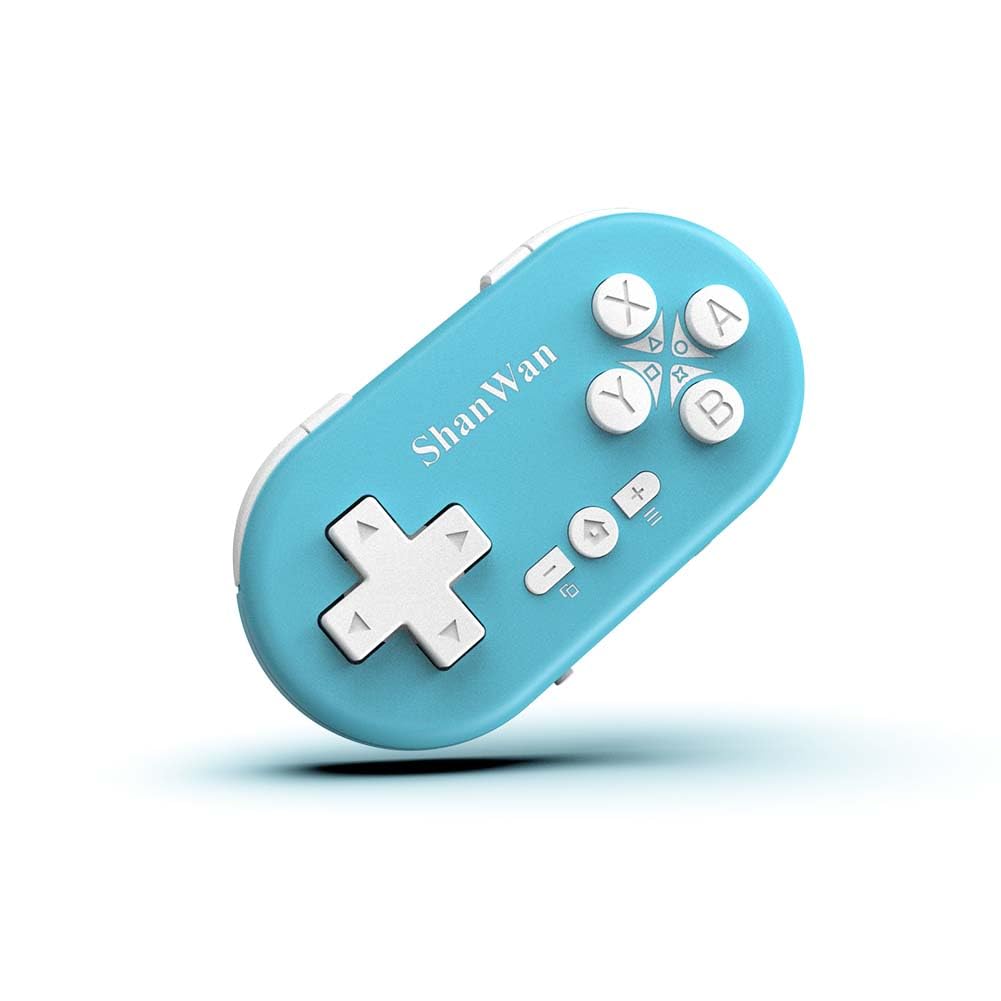
Figure 2.1: ShanWan Mini Bluetooth Gamepad, showcasing its compact design and button layout.

Figure 2.2: Dimensions of the ShanWan Mini Bluetooth Gamepad, measuring 2.83 inches in length, 1.57 inches in width, and 0.55 inches in thickness.
2.1 Susbaint a’ phacaid
- ShanWan Bluetooth Gamepad Keychain Sized Mini Controller
- Càball cosgais USB
- Leabhar-làimhe cleachdaiche (an sgrìobhainn seo)
3. Sònrachaidhean
| Feart | Mion-fhiosrachadh |
|---|---|
| Modail Àireamh | Q36-XPS-KABRILAN |
| Ceangalachd | Gun uèir Bluetooth |
| Co-fhreagarrachd | Android, iOS, Windows, Nintendo Switch, PlayStation 4 |
| Comas Bataraidh | Bataraidh litiam poileimear 180mAh (air a ghabhail a-steach) |
| Ùine cosgais | Mu 1 uair a thìde |
| Uair Obrachaidh | Suas ri 5-6 uairean |
| Raon gun uèir | Suas gu 10 meatairean (33 troighean) |
| Meudan toraidh | 2.83 x 1.57 x 0.55 òirleach |
| Cuideam nì | 1.44 unnsa (mu 41 gram) |
| Feartan sònraichte | Gyroscope motion sensing, One-button wake-up function |
4. Suidheachadh agus Paidhreachadh
4.1 A’ cur cosgais air an Rianadair
Before first use, fully charge the controller. Connect the provided USB charging cable to the controller's charging port and the other end to a USB power source (e.g., computer, USB wall adapter). The charging indicator light will show the charging status and turn off when fully charged. A full charge typically takes about 1 hour.
4.2 A’ cur cumhachd air/dheth
- Cumhachd air: Press and hold the Home button (usually the button with a house icon) for a few seconds until the indicator lights turn on.
- Cumhachd dheth: Press and hold the Home button for approximately 5 seconds until the indicator lights turn off. The controller will also automatically power off after a period of inactivity to conserve battery.
4.3 Bluetooth Pairing Instructions
The controller supports multiple platforms. Ensure the mode switch on the controller is set to the correct platform before pairing.
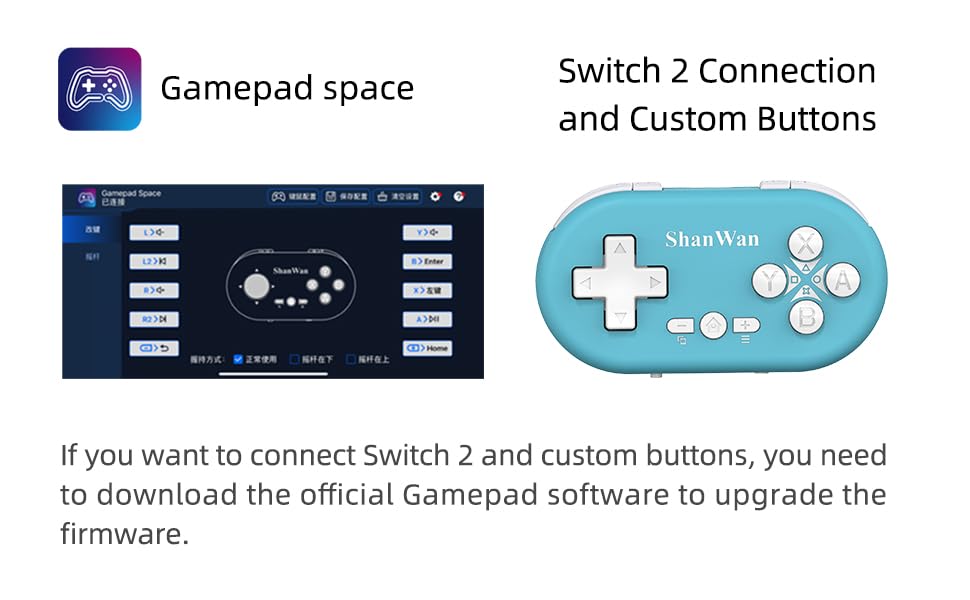
Figure 4.1: The mode switch on the controller, allowing selection between X (Xbox/PC), S (Switch), and P (PlayStation) modes for multi-device compatibility.
4.3.1 A’ paidhreachadh le Nintendo Switch
- Air an Nintendo Switch agad, seòl chun chlàr-taice Dachaigh.
- Tagh “Smachdairean” agus an uair sin “Atharraich Greim/Òrdugh”.
- Set the controller's mode switch to "S" (Switch mode).
- Press and hold the "Pair" button on the controller until the indicator lights begin to blink rapidly.
- The Switch will detect the controller. Once paired, the LED indicator on the controller will remain solid, and the controller will be displayed on the Switch host screen.

Figure 4.2: Visual guide for connecting the controller to a Nintendo Switch, showing menu navigation and the pairing button location.
4.3.2 Pairing with Android/iOS Devices
- Set the controller's mode switch to the appropriate mode (e.g., "X" for Android, or a specific iOS mode if available, refer to device-specific instructions).
- On your Android or iOS device, go to Bluetooth settings.
- Dèan cinnteach gu bheil Bluetooth air a chomasachadh.
- Press and hold the "Pair" button on the controller until the indicator lights blink rapidly.
- Select "ShanWan Controller" or a similar name from the list of available devices on your phone/tablet.
- Cho luath ‘s a bhios e ceangailte, bidh an solas comharrachaidh air an rianadair a’ lasadh gu daingeann.
4.3.3 Pairing with PS4
- Set the controller's mode switch to "P" (PlayStation mode).
- On your PS4, go to "Settings" > "Devices" > "Bluetooth Devices".
- Press and hold the "Pair" button on the controller until the indicator lights blink rapidly.
- Select "ShanWan Controller" or a similar name from the list of available devices on your PS4.
- Cho luath ‘s a bhios e ceangailte, bidh an solas comharrachaidh air an rianadair a’ lasadh gu daingeann.
4.3.4 Pairing with Windows PC
- Set the controller's mode switch to "X" (Xbox/PC mode).
- On your Windows PC, go to "Settings" > "Devices" > "Bluetooth & other devices".
- Ensure Bluetooth is enabled and click "Add Bluetooth or other device".
- Tagh "Bluetooth".
- Press and hold the "Pair" button on the controller until the indicator lights blink rapidly.
- Select "ShanWan Controller" or a similar name from the list of available devices.
- Cho luath ‘s a bhios e ceangailte, bidh an solas comharrachaidh air an rianadair a’ lasadh gu daingeann.
5. Stiùireadh Obrachaidh
5.1 Gnìomhan Putan
The controller features standard gamepad buttons. Their specific function may vary slightly depending on the platform and game.
- D-Pad: Cuir a-steach stiùiridh.
- Putanan A, B, X, Y: Putanan gnìomh.
- Putanan L1, L2, R1, R2: Putanan gualainn is brosnachaidh.
- Putan Dachaigh: Power on/off, return to home screen (platform dependent).
- Putanan Plus (+) / Minus (-): Start/Select or menu functions.
- Putan paidhir: A’ tòiseachadh air paidhreachadh Bluetooth.
5.2 Feartan sònraichte
5.2.1 One-Button Wake-Up Function
After initial pairing, you can wake up the controller and reconnect it to the last paired device by simply pressing the Home button. This feature allows for quick resumption of gameplay.
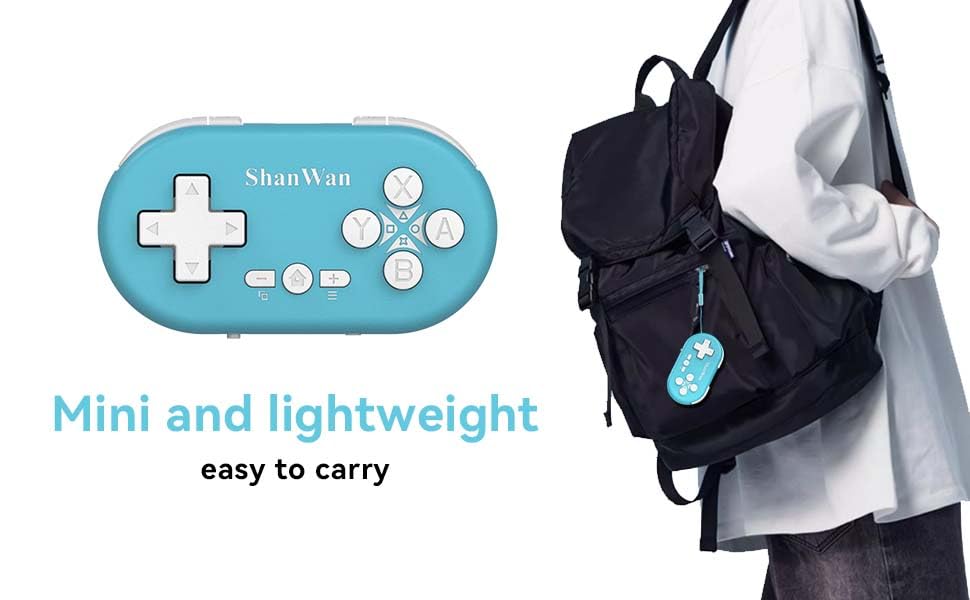
Figure 5.1: Illustration of the one-button wake-up function, highlighting the Home button used to quickly reactivate the controller.
5.2.2 Gyroscope Motion Sensing
The controller is equipped with a gyroscope for motion sensing effects, providing an immersive gaming experience in supported games, particularly on platforms like Nintendo Switch.
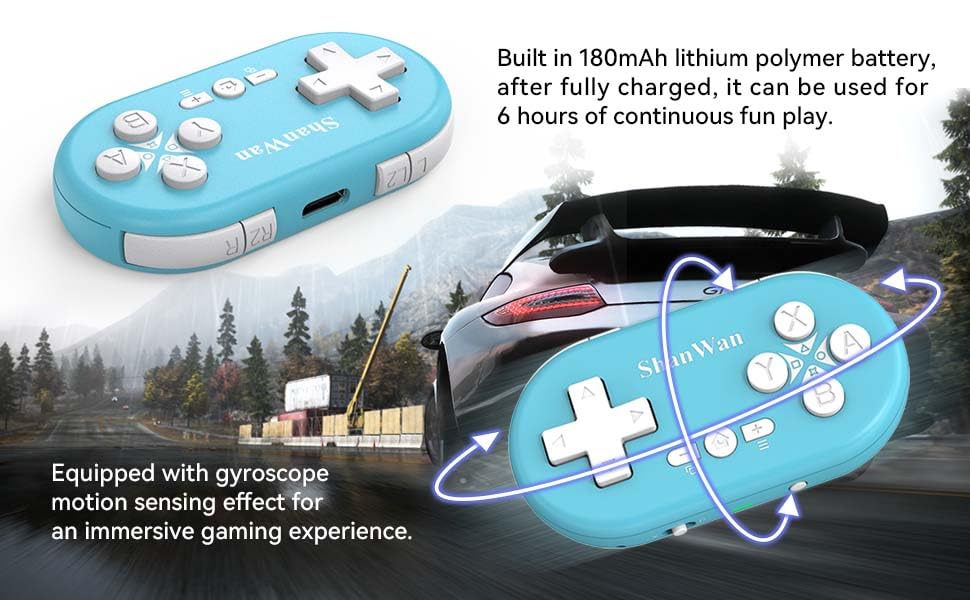
Figure 5.2: Visual representation of the gyroscope motion sensing effect, showing the controller being tilted to influence in-game actions.
5.2.3 Firmware Upgrade for Switch 2 and Custom Buttons
For compatibility with Switch 2 and to customize button mappings, it may be necessary to download the official Gamepad software and upgrade the controller's firmware. Refer to the manufacturer's official weblàrach-lìn airson am bathar-bog agus an stiùireadh as ùire.

Figure 5.3: Screenshot illustrating the "Gamepad Space" software interface, used for firmware upgrades and custom button configurations, particularly for Switch 2 compatibility.
6. Cumail suas
- Glanadh: Cleachd clò bog, tioram airson an rianadair a ghlanadh. Seachain ceimigean cruaidh no stuthan sgrìobach a chleachdadh.
- Stòradh: Stòraich an rianadair ann an àite fionnar, tioram air falbh bho sholas dìreach na grèine agus teòthachd anabarrach.
- Cùram Bataraidh: To prolong battery life, avoid fully discharging the battery frequently. Charge the controller regularly, even if not in use for extended periods.
- Seachain buaidh: Na leig leis an rianadair a bhith air a leigeil sìos agus na cuir e fo bhuaidhean làidir, oir dh’fhaodadh seo milleadh a dhèanamh air na pàirtean a-staigh.
7. A ’dèanamh trioblaid
7.1 Controller Does Not Power On
- Ensure the controller is fully charged. Connect it to a power source and allow it to charge for at least 15 minutes before attempting to power on again.
- Verify that the charging cable and power source are functioning correctly.
7.2 Unable to Pair Controller
- Ensure the controller is in pairing mode (indicator lights blinking rapidly).
- Check that the mode switch on the controller is set to the correct platform (S for Switch, X for Android/Windows, P for PS4).
- Make sure Bluetooth is enabled on your device (Switch, phone, PC, PS4).
- Move the controller closer to the device you are trying to pair with.
- Remove any previous pairings of the controller from your device's Bluetooth settings and try pairing again.
- Ath-thòisich an rianadair agus an inneal agad.
7.3 Input Lag or Disconnections
- Ensure the controller is within the 10-meter wireless range of your device.
- Lùghdaich bacadh bho innealan gun uèir eile (routairean Wi-Fi, innealan Bluetooth eile).
- Ensure the controller is fully charged. Low battery can affect connection stability.
- Feuch ri an rianadair a cheangal a-rithist ris an inneal agad.
- Update the controller's firmware if available (refer to Section 5.2.3).
7.4 Buttons Not Responding Correctly
- Test the controller on a different game or application to determine if the issue is game-specific.
- Ensure the controller's firmware is up to date.
- Perform a factory reset if possible (refer to manufacturer's support for specific instructions, as this model may not have a dedicated reset button).
8. Barantas agus Taic
ShanWan products are designed for reliability and performance. For warranty information, technical support, or further assistance, please visit the official ShanWan weblàrach-lìn no cuir fios chun t-seirbheis teachdaiche aca. Cùm do chuidhteas ceannach mar dhearbhadh ceannach airson tagraidhean barantais.
Official ShanWan Store: ShanWan Store on Amazon
9. Fiosrachadh a bharrachd
The ShanWan Mini Controller's compact and lightweight design makes it highly portable, allowing users to carry it easily and enjoy gaming on the go.

Figure 9.1: The ShanWan Mini Bluetooth Gamepad attached to a backpack, illustrating its keychain-sized portability and ease of transport.

Figure 9.2: The ShanWan Mini Bluetooth Gamepad being used outdoors with a portable screen, demonstrating its ease of transport and use anywhere.
Ask a question about this manual
Ask about setup, troubleshooting, compatibility, parts, safety, or missing instructions. Manuals+ will review the question and use this page’s manual context to help answer it.