
1. Ro-ràdh
This manual provides essential information for the proper setup, operation, and maintenance of your sibolan 18.5-inch 1080P FHD Portable Monitor. This monitor is designed to extend your visual workspace, offering a vibrant 1080P Full HD display with a 100Hz refresh rate, suitable for various applications including work, entertainment, and gaming. Its portable design and versatile connectivity options make it an ideal companion for laptops, PCs, smartphones, and gaming consoles.
2. Pasgan-susbaint
Dèan cinnteach gu bheil na nithean gu lèir a tha air an liostadh gu h-ìosal air an toirt a-steach sa phacaid agad. Ma tha nithean sam bith a dhìth no air am milleadh, cuir fios gu taic luchd-cleachdaidh.
- sibolan 18.5-inch Portable Monitor
- Leabhar-làimhe cleachdaiche
- Adapter cumhachd
- Càball USB-C gu USB-C (x2)
- Càball HDMI

Figear 2.1: Susbaint pacaid an toraidh.
3. Toradh thallview
3.1 Monitor Features
- Taisbeanadh: 18.5-inch Full HD (1920x1080) IPS Panel with 72% sRGB color gamut.
- Ìre Ath-nuadhachaidh: 100Hz for smooth visuals.
- Leasachaidhean lèirsinneach: HDR support, Low Blue Light, Flicker-Free technology.
- Fuaim: Integrated dual speakers.
- Seas: Built-in 0-180° adjustable kickstand.
- Stàladh: 75x75mm VESA wall mount compatible.
- Dealbhadh: Lightweight aluminum alloy construction.
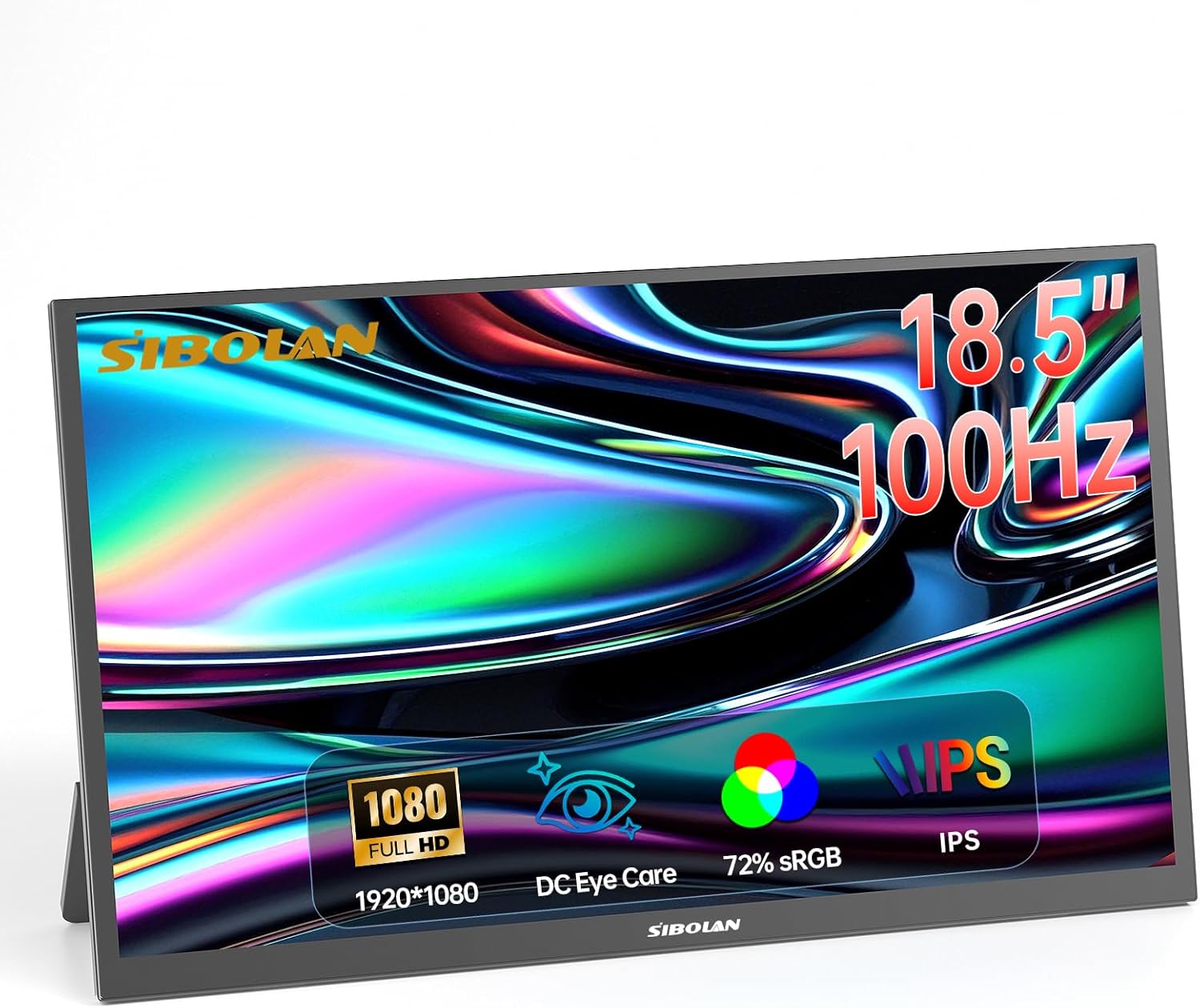
Figear 3.1: Aghaidh view of the sibolan portable monitor.

Figure 3.2: Monitor dimensions and adjustable stand.
3.2 Puirt agus Smachdan
The monitor features a variety of ports for connectivity and controls for easy navigation:
- Port Mini HDMI: For video input from devices like PCs, game consoles, and cameras.
- Puirt USB-C (x2): Full-featured USB-C ports for video, audio, and power delivery with compatible devices. One port can also be used for power input only.
- Jack claisneachd 3.5mm: Airson ceangal a dhèanamh eadar fònaichean-cluaise no luchd-labhairt taobh a-muigh.
- Putan Cumhachd ON / OFF: Gus an monitor a thionndadh air no dheth.
- Control Wheel: Used to navigate the On-Screen Display (OSD) menu and adjust settings like brightness, volume, and input source.

Figure 3.3: Monitor ports and controls layout.

Figear 3.4: Taobh view de phuirt sgrùdaidh.
4. Suidhich
4.1 Suidheachadh Tùsail
Place the monitor on a stable, flat surface. The built-in kickstand can be adjusted from 0 to 180 degrees to achieve your desired viewing angle. For alternative mounting, the monitor supports a 75x75mm VESA mount.

Figure 4.1: VESA mounting points on the monitor.
4.2 Ceangal cumhachd
Connect the provided power adapter to one of the USB-C ports on the monitor and then to a power outlet. The monitor requires external power to operate.
5. Stiùireadh Obrachaidh
5.1 Connecting to a Laptop or PC
The monitor offers flexible connectivity options for laptops and PCs:
- Using a Single USB-C Cable (Full-Featured USB-C): If your laptop or PC has a full-featured USB-C port that supports video output and power delivery, you can connect it to the monitor using a single USB-C to USB-C cable. This cable will transmit video, audio, and power, simplifying your setup.

Figure 5.1: Connecting to a laptop via USB-C.
- Using HDMI and Power Cable: If your device does not have a full-featured USB-C port, connect the monitor to your device using the provided HDMI cable for video and audio. Additionally, connect the monitor to a power source using the power adapter and a USB-C cable.

Figure 5.2: Connecting to a laptop via HDMI and power.
5.2 A’ ceangal ri fòn cliste
For compatible smartphones with USB-C video output capabilities, connect your phone to the monitor using a USB-C to USB-C cable. The monitor will display your phone's screen, often enabling a desktop-like experience or screen mirroring.
Video 5.1: Demonstration of connecting a smartphone to the portable monitor via USB-C, showcasing screen mirroring and desktop mode functionality.
5.3 Connecting to a Game Console
Connect your game console (e.g., PS4/5, Xbox, Nintendo Switch) to the monitor using an HDMI cable for video and audio. Ensure the monitor is also connected to a power source. This setup provides an expanded display for an immersive gaming experience.

Figure 5.3: Connecting to a game console.
6. Roghainnean taisbeanaidh
The monitor's settings can be adjusted using the Control Wheel. Press the wheel to access the On-Screen Display (OSD) menu, and roll it to navigate options and adjust values.
6.1 Brightness and Contrast
Adjust the brightness and contrast levels to suit your viewing environment and preferences. These settings are typically found under the 'Picture' or 'Display' menu in the OSD.
6.2 HDR Mode
The monitor supports High Dynamic Range (HDR). You can enable HDR mode through the OSD menu to enhance image brightness, contrast, and color depth, providing a more realistic visual experience for compatible content.
6.3 Low Blue Light
To reduce eye strain during prolonged use, especially in low-light conditions, activate the Low Blue Light feature from the OSD menu. This mode filters out harmful blue light emissions without significantly affecting color accuracy.

Figure 6.1: Low Blue Light feature for eye protection.
7. Cumail suas
7.1 Glanadh an monitor
Gus scrion an monitor a ghlanadh, sguab gu socair e le clò bog, gun lint. Airson comharran stòlda, sguab gu socair e.ampen the cloth with water or a mild, non-abrasive screen cleaner. Avoid using harsh chemicals, alcohol, or ammonia-based cleaners, as these can damage the screen surface. Do not spray liquid directly onto the screen.
7.2 Cùram Coitcheann
Keep the monitor away from direct sunlight, excessive heat, and moisture. Avoid placing heavy objects on the monitor or applying pressure to the screen. When transporting the monitor, use appropriate protective packaging to prevent damage.
8. A ’dèanamh trioblaid
Ma thachras tu ri duilgheadasan leis an sgrìn agad, thoir sùil air na fuasglaidhean cumanta a leanas:
| Trioblaid | Adhbhar a dh’fhaodadh a bhith ann | Fuasgladh |
|---|---|---|
| No power/Monitor does not turn on | Chan eil an inneal-atharrachaidh cumhachd ceangailte no lochtach. | Ensure the power adapter is securely connected to the monitor and a working power outlet. Try a different outlet. |
| No signal/Blank screen | Incorrect input source selected; cable not connected properly; device not outputting signal. | Check all cable connections (USB-C, HDMI). Use the Control Wheel to select the correct input source in the OSD menu. Ensure your connected device is powered on and configured to output video. |
| Sgrion a’ priobadh | Loose cable connection; incompatible display settings. | Secure all cable connections. Adjust the refresh rate or resolution on your connected device. |
| Gun fhuaim bho luchd-labhairt | Volume too low or muted; incorrect audio output selected on device. | Increase monitor volume using the Control Wheel. Check audio settings on your connected device to ensure audio is routed to the monitor. |
9. Sònrachaidhean
| Feart | Mion-fhiosrachadh |
|---|---|
| Brand | sibolan |
| Modail Àireamh | 185 BTS |
| Meud sgrion | 18.5 òirlich |
| Fuasgladh | FHD 1080p (1920 x 1080 piogsail) |
| Ìre Ath-nuadhachaidh | 100 Hz |
| Seòrsa Taisbeanaidh | IPS LCD |
| Co-mheas taobh | 16:9 |
| Viewann an Ceàrn | 178 ceum |
| Àm Freagairt | 5 milliseconds |
| Teicneòlas ceangail | HDMI, USB-C |
| Puirt | 1x Mini HDMI, 2x USB-C, 1x 3.5mm Audio Jack |
| Meudan nì (D x W x H) | 16.73" x 9.84" x 0.78" |
| Cuideam nì | 2.06 cileagram (mu 4.54 lbs) |
| Feartan a bharrachd | Blue Light Filter, Flicker-Free, High Dynamic Range (HDR), Portable, Built-in Kickstand, VESA Mount (75x75mm) |
| Innealan co-fhreagarrach | Laptops, PCs, Phones, Macs, PS4/5, Xbox, Switch |
10. Barantas agus Taic
10.1 Barantas an Neach-dèanamh
This sibolan portable monitor is covered by a Barantas an Neach-dèanamh 1-bliadhna bho cheann-latha a’ cheannaich. Tha am barantas seo a’ còmhdach lochdan ann an stuthan agus obair-ciùird fo chleachdadh àbhaisteach. Chan eil e a’ còmhdach milleadh air adhbhrachadh le droch chleachdadh, tubaistean, atharrachaidhean gun chead, no adhbharan bhon taobh a-muigh.
10.2 Taic teachdaiche
For technical assistance, warranty claims, or any questions regarding your sibolan portable monitor, please contact the manufacturer's customer support. Refer to the contact information provided on the product packaging or the official sibolan weblàrach.