
1. Ro-ràdh
This manual provides essential information for the proper setup, operation, and maintenance of your NexiGo NG17QH 4K Portable Monitor. Please read this manual thoroughly before using the device to ensure optimal performance and to prevent damage. Keep this manual for future reference.

Image: The NexiGo NG17QH 4K Portable Monitor, showcasing its sleek design and smart cover.
2. Pasgan-susbaint
Verify that all items listed below are included in your package. If any items are missing or damaged, please contact NexiGo customer support.
- NexiGo NG17QH 4K Portable Monitor
- Smart Cover / Stand
- Càball USB-C gu USB-C
- Mini HDMI gu Càball HDMI
- Càball cumhachd USB-A gu USB-C
- Adapter cumhachd
3. Toradh thallview
Familiarize yourself with the ports and controls on your NexiGo NG17QH portable monitor.
Ìomhaigh: Mion-fhiosrachadh view de phuirt is smachdan an sgrùdair.
Puirt is Putanan:
- Port USB-C làn-nochdadh: Used for power, video, and audio transmission with compatible devices.
- Port Mini HDMI: Used for video and audio transmission with HDMI-compatible devices.
- Putan Cumhachd: Press and hold to power the monitor on or off. Short press to access the OSD menu.
- Solas Comharra Cumhachd: Indicates the monitor's power status.
- Multi-Function Key: Used to navigate the OSD menu and adjust settings.
- OTG Interface (USB-C): Allows connection of USB peripherals like keyboards or mice when the monitor is connected via the full-featured USB-C port.
- Jack Headphone 3.5mm: Airson innealan claisneachd taobh a-muigh a cheangal.
4. Suidhich
Follow these steps to set up your NexiGo NG17QH portable monitor.
4.1 A’ toirt cumhachd don Monitor
- Using a single USB-C cable (Full-Featured): If your device (laptop, smartphone) supports full-featured USB-C output, connect the monitor to your device using the provided USB-C to USB-C cable. This single cable can provide both power and display signal.
- Using an external power adapter: If your device does not provide sufficient power or if you are using the Mini HDMI port, connect the provided USB-A to USB-C power cable to the monitor's full-featured USB-C port and plug the USB-A end into the power adapter, then into a wall outlet.
4.2 A 'ceangal ri innealan
- Laptop/PC (USB-C): Connect the monitor to your laptop/PC using the USB-C to USB-C cable. Ensure your laptop's USB-C port supports DisplayPort Alternate Mode.
- Laptop/PC (HDMI): Connect the monitor to your laptop/PC using the Mini HDMI to HDMI cable. Ensure the monitor is powered externally via the USB-C power cable.
- Gaming Consoles (PS5, Xbox, Switch): Connect the monitor to your console using the Mini HDMI to HDMI cable. Ensure the monitor is powered externally via the USB-C power cable.
- Fòn-smart: Connect the monitor to your smartphone using the USB-C to USB-C cable. Ensure your smartphone's USB-C port supports video output.
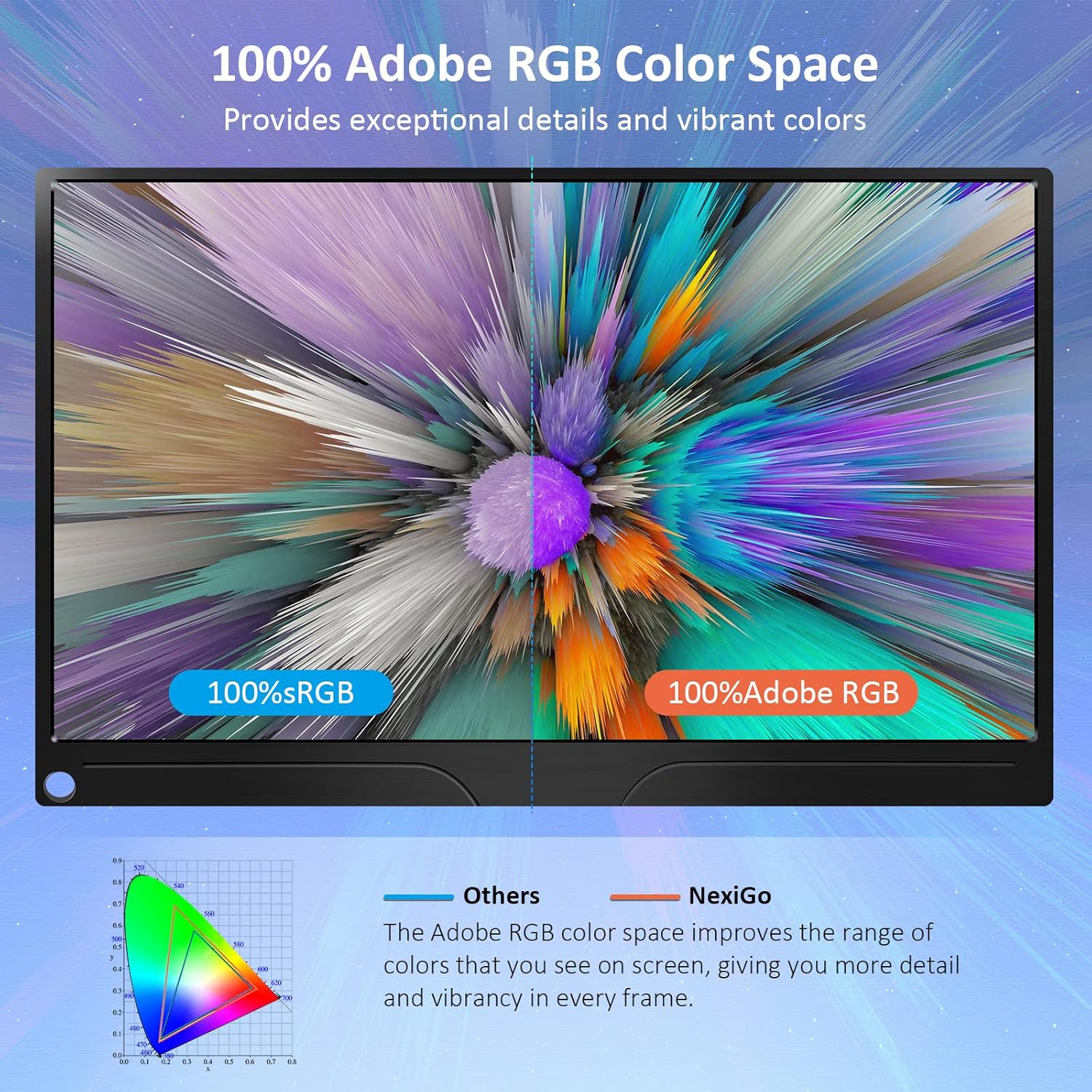
Image: The portable monitor connected to a laptop, demonstrating an extended display setup.
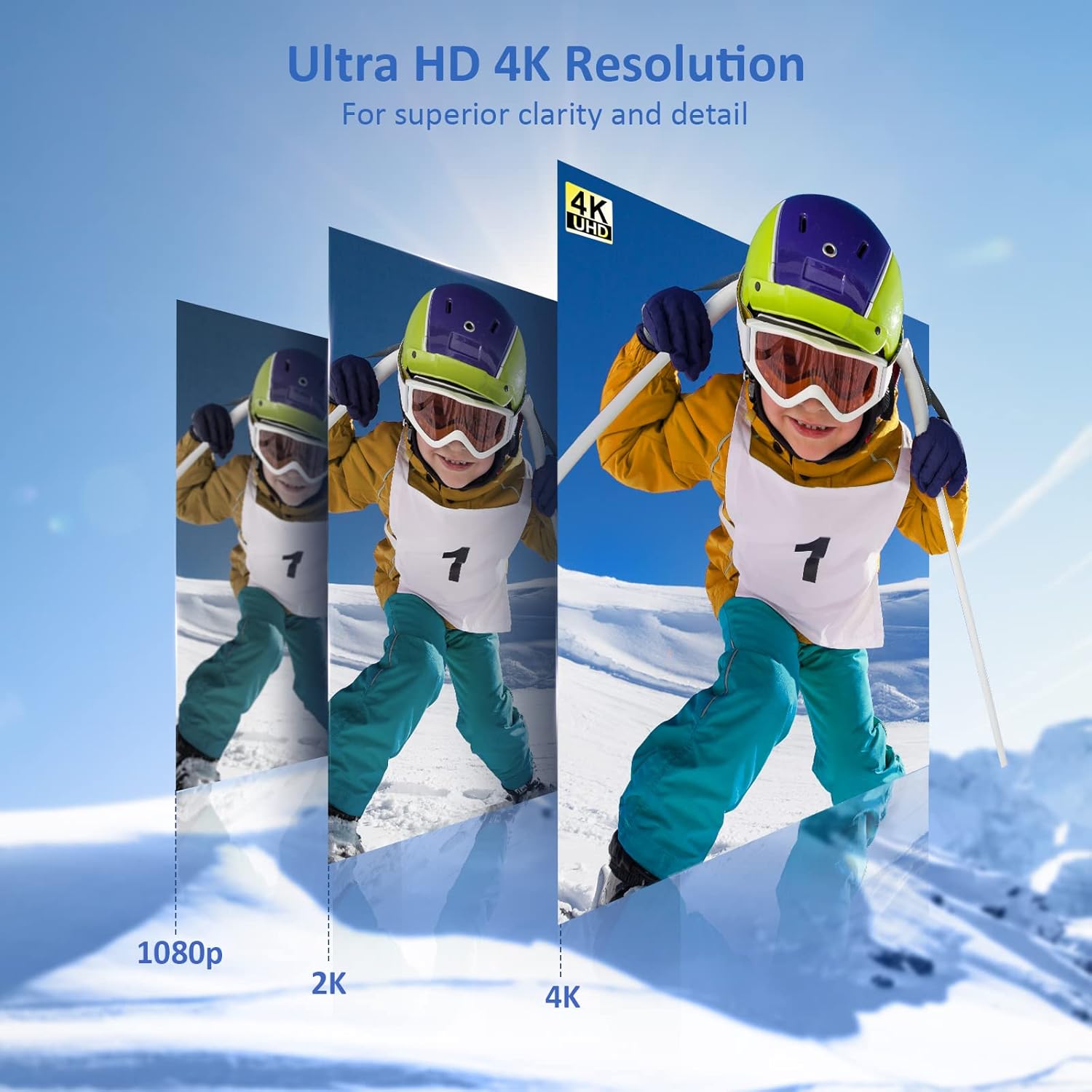
Image: The portable monitor connected to a smartphone, displaying content.
4.3 Stàladh VESA
The monitor is compatible with VESA mounts (75x75mm). To mount the monitor, remove the smart cover and attach it to a compatible VESA arm or wall mount using appropriate screws (not included).
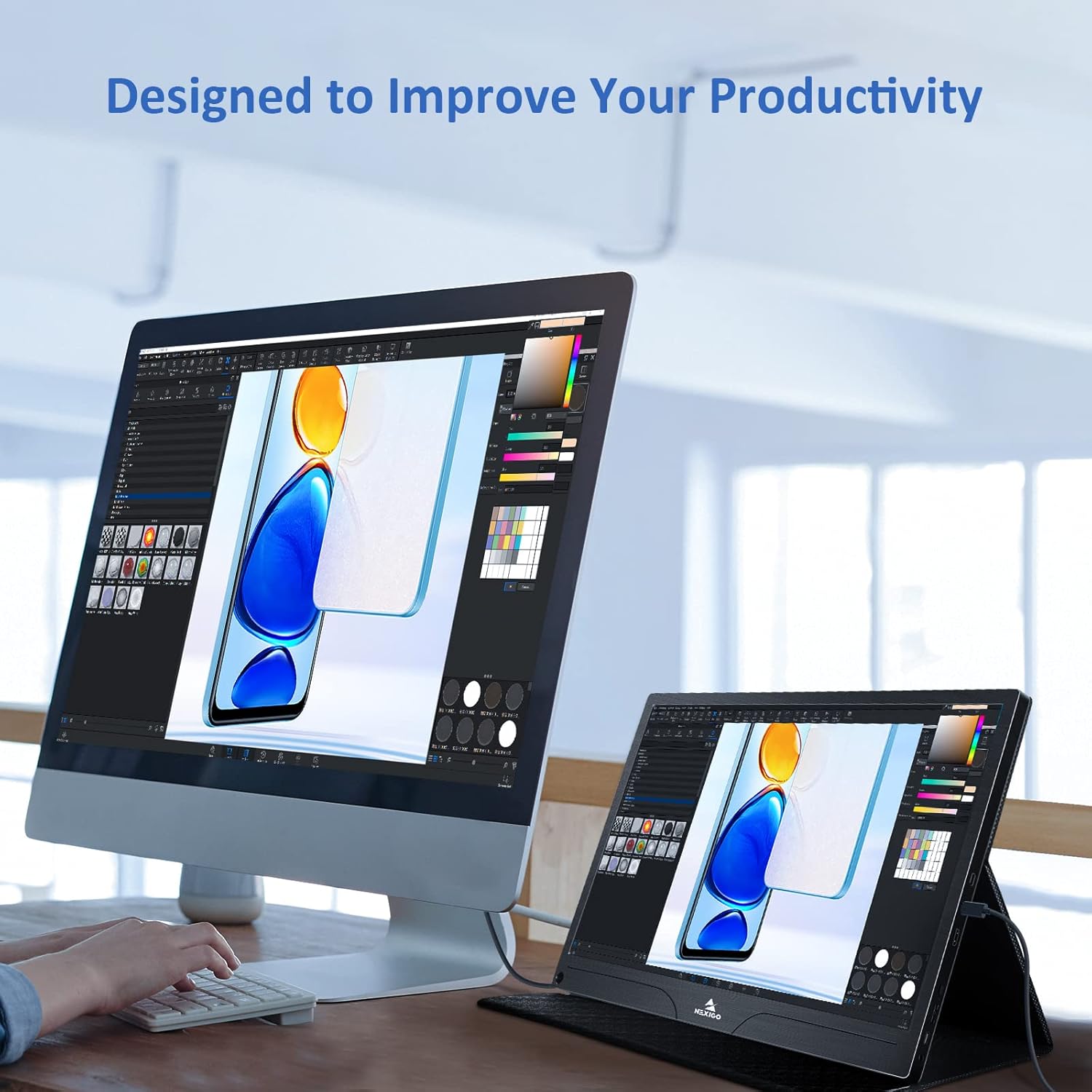
Image: The monitor mounted on a VESA-compatible desk arm.
5. Ag obrachadh an Monitor
5.1 Cumhachd air / dheth
Brùth agus cùm an Putan Cumhachd for approximately 3 seconds to turn the monitor on or off.
5.2 Clàr-taice Taisbeanaidh Air-sgrion (OSD)
The OSD menu allows you to adjust various display settings. Short press the Putan Cumhachd to open the OSD menu. Use the Iuchair Ioma-ghnìomh to navigate and select options.
- Suas/Sìos: Move the Multi-Function Key up or down to navigate through menu options.
- Cuir a-steach: Press the Multi-Function Key inward to select an option or confirm a setting.
- A-mach: Press the Power Button to exit the current menu or the OSD.
5.3 Roghainnean taisbeanaidh
- Gile / coimeas: Atharraich soilleireachd agus iomsgaradh iomlan an taisbeanaidh.
- Roghainnean dath: Atharraich teòthachd dath, dath, agus sùghaidh.
- Modh HDR: Enable or disable High Dynamic Range for enhanced visual quality with compatible content.
- FreeSync: Enable FreeSync for smoother gaming experiences by synchronizing the monitor's refresh rate with your GPU's frame rate.
- Co-mheas taobh: Adjust the display aspect ratio (e.g., 16:9, 4:3).
5.4 Roghainnean claisneachd
Adjust the volume of the built-in dual speakers or connected headphones through the OSD menu.
6. Cumail suas
- Glanadh an sgrion: Cleachd clò bog gun lint gu h-aotrom dampair a nighe le uisge no le inneal-glanaidh sgrion neo-sgrìobach. Na spraeadh leaghan gu dìreach air an sgrion.
- A’ glanadh an Casing: Sguab às an monitor casing with a soft, dry cloth. Avoid using harsh chemicals or solvents.
- Stòradh: When not in use, store the monitor in a cool, dry place, preferably in its original packaging or smart cover to protect it from dust and scratches.
- Seachain suidheachaidhean fìor: Na cuir am monitor fo theodhachd anabarrach, taiseachd no solas dìreach na grèine.
7. A ’dèanamh trioblaid
Ma thachras tu ri duilgheadasan leis an sgrìn agad, thoir sùil air a’ chlàr a leanas airson duilgheadasan agus fuasglaidhean cumanta.
| Trioblaid | Adhbhar a dh’fhaodadh a bhith ann | Fuasgladh |
|---|---|---|
| No display / "No Signal" message | Incorrect cable connection, insufficient power, incorrect input source. | Ensure cables are securely connected. Verify external power is supplied if needed. Check the input source setting in the OSD menu. |
| Chan eil an monitor a’ tionndadh air | No power supply, faulty cable. | Ensure the power adapter is connected and working. Try a different USB-C cable or power source. |
| Sgrion a’ priobadh | Faulty cable, unstable power, incompatible resolution/refresh rate. | Replace the cable. Ensure stable power. Adjust the display resolution or refresh rate on your connected device. |
| Gun fhuaim | Volume too low, incorrect audio output setting, faulty cable. | Increase volume via OSD or connected device. Ensure the monitor is selected as the audio output device on your source. Check cable connections. |
| OTG port not working | Monitor not powered via full-featured USB-C, device incompatibility. | Ensure the monitor is connected to a device via the full-featured USB-C port that supports OTG functionality. |
8. Sònrachaidhean
Detailed technical specifications for the NexiGo NG17QH 4K Portable Monitor.
| Feart | Sònrachadh |
|---|---|
| Modail Àireamh | NG17QH |
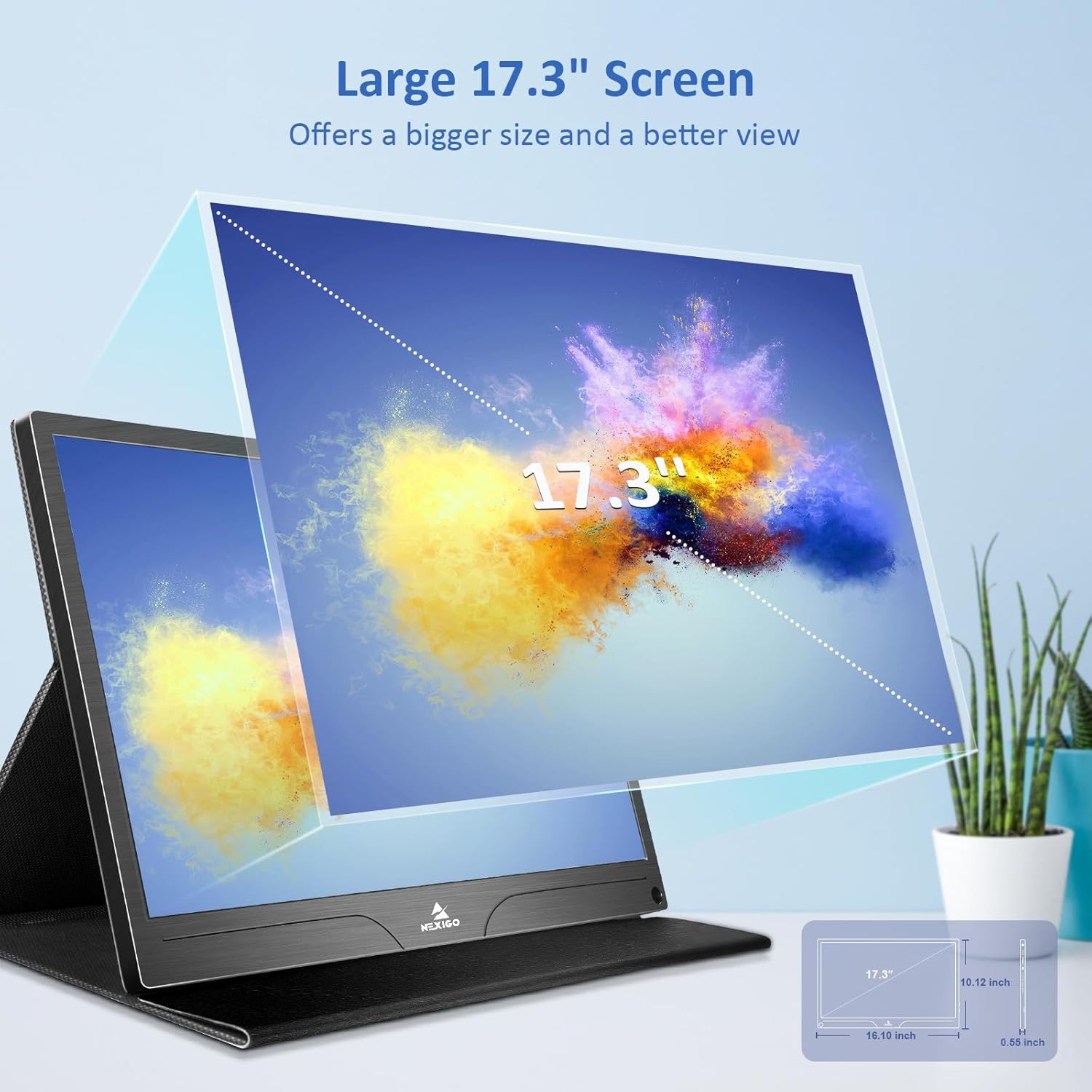
| Meud sgrion | 17.3 òirlich |
| Fuasgladh | 3840 x 2160 (4K UHD) |
| Seòrsa pannal | IPS |
| Gile | 400 cd / m² |
| Gamut dath | 100% Adobe RGB |
| Co-mheas taobh | 16:9 |
| Viewann an Ceàrn | 178° |
| Feartan | FreeSync, HDR, Eye Care Screen |
| Luchd-labhairt | Dual Built-in Speakers |
| Ceangalachd | Full-Featured USB-C (x1), Mini HDMI (x1), OTG USB-C (x1), 3.5mm Audio Jack (x1) |
| Co-fhreagarrachd VESA | 75 x 75 mm |
| Meudan toraidh | 16.1 x 10.12 x 0.55 òirleach |
| Cuideam nì | 6.39 not |

Image: Visual comparison of 1080p, 2K, and 4K resolutions, demonstrating the clarity of the 4K display.
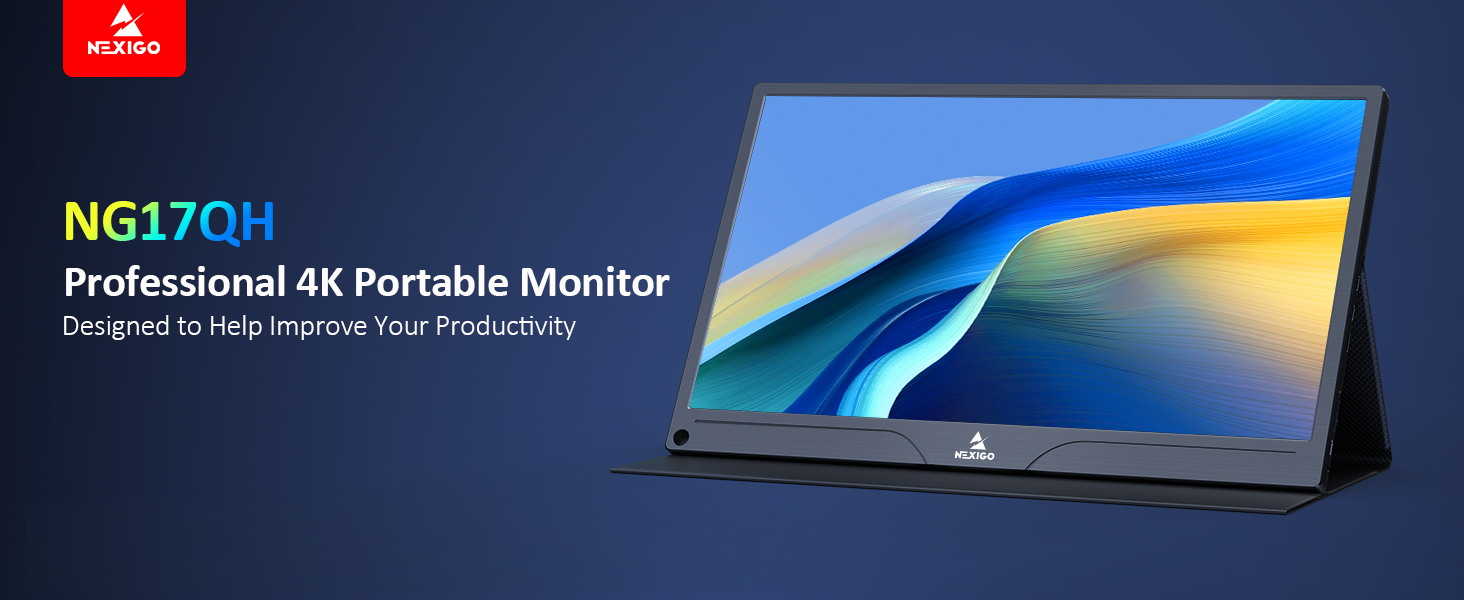
Image: A visual representation of 100% Adobe RGB color space coverage, indicating vibrant and detailed color reproduction.
9. Barantas agus Taic
Your NexiGo NG17QH Portable Monitor comes with a manufacturer's warranty. For detailed warranty information, product registration, or technical support, please visit the official NexiGo weblàrach-lìn no cuir fios chun t-seirbheis teachdaiche aca gu dìreach. Cùm do chuidhteas ceannach mar dhearbhadh ceannach airson tagraidhean barantais.
NexiGo Official Weblàrach: www.nexigo.com