
Ro-ràdh
This manual provides detailed instructions for the setup, operation, and maintenance of your Prechen 10.1 inch Portable Touchscreen Monitor, Model HD-101. Please read this manual thoroughly before using the device to ensure proper functionality and to prevent damage.
Feartan toraidh
- Portable Touchscreen: This 10.1-inch monitor is compact and lightweight, designed for portability. The touchscreen functionality allows for intuitive navigation and interaction, enhancing productivity on the go.
- High-Resolution IPS Display: Features a 1920x1200 resolution with a 16:10 aspect ratio, delivering clear and vibrant visuals. IPS technology provides wide viewing angles and accurate color reproduction, suitable for various applications.
- Ceangal ioma-ghnèitheach: Equipped with HDMI and USB-C ports, offering flexible connection options. It can be easily connected to Windows PCs, laptops, and gaming consoles like Xbox. Note: USB-C is for touch functionality and power.
- Luchd-labhairt aonaichte: Built-in speakers provide clear and dynamic audio, eliminating the need for external speakers during media consumption, gaming, or virtual meetings.
- VESA Mount Co-fhreagarrach: The monitor supports VESA mounting standards, allowing for attachment to compatible stands or arms for customized workspace setups and comfortable viewing ceàrnan.
Suidhich
Susbaint pacaid
Dèan cinnteach gu bheil a h-uile nì anns a’ phacaid:
- Prechen 10.1 inch Portable Touchscreen Monitor
- Càball HDMI
- Càball USB-C gu USB-C
- USB-A to USB-C Cable (for power/touch)
- Adapter cumhachd
- Leabhar-làimhe cleachdaiche (an sgrìobhainn seo)
A 'ceangal an Monitor
- Ceangal cumhachd: Connect the provided power adapter to the DC Power Port on the monitor and plug it into a power outlet. Alternatively, if your device supports power delivery, connect a USB-C to USB-C cable to the USB-C (Power & Touch) port for both power and signal.
- Ceangal bhidio:
- HDMI: Connect one end of the HDMI cable to the HDMI port on the monitor and the other end to the HDMI output of your computer or device.
- USB-C (DisplayPort Alternate Mode): If your device supports DisplayPort Alternate Mode over USB-C, connect a USB-C to USB-C cable to the USB-C (Power & Touch) port on the monitor and your device. This single cable can provide video, power, and touch functionality.
- Gnìomh suathaidh: For touch functionality, ensure the USB-C (Power & Touch) port is connected to your device. If using HDMI for video, you will also need to connect a USB-A to USB-C cable from your device's USB-A port to the monitor's USB-C (Power & Touch) port.
- Toradh claisneachd: If you wish to use external headphones or speakers, connect them to the 3.5mm Audio Port on the monitor.
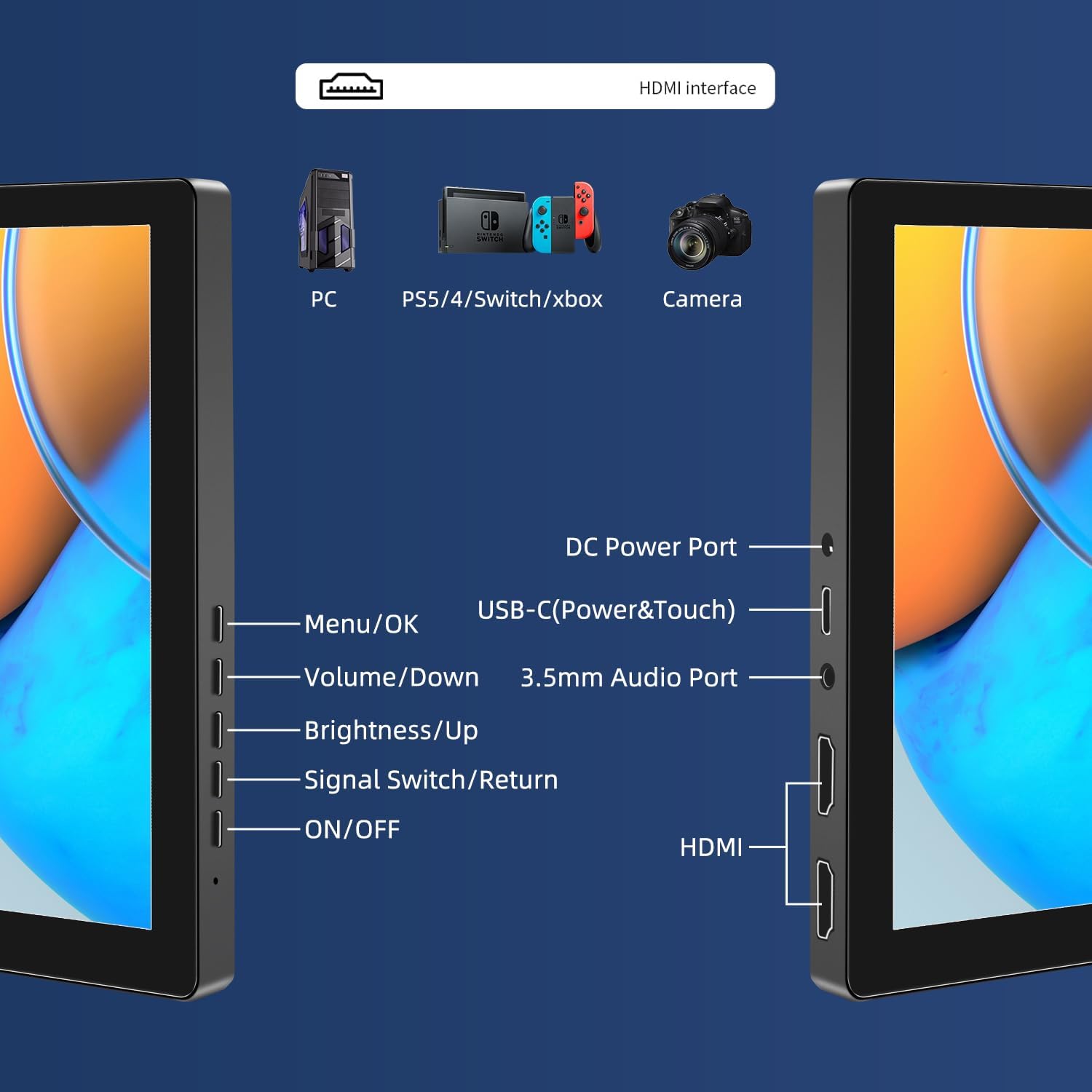
Ìomhaigh: Tharview of the monitor's ports including DC Power, USB-C (Power & Touch), 3.5mm Audio, HDMI, and control buttons.
Stiùireadh Obrachaidh
Cumhachd air / dheth
- To power on the monitor, press the AIR/DHETH putan.
- Gus cumhachd a thoirt air falbh, brùth agus cùm grèim air an AIR/DHETH button for a few seconds until the screen turns off.
A ’cleachdadh a’ chlàr air-sgrìn (OSD)
The OSD menu allows you to adjust various display settings.
- Brùth an Clàr / ceart gu leòr putan gus clàr-taice OSD fhosgladh.
- Cleachd an Volume / Down agus Gile / Suas putanan gus seòladh tro roghainnean clàr-taice.
- Brùth Clàr / ceart gu leòr gus roghainn a thaghadh no suidheachadh a dhearbhadh.
- Brùth an Signal Switch/Return button to go back to the previous menu or exit the OSD.
A’ gleusadh mhodhan taisbeanaidh
The monitor supports multiple display modes when connected to a computer:
- Modh dùblaichte: Displays the same content on both your primary screen and the portable monitor.
- Modh leudachaidh: Leudaichidh seo an deasg agad thairis air an dà scrion, a’ toirt seachad barrachd àite-obrach.
- Modh an Dàrna Sgrion: A’ cleachdadh an monitor so-ghiùlain a-mhàin mar an taisbeanadh.
These modes are typically configured through your operating system's display settings (e.g., Windows Display Settings, macOS System Preferences).
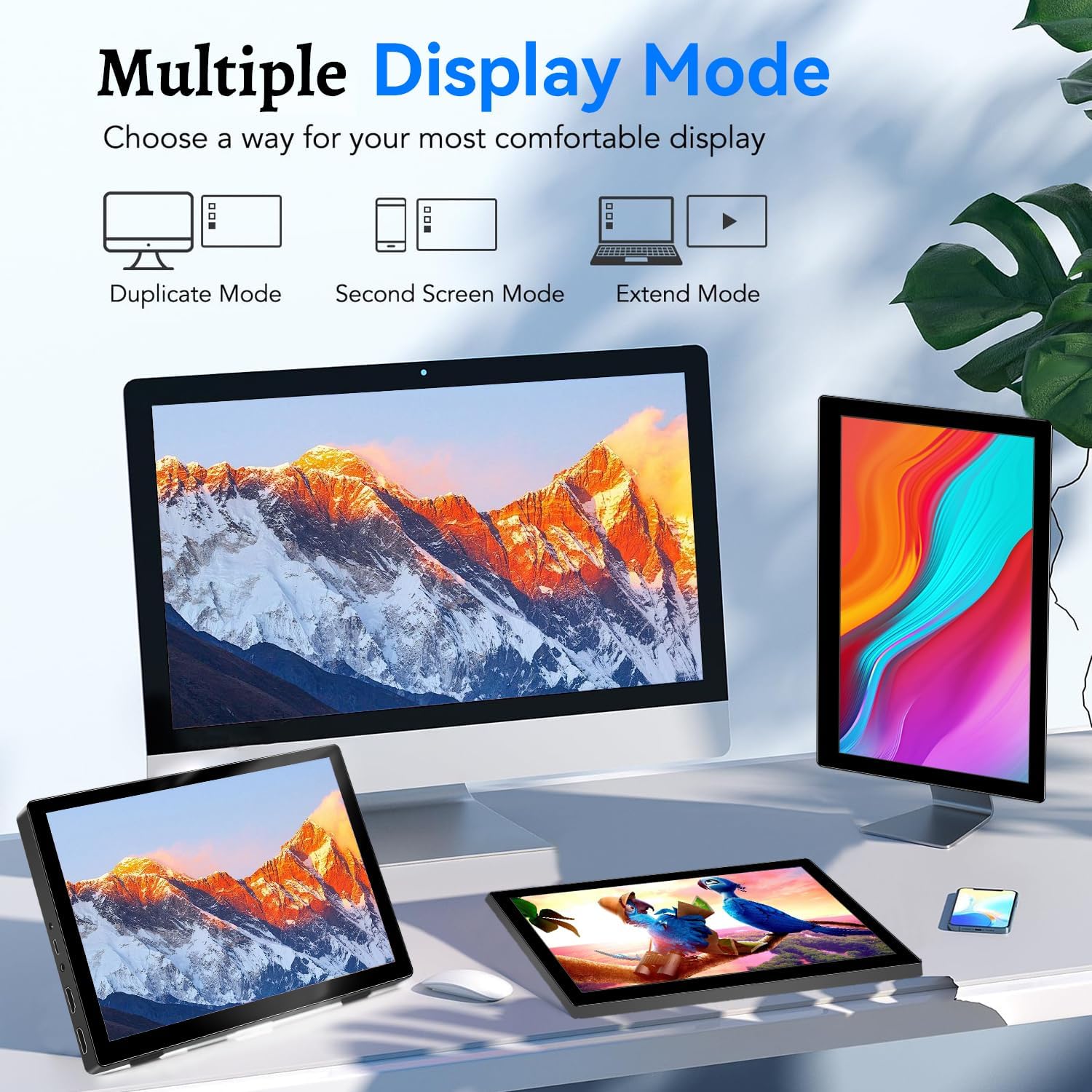
Image: Visual representation of Duplicate, Second Screen, and Extend display modes.
Using Touchscreen Functionality
The monitor supports 10-point touchscreen technology. Ensure the USB-C (Power & Touch) port is correctly connected to your device for touch input to function.

Ìomhaigh: Examples of 10-point touchscreen gestures for interaction.
Cumail suas
- Glanadh an sgrion: Cleachd clò bog, gun lint beagan dampened with water or a non-abrasive screen cleaner. Do not spray cleaner directly onto the screen.
- A’ glanadh an Casing: Sguab às an monitor casing with a soft, dry cloth. Avoid using strong detergents or solvents.
- Stòradh: Nuair nach eilear ga chleachdadh, stòraich am monitor ann an àite fionnar, tioram, air falbh bho sholas dìreach na grèine agus teòthachd anabarrach.
- Làimhseachadh: Avoid dropping or subjecting the monitor to strong impacts. Do not place heavy objects on top of the monitor.
Fuasgladh thrioblaidean
| Trioblaid | Adhbhar a dh’fhaodadh a bhith ann | Fuasgladh |
|---|---|---|
| Gun taisbeanadh/Sgrion dubh |
|
|
| Touchscreen nach eil a 'freagairt |
|
|
| Gun fhuaim bho luchd-labhairt |
|
|
| Image quality issues (blurry, distorted) |
|
|
Sònrachaidhean
| Feart | Mion-fhiosrachadh |
|---|---|
| Brand | Prechen |
| Modail Àireamh | HD-101 |
| Meud sgrion | 10.1 òirlich |
| Fuasgladh | 1920 x 1200 (UXGA Wide) |
| Co-mheas taobh | 16:10 |
| Seòrsa pannal | IPS |
| Ìre Ath-nuadhachaidh | 60 Hz |
| Àm Freagairt | 1 ms |
| Ceangalachd | 1x HDMI, 1x USB-C (Power & Touch), 1x 3.5mm Audio Jack, 1x DC Power Port |
| Meudan (L x W x H) | 21.8 x 15.8 x 1.4 cm |
| Cuideam | 990 gram |
| Dèanadair | Shenzhen Kenowa Electronics Co., LTD |
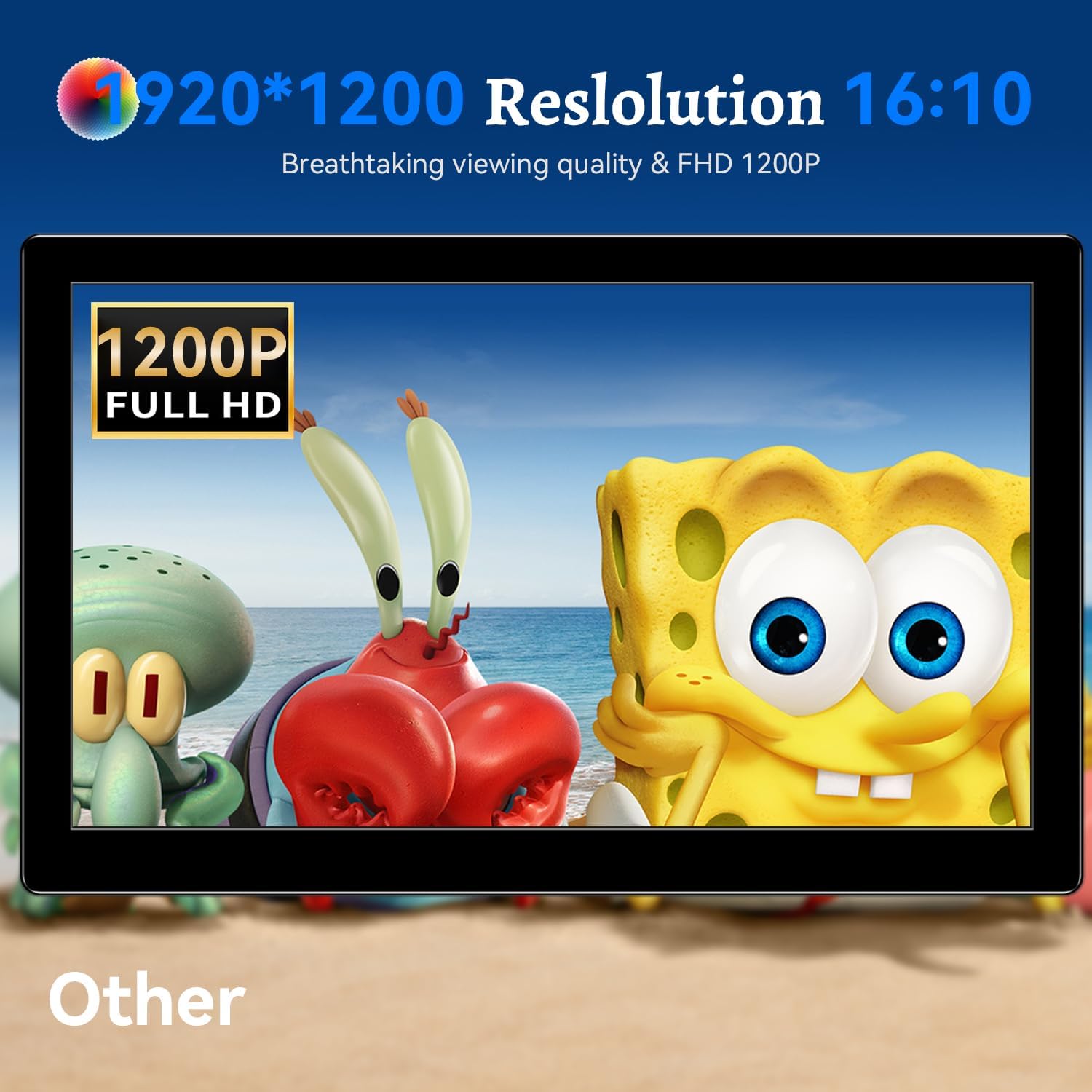
Ìomhaigh: An taisbeanadh monitorasing its 1920x1200 Full HD resolution.

Image: The monitor's IPS panel offering wide viewing angles and rich colors.
Barantas agus Taic
For warranty information and technical support, please refer to the warranty card included with your product or contact Prechen customer service through their official website. Please have your model number (HD-101) and purchase details ready when contacting support.