
typecase KB206129
Leabhar-stiùiridh Cùis Meur-chlàir Typecase airson iPad Pro 12.9 (6mh, 5mh, 4mh, 3mh Ginealach)
Modail: KB206129
Ro-ràdh
This manual provides detailed instructions for the setup, operation, maintenance, and troubleshooting of your typecase Keyboard Case for iPad Pro 12.9. Please read this manual thoroughly before using the product to ensure optimal performance and longevity.
The typecase Keyboard Case is designed to enhance your iPad Pro 12.9 experience, offering a versatile keyboard with a trackpad and backlit keys. It is compatible with iPad Pro 12.9-inch (6th, 5th, 4th, 3rd Generation) models.
Susbaint pacaid
- 1 x typecase Keyboard Case (for iPad Pro 12.9 6th/5th/4th/3rd Gen)
- 1 x Càball Cìsean USB-C
- 1 x Leabhar-làimhe Cleachdaiche
Suidhich
1. A’ cur cosgais air a’ mheur-chlàr
Before initial use, fully charge the keyboard. Connect the provided USB-C charging cable to the charging port on the side of the keyboard and to a USB power adapter (not included). The charging indicator light will show the charging status.
- Charging Port Location: Typically on the right side of the keyboard.
- Beatha bataraidh: The keyboard features a built-in rechargeable lithium polymer battery. Battery level can be checked on your iPad (like other connected Bluetooth devices) or via a shortcut key (Fn + Spacebar, if available, to show 1/3, 2/3, 3/3 battery life).
2. A’ ceangal an iPad Pro agad
The keyboard case features a magnetic attachment system. Align your iPad Pro 12.9 with the magnetic panel on the case. The magnets will securely hold the iPad in place.
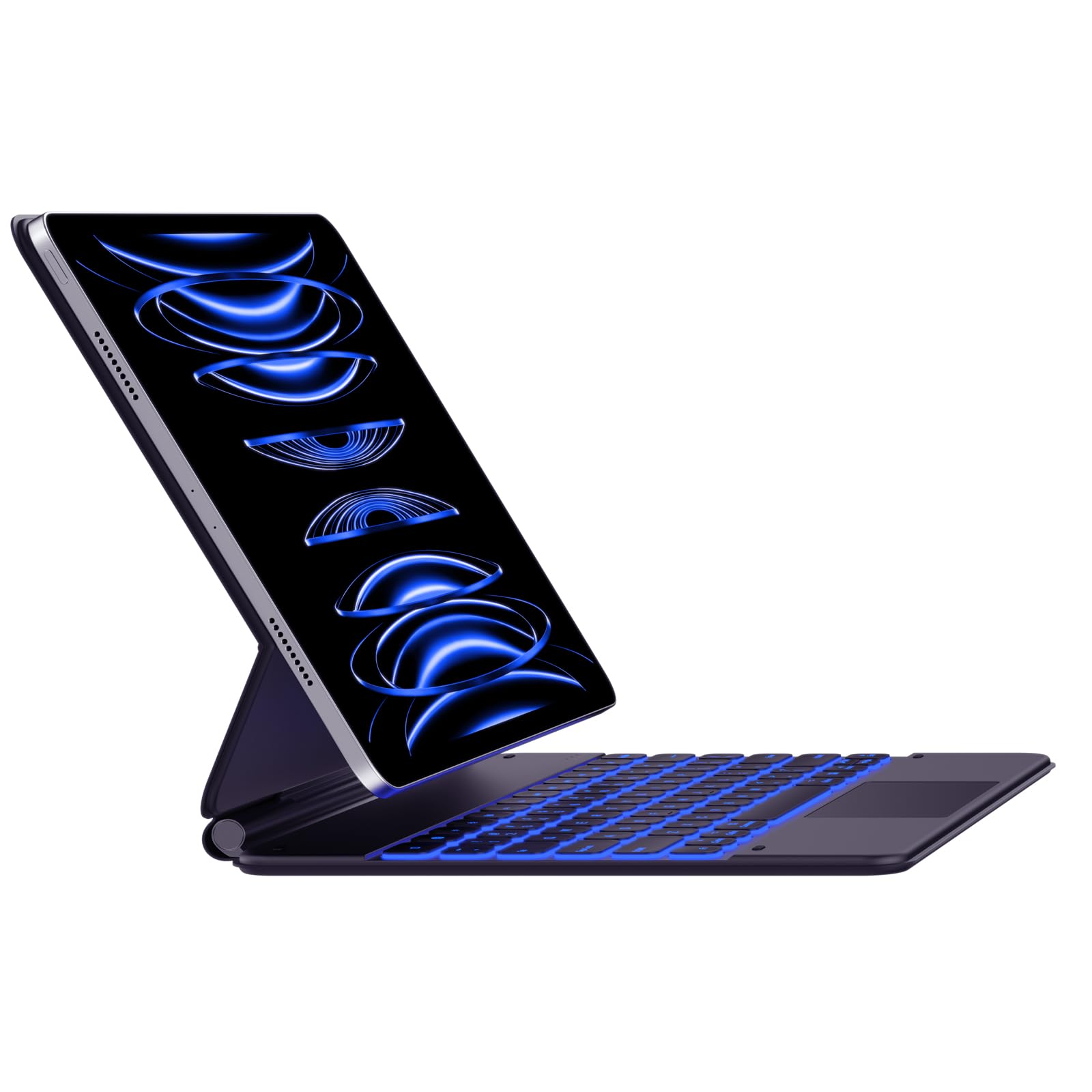
Image: The typecase Keyboard Case with an iPad Pro magnetically attached, displaying blue backlit keys and a vibrant screen.
- Ensure the camera cutout on the case aligns with your iPad's camera.
- The magnetic connection is designed to be strong, but always handle with care.
3. Pairing with Your iPad (Bluetooth Connection)
- Cumhachd air: Locate the power switch on the side of the keyboard and slide it to the "ON" position.
- Cuir an gnìomh modh paidhir: Brùth agus cùm an Ceangail button (or a similar Bluetooth pairing key, often indicated by a Bluetooth icon) on the keyboard. The Bluetooth indicator light will start blinking, indicating it's in pairing mode.
- On Your iPad: Rach gu Suidhichidhean > Bluetooth.
- Tagh inneal: In the Bluetooth devices list, you should see "typecase Keyboard" or a similar name. Tap on it to connect.
- Dearbhadh: Once paired, the Bluetooth indicator light on the keyboard will stop blinking and remain solid (or turn off), and your iPad will show the keyboard as "Connected."
Note: The keyboard will automatically attempt to reconnect to the last paired device when powered on. If connection issues occur, repeat the pairing steps.
Stiùireadh Obrachaidh
Cruth a’ Mheur-chlàir agus Iuchraichean Gnìomh
The keyboard features a standard QWERTY layout with an additional row of function keys at the top for quick access to iPad features.
- Escape (Esc): Functions as a Home button.
- Brightness Keys: Adjust iPad screen brightness.
- Keyboard Backlight Keys: Adjust backlight color and brightness.
- Iuchraichean Smachd nam Meadhanan: Cluich/Stad, Trac Roimhe, Trac a Leanas.
- Iuchraichean Volume: Balbh, Lùghdaich an tomhas-lìonaidh, Suas an tomhas-lìonaidh.
- Iuchair glasaidh: A’ glasadh scrion an iPad.
- Globe Key: Used for switching between keyboard languages or emoji keyboard (functionality may vary based on iPadOS settings).
Smachd backlight
The keyboard offers 11 backlight colors and 3 levels of brightness. Use the dedicated backlight keys (often marked with a light bulb icon or similar) in the function row to cycle through colors and adjust brightness.
- Press the backlight key once to change color.
- Press the brightness key (often combined with backlight key or separate) to cycle through brightness levels.
Cleachdadh Trackpad
The integrated trackpad supports multi-touch gestures, similar to a laptop trackpad. Ensure your iPadOS is updated to support trackpad functionality.
| Gluasad | Gnìomh |
|---|---|
| Single Finger Tap | Click, select item. |
| Two Fingers Swipe | Scroll up/down/left/right. |
| Two Fingers Pinch | Gluais a-steach / a-mach. |
| Trì meur a ’gluasad suas | Go to Home Screen. |
| Sleamhnachadh trì corragan clì / deas | Switch eadar aplacaidean fosgailte. |
Note: Trackpad precision and responsiveness are optimized for general use. For specific settings or advanced gestures, refer to your iPad's accessibility settings.
Gnìomh fèin-cadal
The keyboard case is designed with an auto-sleep feature to conserve battery. If inactive for a period, the keyboard will enter sleep mode. Press any key to wake it up and reconnect to your iPad.
Cumail suas
- Glanadh: Cleachd bog, damp, lint-free cloth to clean the keyboard and case. Avoid harsh chemicals or abrasive materials.
- Stòradh: When not in use, close the case to protect both the iPad and the keyboard. Store in a cool, dry place away from direct sunlight.
- Cùram Bataraidh: Gus beatha a’ bhataraidh a leudachadh, seachain a bhith a’ leigeil às a’ mheur-chlàr gu tur gu tric. Cuir cosgais air gu cunbhalach, eadhon ged nach eil e air a leigeil às gu tur.
- Magnetic Clasp: Ensure the magnetic clasp is free from debris to maintain a secure closure.
Fuasgladh thrioblaidean
- Meur-chlàr gun cheangal:
- Dèan cinnteach gu bheil am meur-chlàr air agus air a luchdadh.
- Dèan cinnteach gu bheil Bluetooth air a chomasachadh air an iPad agad.
- Forget the device in your iPad's Bluetooth settings and re-pair it.
- Ath-thòisich an dà chuid am meur-chlàr agus an iPad agad.
- Iuchraichean gun fhreagairt:
- Dearbhaich gu bheil am meur-chlàr ceangailte tro Bluetooth.
- Ensure the keyboard is not in sleep mode.
- Thoir sùil airson cnapan-starra corporra sam bith fo na h-iuchraichean.
- Cùisean air a’ chlàr-stiùiridh:
- Dearbhaich gu bheil am meur-chlàr ceangailte.
- Thoir sùil air roghainnean iPadOS airson comas-gnìomh an trackpad.
- Glan uachdar a’ trackpad.
- iPad Slipping from Magnetic Mount:
- Ensure the iPad is correctly aligned with the magnetic panel.
- Check for any debris between the iPad and the magnetic surface.
- Avoid excessive force or sudden movements that could dislodge the iPad.
Sònrachaidhean
| Feart | Mion-fhiosrachadh |
|---|---|
| Modail Àireamh | KB206129 |
| Co-fhreagarrachd | iPad Pro 12.9-inch (6th, 5th, 4th, 3rd Gen) |
| Ceangalachd | Bluetooth |
| Seòrsa bataraidh | Polymer lithium (air a ghabhail a-steach) |
| Port luchdadh a-nuas | USB-C |
| Cùl-sholais | 11 Colors, 3 Brightness Levels (RGB support) |
| Feartan sònraichte | Backlit, Lightweight, Integrated Trackpad, Magnetic Clasp |
| Stuth | Styrene Butadiene Acrylonitrile |
| Cuideam nì | 1.13 cileagram |
| Meud pacaid | 30.48 x 25.4 x 3.56 cm |
Barantas agus Taic
Your typecase Keyboard Case is covered by a limited warranty against manufacturing defects. For specific warranty terms and conditions, please refer to the documentation included with your purchase or visit the official typecase weblàrach.
For technical support, troubleshooting assistance, or warranty claims, please contact typecase customer service through their official support channels. Contact information can typically be found on the product packaging or the brand's weblàrach.
Ask a question about this manual
Ask about setup, troubleshooting, compatibility, parts, safety, or missing instructions. Manuals+ will review the question and use this page’s manual context to help answer it.