
1. Ro-ràdh
The Nillkin Bumper Combo Keyboard Case is a versatile accessory designed to enhance your Apple iPad experience. It features a removable keyboard, an adjustable stand, and a trackpad, facilitating typing, viewing, reading, and sketching. The case also provides robust protection for your device, including an anti-fall design and a patented sliding camera cover.
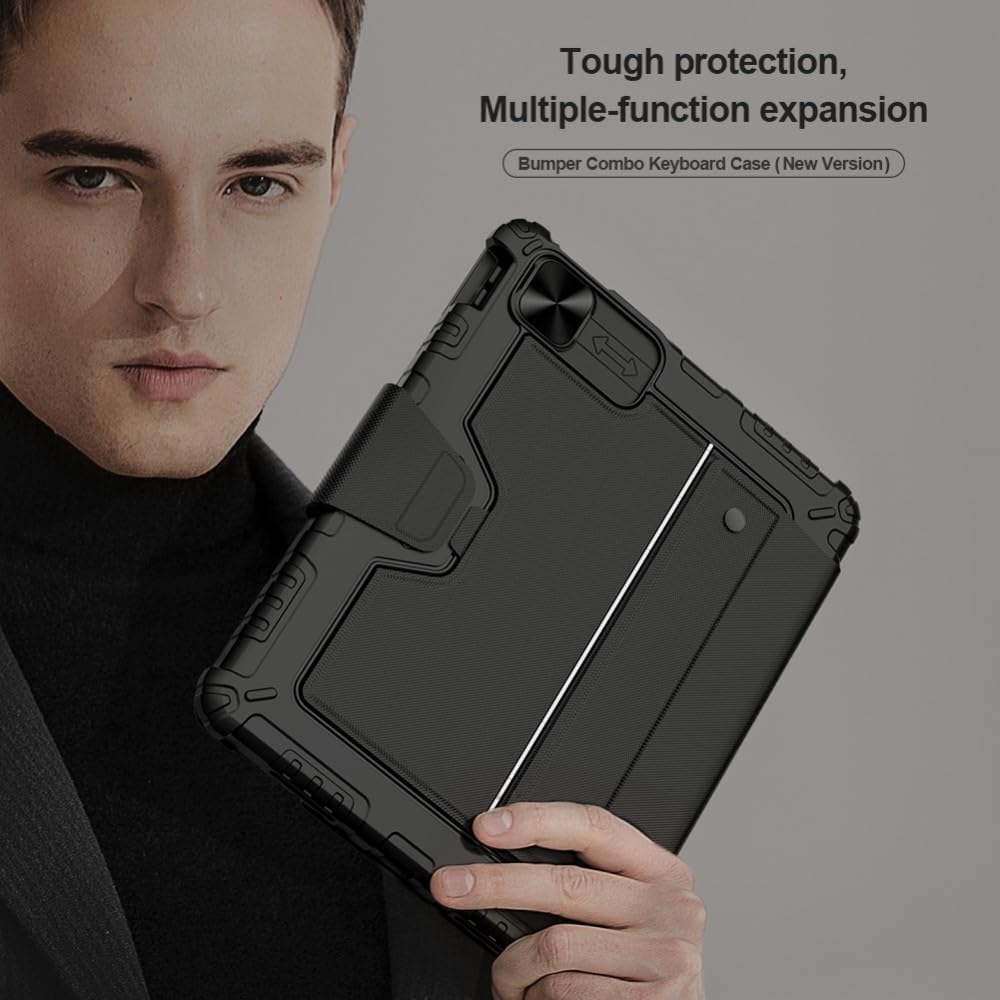
Image: The Nillkin Bumper Combo Keyboard Case, highlighting its protective and multi-functional design.
2. Co-fhreagarrachd
This keyboard case is specifically designed for the following Apple iPad models:
- iPad Air 11-inch (M2, 2024)
- iPad Air 5mh Ginealach (2022)
- iPad Air 4mh Ginealach (2020)
- iPad Pro 11-òirleach (2022/2021/2020/2018)
Compatible iPad model numbers include: A2435, A2761, A27759, A2316, A2324, A2325, A2072, A2377, A2459, A2301, A2460, A2068, A2228, A2230, A2231, A1980, A2013, A1934, A1979.
Cudromach: Please verify your iPad's model number before use. The Apple Pencil is not included.

Image: A visual guide to identifying compatible iPad models and their corresponding model numbers.
3. Pasgan-susbaint
Tha am pasgan a’ toirt a-steach:
- 1 x Nillkin Bumper Combo Keyboard Case for Apple iPad
4. Suidhich
4.1 A’ ceangal an iPad agad
- Carefully align your iPad with the case.
- Gently press the iPad into the bumper case, ensuring all edges are securely fitted. The anti-fall design will wrap tightly around the iPad's edges.
4.2 Connecting the Keyboard (Bluetooth Pairing)
- Ensure the keyboard is charged (refer to section 4.3).
- Tionndaidh air a’ mheur-chlàr leis a’ phutan cumhachd aige.
- Air an iPad agad, rach gu Suidhichidhean > Bluetooth.
- Enable Bluetooth and select the Nillkin keyboard from the list of available devices.
- Lean molaidhean air-sgrion gus am pròiseas càraidh a chrìochnachadh.
4.3 A’ cur cosgais air a’ mheur-chlàr
Connect the keyboard to a power source using the provided charging cable. A full charge typically takes 2-3 hours. Once fully charged, the wireless keyboard can remain on standby for up to 90 days.
5. Stiùireadh Obrachaidh
5.1 Cleachdadh a’ Mheur-chlàir
The keyboard features silent keys with a scissor foot structure for a comfortable and quiet typing experience. It includes various shortcut keys for quick access to functions.
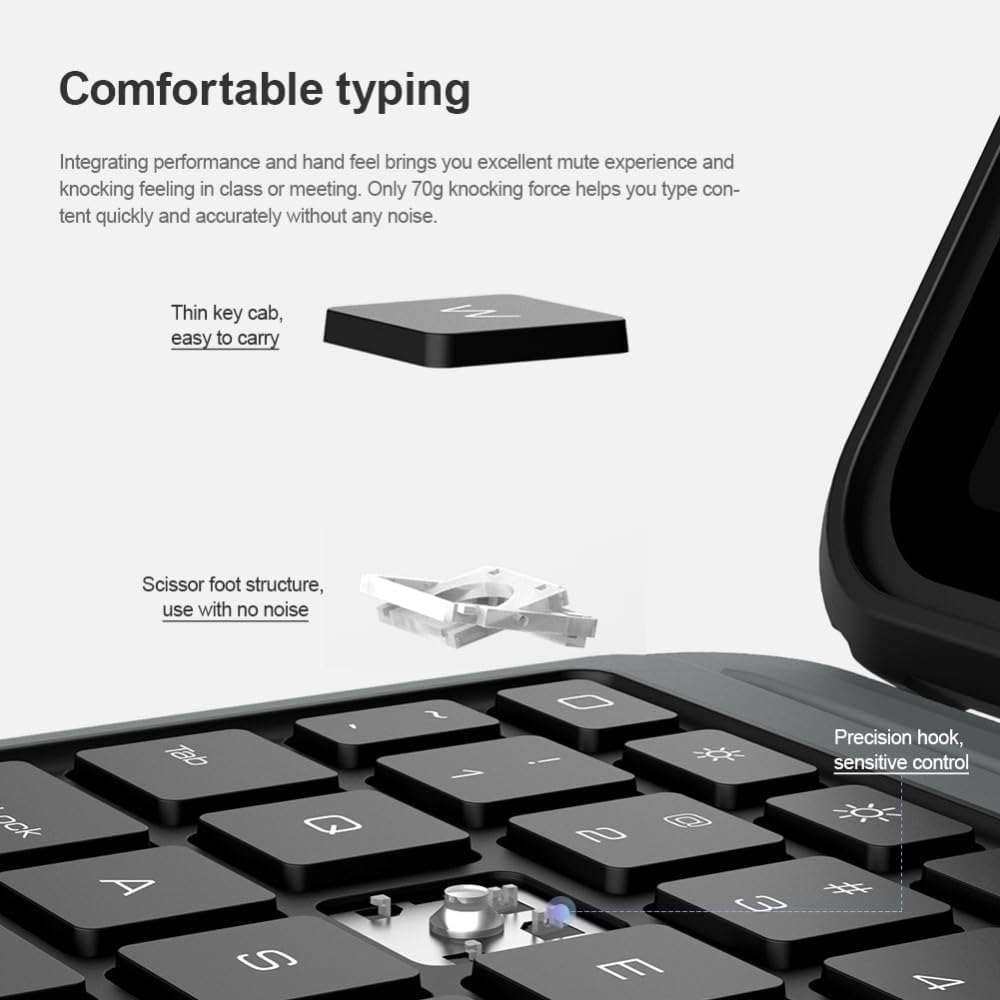
Image: Detail of the keyboard's thin keycaps and scissor foot structure, designed for quiet and precise typing.
Iuchraichean ath-ghoirid:
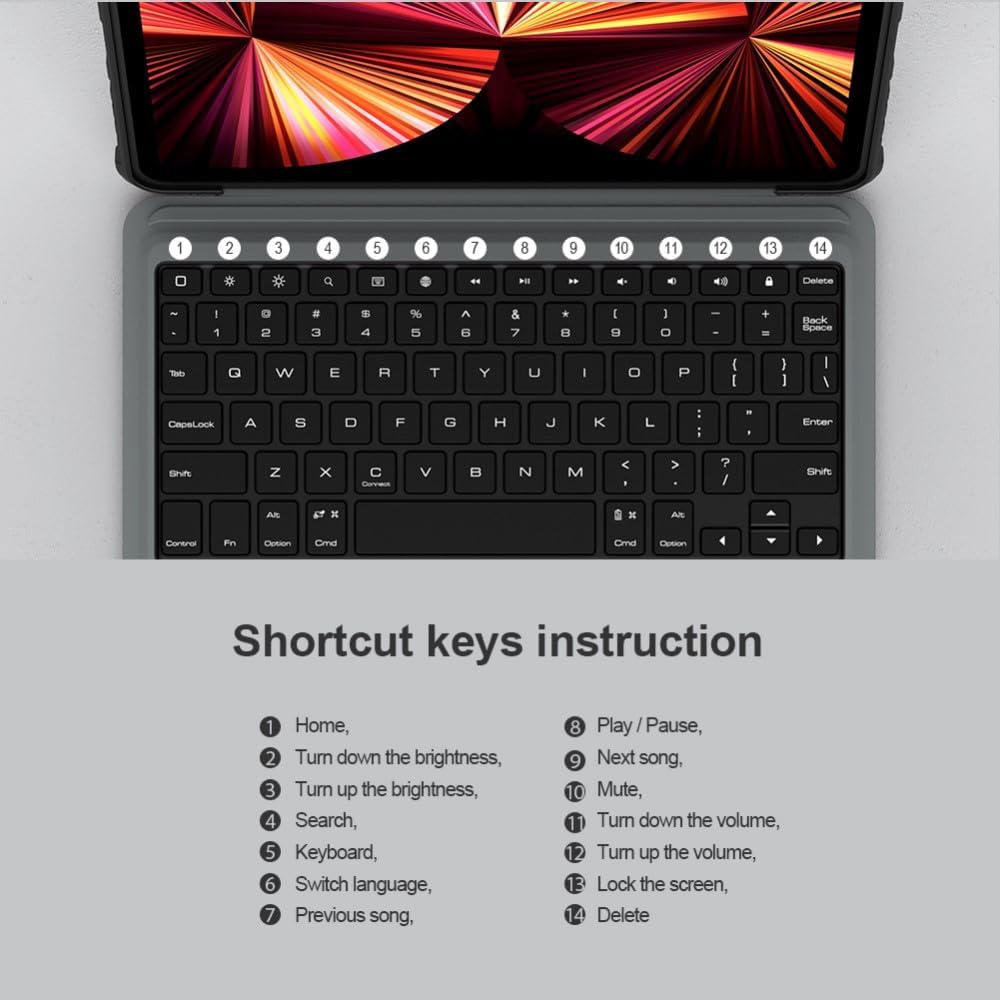
Image: An instruction guide for the keyboard's shortcut keys, detailing functions like Home, brightness adjustment, search, language switching, media playback control, and screen lock.
- Dachaigh: Gabh air ais chun sgrion dachaigh.
- Turn down brightness: Lùghdaich soilleireachd sgrion.
- Turn up brightness: Meudaich soilleireachd sgrion.
- Lorg: Activate search function.
- Meur-chlàr: Toggle virtual keyboard.
- Atharraich cànan: Change input language.
- Òran roimhe: Rach don t-slighe roimhe.
- Cluich / Stad: Cluich no stad na meadhanan.
- An ath òran: Rach don ath shlighe.
- Balbh: Cuir dheth fuaim.
- Tionndaidh sìos an tomhas-lìonaidh: Lùghdaich meud.
- Meudaich an tomhas-lìonaidh: Meudaich tomhas-lìonaidh.
- Glasadh an scrion: Lock your iPad screen.
- Sguab às: Delete character.
5.2 Trackpad Operations
The integrated trackpad supports various gestures for flexible control. To enable trackpad functionality after connecting to iPad, go to Suidhichidhean > Coitcheann > Trackpad > Tap to Click > Chrìochnaich an suidheachadh.

Image: A comprehensive guide to trackpad gestures, illustrating single-finger (swipe, click), two-finger (right click, move left/right, move up/down), and three-finger (back to home, switch multiple tasks, switch different pages) operations.
Gesture Guide:
- Meur singilte:
- Swipe: Move the mouse.
- Click: Left click.
- Dà Mheur:
- Click with two fingers: Right click.
- Swipe left or right: Move left or right.
- Swipe up or down: Move up or down.
- Trì Meuran:
- Swipe up: Back to the home page.
- Swipe up and hold: Switch between multiple tasks.
- Swipe left or right: Switch between different pages.
The keyboard also features anti-mistouch technology, which automatically disables the touchpad when typing to prevent accidental cursor movements, allowing you to concentrate on your work.

Image: An iPad in the keyboard case, illustrating the anti-mistouch technology that disables the trackpad during typing.
5.3 Seas a ghabhas atharrachadh
The flexible stand allows you to adjust the viewing angle between 0° and 180° to suit your needs for typing, viewing, reading, or sketching. The mechanical hinge structure ensures stability.

Image: The adjustable stand in action, demonstrating the range of viewing angles from 0° to 180° for optimal comfort.
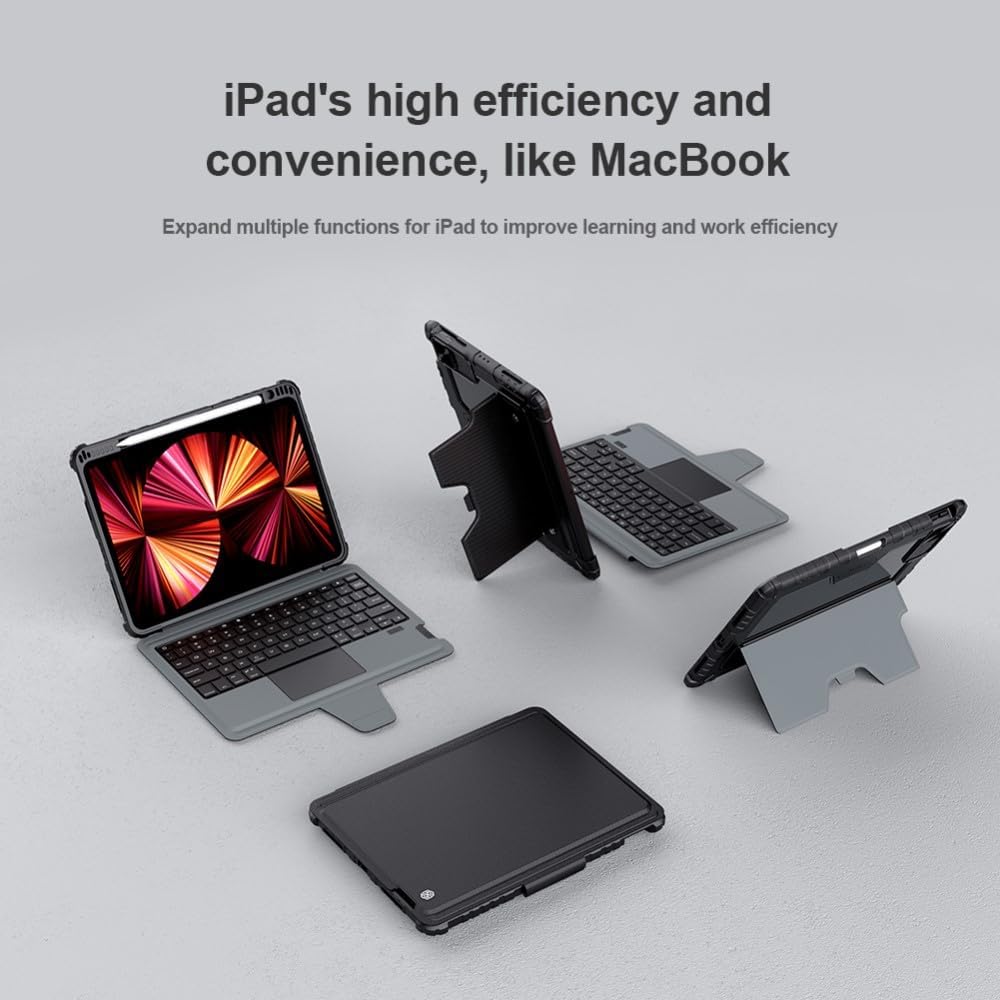
Image: Various usage modes of the keyboard case, illustrating how it can be configured for different tasks like typing, viewing, and drawing.
5.4 Camera Protection
The case features a patented sliding camera cover made of metal, with a 1.1mm lifted bezel. This design effectively protects your iPad's camera from wear, scratches, and collisions.

Ìomhaigh: Mion-fhiosrachadh view of the sliding camera cover, demonstrating its protective function and how it prevents scratches and dust accumulation.
5.5 Neach-gleidhidh Peansail Apple
The case includes a dedicated holder for your Apple Pencil. When placed in the slot, the Apple Pencil will charge securely.

Image: The Apple Pencil holder, showing the pencil securely stored and charging within the case.
5.6 Power Management (Intelligent Sleep)
To conserve power, the keyboard will automatically enter standby mode if there is no operation within 10 minutes. You can wake it up by pressing any key. Closing the case will also automatically put the tablet to sleep.

Image: The keyboard's intelligent sleep feature, which automatically puts the device into standby after 10 minutes of inactivity to save power.
6. Cumail suas
- Clean the case and keyboard regularly with a soft, dry cloth.
- Avoid using harsh chemicals or abrasive materials, as these may damage the surface.
- Keep the case away from extreme temperatures and direct sunlight.
- Dèan cinnteach gu bheil am port cosgais saor bho dhuslach is sprùilleach.
7. A ’dèanamh trioblaid
- Meur-chlàr gun cheangal: Ensure Bluetooth is enabled on your iPad and the keyboard is powered on and charged. Try re-pairing the keyboard via iPad's Bluetooth settings.
- Chan eil na h-iuchraichean a’ freagairt: Check if the keyboard is charged. If the issue persists, try restarting both the iPad and the keyboard.
- Trackpad nach eil ag obair: Ensure the trackpad is enabled in iPad settings (Settings > General > Trackpad > Tap to Click). Check for any physical obstructions.
- Beatha bataraidh goirid: Ensure the keyboard is fully charged. Reduce usage of backlight (if applicable) and ensure the intelligent sleep function is active.
8. Sònrachaidhean
- Brand:
- Nillkin
- Àireamh Modail:
- 6902048257955
- Dath:
- Dubh
- Innealan co-fhreagarrach:
- Apple iPad Air 11 2024/10.9 2020/Air 4/Air 5/Pro 11 2020/2021/2022
- Factor foirm:
- Cùis
- Seòrsa Cùis:
- Cruaidh
- Stuth:
- Polycarbonate
- Max. Compatible Device Size:
- 11 Inch
- Feartan sònraichte:
- Sliding Camera Cover, Pencil Holder, Trackpad
- Pàtran:
- Solamh
- Ìre an aghaidh uisge:
- Gun a bhith an aghaidh uisge
- Co-phàirtean air an toirt a-steach:
- 1 x Nillkin Bumper Combo Keyboard Case for Apple
- Bataraidhean:
- 1 Product specific battery required (included)
- Meud pacaid:
- 31 x 22 x 3.5cm; 840g
- Dùthaich Tùs:
- Taiwan
9. Barantas agus Taic
Information regarding product warranty and customer support is not specified in the provided product data. Please refer to the retailer or manufacturer's official website for details on warranty coverage and support options.