
Ro-ràdh
This manual provides detailed instructions for the installation, operation, maintenance, and troubleshooting of your wisecoco 12.6 Inch Bar LCD Screen HDMI Display Monitor. This monitor is specifically designed to integrate seamlessly with the Hyte Y60 PC case, serving as an excellent secondary display for monitoring system performance, displaying custom visuals, or extending your desktop.

Figure 1: The 12.6-inch bar LCD screen displaying real-time system performance data.
Stàladh agus stàladh
The wisecoco 12.6 Inch Bar LCD Screen is designed for easy installation, particularly within the Hyte Y60 PC case. The package includes all necessary components for a straightforward setup.
Susbaint pacaid
Mus tòisich thu air an stàladh, dèan cinnteach gu bheil a h-uile nì anns a’ phacaid:
- 12.6-inch Bar LCD Screen
- 3.5mm DC Power Cable
- HDMI gu Càball Mini HDMI
- Draibhearan airson crois-bhogha

Figure 2: Included accessories: DC power cable, HDMI to Mini HDMI cable, and a screwdriver.
Installation Steps (for Hyte Y60 PC Case)
- Ullaich Cùis a’ PC: Ensure your Hyte Y60 PC case is powered off and unplugged. Carefully remove the side panel where the monitor will be installed.
- Mount the Screen: The screen features a bracket specifically designed to fit the Y60 case panel. Align the screen with the designated slot on the case. Use the provided screwdriver to secure the screen in place. No additional screws are typically required.
- Ceangail càball bhidio: Connect one end of the HDMI to Mini HDMI cable to the Mini HDMI port on the monitor. Connect the other end to an available HDMI port on your graphics card (GPU) or motherboard.
- Ceangail càball cumhachd:
- Connect the 3.5mm DC power cable to the DC 3.5mm port on the monitor. The other end of this cable typically connects to a power source within your PC.
- Alternatively, the screen can be powered via a Micro USB A cable (not included). If using Micro USB A, ensure the input is 5V500mA. If using the DC cable, the input should be 5V2A.
- Riaghladh càbaill: Route the cables neatly within your PC case to avoid interference with fans or other components.
- Cumhachd air: Once all connections are secure, replace the PC case panel, plug in your PC, and power it on. The monitor should be detected as a secondary display.

Figure 3: Visual guide for installing the secondary monitor into the Hyte Y60 PC case.

Figure 4: The monitor seamlessly integrated into a Hyte Y60 PC case, displaying custom visuals.

Figure 5: Dimensions and port layout of the 12.6-inch bar LCD screen.
Stiùireadh Obrachaidh
The wisecoco 12.6 Inch Bar LCD Screen functions as a standard secondary display, compatible with PCs and laptops. It offers versatile display options and user-friendly controls.
Feartan taisbeanaidh
- Fuasgladh: 1920x515 IPS panel for clear and vibrant visuals.
- Ùine freagairt: 3-5ms for smooth motion.
- Viewann an ceàrn: 178 ° de leud viewing angle ensures consistent image quality from various perspectives.
- Ìre Ath-nuadhachaidh: 60Hz standard refresh rate.
- Co-mheas coimeas: 1000: 1 airson daoine dubha domhainn agus gealaichean soilleir.
- Luchd-labhairt Togte: Integrated dual speakers provide audio output.

Figure 6: The monitor features a 178° full viewing angle and IPS technology for superior image quality.
Figure 7: The Wisecoco monitor includes built-in speakers for convenience.
Modhan taisbeanaidh
The monitor supports both landscape and portrait modes, allowing for flexible integration into your setup. You can adjust the display orientation through your operating system's display settings.

Figure 8: The monitor supports both portrait and landscape display orientations.
On-Screen Display (OSD) Controls
The monitor features physical buttons on the back for accessing the OSD menu and controlling basic functions:
- Stòr: Switches between available video inputs (e.g., Mini HDMI 1, Mini HDMI 2).
- Leabhar +/-: Adjusts the audio output level of the built-in speakers.
- Clàr-bìdh: Accesses the OSD menu for advanced settings (brightness, contrast, color, etc.).
- Cumhachd: Tionndaidh an monitor air no dheth.
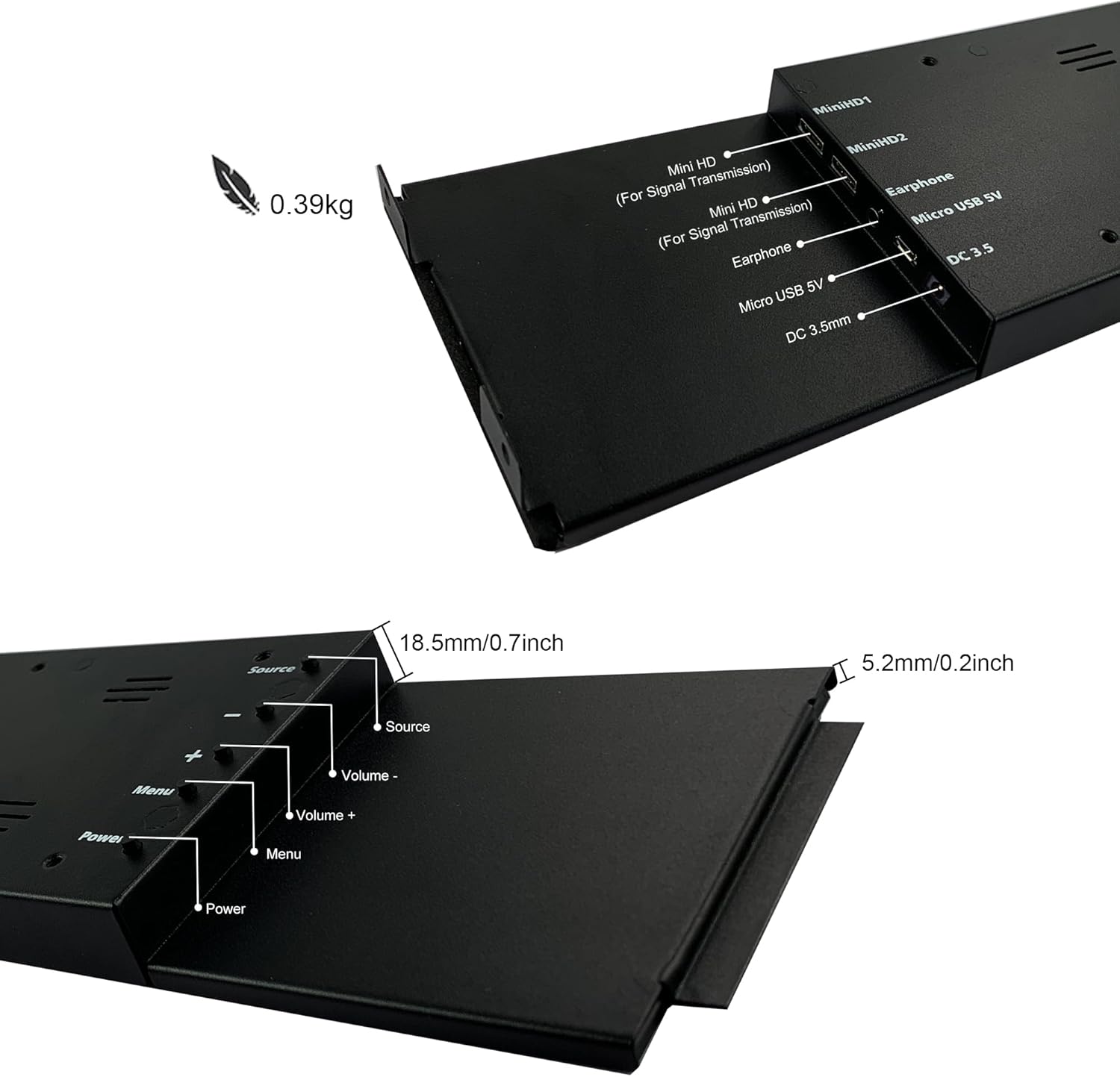
Figure 9: Location of control buttons and ports on the side of the monitor.
Cumail suas
Nì cumail suas ceart cinnteach gum mair an monitor agad fad-beatha agus gum bi e ag obair gu math.
- Glanadh an sgrion: Cleachd clò bog, gun lint a chaidh a dhealbhadh gu sònraichte airson electronics. Airson comharran stòlda, suathadh gu socairampen the cloth with water or a screen-cleaning solution. Avoid harsh chemicals, abrasive materials, or spraying liquid directly onto the screen.
- Glanadh coitcheann: Sguab às c an sgrìnasing le clò bog, tioram.
- Fionnarachadh: Dèan cinnteach nach eil fosglaidhean fionnarachaidh an monitor air am bacadh gus casg a chur air cus teasachadh.
- Suidheachaidhean Àrainneachdail: Avoid exposing the monitor to extreme temperatures, high humidity, or direct sunlight.
- Cumhachd dheth nuair nach eilear ga chleachdadh: For extended periods of inactivity, it is recommended to power off the monitor.
Fuasgladh thrioblaidean
If you encounter issues with your wisecoco monitor, refer to the following common problems and solutions:
| Trioblaid | Adhbhar a dh’fhaodadh a bhith ann | Fuasgladh |
|---|---|---|
| No display / "No Signal" message |
|
|
| Screen flashes red, blue, or green when PC sleeps | Specific display settings or driver interaction. | Access the monitor's OSD menu and navigate through settings. Sometimes simply accessing and exiting the menu can resolve this. Ensure GPU drivers are updated. |
| No audio from built-in speakers |
|
|
| Half of the screen not working | Hardware defect or severe connection issue. |
|
Sònrachaidhean Bathar
Detailed technical specifications for the wisecoco 12.6 Inch Bar LCD Screen HDMI Display Monitor:
| Feart | Sònrachadh |
|---|---|
| Meudan toraidh | 1 x 4 x 13 òirleach |
| Cuideam nì | 1.74 not |
| Dèanadair | Wisecoco |
| Àireamh Modail Nì | R126F01-HB |
| Meud taisbeanaidh sgrion seasmhach | 12.6 òirlich |
| Co-mheas taobh | 32:9 |
| Voltage | 5 bholt (DC) |
| Fuasgladh | 1920 x 515 |
| Brand | wisecoco |
| Meud sgrion | 12.6 òirlich |
| Tuairisgeul air uachdar na sgrìn | Snasail |
Barantas agus Taic
Wisecoco is committed to providing high-quality products and customer satisfaction.
- Barantas: Bidh an toradh seo a’ tighinn le barantas 12 mìosan bhon cheann-latha ceannach.
- Gealladh Airgead air ais: Tha gealladh airgead air ais 30-latha air a thabhann.
- Taic teachdaiche: Tha taic luchd-cleachdaidh 24-uair ri fhaighinn airson ceistean no taic sam bith.
For warranty claims, technical support, or any other questions, please contact Wisecoco customer service through the official channels provided at the point of purchase or on the Wisecoco brand weblàrach.

Figure 10: Wisecoco's commitment to customer satisfaction.